Correct the people or purpose on completed meeting notes
Correct the people or purpose on completed meeting notes
Find the completed meeting in Timeline or in the Events list of the related record. Check its title and date. If you own the event, choose its edit pencil to open Edit completed meeting notes.
Correct the meeting details
| Field | What you can change |
|---|---|
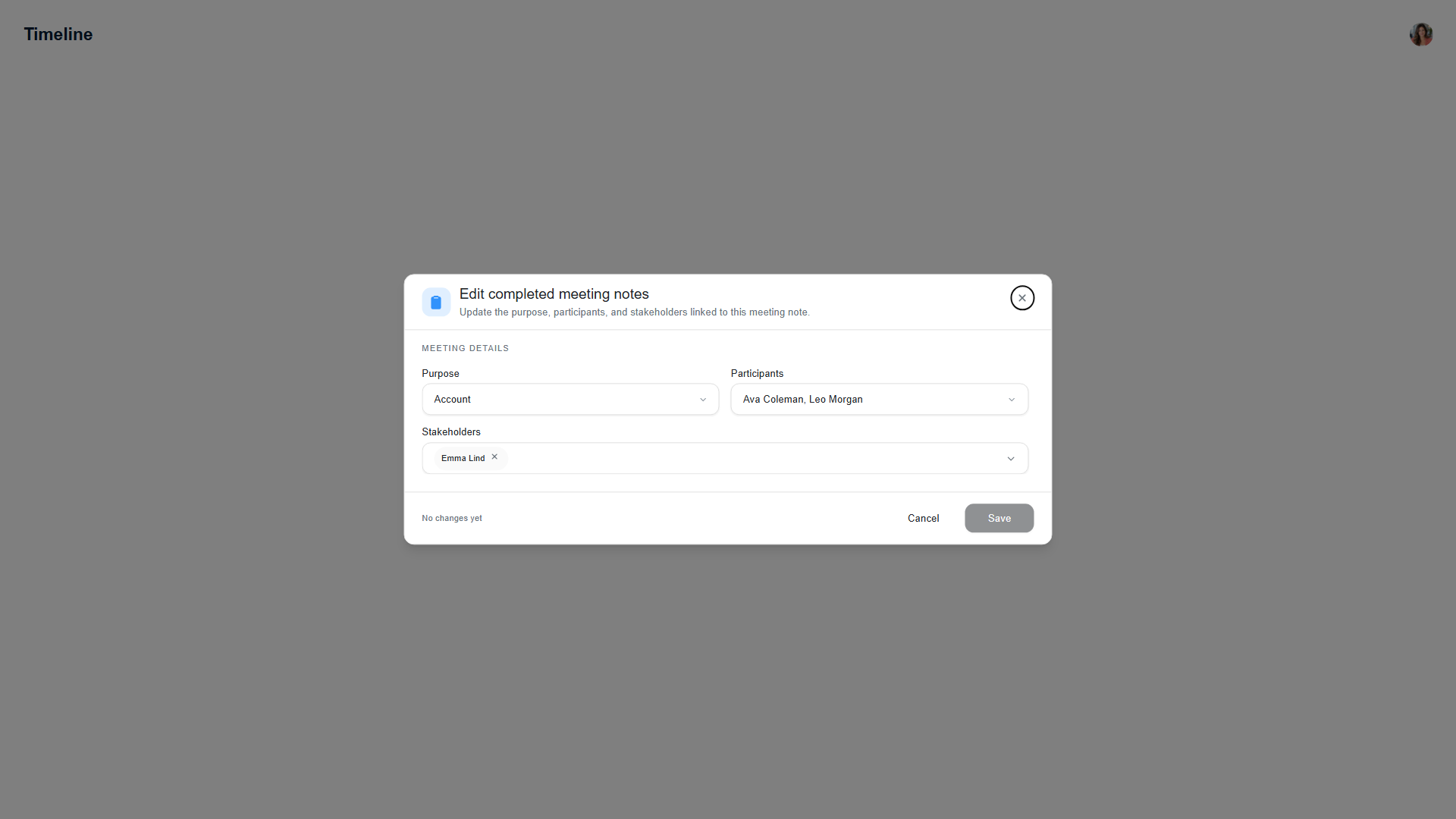
| Purpose | The reason for the meeting, such as an initial discussion or a follow-up. |
| Participants | Workspace teammates linked to the meeting. |
| Stakeholders | Contacts from the account or deal who should be linked to the event. |
Review the current values, make the intended corrections and choose Save when the form shows Ready to save. Use Cancel to leave the draft. The edit applies to the meeting details. The captured transcript, recording and generated notes remain available in the completed meeting view.
Image guide: At first the editor shows the saved Purpose, Participants and Stakeholders and reports No changes yet.
Check whether the edit is ready
The editor starts with No changes yet. For example, open Purpose and choose Planning to enable Save. Review the team and stakeholders before saving. If the participants shown in the transcript differ from the saved event, use this editor to correct the linked records. The transcript text stays with the original recording.
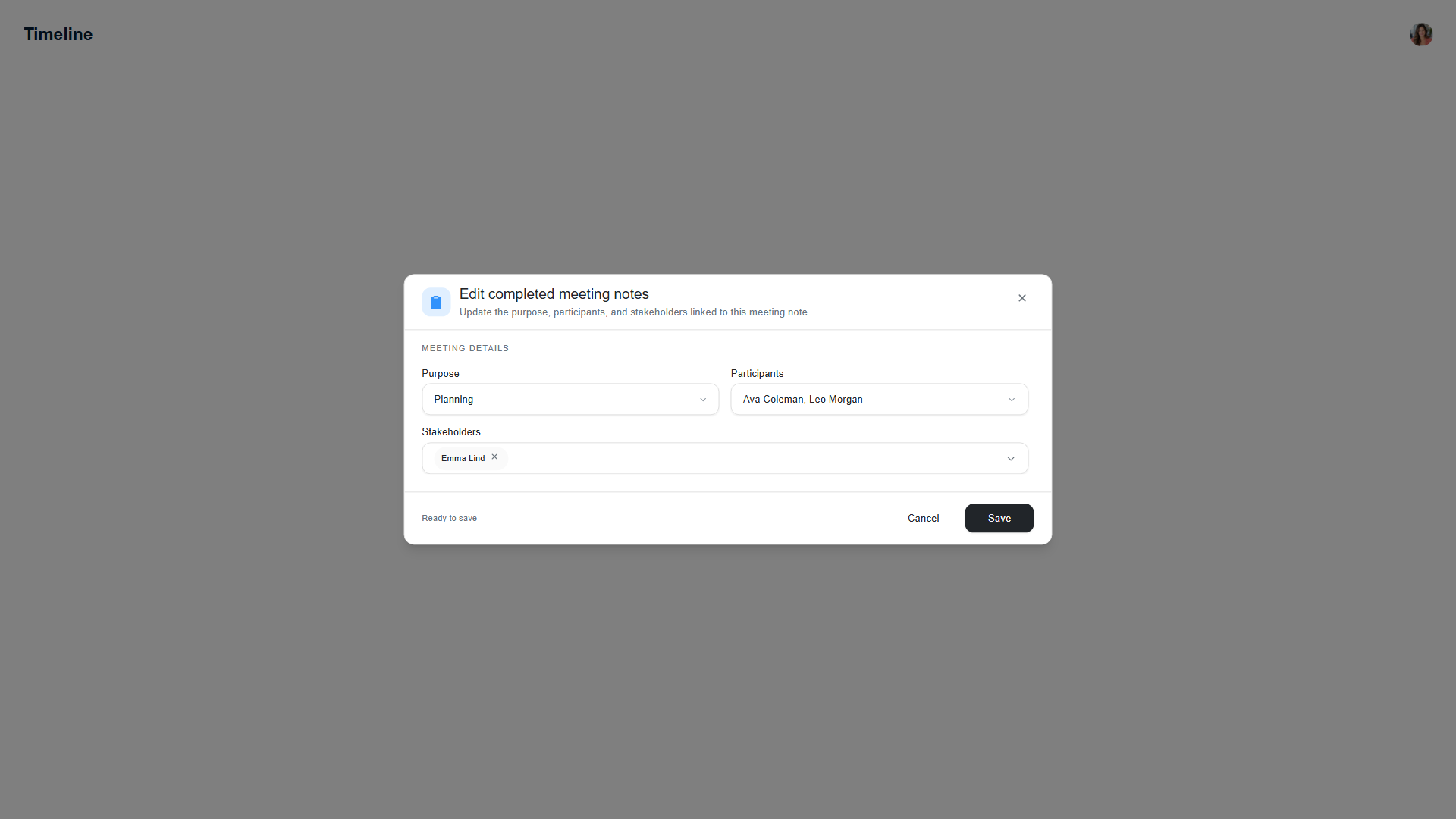
Image guide: Changing Purpose to Planning shows Ready to save and enables Save.
Verify the update
Return to the event and reopen its details to check the saved values. If the pencil is unavailable, check whether you own the completed event. If saving fails, read the message and review the still-open draft before retrying.