Stakeholder events
Stakeholder events
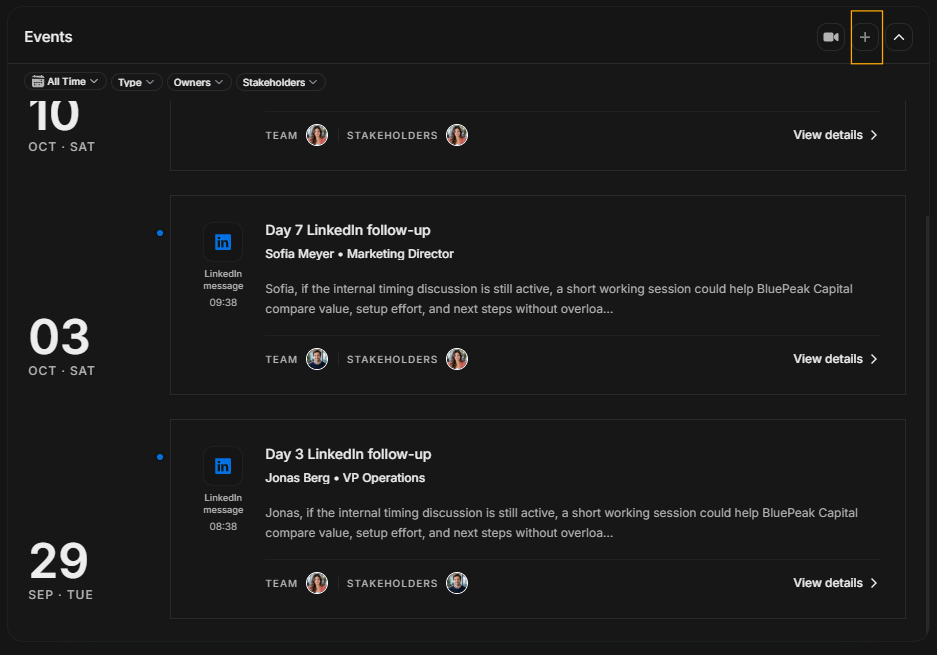
Events is the stakeholder timeline for meetings, scheduled note-taking, call notes, AI summaries, transcripts, and follow-up context. Read this page from top to bottom because it follows the real workflow: first find the Events panel, then create or schedule an event, then open an event card, then use filters when the list becomes too large.
Start from the Events list
Image guide: This is the main Events section for a stakeholder. Use it to understand relationship history around this person. The timeline is grouped by date on the left, and each event card appears on the right with the title, account context, stakeholder names, summary preview, status, purpose, team, stakeholders, participants, and an Open notes action.
Use this view to decide whether you need to add a new event, schedule meeting note-taking, open an existing event, or narrow the timeline with filters.
Create Event
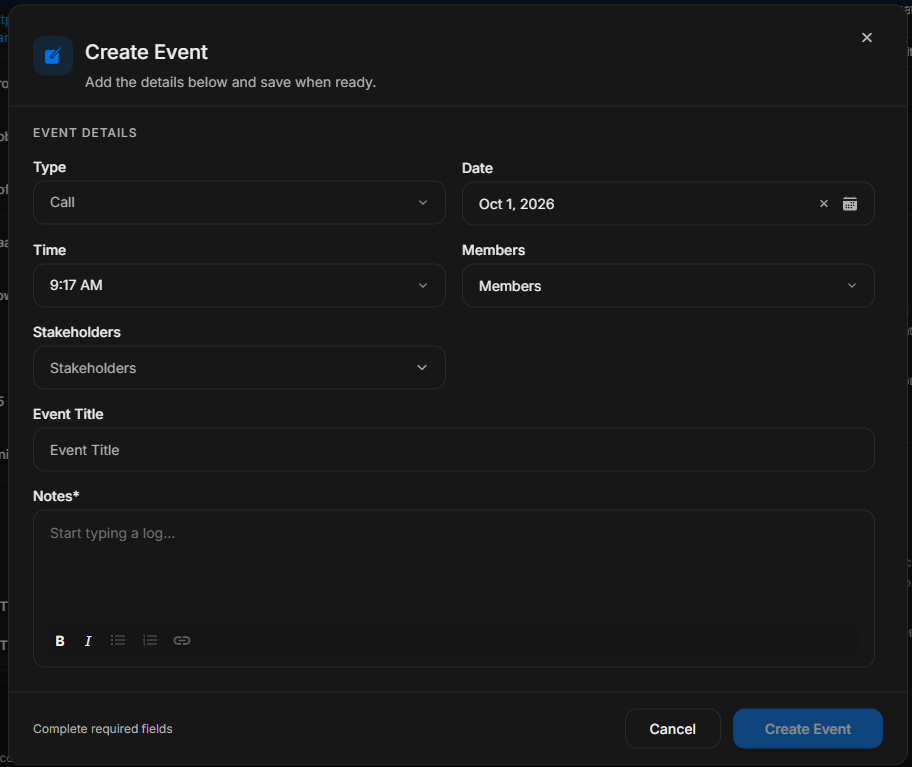
Image guide: The Create Event modal is for manually saving activity. Complete the event type, date, time, internal members, stakeholders, title, and notes. Add enough context so another team member can understand what happened without asking for clarification.
Use Create when the event is ready to save. Use Cancel only when the record should not be added to the timeline.
Schedule Meeting Note Taker
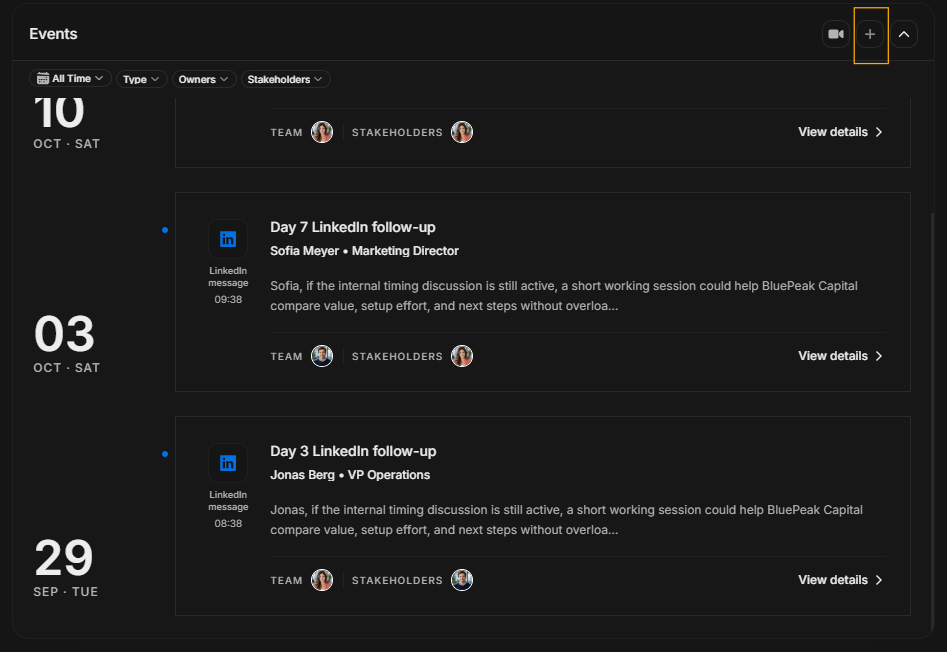
Image guide: Schedule Meeting Note Taker is used for upcoming meetings where DOE should capture meeting notes and later produce summary, analysis, and transcript content.
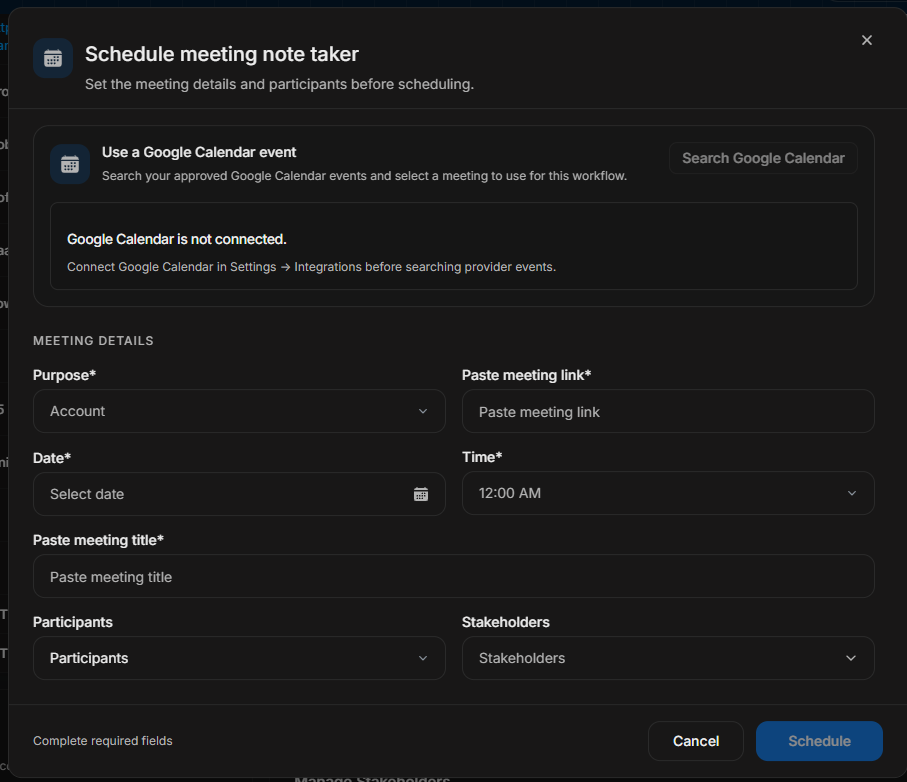
Image guide: The Schedule Meeting Note Taker modal captures the meeting title, provider, date, time, team members, stakeholders, and meeting context. Fill it carefully so the scheduled note taker is attached to the correct record and meeting.
Open a created event
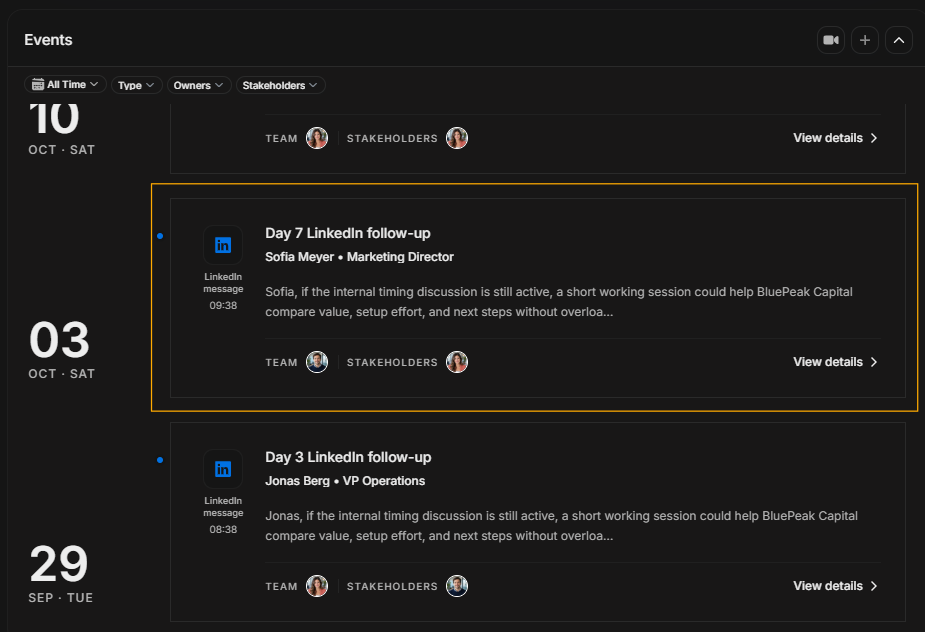
Image guide: After an event exists, open it from the event card. The event card is the decision point: read the title and preview first, confirm the status and participants, then select Open notes when you need the full meeting content.
Opening the created event takes the user into the event note experience, where the summary, analysis, meeting note, and transcript are reviewed.
Read the AI summary first
Image guide: The AI Summary gives the quickest version of what happened. Start here when the user needs the meeting outcome, major discussion points, and practical context without reading the full note or transcript.
If the AI Summary is still being generated, wait a few minutes and refresh the event note before using it for follow-up.
This is the best first stop for sales or account users who need to understand the event before taking the next action.
Review the AI analysis
Image guide: AI Analysis expands the event into structured sections. Use it to understand themes, risks, objections, next steps, and movement. This view is useful when preparing follow-up, updating the CRM, or briefing another team member.
If the AI Analysis is still being generated, wait a few minutes and refresh before using the structured insights.
Image guide: The toolbar belongs to the opened event note area. Use it after confirming you are looking at the correct event. It helps the user work with the generated content instead of going back to the timeline.
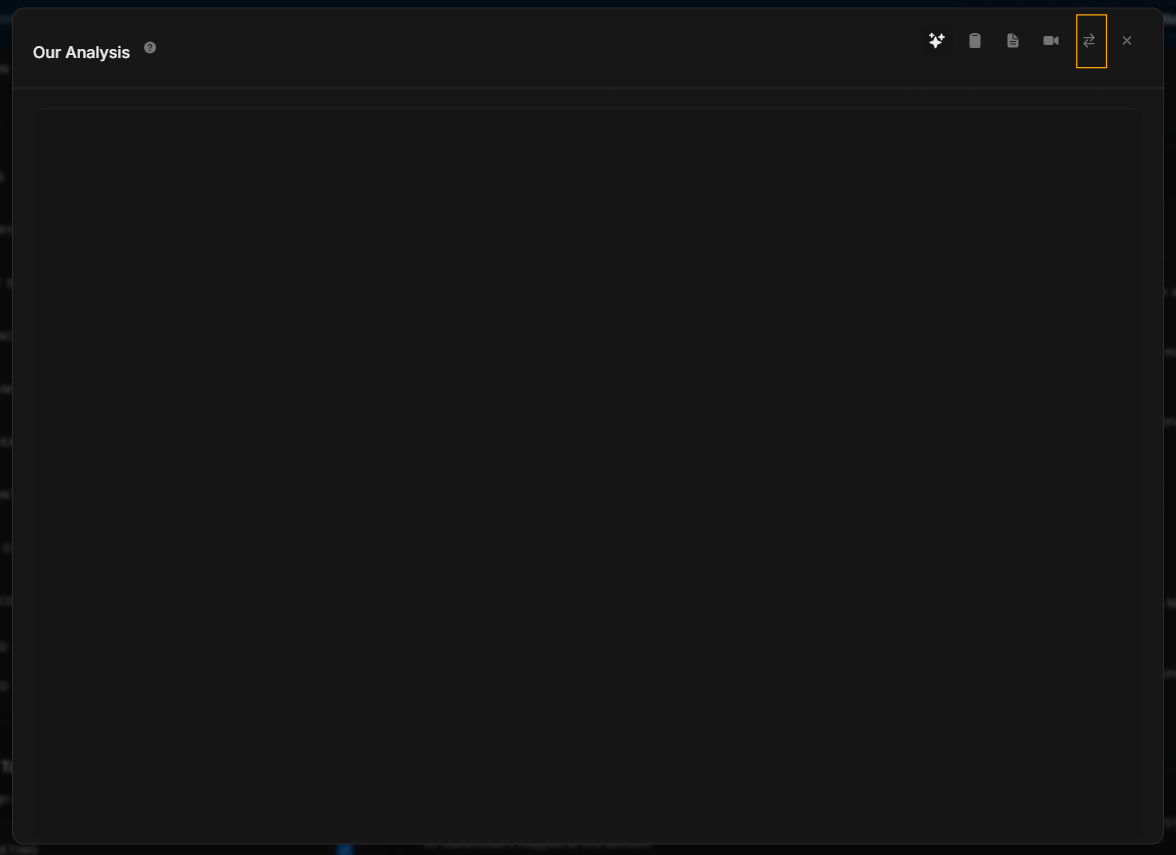
Image guide: The more-actions menu exposes extra actions for the event note. Use it only after checking the event title and context so content is not exported or handled from the wrong meeting.
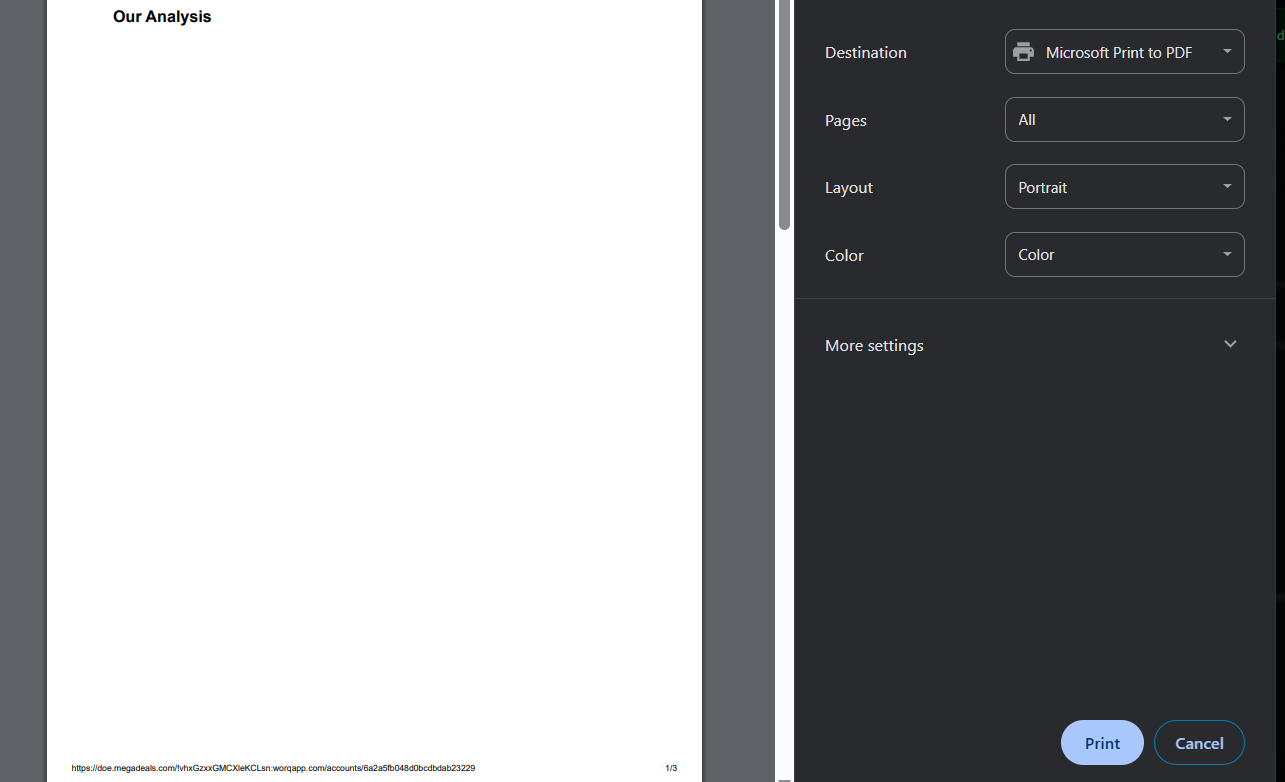
Image guide: The print/export dialog is for taking event content outside the live page. Use it when the meeting summary, notes, or analysis must be shared, archived, or reviewed offline.
Read the meeting note
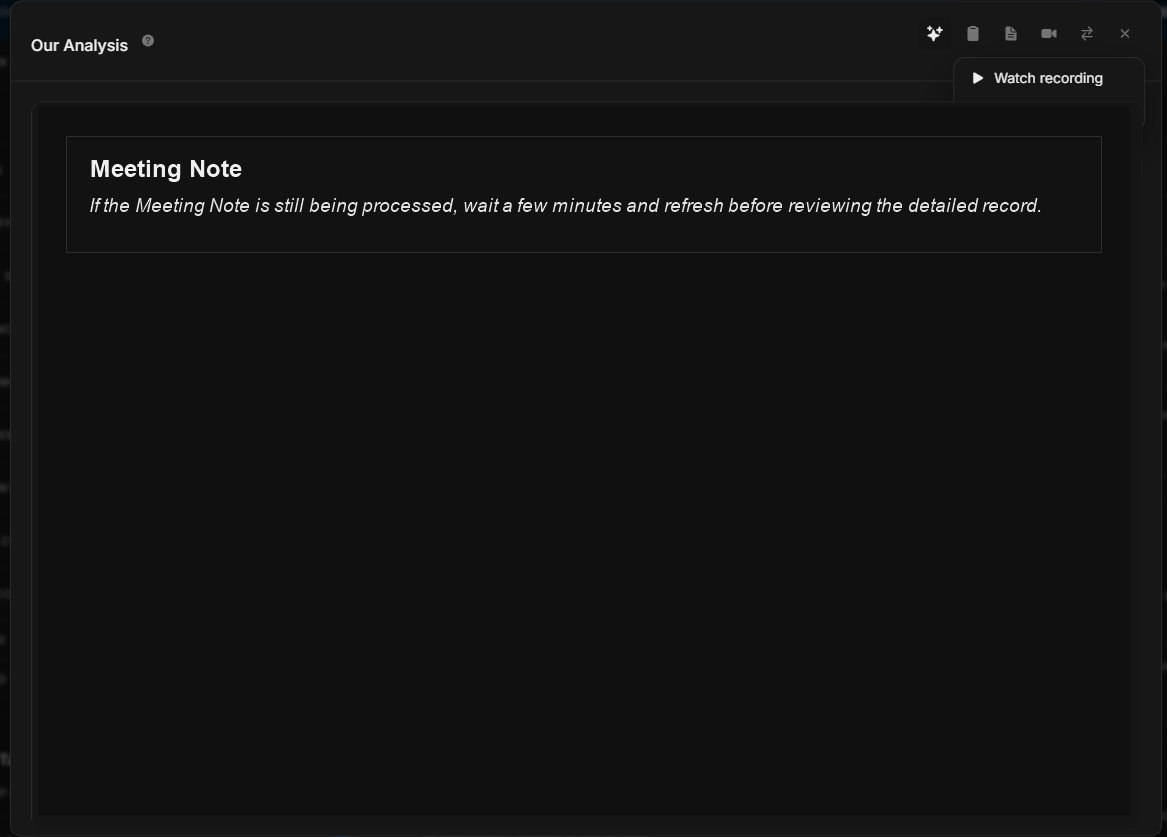
Image guide: Meeting Note is the detailed written record of the event. Use it when the AI Summary is too short and the user needs fuller meeting context, exact decisions, blockers, objections, or follow-up commitments.
If the Meeting Note is still being processed, wait a few minutes and refresh before reviewing the detailed record.
Open the transcript
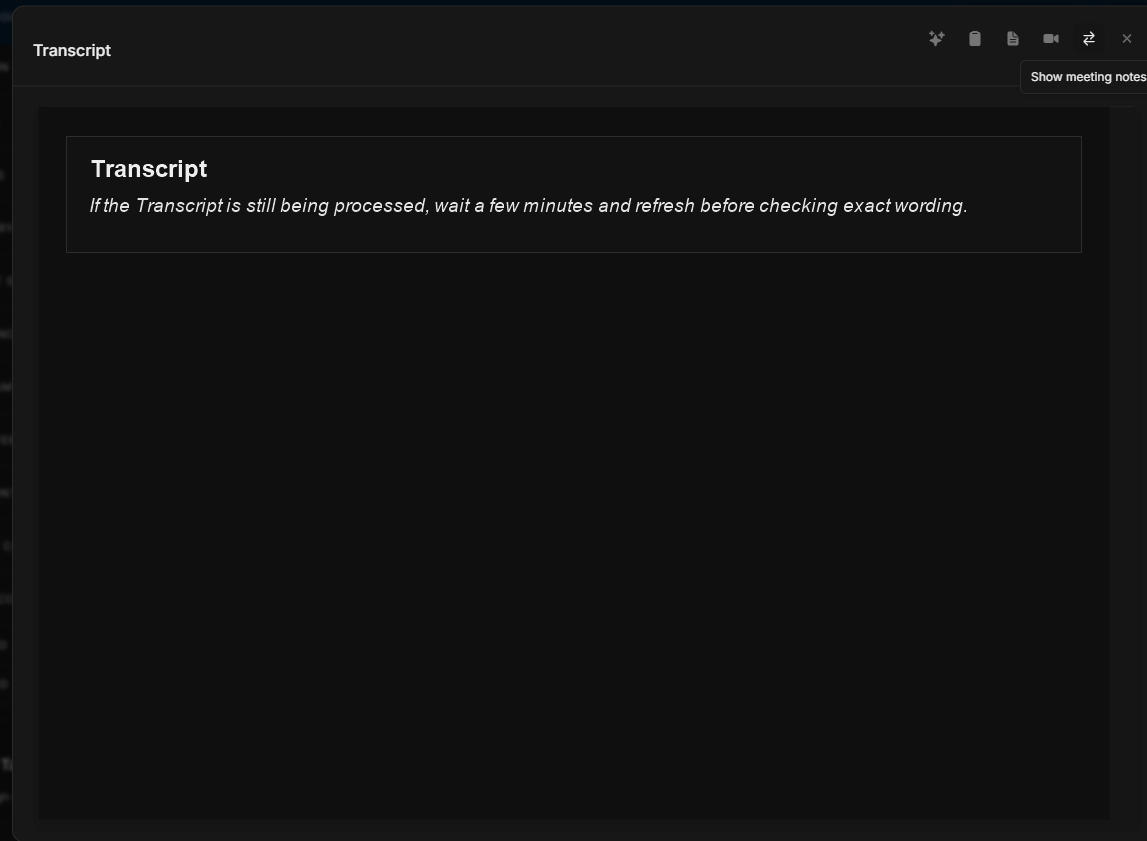
Image guide: Transcript is the deepest verification layer. Use it when exact wording matters: names, promised actions, pricing comments, objections, requirements, or anything that should be checked before updating the record or CRM.
If the Transcript is still being processed, wait a few minutes and refresh before checking exact wording.
Filter by date
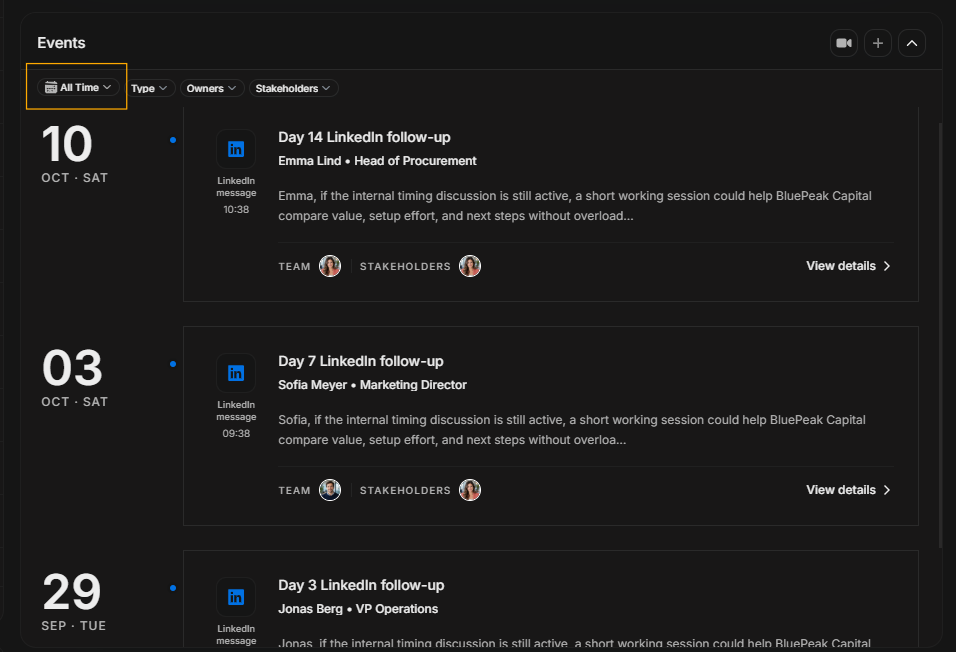
Image guide: All Time controls the date range for the Events timeline. Use this first when there is too much history and the user only needs recent activity.
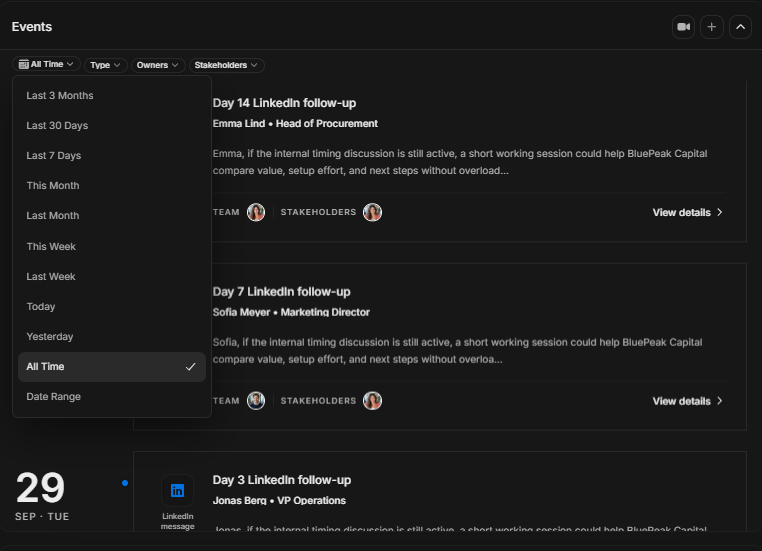
Image guide: The opened date menu lets the user choose a time range. Select a narrower range for active follow-up work, and switch back to a broader range when researching older history.
Filter by event type
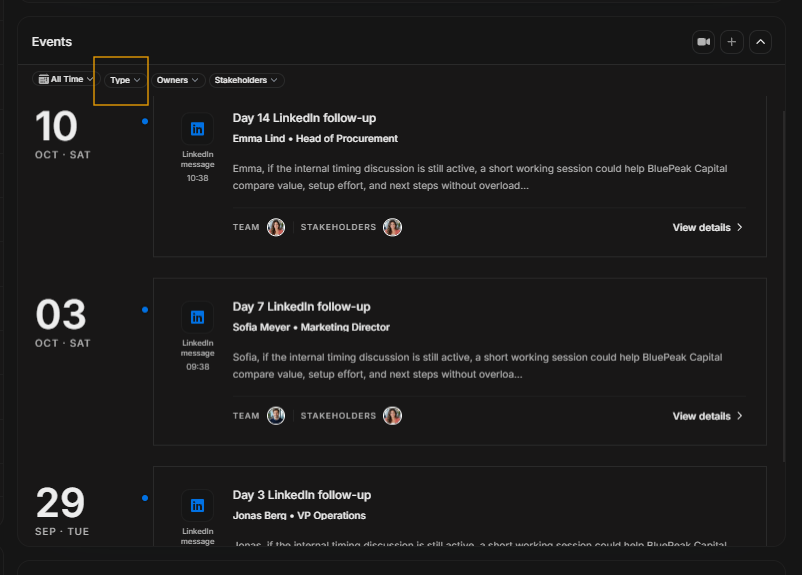
Image guide: Type narrows the timeline by event category. Use it when the user wants to see only meetings, calls, notes, or another specific event type.
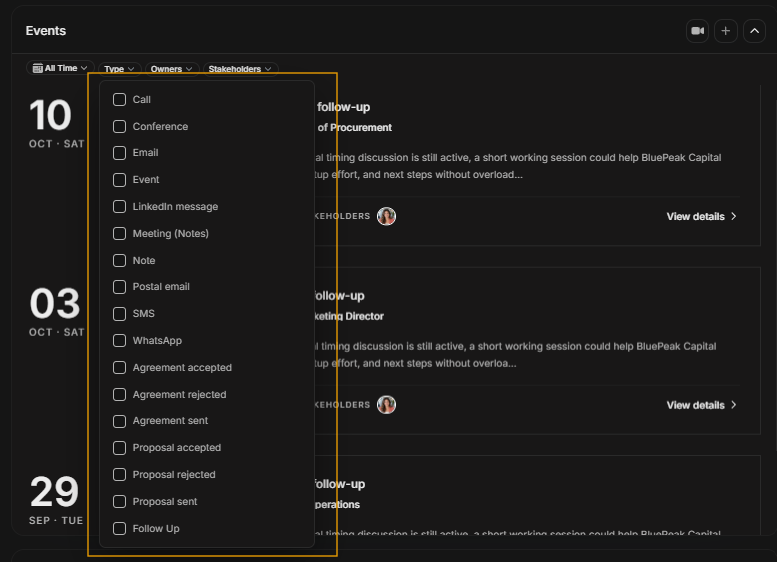
Image guide: The opened Type dropdown shows the available event categories. Select one or more types, review the filtered results, then clear the filter before switching to a different research task.
Filter by owners
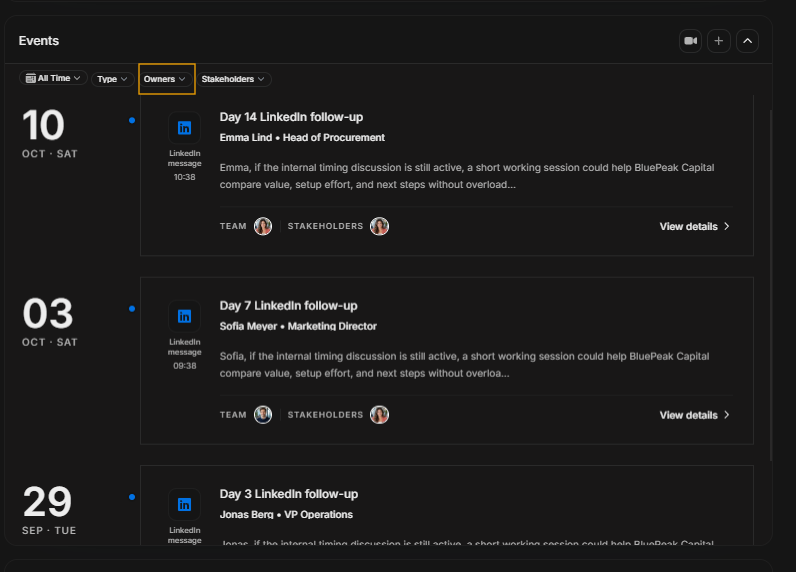
Image guide: Owners filters events by internal team members. Use it when reviewing activity owned by a specific seller, account manager, or team member.
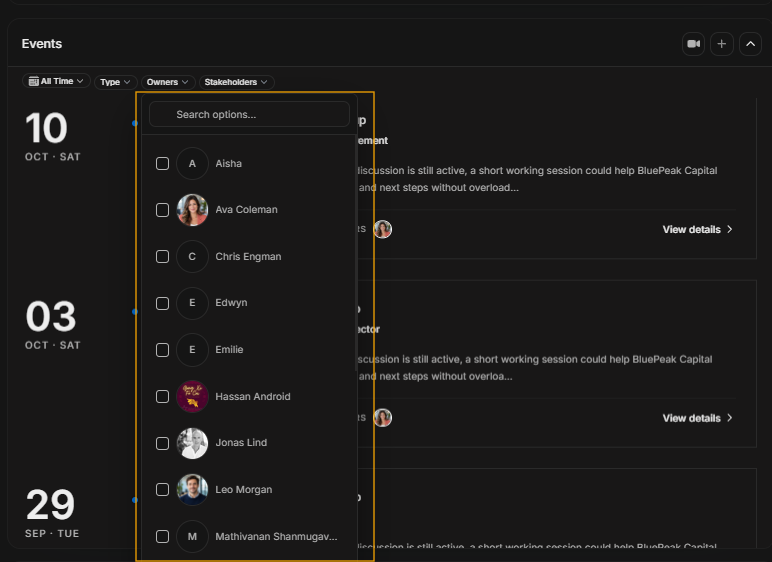
Image guide: The opened people selector lets the user search and select one or more owners. This is useful when the timeline has many events across several internal users.
Filter by stakeholders
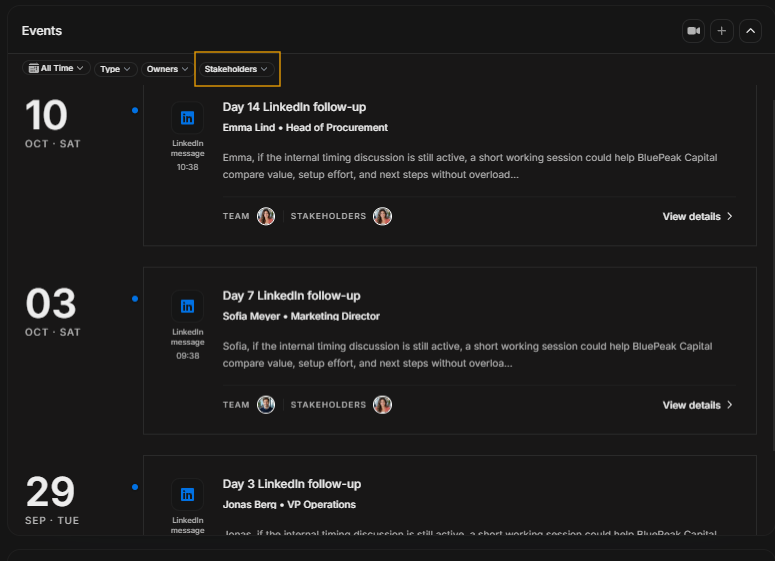
Image guide: Stakeholders filters events by people connected to the record. Use it when the user wants to understand activity around a specific buying group member, champion, decision maker, or contact.
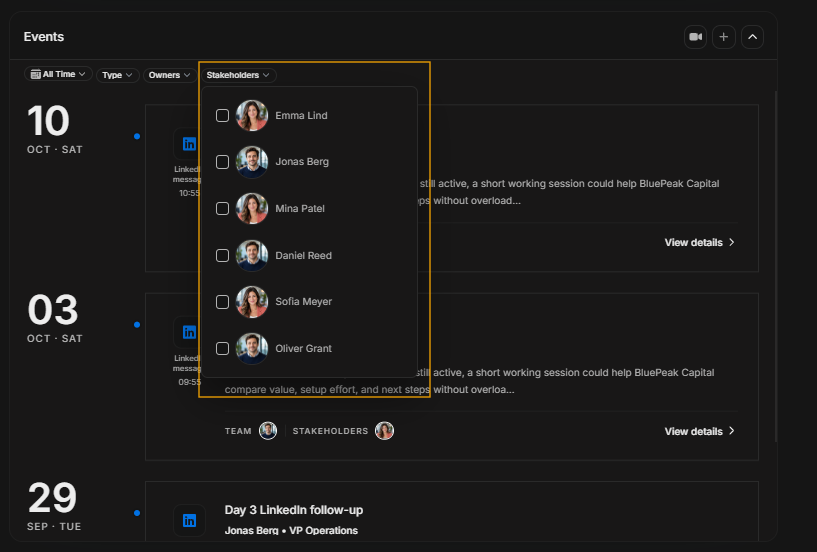
Image guide: The opened stakeholder selector lets the user search and pick the person whose event history matters. This keeps the timeline focused on the relationship being researched.
Recommended journey
- Start on the Events list and scan the newest cards.
- Create a manual event when activity needs to be recorded by hand.
- Schedule meeting note-taking for an upcoming meeting.
- Click Open notes on a created event to review the event modal and notes.
- Read AI Summary first for fast context.
- Use AI Analysis for structured insight and next actions.
- Use Meeting Note for the detailed written record.
- Use Transcript when exact wording must be verified.
- Apply filters in pairs: choose the filter, then use its opened dropdown.
Events versus activities
| Events | Activities |
|---|---|
| Meetings, notes, scheduled note-taking, summaries, analysis, transcripts, and follow-up context. | System or audit-style activity records that explain what changed. |