Filter reports by audience, targeting or Segment
Filter reports by audience, targeting or Segment
Open the report that measures the activity you want to compare. Choose Filter and check which options the report provides.
Choose the report that fits the question
| Report | Filters you can use |
|---|---|
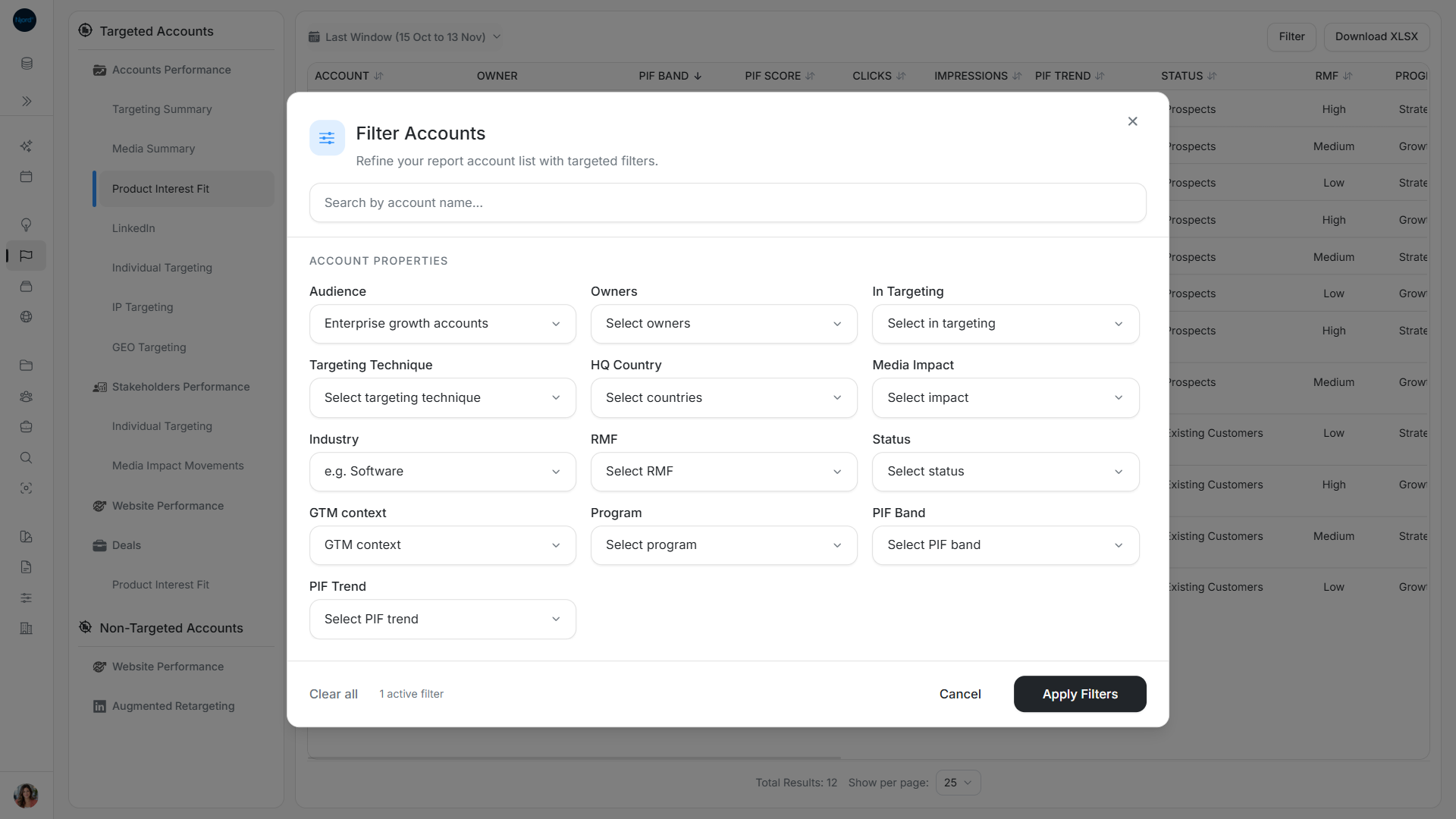
| Account Product Interest Fit, Media Summary, LinkedIn, Individual Targeting, IP Targeting, GEO Targeting and targeted Website Performance | Audience, In Targeting, Targeting Technique and GTM context. |
| Stakeholder Individual Targeting and Media Impact Movements | Audience, In Targeting and GTM context. |
| Deal Product Interest Fit, non-targeted Website Performance and Augmented Retargeting | Use the report’s own filters, such as stage and closing probability on the deal report. |
Image guide: Account Product Interest Fit shows Enterprise growth accounts as its audience. The Targeting Technique and GTM context controls can narrow the same report further.
Apply the criteria
- Choose Audience for the current roster. Use an account audience for account rows and a stakeholder audience for people. Draft and inactive rosters can still be selected.
- Use In Targeting for active targeting status. On a supported account report, choose Targeting Technique for LinkedIn, IP or GEO.
- Use GTM context to match a saved Offering, Segment or Buying Logic on the company. A stakeholder row uses its parent company’s context.
- Choose Apply Filters in GTM context, then choose Apply Filters in the main report filter. Check the resulting rows and date window before downloading.
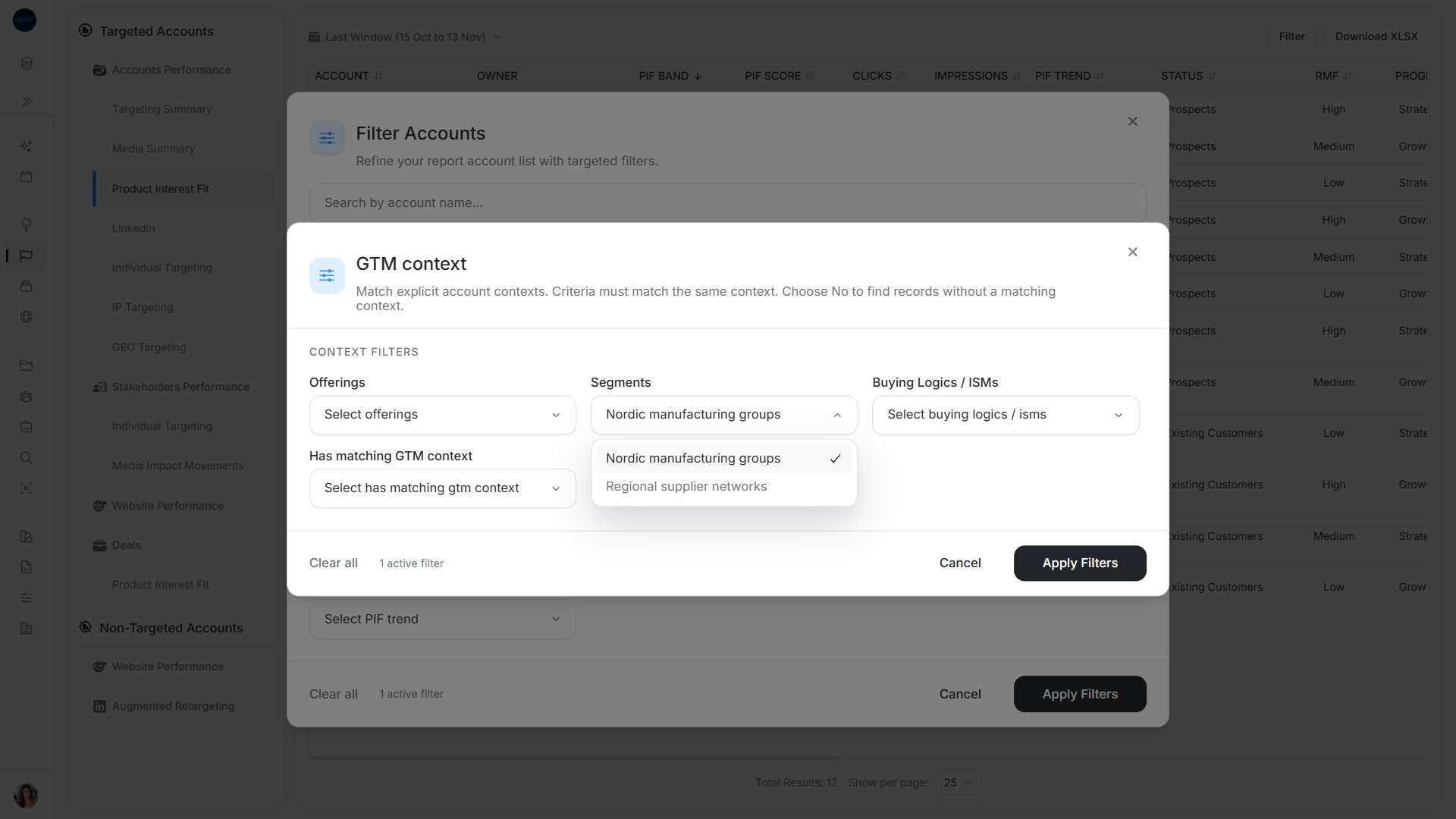
Image guide: Choose the saved Segment under GTM context and apply the filters. Check the audience, date range and result count before comparing totals.
For example, select Enterprise growth accounts and the LinkedIn technique in the account LinkedIn report. The result includes current members of that roster who meet the technique condition. Leave In Targeting and Targeting Technique unset to review the full saved roster. If the result is empty, apply the Audience on its own and add conditions one at a time.
After applying the criteria, check the selected audience, the GTM filter summary and Total Results. Clear one control at a time if the intersection is empty. Use the current date period and filters when you download the result.