Set up your profile and workspace
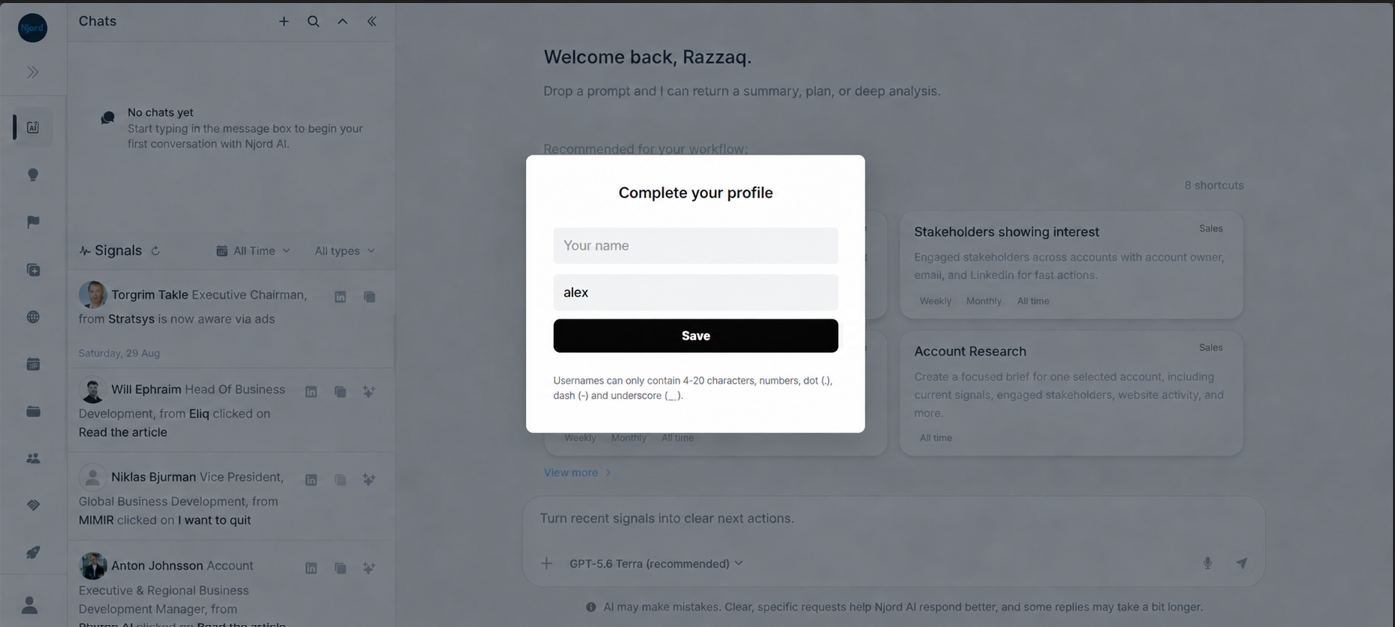
Set up your profile and workspace
Use this page after your first successful sign-in, when DOE asks you to finish your profile or choose a workspace.
Complete Your Profile
- Enter your name.
- Add a username if DOE asks for one.
- Upload a profile photo if you want.
- Save the profile.
Your name and photo help teammates recognize you in shared work, comments, notes, meetings and assignments. Your email identifies the account that was invited and verified.
Username And Email
DOE may ask for a username during setup. Usernames should be short, simple and work-appropriate.
After setup, your profile may show username and email as read-only. If your work email changes, ask your DOE workspace admin before creating another account.
Open The Right Workspace
After your profile is complete, DOE opens a workspace automatically when it can. If you belong to more than one workspace, choose the workspace you want to work in.
If no workspace appears, your profile may be complete but your workspace access is not ready. Ask your DOE workspace admin to check the invited email, membership and role.
What You Can Update Later
Open the profile/avatar menu or side panel and choose My Profile.
From there, you can usually update:
- profile photo,
- display name,
- DOE password, if your account uses email/password sign-in.
Google passwords and company SSO passwords are managed outside DOE.
You can also use the profile menu to choose Dark, Light, or Auto theme and open Settings where your role allows it.
For the full account menu guide, see Profile, Settings And Theme.
If You Get Stuck
| Problem | What to do |
|---|---|
| Profile does not save | Check required fields, then refresh and try again. |
| Username is not accepted | Use letters, numbers, dots, dashes or underscores. |
| Workspace is missing | Ask your DOE workspace admin to check membership and role access. |
| Wrong account opened | Sign out and sign in again with the invited work email. |