Fix sign-in problems
Fix sign-in problems
Use this page when account creation, email verification, a security code, Google, company SSO or workspace access does not work as expected.
Start with two checks
- Use the exact work email that was invited or added to DOE.
- Use the sign-in option your organization gave you: DOE password, Google or company SSO.
Do not create a second account to solve a sign-in problem. If DOE says the account already exists, return to sign-in and use the original method.
Find the message you see
| What you see | What it usually means | What to do |
|---|---|---|
| Account already exists | That email already has a DOE account. | Return to sign-in. Use the original sign-in option or ask your admin which one applies. |
| Verification required | The account was created but the email has not been verified. | Continue verification and use the newest code. Do not create another account. |
| Invitation required | DOE cannot find an active invitation or approved company assignment for that email. | Ask your DOE workspace admin to check the exact work email. |
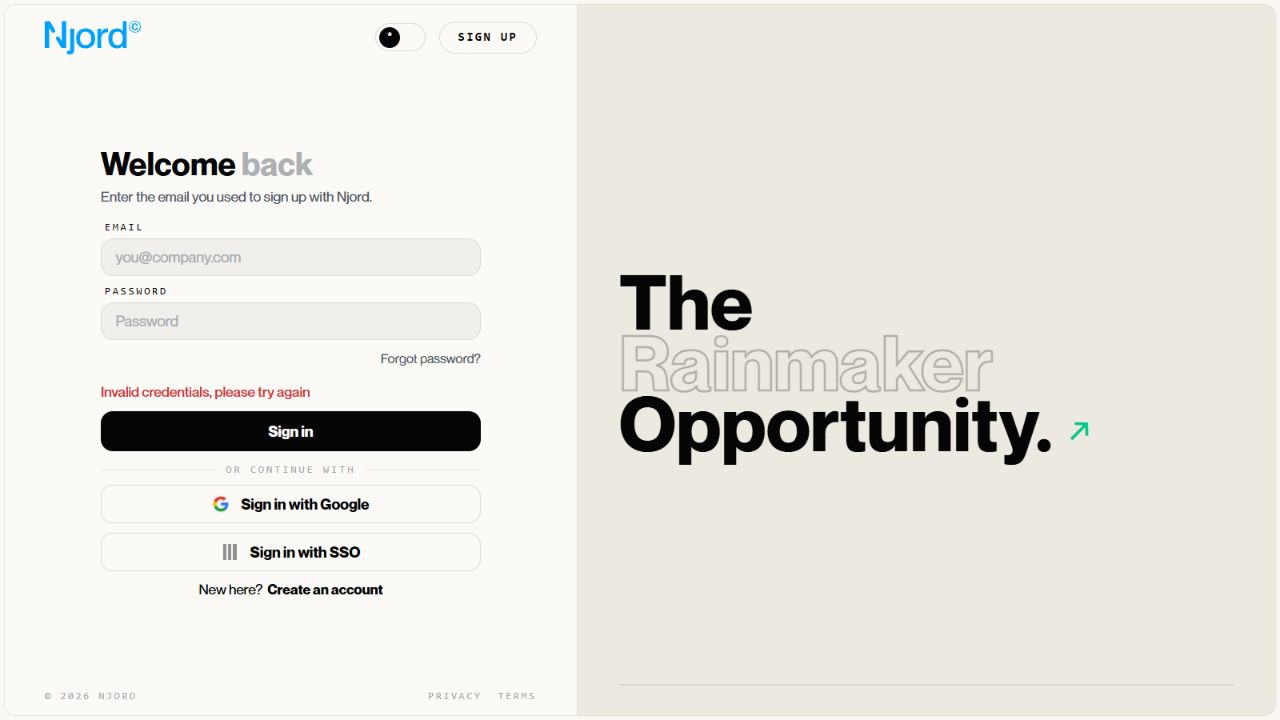
| Invalid email or password | The password is wrong or the account uses Google or company SSO. | Reset a DOE password only for a DOE password account; otherwise use the assigned option. |
| Security code invalid or expired | The code is old, mistyped or belongs to another sign-in attempt. | Use the newest code. If you closed or reloaded the page, start sign-in again. |
| Google opens the wrong user | The browser is already signed in to another Google account. | Switch Google accounts or use a private browser window. |
| No company connection is found | The email domain is not connected to company SSO in DOE. | Check the work email, then ask your company sign-in admin or DOE delivery contact to check the setup. |
| Company sign-in is unavailable | The connection is disabled, unavailable or your company account is blocked. | Try again once. If it continues, contact your company sign-in admin. |
| Company sign-in succeeds but DOE blocks access | Your identity was confirmed, but DOE cannot match it to active workspace access. | Ask your DOE workspace admin to check the email, invitation, membership and role. |
| Session expired or the page loops | The sign-in attempt is stale or several sign-in tabs are open. | Close the old tabs and start again from the DOE sign-in page. |
| No workspace appears | The account can sign in but is not active in the expected workspace. | Ask your DOE workspace admin to check membership and role. |
If a code does not work
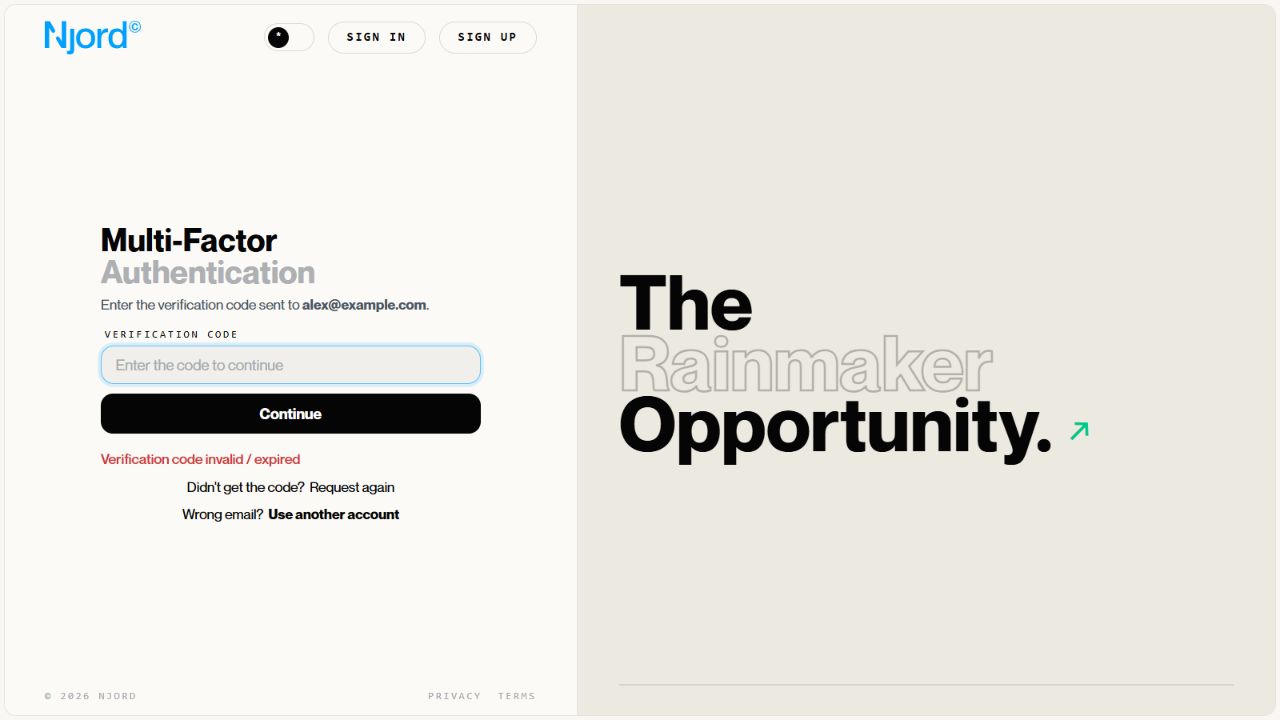
Use the newest email from DOE. Requesting a new verification, sign-in or reset code can make an older code stop working.
If no code arrives:
- Check spam or junk mail.
- Confirm the email address is correct.
- Request one new code and wait for the newest message.
- If you closed or reloaded the code page, restart that sign-in or reset flow.
Never share a security code with another person.
If Google or company SSO does not work
Google and company SSO confirm your identity outside DOE. DOE cannot reset those passwords or change those security checks.
If the outside login fails, contact the team that manages that account. If it succeeds but DOE still blocks access, contact your DOE workspace admin instead.
If DOE says an existing account cannot be matched, use the sign-in method that was first used for that account and ask an admin or support to help. Do not make a duplicate account with another email.
If your company account was removed or disabled
A DOE password reset will not restore a company account. Ask your company sign-in admin to confirm that the account is active and assigned. Then ask your DOE workspace admin to confirm workspace membership and role.
Restart a stuck sign-in
- Close duplicate DOE sign-in tabs.
- Return to the DOE sign-in page.
- Choose the correct sign-in option.
- Complete the new attempt in the same browser tab.
- Use a private browser window if the wrong Google or company account keeps opening.
What to send your admin or support
Share only:
- your work email,
- the sign-in option you used,
- the exact error message,
- whether a code arrived,
- whether the company login succeeded,
- the workspace you expected to open.
Do not send passwords, verification codes, reset codes, tokens or screenshots that show private company login details.