Upload a private file to AI
Upload a private file to AI
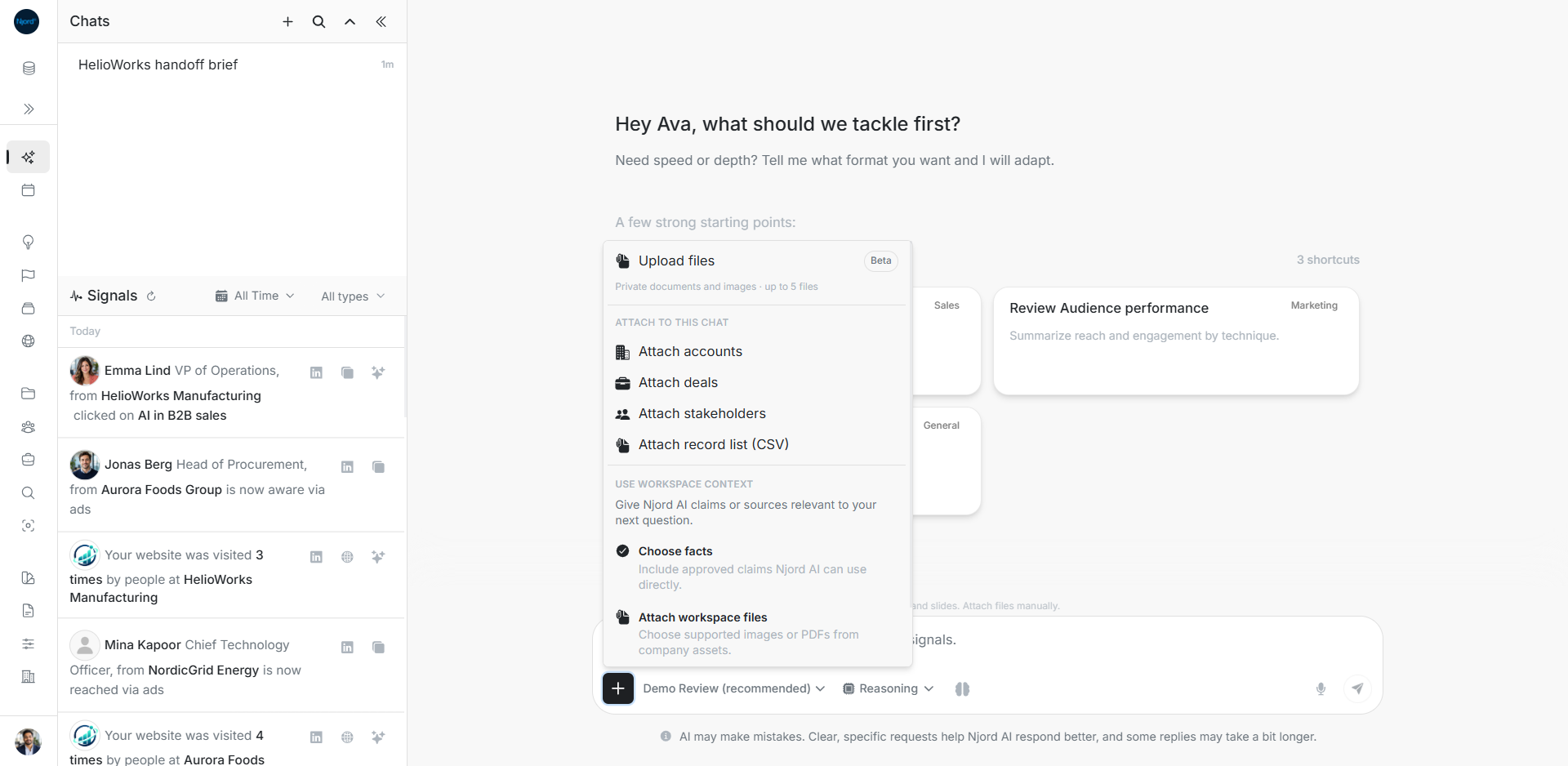
Use a private upload when Njord AI should read a document or image from your device for the next message. The file stays private to you in the current workspace.
Add the file to a message
- Open Add to message beside the composer and choose Upload files.
- Select supported documents or images. You can also drop files onto the composer or paste an image/file from the clipboard.
- Wait until all attached files are ready. Office files may need a reading copy before they can be sent.
- Remove files the question does not need.
- Write what you want done with them. Name each file when the message contains several.
- Review the selected model and send.
For example: “Read Pilot scope.pdf and compare it with the attached handoff note. List missing owners and dates.” Pasting a file URL as ordinary text does not upload its bytes.
Check limits and model support
Private and workspace file attachments share a limit of five files and 25 MB combined original size. Images allow up to 7,425,000 bytes each, shown as about 7 MiB. PDF and supported document/text/spreadsheet files use the 10 MB per-file frontend limit. The selected model must support the input.
Supported formats include PDF, CSV, TXT, Markdown, XLS/XLSX, DOC/DOCX, PPT/PPTX, JSON, XML, YAML, HTML, PNG, JPEG, WebP and GIF. This upload path does not accept audio or video.
Recover a preparation problem
| State | Next step |
|---|---|
| Preparing or uploading | Wait for readiness before sending. |
| Unsupported by the model | Choose a compatible available model and review the attachment again. |
| Too large | Reduce or split the source, then attach the smaller file. |
| Upload failed | Use Retry on the affected upload. Check its state before starting another copy. |
| Draft recovered after reload | Check the files and question, then send deliberately. Reload does not send automatically. |
Recovery belongs to your account, workspace and chat. Switching workspace or session clears stale assistant state. Inspect the new workspace before attaching again.
Keep it for the team when needed
This upload does not add the file to shared Assets or searchable Knowledge. Use Assets for team reuse of the original; use Knowledge for future source search or Fact extraction. Attachments apply to the next message only, so attach them again when a follow-up needs them.