Sort deals in List and Pipeline
Sort deals in List and Pipeline
Sort opportunities to compare amounts, dates, names or interest. Sorting changes the display order. It does not edit a deal's fields or move it to a different stage.
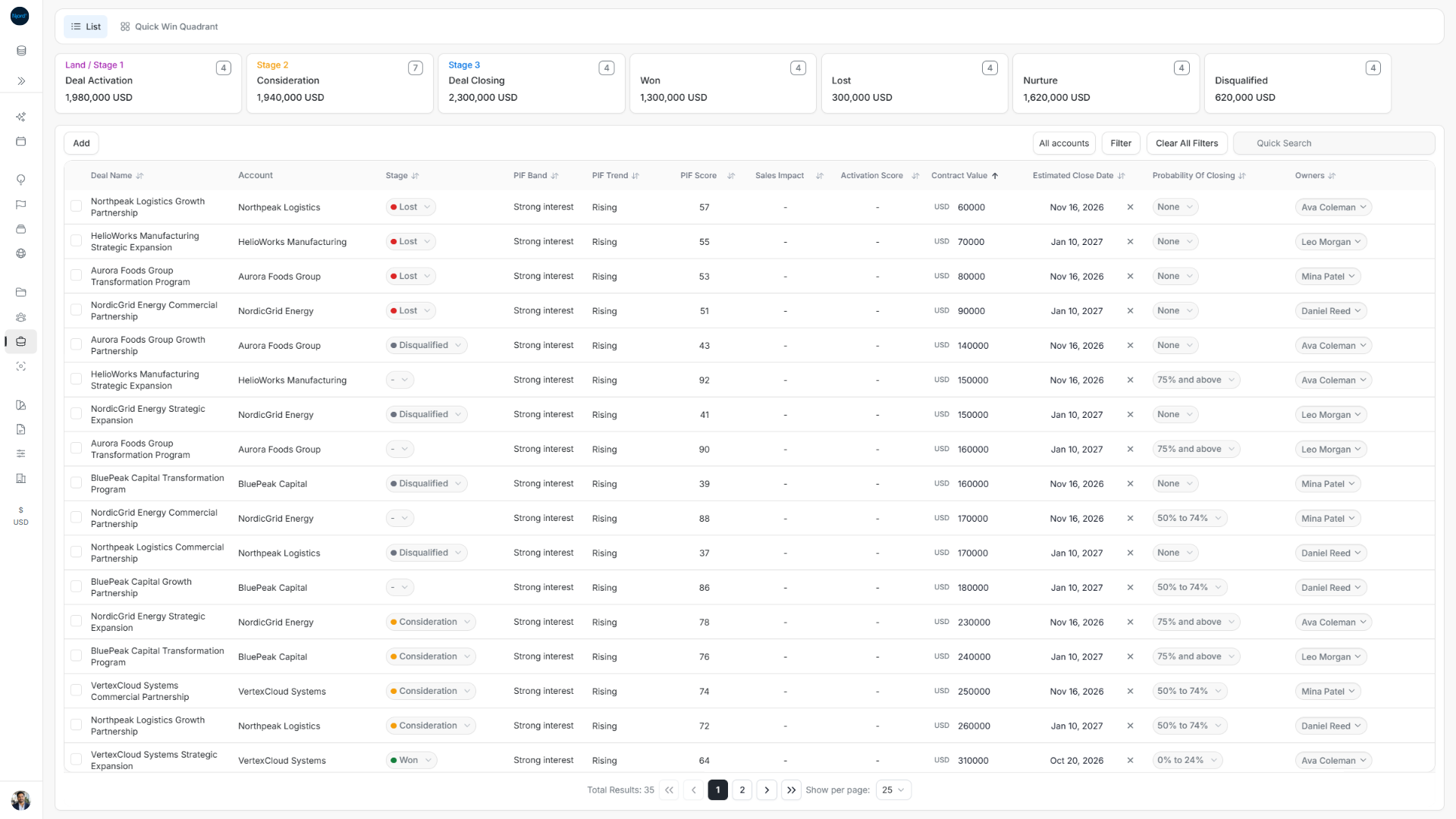
Sort the desktop List: first direction
- Open Deals and switch to List.
- Check the workspace, deal type, account and applied filters. Sort acts on that result set.
- Find the required column heading. Scroll horizontally if it is outside the table viewport.
- Select the heading, such as Contract Value.
- Check the arrow next to that heading and the first few row values.
Choose Contract Value and read the direction arrow. Descending puts the largest amounts first.
Reverse the List sort
Select Contract Value again. The arrow reverses and the smallest amounts now appear first. Select another sortable heading to use that field instead. Its first direction depends on the field; read the arrow and the resulting rows.
Account is a context column without a sort action in this table. Selecting a row's name or Account opens the deal; selecting an editable value changes that field. Use the heading when you want sorting.
Open Pipeline Sort and choose a field
- Switch to Pipeline and choose Land or Expand where the type buttons are available.
- Open Sort in the toolbar.
- Choose the required field. The active field has a direction arrow.
- Check the toolbar's sort label and the order inside a lane.
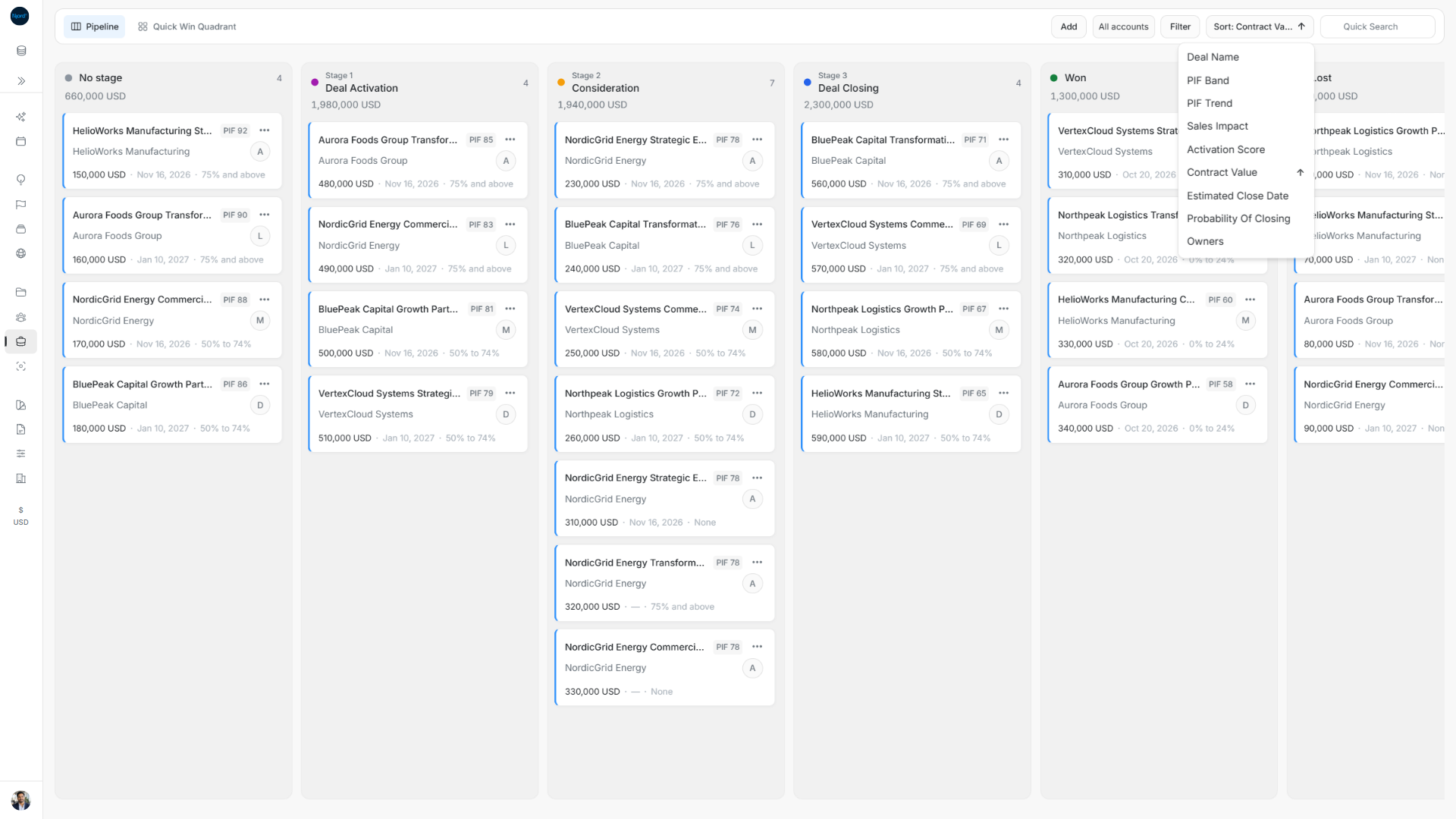
The menu contains Deal Name, PIF Band, PIF Trend, Sales Impact, Activation Score, Contract Value, Estimated Close Date, Probability Of Closing, Owners and PIF Score. Scroll the menu if the final fields are outside its visible area. Stage is omitted because Pipeline already groups cards into stage lanes.
Check Pipeline ascending and descending results
Choose Deal Name. The example's No stage lane starts with Aurora Foods Group, followed by BluePeak Capital, HelioWorks Manufacturing and NordicGrid Energy. The toolbar displays an upward arrow.
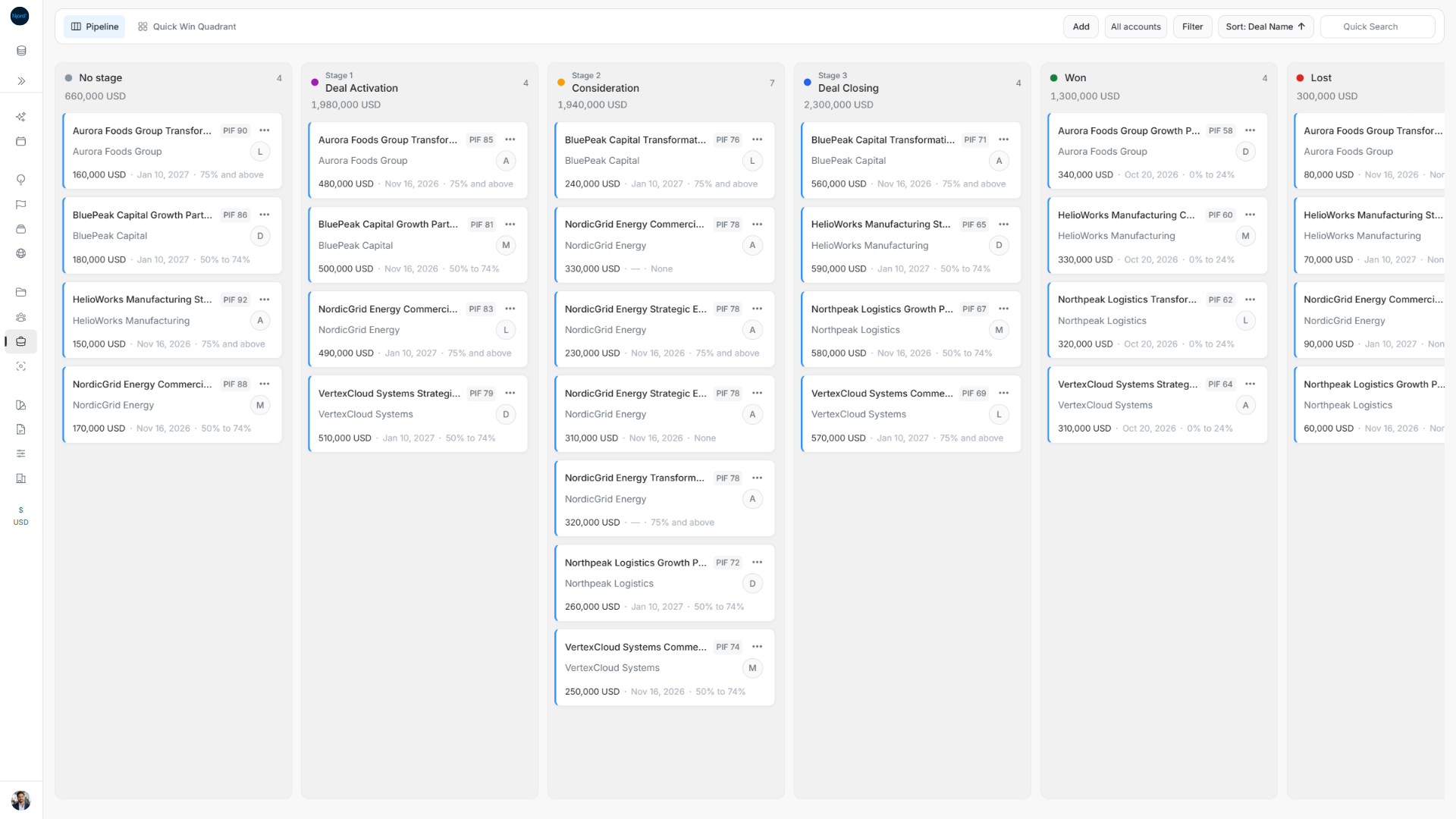
Open Sort again and choose the current Deal Name field again. Its arrow reverses; No stage now starts with NordicGrid Energy and ends with Aurora Foods Group. Each lane remains separate. This action does not change any deal's stage.
Smaller screens and unexpected order
When List displays expandable cards, use the Sort control rather than looking for desktop column headings. Some controls move into the compact options menu. Open the available sort control and use the same field/direction sequence.
After changing a sort, allow the results to refresh and check the current page. The page can return to the beginning. Check filters when an expected opportunity is missing; sorting does not broaden them. Cards manually arranged within a Pipeline stage retain that order for the same scope and filters until you choose a sort. Choosing a sort clears the current board's saved manual positions; check the first cards in a lane after the refresh.
Understand the effect on manual Pipeline positions
Pipeline starts with PIF Score descending in every lane, including No stage. A PIF 0 chip is a known zero; no chip means the value is unavailable. Selecting Deal Name begins A–Z and selecting it again reverses the direction across matching lane results before paging.
Choosing a sort clears saved manual card positions for the current board, including when returning to an earlier sort direction. You can drag cards into a new manual order afterward; that order remains until another sort is chosen for the same scope. Reordering within a lane does not change its stage date. Stage sorting is available in List but omitted in Pipeline, whose lanes already group by stage.
Below the wide desktop layout, List uses cards and a Sort dropdown. Check Land/Expand scope before expecting Land-only Activation Score, which is not a column in Expand or an all-type List.