Deal filters, search and pagination
Deal filters, search and pagination
Use Quick Search when you know the deal or account text. Use Filter when you need to narrow the list by opportunity properties. Use pagination controls to move through larger deal lists.
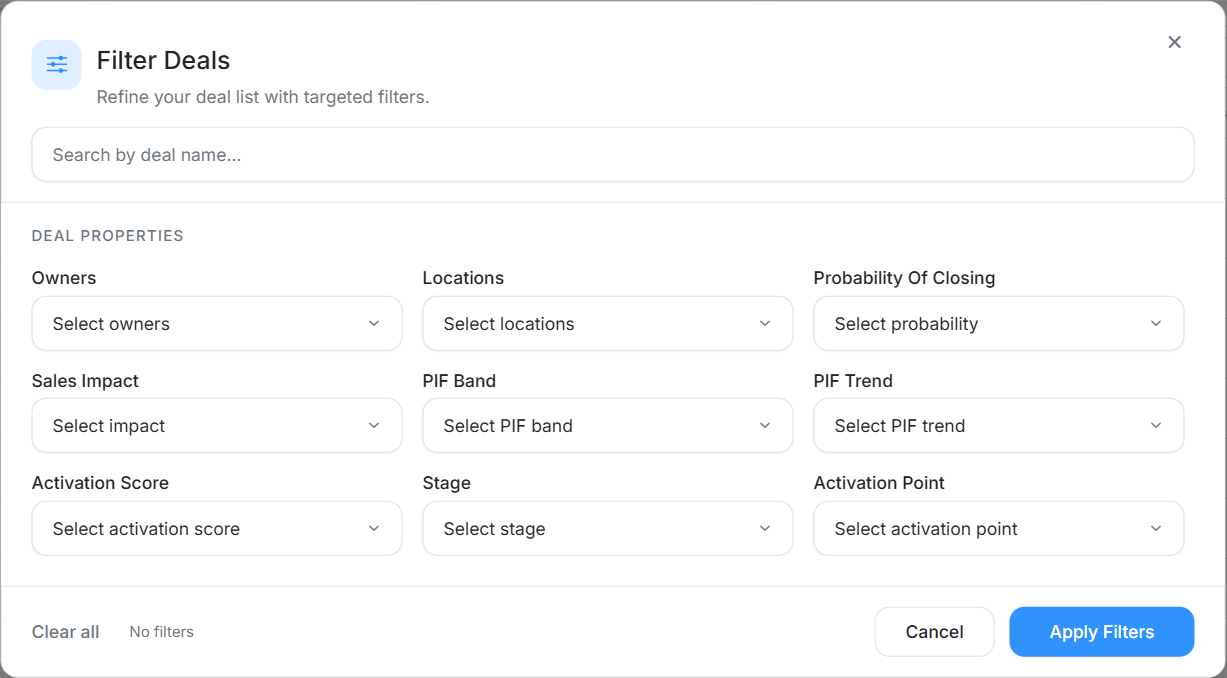
The filter dialog groups deal properties into one form and shows whether any filters are currently active.
Quick Search
Quick Search is best for simple text lookup.
Use Quick Search when:
- You know the deal name.
- You know the linked account name.
- You want a fast lookup without changing structured filters.
- You need to narrow the visible rows before selecting or updating.
Filter Fields
| Filter | Use it when you need to find deals by |
|---|---|
| Search by deal name | A typed deal-name query inside the filter dialog. |
| Owners | Assigned internal users. |
| Locations | Country or region context. |
| Probability Of Closing | Forecast probability band. |
| Sales Impact | Sales-impact state. |
| PIF Band | Product Interest Fit band such as Hot or Warming. |
| PIF Trend | Trending, Cooling, or Holding state. |
| Activation Score | Activation score grouping. |
| Stage | Pipeline stage such as Consideration, Won, or Nurture. |
| Activation Point | Workspace-specific activation point where configured. |
Pagination
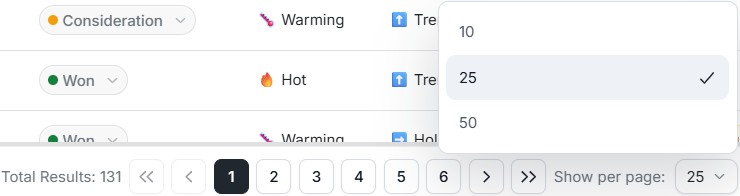
The footer shows total results, page navigation, and Show per page. The page size menu can switch the table between 10, 25, and 50 rows per page.
Before assuming a deal is missing:
- Check Land vs Expand.
- Clear Quick Search.
- Clear filters.
- Confirm the current page number.
- Increase Show per page if you need to scan more rows at once.
Troubleshooting
| What you see | What to do |
|---|---|
| No rows after filtering | Clear all filters and add one condition at a time. |
| Expected deal is missing | Check Land vs Expand, then search by account name. |
| Too many rows | Combine owner, stage, probability, and PIF filters. |
| A field is not visible | Scroll the table horizontally. |