Select and deselect deals
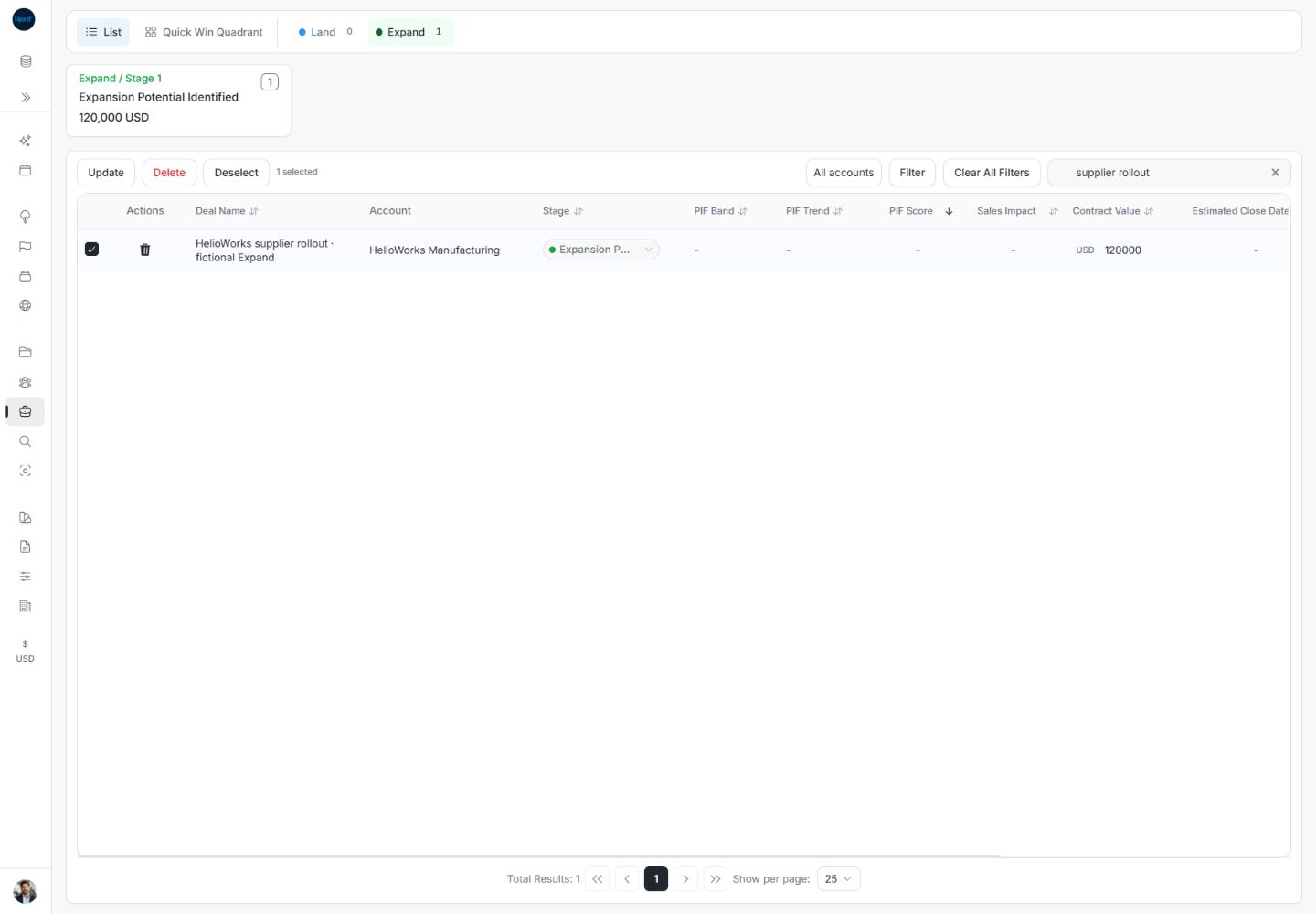
Select and deselect deals
Select the deals that an Update or Delete action should affect. Deselect clears the selection and keeps the saved deals.
Select the intended rows
- Switch to List. On a wide screen the row checkboxes are at the left edge of the table.
- Narrow the list with its search, account or filters if that helps identify the correct opportunities.
- Check each intended row. Confirm both Deal Name and Account.
- Check the selected count. The normal Add action is replaced by Update, Delete and Deselect.
The example checks HelioWorks Manufacturing Strategic Expansion and Aurora Foods Group Transformation Program. The toolbar reads 2 selected while the footer still has 35 Total Results. The two counts describe different things.
Unselect only one deal
Clear that row's checkbox. The other checkmarks remain and the toolbar count falls. Here Aurora Foods Group is unchecked, HelioWorks remains selected, and the toolbar reads 1 selected. Nothing is deleted or updated by this action.
Clear the whole selection with Deselect
- Choose Deselect in the selected-deal toolbar.
- Check that all row boxes are clear.
- Check that the selected count and Update/Delete/Deselect actions disappear and Add returns.
- Verify that the same deals and Total Results remain.
In this example the list still contains 35 deals. Deselect does not require a delete confirmation because it only clears checkmarks. You can select the rows again for a different task.
Continue to Update or Delete
| Action | What happens next |
|---|---|
| Update | Opens Bulk Update. Choose shared field values, Apply, then review Deal update result and the saved rows. |
| Delete | Opens a permanent-delete confirmation for the selected count. Cancel keeps the records; completing it opens Deal delete result. |
| Deselect | Clears all selected rows immediately and returns to the normal toolbar. |
The selected count is the action's scope, not the current page's Total Results. A selection can include records on other pages. Review the count again before applying an action. Changing workspace, deal type, filters or Deals view resets selection; do not depend on earlier checkmarks after changing those controls.
On a smaller screen, use the available selection controls or open the desktop table when needed. A stage-summary card, sortable heading or deal-name link is not a row checkbox. If Update/Delete is unavailable, check selection and record-management permission.
Image guide: Checking the fictional row replaces Add with Update, Delete and Deselect and shows 1 selected. Fictional local example in the normal authenticated product, shown in light theme.