Deal table columns
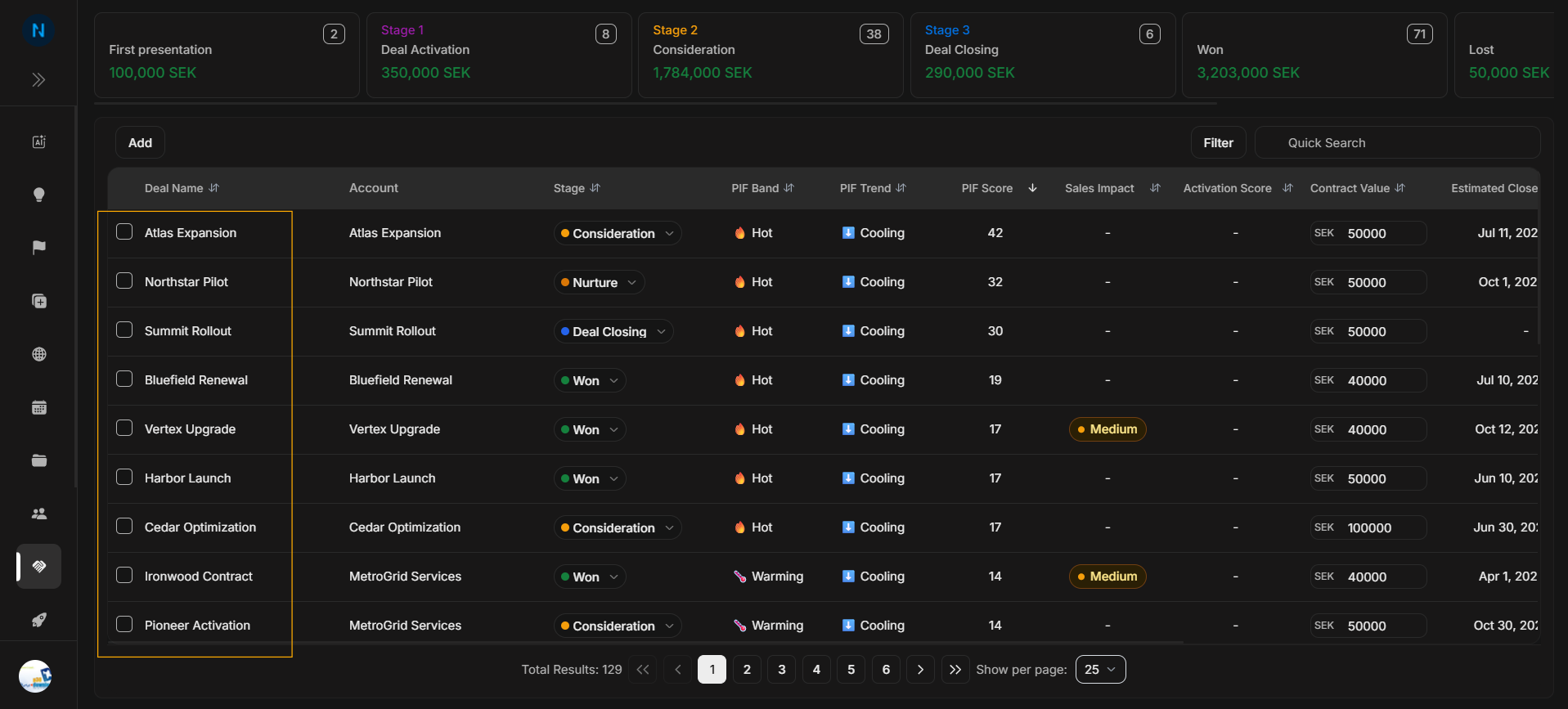
Deal table columns
The Deals table is the detailed working area. Read the columns from left to right so the user understands identity first, then stage and fit, then forecast, ownership, and dates.
Deal Name
Image guide: Deal Name identifies the opportunity. Select or open this row only after confirming it is the correct deal.
Account
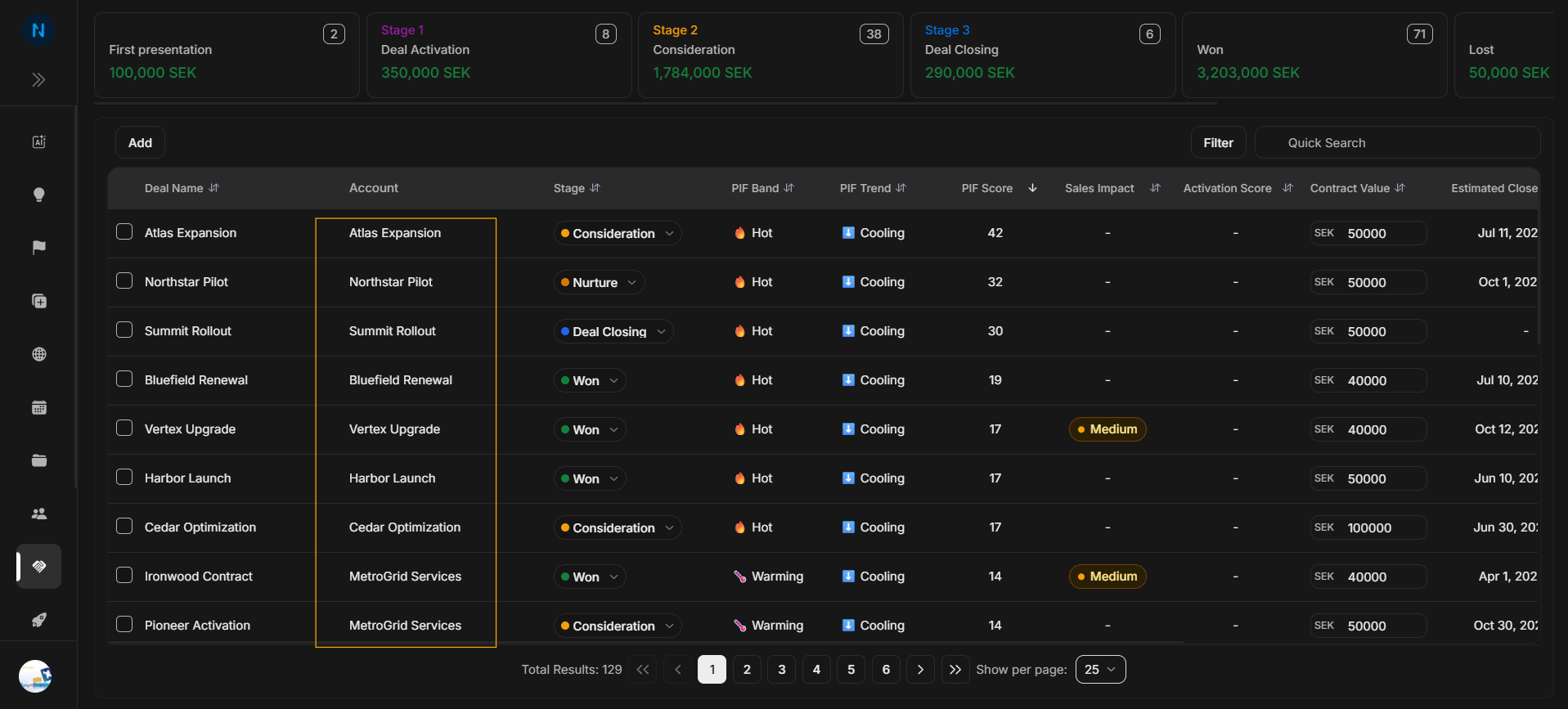
Image guide: Account shows the company connected to the deal. This is the most important check before editing stage, owner, probability, or value.
Stage
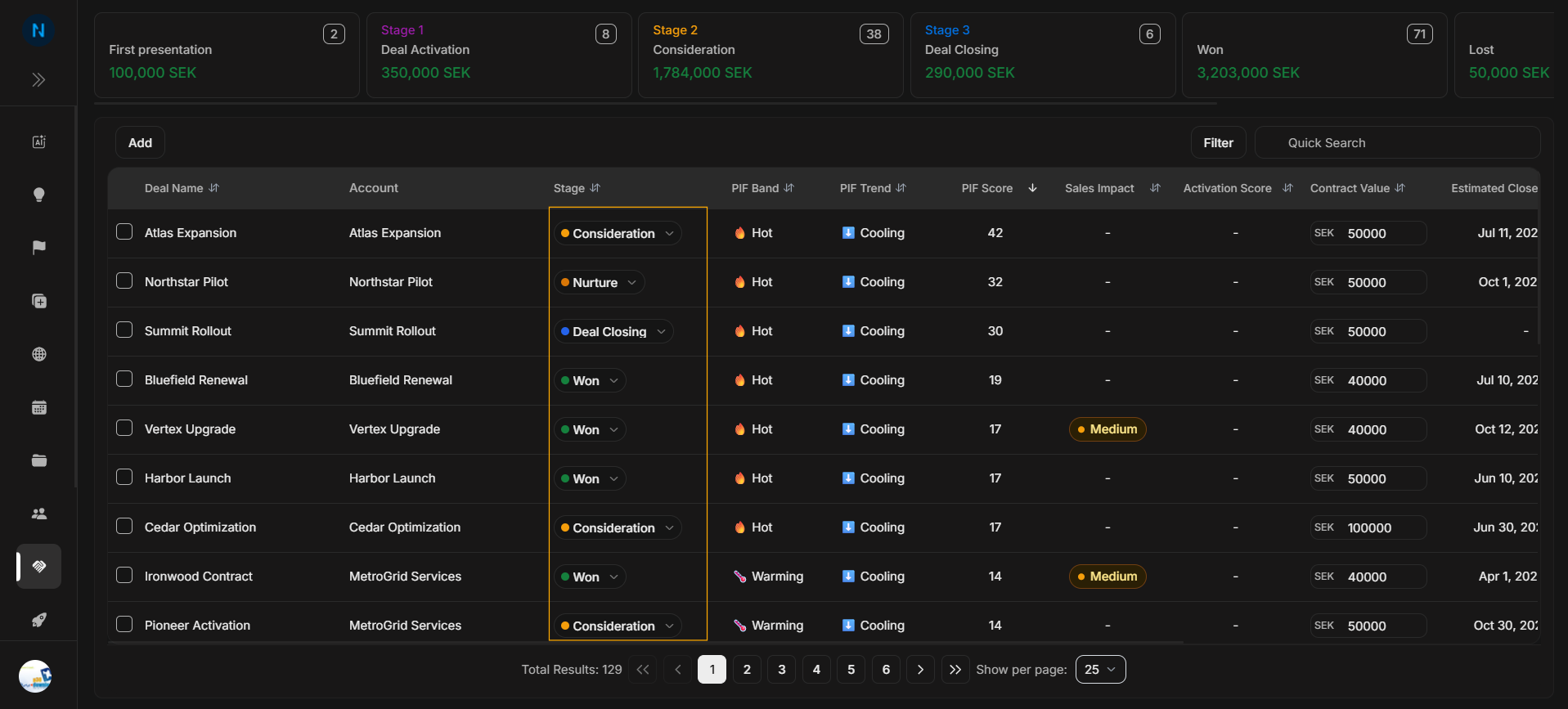
Image guide: Stage shows where the opportunity sits in the sales process. A wrong stage can make the stage cards and pipeline view misleading.
Product Interest Fit fields
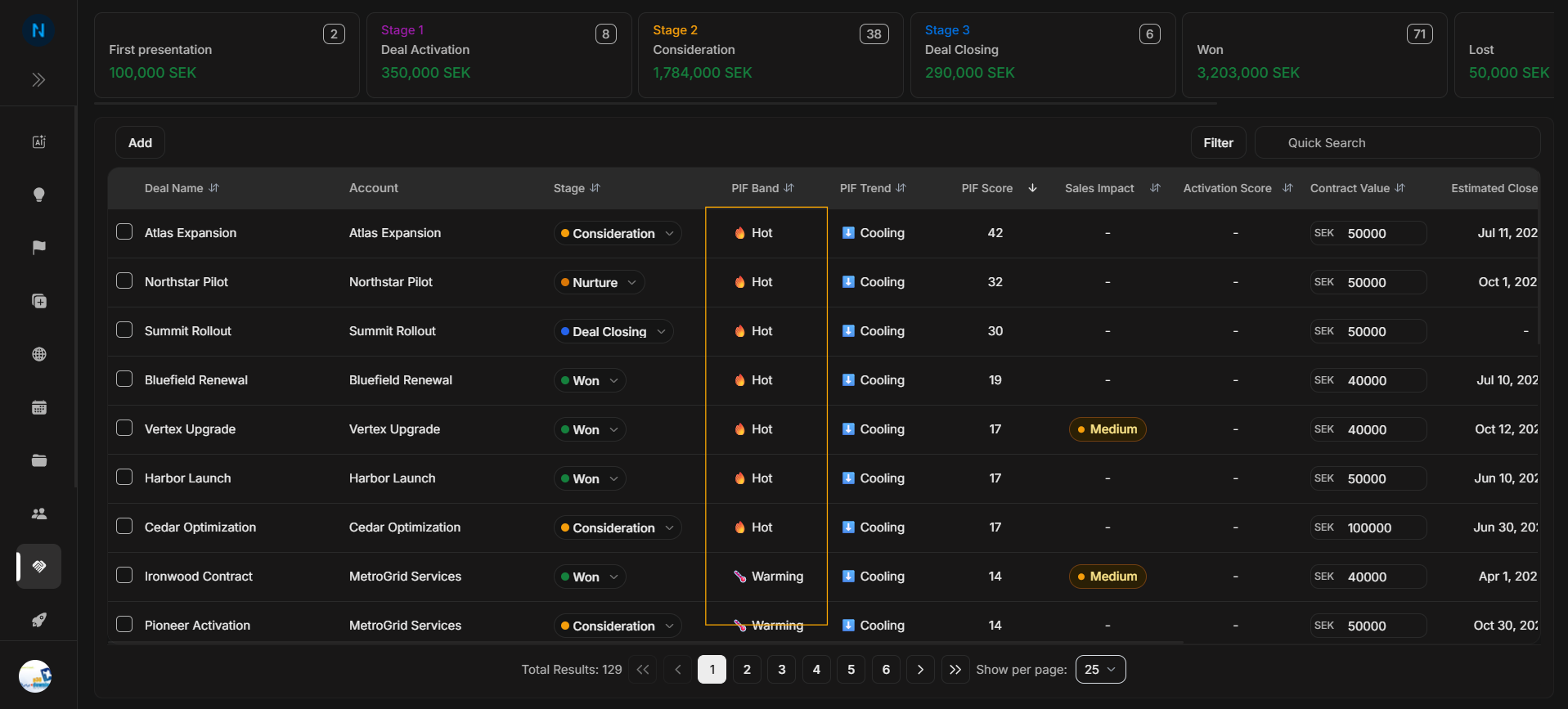
Image guide: PIF Band gives a quick high-level fit signal.
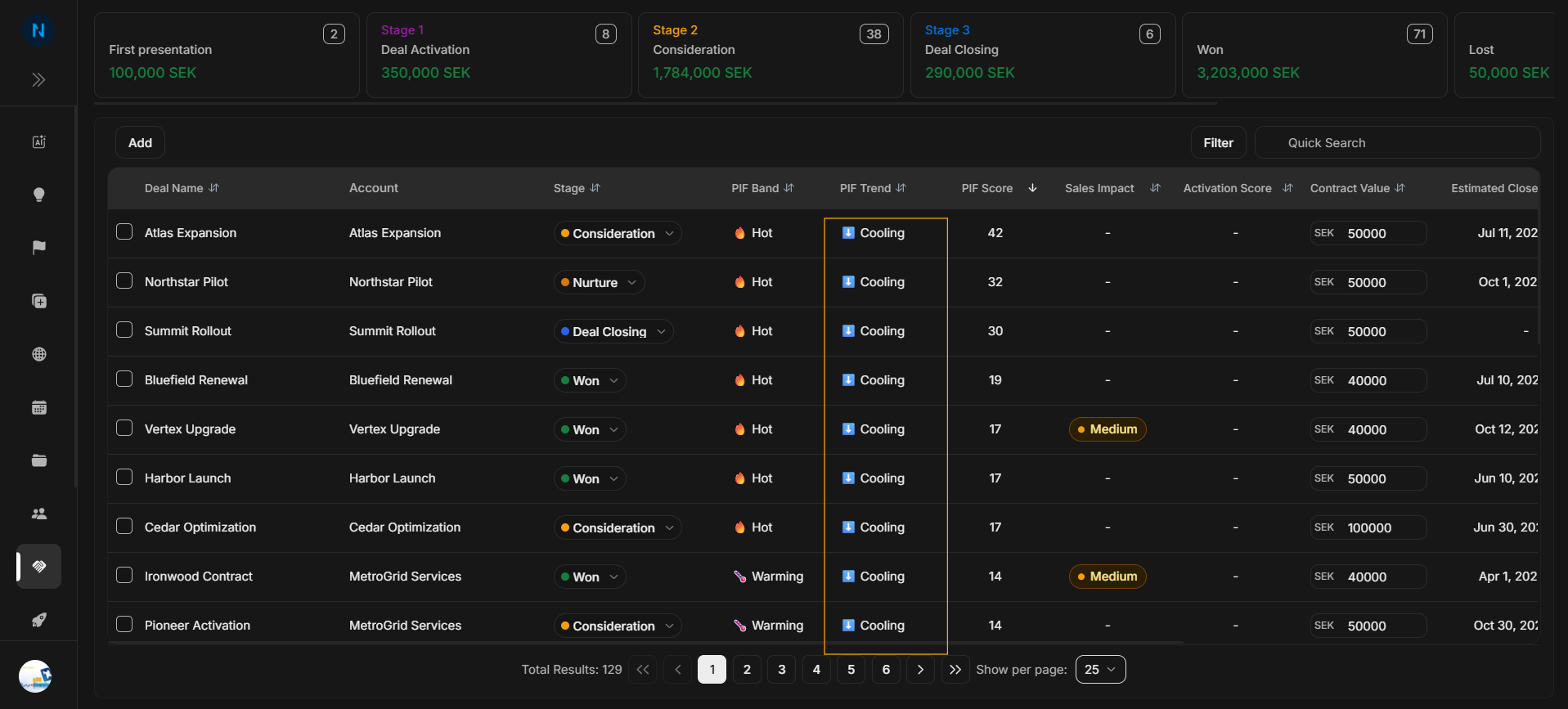
Image guide: PIF Trend shows whether interest is warming, cooling, or staying stable.
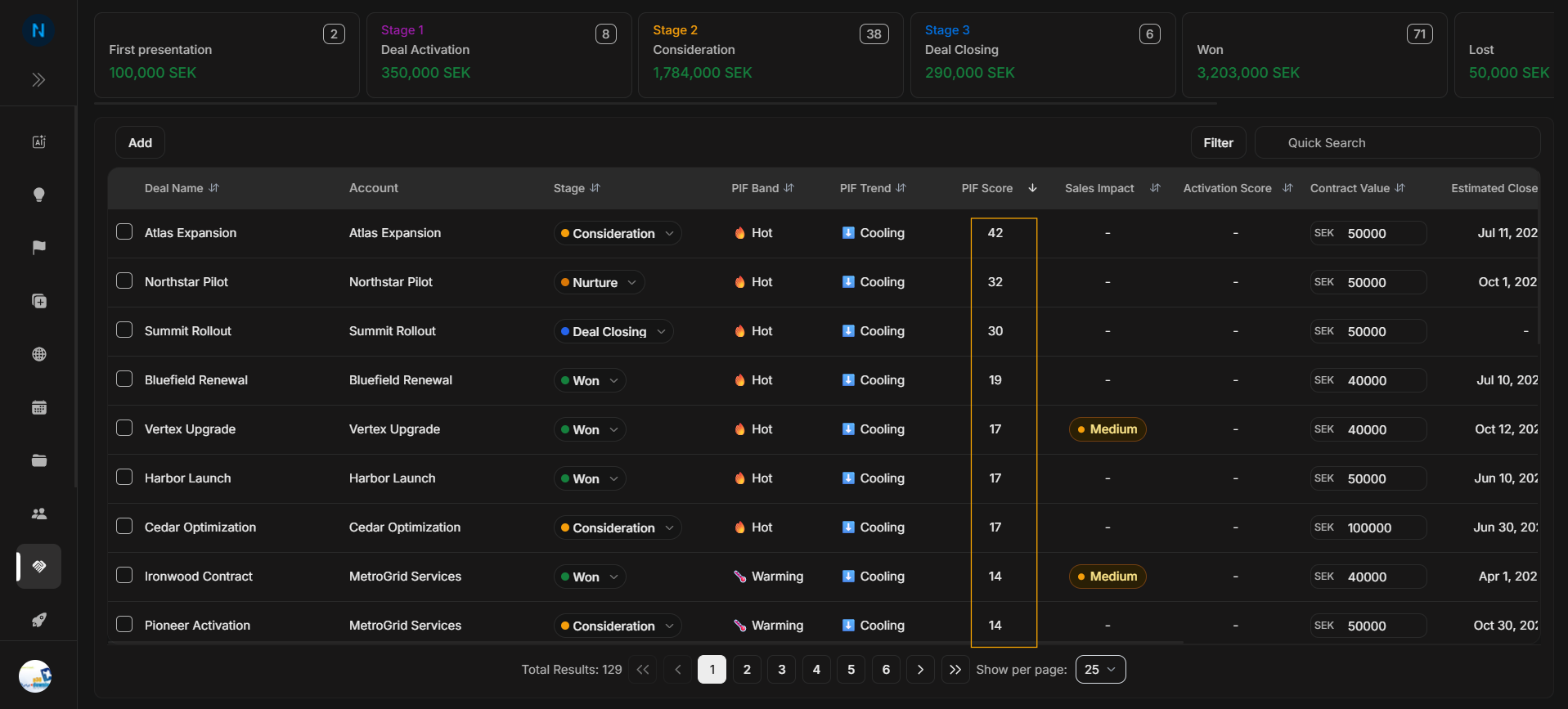
Image guide: PIF Score gives the numeric Product Interest Fit value used for deeper comparison.
Forecast fields
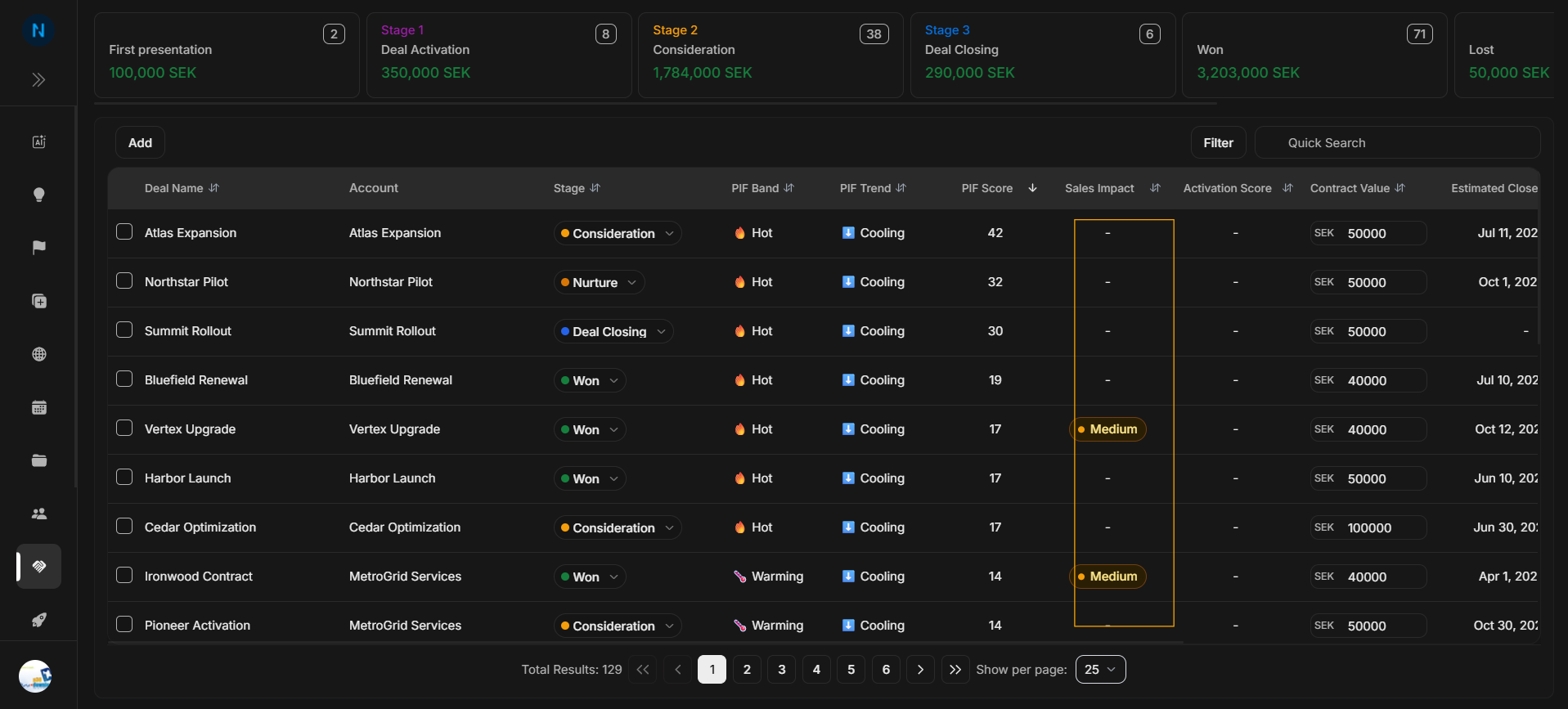
Image guide: Probability shows the forecast likelihood. Update it only when the deal evidence supports the change.
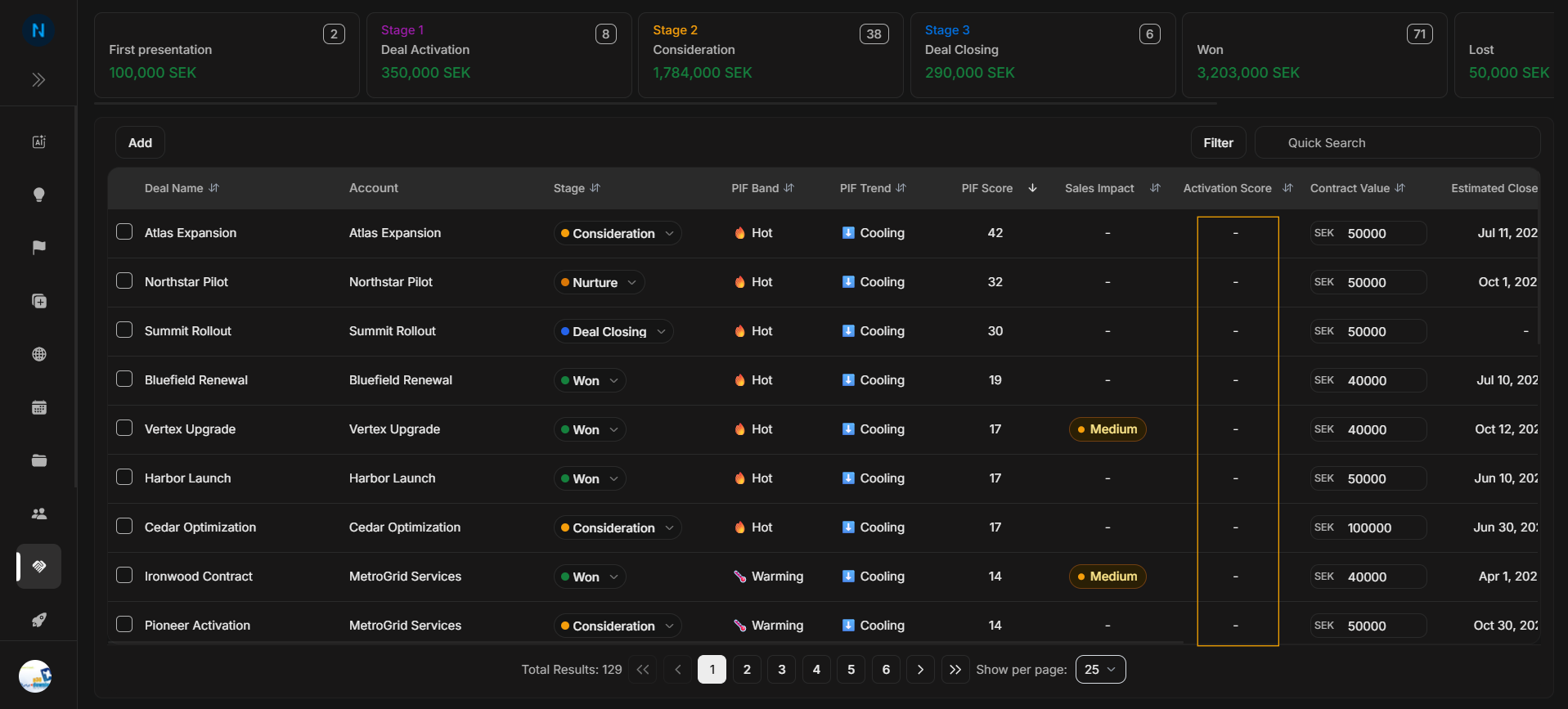
Image guide: Value shows the commercial amount attached to the opportunity.
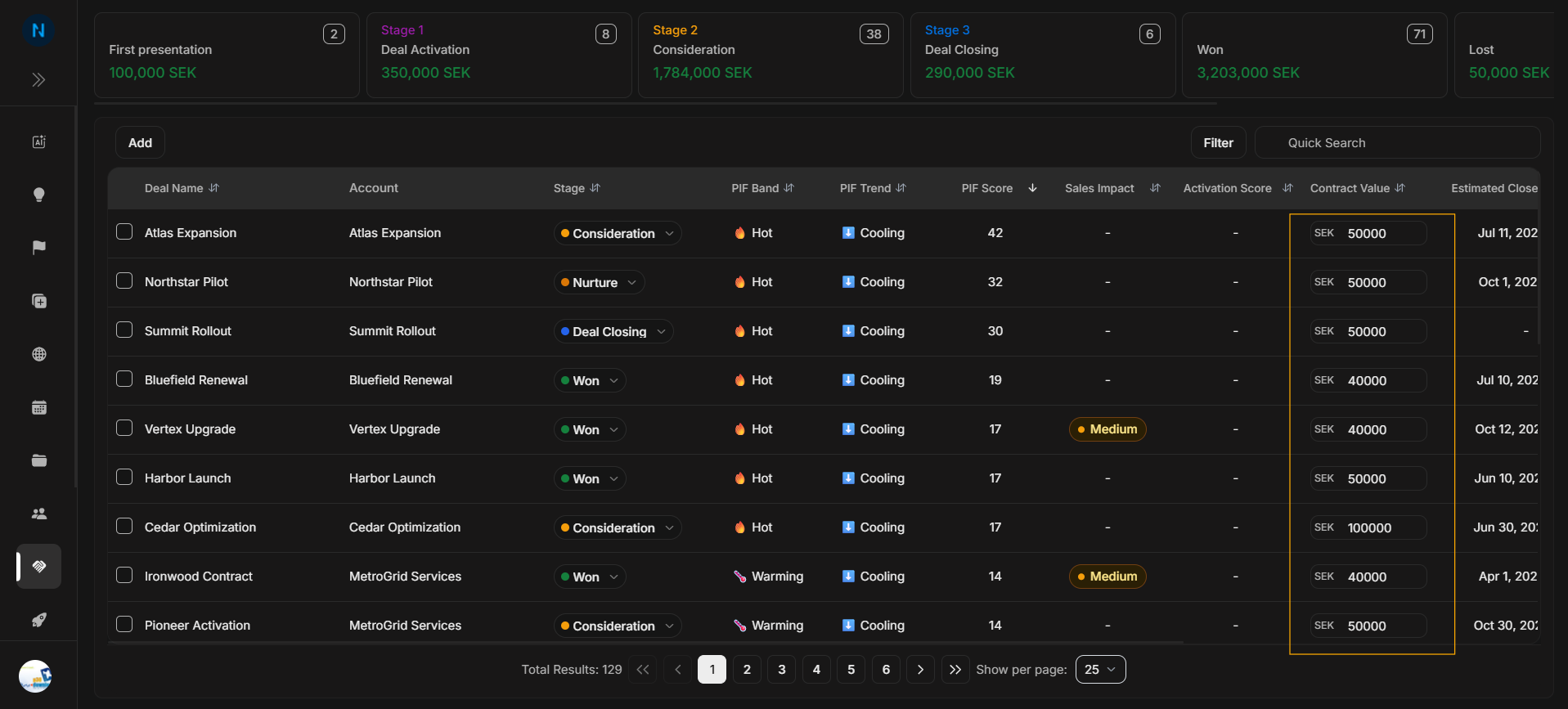
Image guide: Close Date shows the expected closing timeline. Use it with probability and stage to understand urgency.
Dates and owner
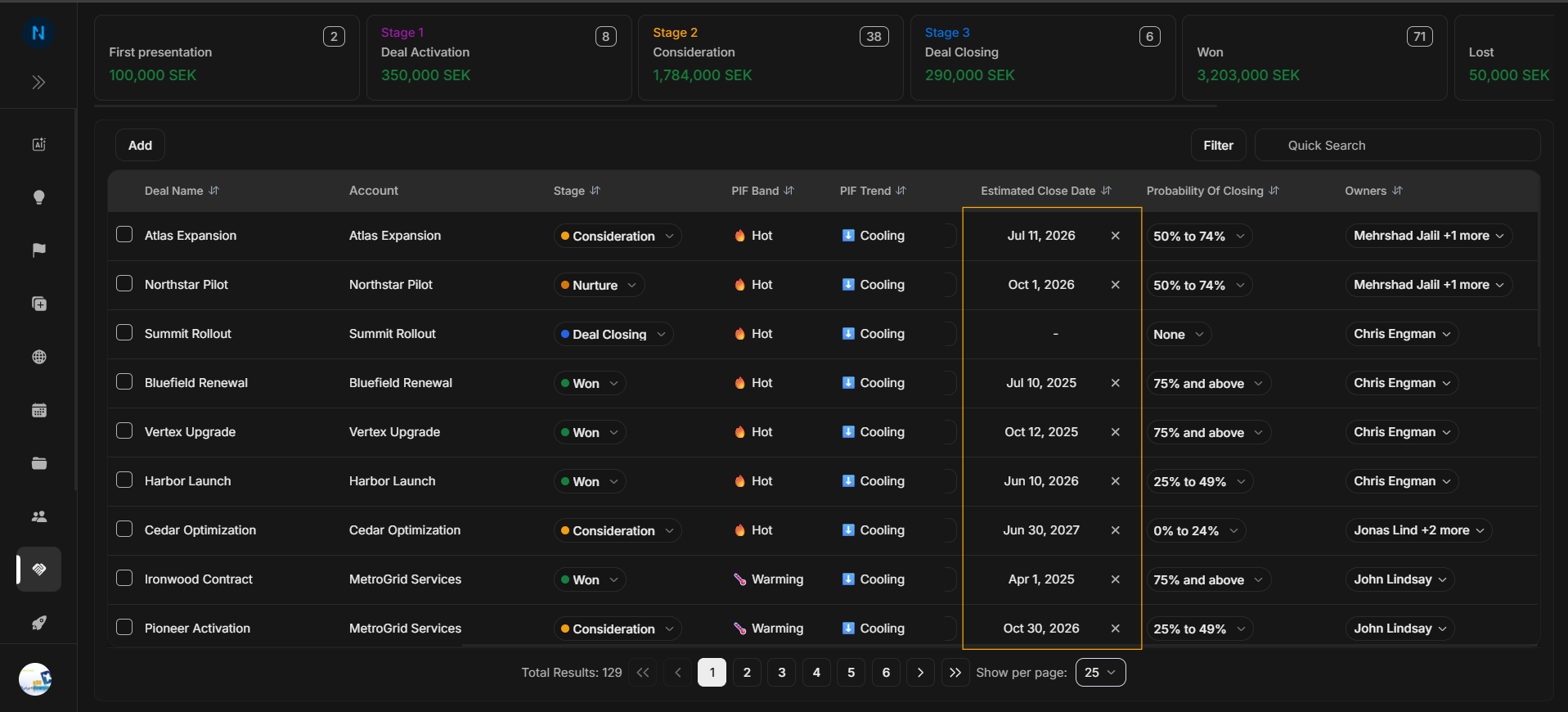
Image guide: Updated Date helps users see how fresh the deal record is.
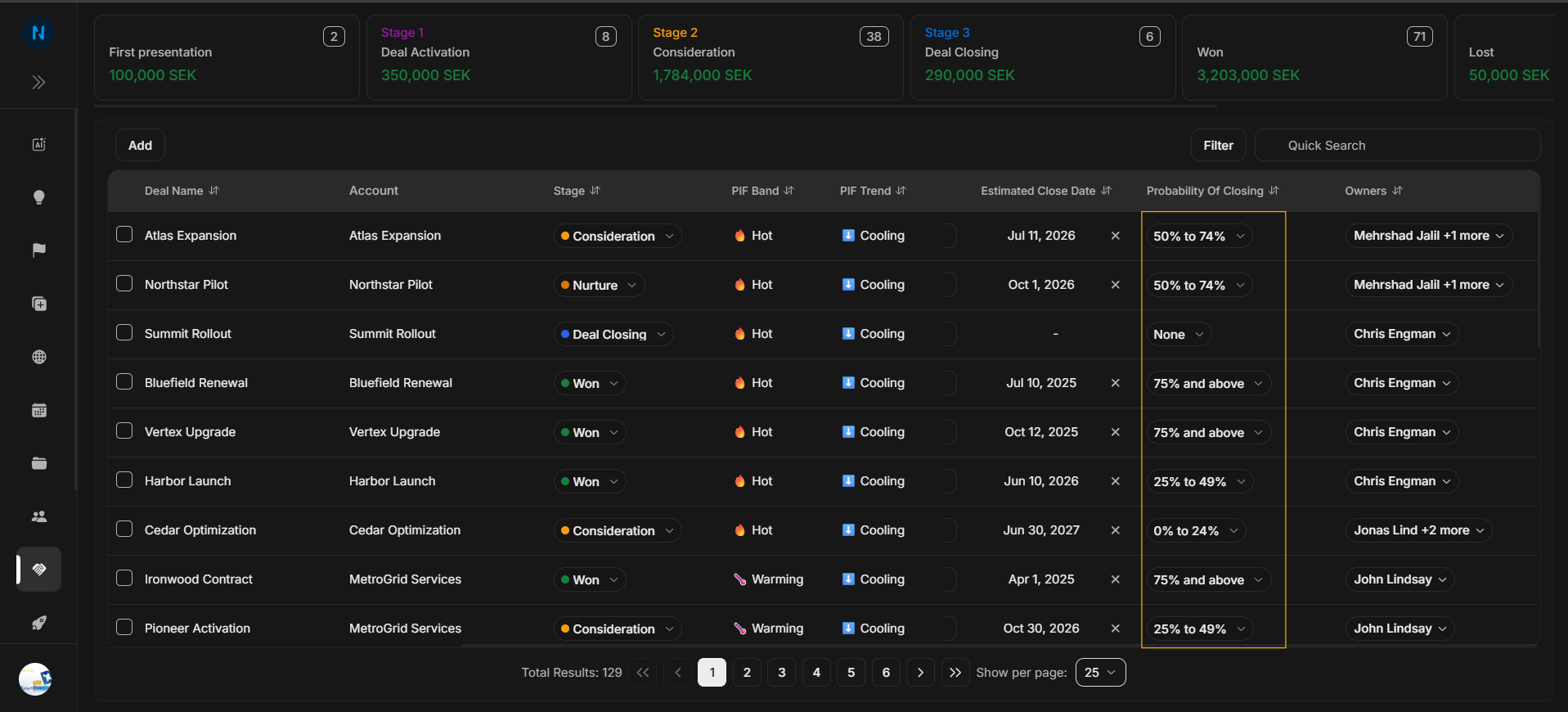
Image guide: Created Date shows when the opportunity entered the system.
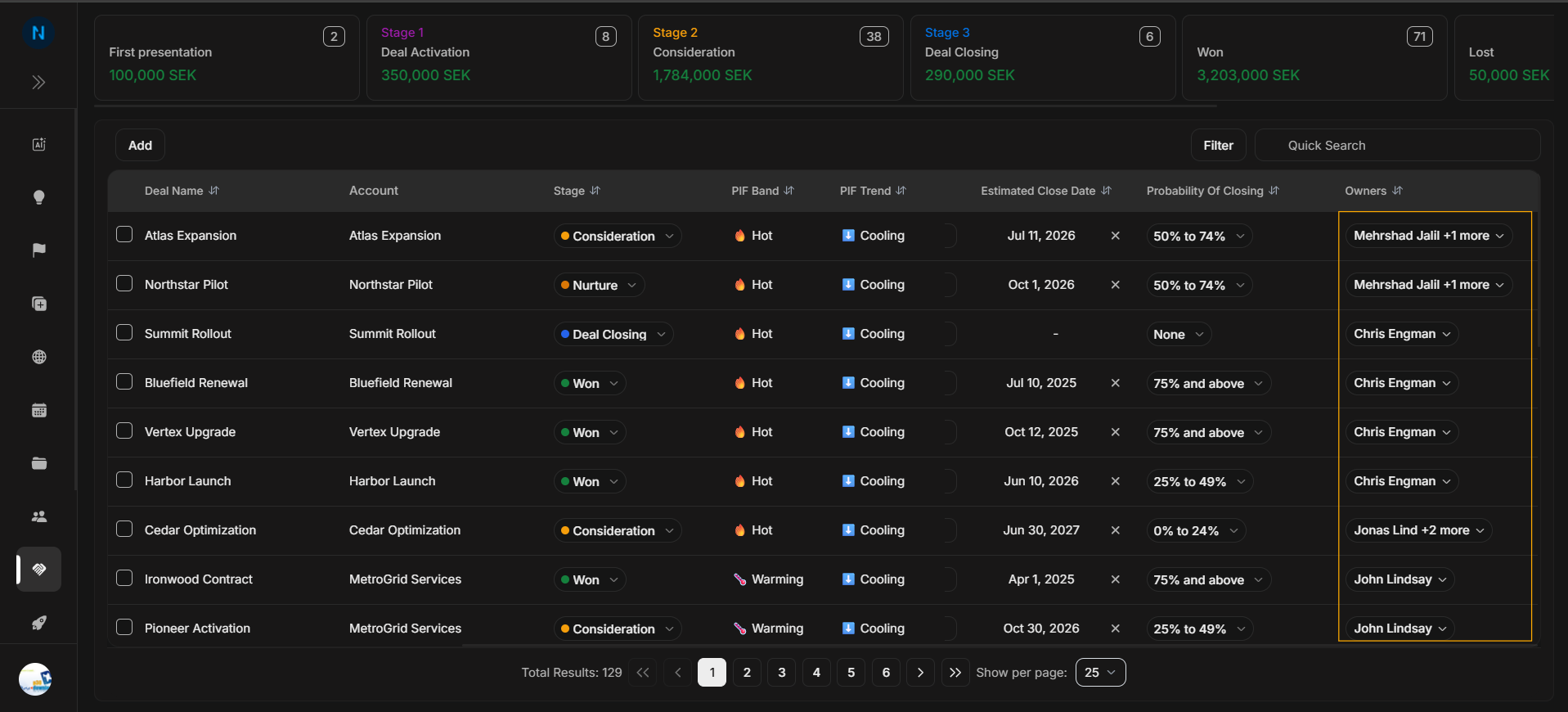
Image guide: Owner shows who is responsible for follow-up. Confirm this before changing ownership or planning next action.
How to read one row
- Confirm Deal Name.
- Confirm Account.
- Check Stage and PIF.
- Review Probability, Value, and Close Date.
- Check Owner and recent update date.
- Only then decide whether the row should be edited.