Attach supporting files to a Foundation draft
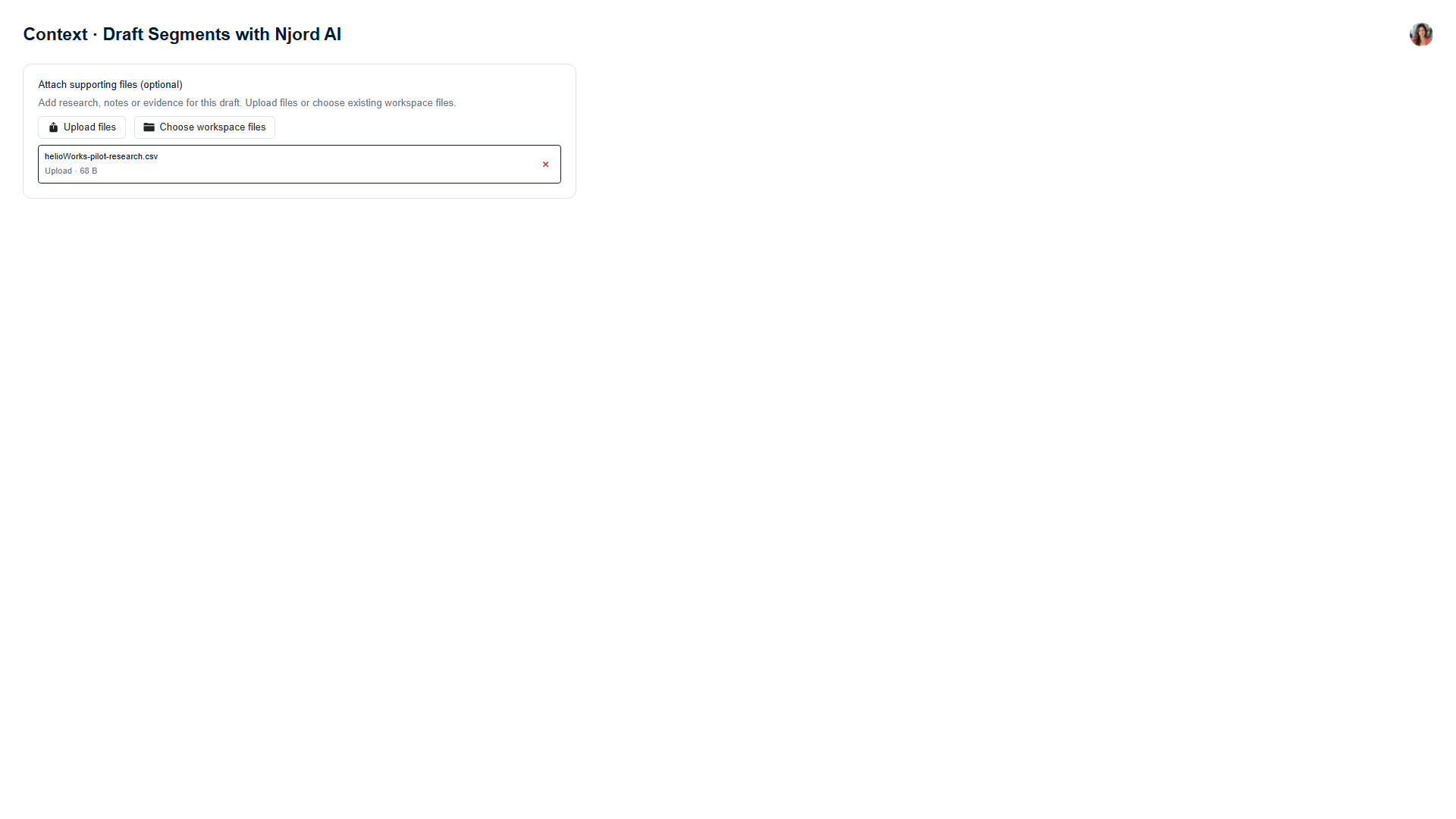
Attach supporting files to a Foundation draft
Open Context → Go-to-market foundation and choose Draft with Njord AI in Offerings, Segments, Buying logics, Proofs, or Messaging. Use the draft’s Attach supporting files (optional) controls to provide evidence, such as a pilot brief, current positioning, or customer references.
Choose local or workspace files
- Choose Upload files for documents and images on your device. The selected rows are marked Upload.
- Choose Choose workspace files for supported material saved in company Assets. Select the intended files, then choose Use 1 file or Use N files. Those rows are marked Workspace.
- Check the titles and sizes before generating. Use the remove button beside a row to leave it out of the draft. Reopen the workspace picker and use Clear selection to remove the workspace files together. Cancel keeps the earlier selection.
- Generate the draft, check its evidence and notes, then choose which suggestions to apply. Local uploads are prepared for the draft, and workspace files use the selected saved version.
Image guide: Use Upload files for a file on your computer. Use Choose workspace files for a saved Asset, then check the selected names before drafting.
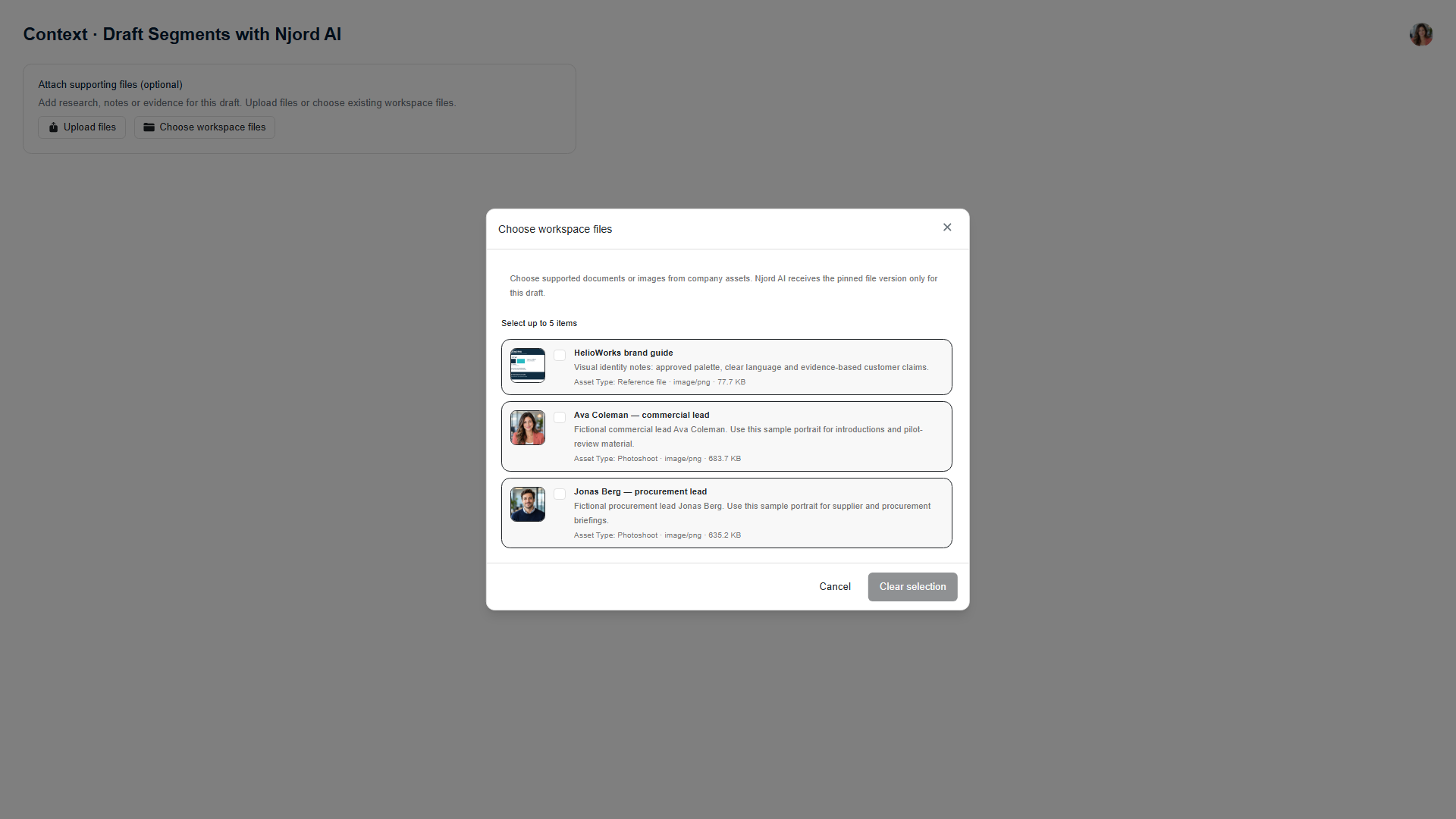
Image guide: Compare the saved asset titles and usage descriptions before making your choice.
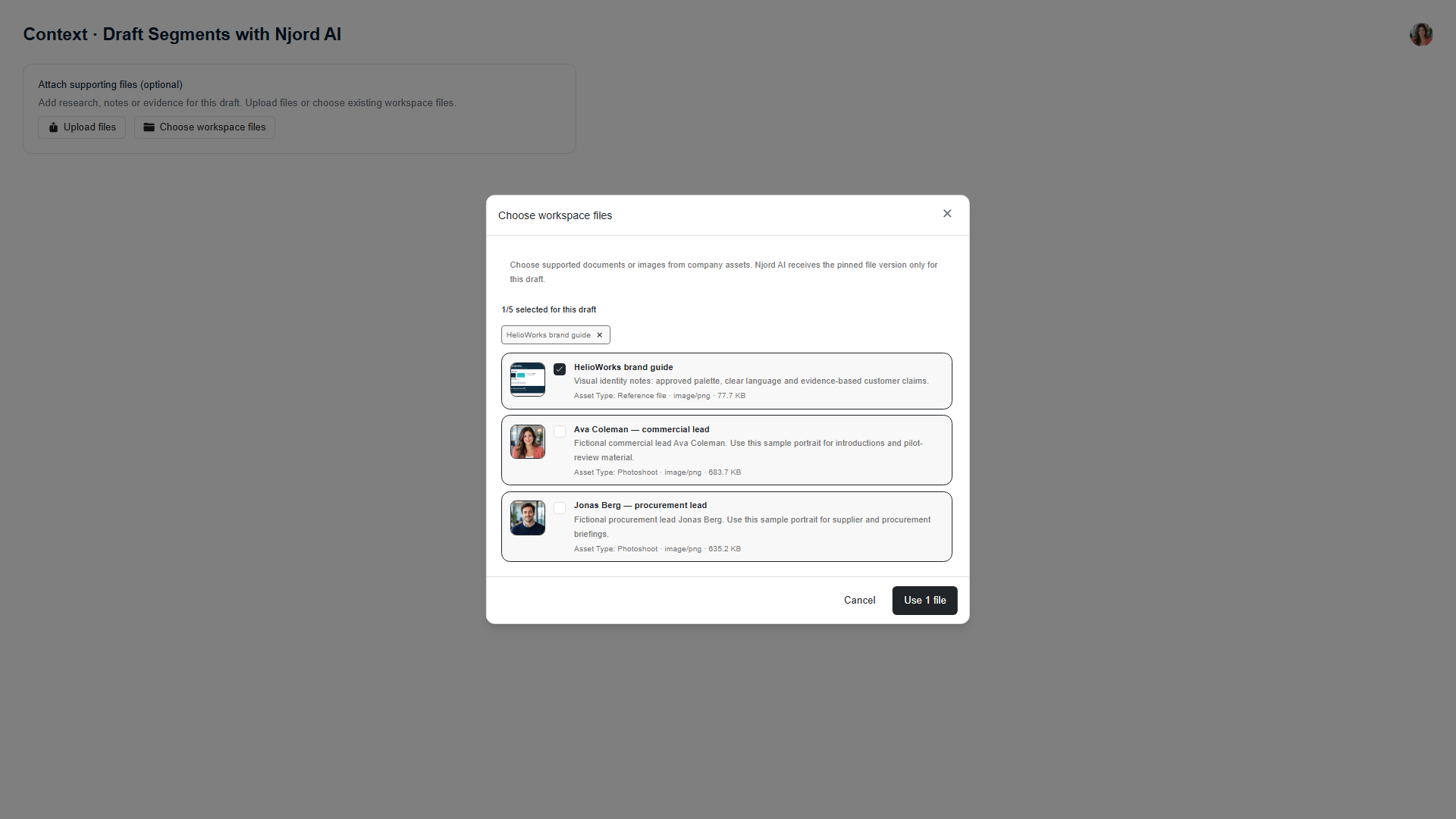
Image guide: Choose Use 1 file to attach this saved version of the Brand guide to your draft.
Read the limits across both sources
| Limit | What to check |
|---|---|
| File count | Up to five local and workspace files combined. The picker shows how many slots are already used. |
| Combined size | Up to 25 MB across the original files in the draft. |
| Document size | Up to 10 MB for a supported document or PDF. A generated Office reading copy also has a size limit. |
| Image size | Use the displayed 7 MiB guidance for supported PNG, JPEG, WebP or GIF images. |
| Extracted text | The reading limit is 2 MB of extracted text. A compressed workbook can reach that limit even when the original is small. |
Recover when a file cannot be used
- If Choose workspace files is unavailable, check the selected workspace. Upload files is available as an alternative when the workspace Assets picker is unavailable.
- If a file is too large or contains too much extracted text, split it or choose a smaller file. Remove irrelevant files before retrying.
- If the file could not be read, open it locally and check whether it is encrypted. If the format is unsupported, choose a supported document or image.
- If a draft uses the wrong revision, remove the attachment, choose the intended file and regenerate before applying suggestions.