Add a Fact and find confirmed claims
Add a Fact and find confirmed claims
Add a Fact when your team already knows a company claim and can explain its evidence. Suggested claims from Knowledge use a separate review queue.
Where to find it: Context > Facts > Add fact. Admins and Client admins create and remove Facts; joined members can read and search.
Write a complete claim
- Choose Add fact.
- Complete Subject, Claim, and Detail so they read as one statement. Example: “Northstar” / “supports buyer onboarding in” / “English and Swedish.”
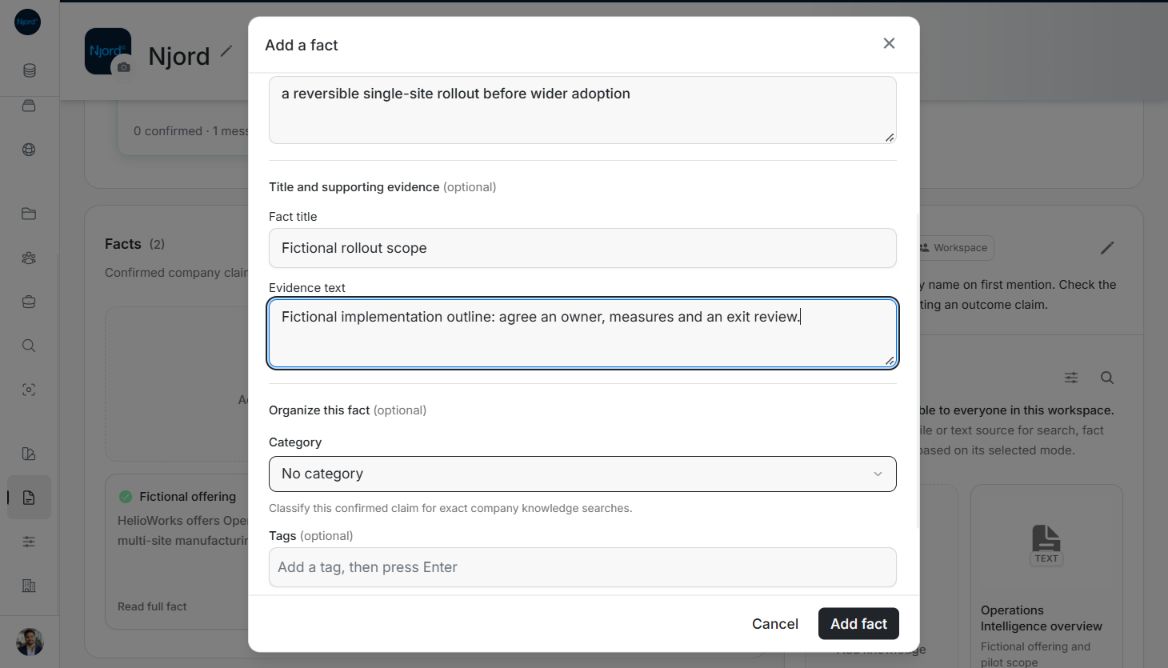
- Optionally add a short title and evidence text identifying the source and date. A title helps scanning; it does not replace the claim.
- Choose an available category and add relevant tags. Categories come from the workspace choices; do not invent a new category in the selector.
- Review the complete statement and choose Add fact.
Image guide: Add a fact separates the complete statement from optional Fact title, Evidence text, Category, tags and related-entity options. Fictional local example in the normal authenticated product, shown in light theme.
Related company entities and saving
The optional Connect this fact to related company entities control requests relationships as well as the Fact. Leave it off when you only need the claim. It does not add records to an Audience.
The progress tile tracks saving. Wait for completion or the saved message; the confirmed card can appear after the list refreshes. A temporary delay is not a reason to create a duplicate. Retry an unchanged failed request through the existing retry control. Dismiss a completed progress tile if the Fact is outside the loaded page.
Search confirmed Facts
Choose Search Facts, enter a meaningful phrase, then Search. Read the complete claim and evidence. Next and Previous move through result pages; changing the question starts a fresh result sequence. Fact search shows confirmed claims, separately from the pending review queue and the main grid. Use Load more in the grid to read older confirmed cards.
Manual Facts are saved directly rather than entering the extraction review queue. To correct a saved claim, remove the incorrect Fact with care and create the corrected claim; editing source metadata does not rewrite an existing Fact.
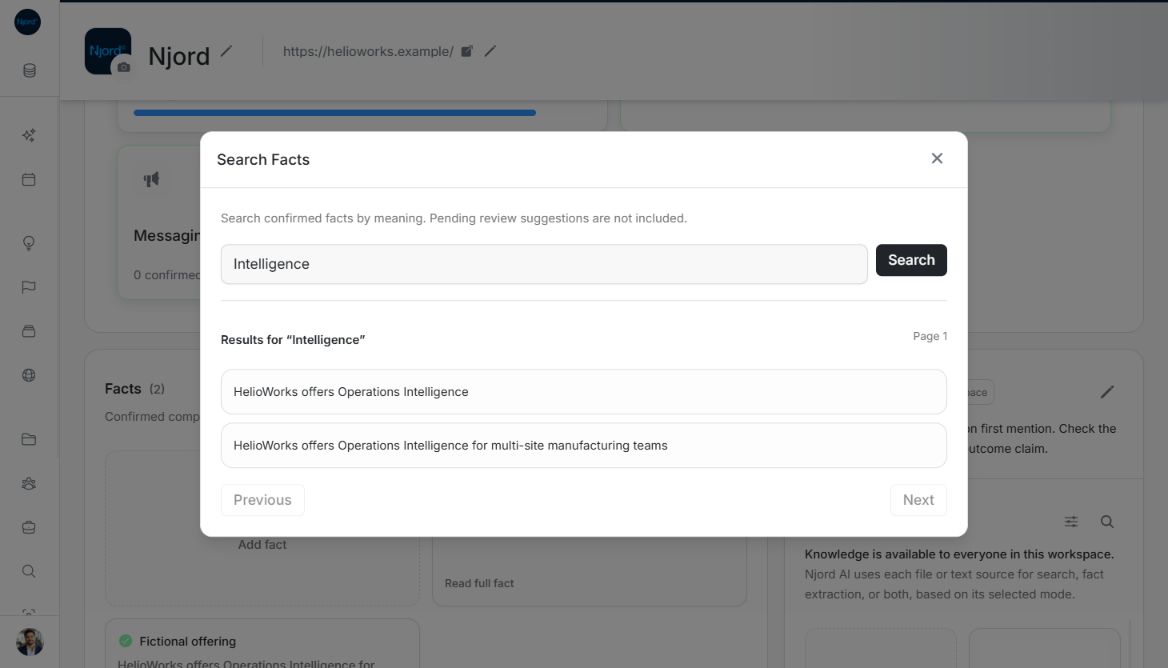
Image guide: Search Facts returns confirmed claims for Intelligence. Pending suggestions are excluded and result-page controls remain visible. Fictional local example in the normal authenticated product, shown in light theme.
Keep the claim precise and within its limits
The title permits 512 characters, subject 500, predicate 200, object 4,000 and evidence 4,000. Write one checkable assertion and include the source or reasoning that supports it. For example, a fictional demo claim can say Northstar Demo Systems offers Launch Enablement, with its clearly labelled demonstration guide as evidence. Do not present invented customer outcomes as verified company Facts.