Preview, download and share assets
Preview, download and share assets
Use Context > Assets to open a saved file, copy an image, download the original or share an asset with someone else. These actions use the assets saved in the current workspace.
Where to find it: Open Our company > Context, then scroll to Assets. Hover over a card or use the keyboard to focus it and reveal its actions. On touch devices, the actions remain visible.
Preview or download a file
- Find the asset in Context > Assets.
- Choose its title or preview image to open the current file.
- For an image, use Copy image or Download image in the top-right corner. Choose Close to return to Context.
- You can also use the card's download action to save the original file with its filename.
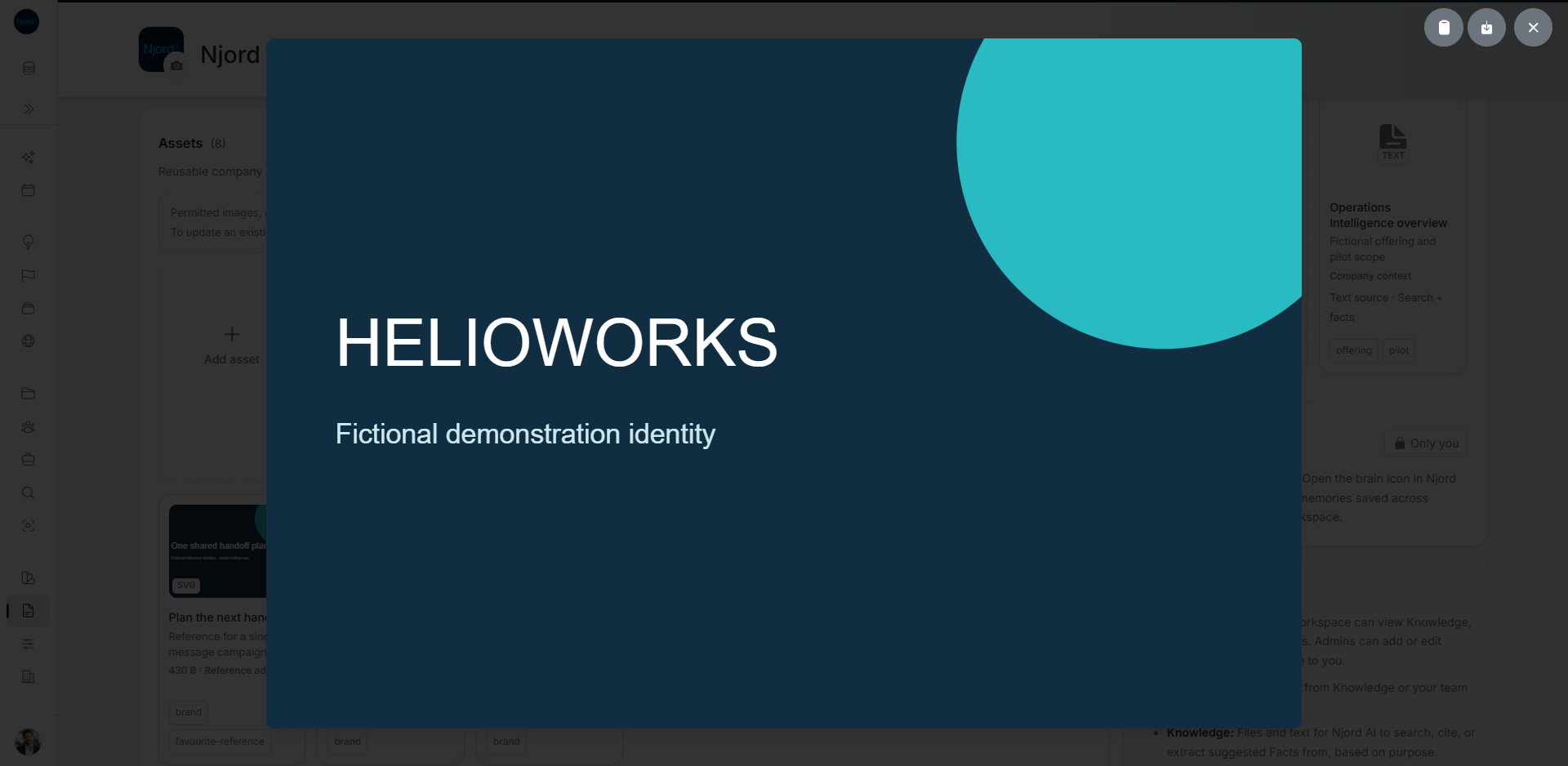
Image guide: The fictional HelioWorks wordmark was opened from Context. The Assets panel remains visible behind the preview. The controls at the top right copy the image, download the file or close the preview. Captured in light mode.
A card's thumbnail may crop a wide or tall image. The full preview keeps the original proportions and scales down when needed; transparent areas use a checkerboard. To open or download an older file, choose it in Version history first.
Supported images, PDFs, text, spreadsheets, presentations, video and audio open in a suitable viewer. If the format cannot be previewed, download the original and open it in an application that supports it.
Copy an image or a color
For an image, choose Copy image on the card or in its preview, then paste it into the destination application. This copies image pixels rather than a link. Supported transparency is retained. An animated image copies as a still frame; download the file when you need its animation or original format.
For a Color item, choose Copy color value to copy its saved hex code, such as Deep blue, #102D41. A Color item has no original file to download. A linked font opens its saved source instead.
Choose a sharing link
- Find the asset in Context > Assets and choose its Share action.
- Choose Share DOE link or Share short-lived link, depending on who needs the asset.
- Wait for the message confirming that the link was copied, then paste it where needed.
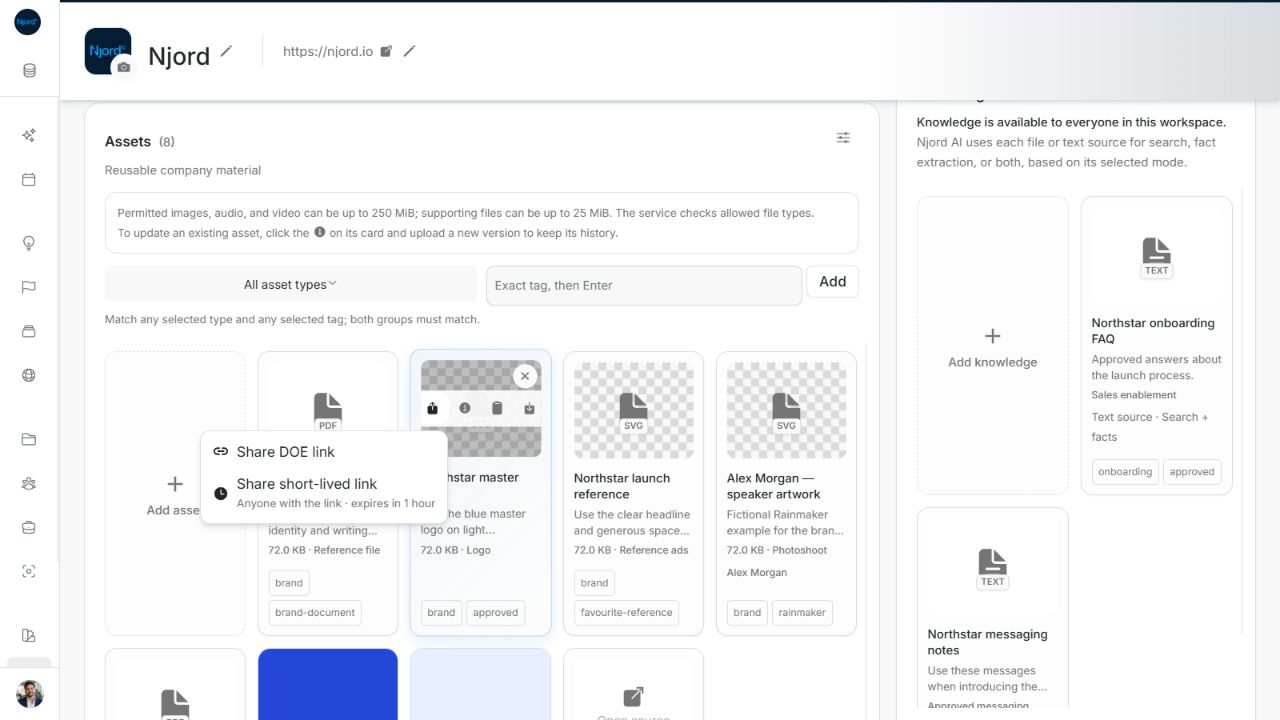
Image guide: This Context Assets menu offers a workspace link and a direct file link. The direct link expires after one hour. The Northstar asset in this earlier screenshot is a fictional example; your asset names may differ.
| Choice | What the recipient gets |
|---|---|
| Share DOE link | A link that opens the asset in Context. The recipient must sign in and already have access to the workspace. |
| Share short-lived link | A direct download of the selected file version. Anyone with the link can download it until it expires after one hour. |
Sharing a DOE link does not add someone to the workspace or give them edit rights. An item without an uploaded file offers only a DOE link.
Use a short-lived link only when the recipient should be able to download the file without signing in. It points to one file version: uploading a newer version does not change the file behind that link. Generate a new link when the old one expires.
Read a document or spreadsheet
In a spreadsheet preview, choose a worksheet, then use the bottom controls to move between pages of 25 rows. Choose a column heading to sort ascending, descending or back to the original order. Sorting applies before paging. Changing worksheet resets the page and sort.
Scroll sideways to see more columns. Use the available column-resize and zoom controls when needed. Browser previews can keep the first two columns visible while scrolling; mobile previews keep all columns scrollable. An empty worksheet does not mean that every worksheet is empty.
You can select and copy embedded text in a PDF. Scanned pages do not gain searchable text automatically. A PPTX opens in a slide preview, where fonts and effects may look different from PowerPoint. Older PPT and Word files may need to be downloaded. Video previews provide playback and fullscreen controls.
Closing a preview returns you to Context without deleting or replacing the saved file.
If an action fails
- Copy or download is unavailable: Wait for the file to finish loading. A Color item or source link may not have an uploaded file.
- Copy image fails: Check the browser's clipboard permission or download the image instead.
- Preview fails: Retry or download the original. A failed preview does not mean that the file is empty.
- A DOE link does not open: Check that you are signed in to the correct workspace and have access to the asset.
- A direct download link has expired: Ask someone with access to generate a new short-lived link.