Asset details, tags and filters
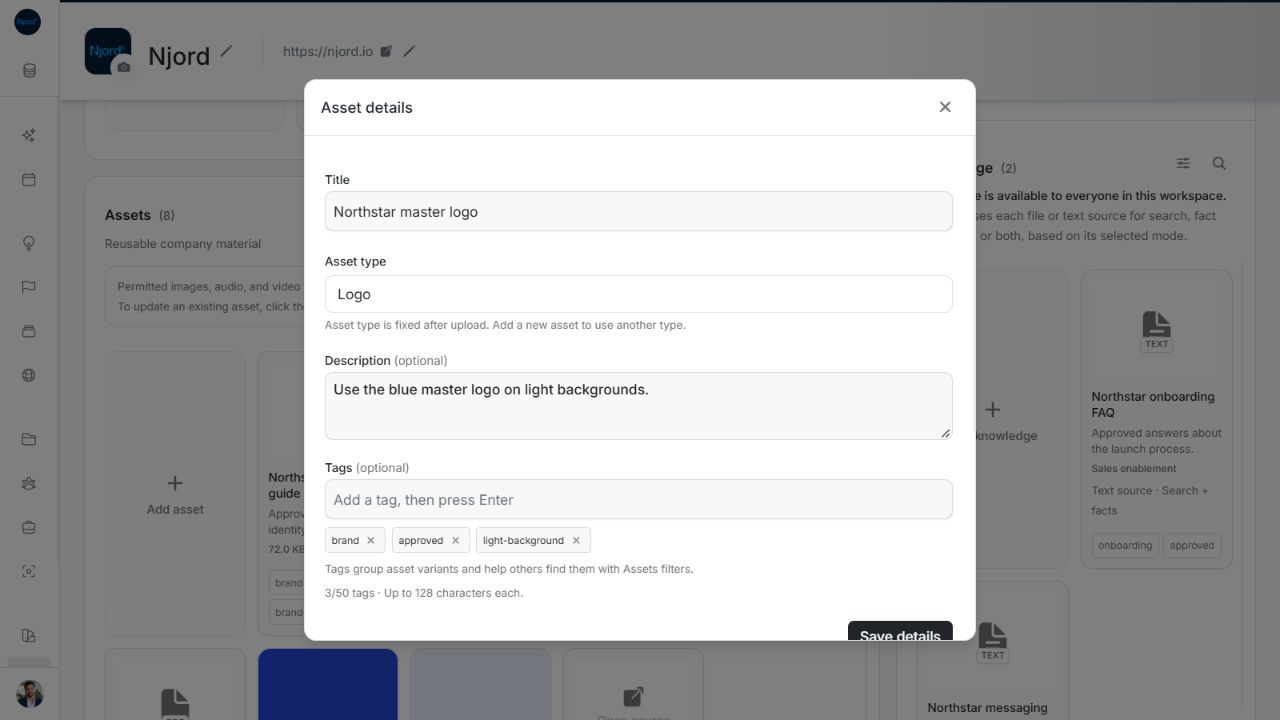
Asset details, tags and filters
Make the library easy to reuse by giving each asset a clear name, usage description and a small set of useful tags. Use filters to find the right variant without creating another copy.
Where to find it: Our company > Context > Assets. Admins and Client admins can change details. All joined members can browse and filter.
Image guide: The information icon opens editable details. Asset type stays fixed after creation. The Northstar names and content are fictional examples, shown in light mode.
Edit details
- Hover over an asset or focus it with the keyboard, then choose View details. On touch devices, use the visible information icon.
- Give it a title people will recognise, such as “Northstar master logo”.
- Explain the intended use, such as “Use the blue master logo on light backgrounds”. Font and Color descriptions are required.
- Type one tag and press Enter to add it. Repeat for other useful labels.
- Remove an ordinary tag with its cross, then choose Save details.
Use consistent labels such as approved, light-background or launch. Titles can contain up to 512 characters, descriptions up to 500, and an asset can have up to 50 tags of 128 characters each. Brand keeps its required default tags; you can add your own labels alongside them.
Editing a title, description or tags does not replace the file. Use Asset versioning when the artwork or document itself changes. Asset type cannot be changed after creation; add a separate correctly classified item if you chose the wrong type.
Find assets by type and tag
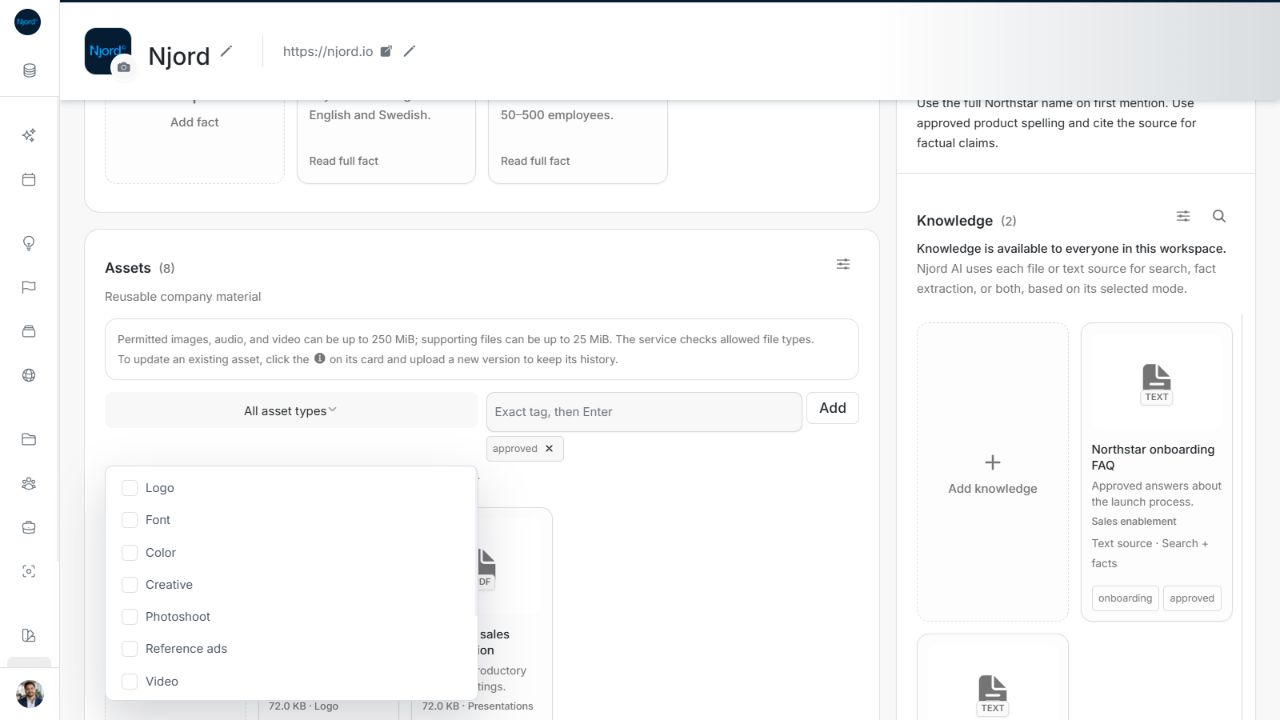
Image guide: Open Filter assets to select types and add exact tag values. The heading remains the total library count. The Northstar names and content are fictional examples, shown in light mode.
- Choose Filter assets beside the Assets heading.
- Choose one or more asset types, such as Logo or Presentations.
- Enter an exact tag and choose Add or press Enter.
- Add another tag only if either tag should qualify an asset.
- Remove a selected value to broaden the results again.
Multiple types mean any selected type may match. Multiple tags mean any selected tag may match. When both groups are set, an asset must match a type and a tag. For example, Logo plus approved finds approved logos; it does not include an approved presentation.
Presentations and Template are separate choices. Creative and Photoshoot also have different uses. Choose the specific category you need rather than trying to infer it from a PDF, SVG or other file-format badge.
Read the results correctly
The Assets heading shows the library total, not the number left after filtering. A plus sign means the exact total is not yet available. Scroll or use Load more when more results exist. If nothing matches, remove restrictive tags, check the exact spelling, and broaden the type selection before adding a duplicate.
Keep metadata within the limits
Use a title of up to 512 characters and a description of up to 500 characters. An Asset can have up to 50 unique tags, each up to 128 characters. Remove duplicate or irrelevant tags instead of adding near-identical spellings. Metadata changes describe the file; adding a replacement original is a separate versioning action.