Remove an outdated Brand item or file version
Remove an outdated Brand item or file version
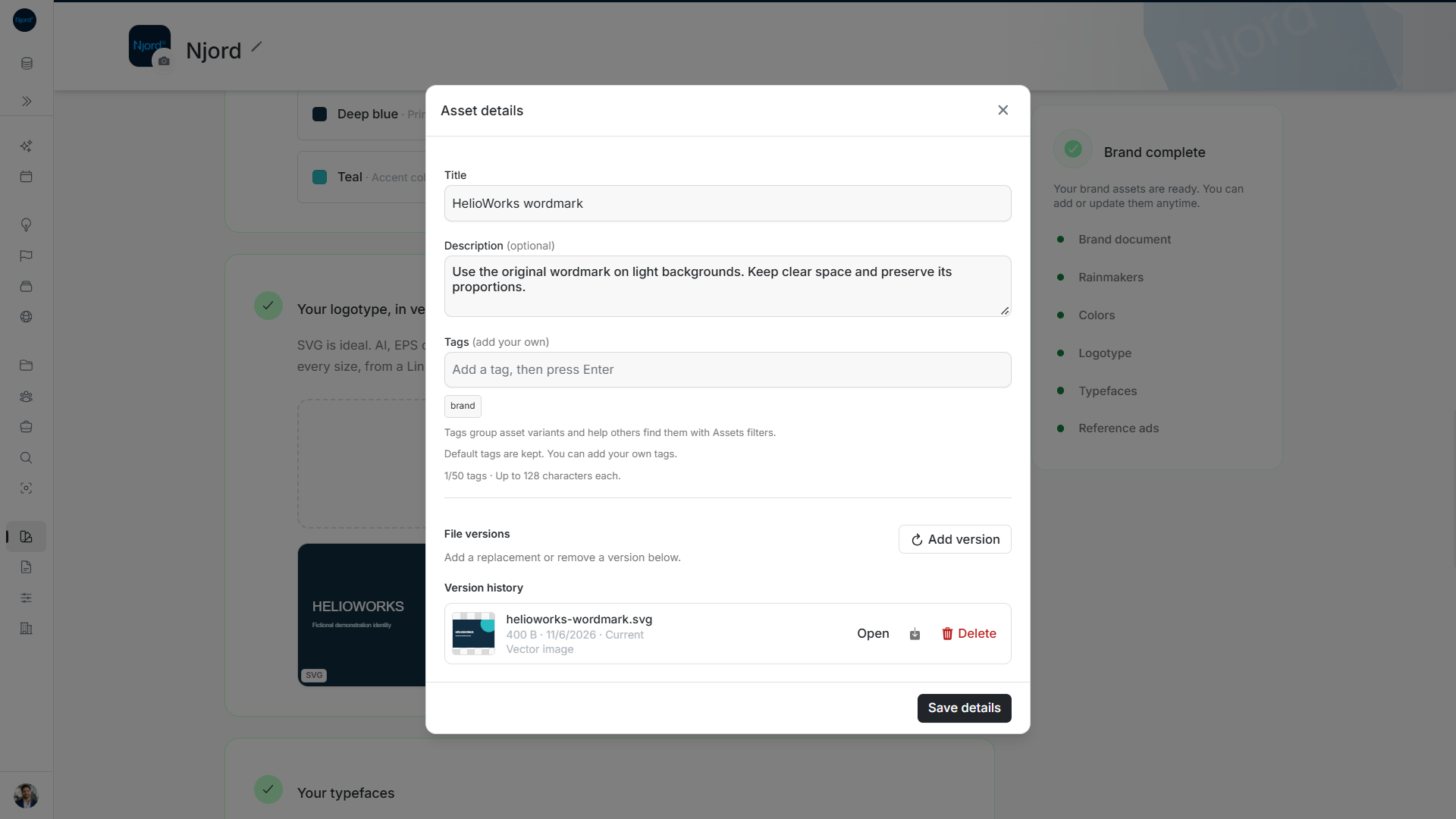
Open Our company → Brand, choose the collection, and check the asset name and version before removing anything. An Admin or Client Admin can manage Brand material. Download a copy first if your team needs to retain the original.
Remove one file version
Open the item’s details and version history. Find the intended file and choose its Delete action. If you remove the current version, the newest remaining version becomes current. Removing the final version removes the Brand item. Reopen the details to check which version is now current.
Remove the whole item
From the Brand collection, use the item’s Delete action and review the confirmation. Check the item name, then confirm. The collection and Context Assets reflect the removal. Removing the final item in a collection can make that step incomplete in Brand Progress.
If you started in Context Assets and DOE directs you to Brand, open the item in its Brand collection. For a logo or document you intend to replace, use Add version to keep its history.