Check and reconnect connected apps
Check and reconnect connected apps
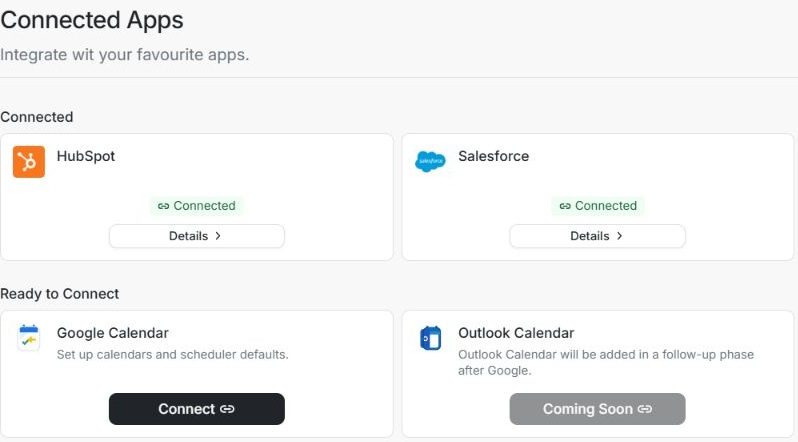
For Client Admins. Open the workspace menu, choose Settings, then choose Integrations. The Connected Apps page shows the services available in that workspace.
| What the card says | What to do |
|---|---|
| Connect | Start connecting the app. Review the provider and account shown on the next screen. |
| Setup Required | Choose Continue setup and finish the choices for that service. |
| Connected | Open Details to review the connection. For a CRM, check the account mapping and sync information. For Calendar, check the calendars and scheduling options. |
| Re-auth required or Reconnect | Sign back in with the correct account and return to DOE to check the new status. |
If your CRM connection is complete but records have not appeared, check the last sync and any warnings in its details. If Google Calendar says setup is required, review the selected calendars and Scheduler Defaults before scheduling a note taker. Members should ask their Client Admin to review connection setup when controls are missing.
Review CRM matches and sync failures when the connection is present but an individual record or a sync result needs attention.
Read the connection details
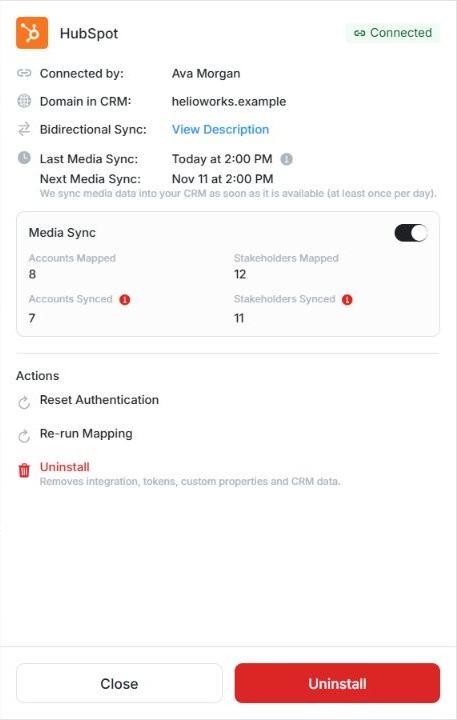
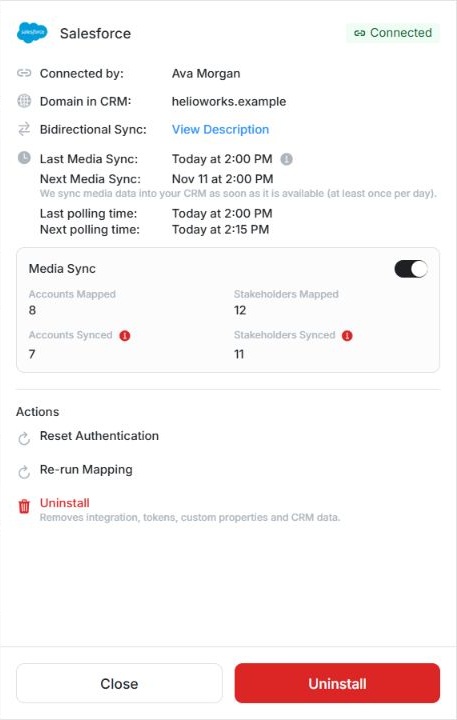
Choose Details on the HubSpot or Salesforce card. Check Connected by, Domain in CRM, Last Media Sync and Next Media Sync. Salesforce also shows Last polling time and Next polling time; these describe CRM reads separately from media delivery.
Accounts Mapped and Stakeholders Mapped count connections. Accounts Synced and Stakeholders Synced describe the last media sync. Open a red failure indicator beside a synced count to read the unsuccessful rows. Under Bidirectional Sync, choose View Description to compare DOE properties with their CRM properties.
Use Reset Authentication for the authorized provider account when access must be renewed. Re-run Mapping starts the matching review again. Uninstall removes the whole integration; it is broader than correcting one account connection.
Screen examples
These light-mode examples use fictional local data. Your names, amounts, dates and connection state can differ.