Read the full copy and landing page of an ad
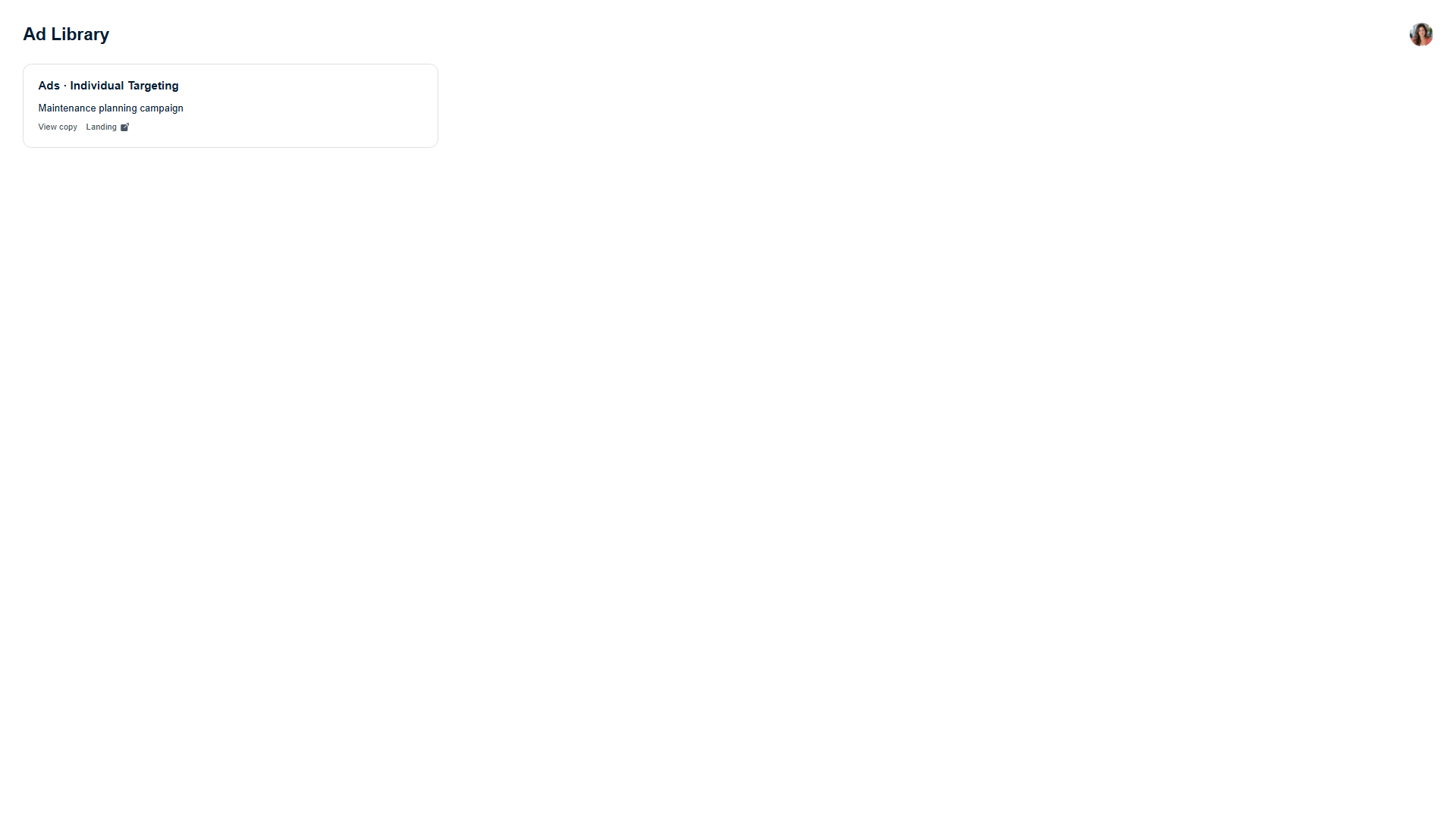
Read the full copy and landing page of an ad
Open Ad Library → Ads and choose LinkedIn or Individual Targeting. You can also open View ads on a campaign to keep the listing scoped to that campaign.
Open the copy and check the destination
- Find the intended ad. Check the campaign name if several ads use similar copy.
- Select the excerpt or View copy. Scroll inside the popover to read a long post.
- Check Creative name to identify the asset and Creative copy to read the saved message. No creative copy available means the ad has no copy to display there.
- If Landing page appears, select it to open the saved destination. Compare the destination with the offer in the copy. Close the popover to return to the same listing.
In this example, the creative promotes a downtime ROI guide. Check the saved destination in the popover before opening the full ad preview to examine the media and performance.
Image guide: Choose View copy to open the text. The adjacent landing action opens the destination directly.
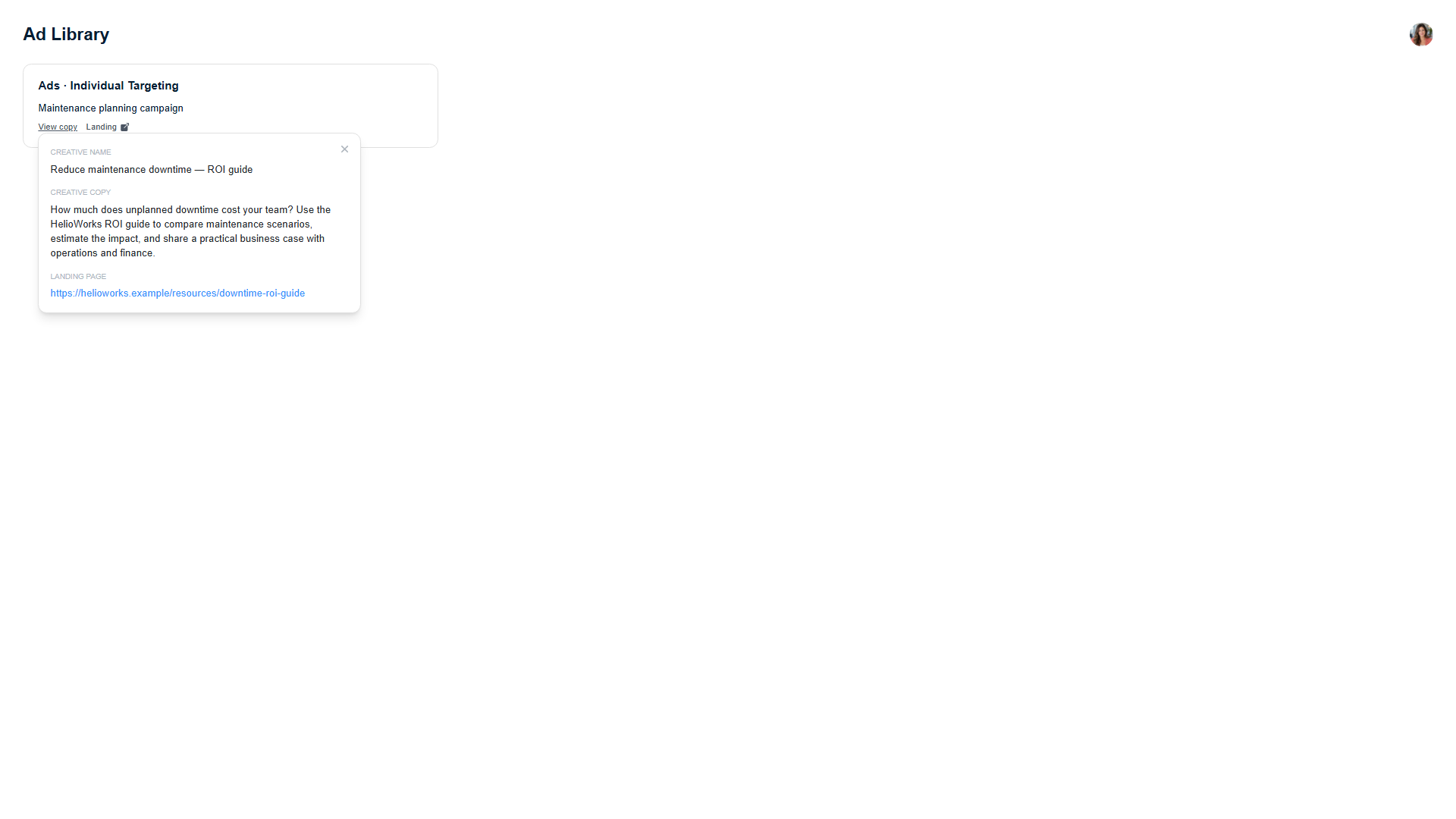
Image guide: The popover shows the full creative copy for the HelioWorks guide and a separate link to its landing page.
Pick the preview for the job
| Control | What it opens |
|---|---|
| View copy or the excerpt | The saved creative name, full commentary and landing page when supplied. |
| View | The detailed ad preview with available creative media and performance. |
| LinkedIn eye icon | A quick view of the LinkedIn post where available. |
| View in LinkedIn | The original provider post when a source link is available. |
If the landing page is absent, use the saved creative and the available source actions to review the ad. A landing page can be separate from the provider's post URL.