Header actions: CRM and Activities
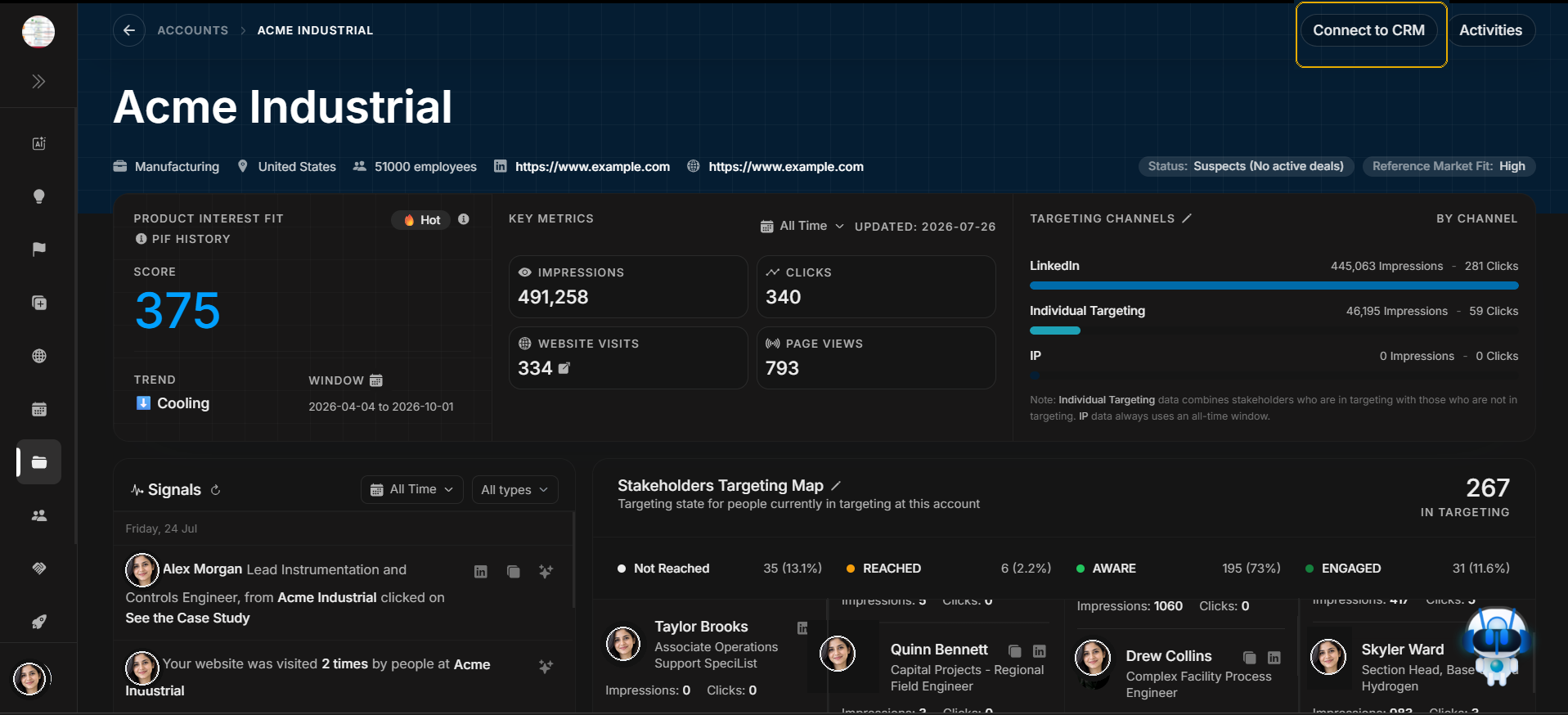
Header actions: CRM and Activities
The account header has two separate workflows. Connect to CRM is for matching this DOE account with an external CRM record. Activities is for reviewing account change history. Keep them separate so users do not treat CRM sync and activity audit as the same task.
Connect to CRM from the header
Image guide: Start from the header action after confirming the account name, domain, and account identity.
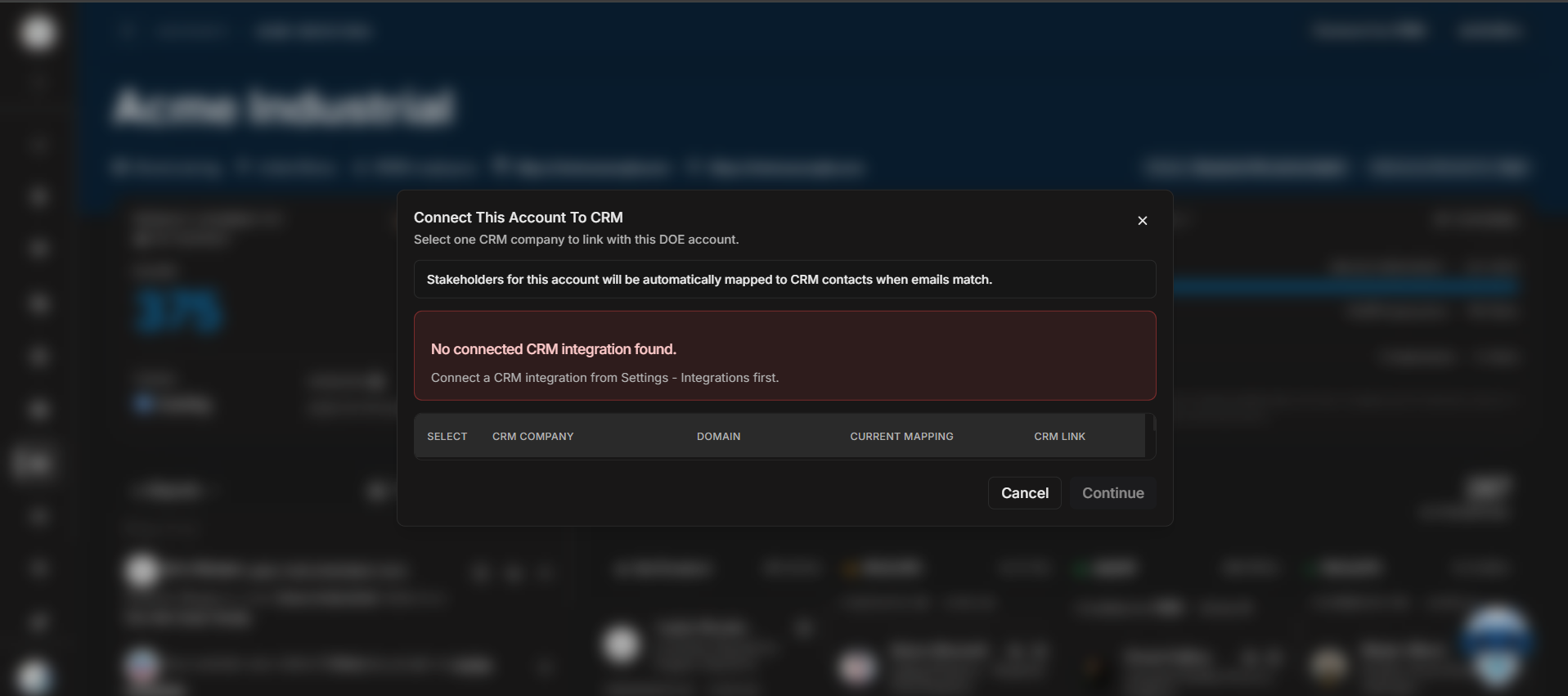
Image guide: The CRM modal is the next step after clicking Connect to CRM. Confirm or search for the matching CRM company/account record before saving.
CRM integrations: HubSpot and Salesforce
The CRM action depends on workspace integrations. If HubSpot is connected, users can match this DOE account with the related HubSpot company. If Salesforce is connected, users can match this DOE account with the related Salesforce account.
| Situation | What to check |
|---|---|
| HubSpot option is missing | Confirm the HubSpot integration is connected in workspace settings. |
| Salesforce option is missing | Confirm the Salesforce integration is connected in workspace settings. |
| CRM search cannot find the company | Check company name, domain, and sync freshness. |
| Wrong CRM record appears | Close the modal and re-check account identity before connecting. |
| User cannot connect CRM | Check role permissions and integration access. |
Select Activities from the header
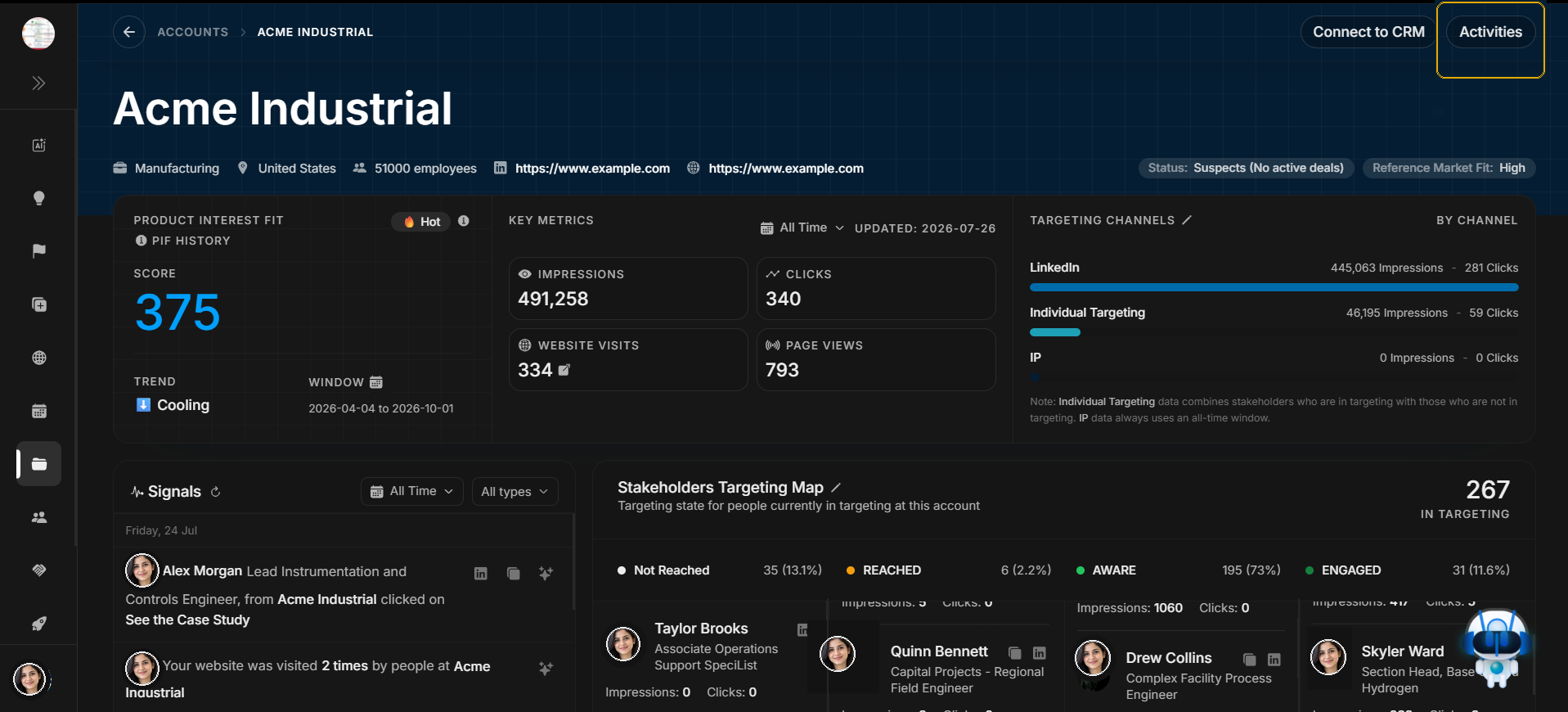
Image guide: The Activities button is selected from the account header. Use it when the user wants history: what changed, when it changed, or why a value looks different.
Read the Activities drawer
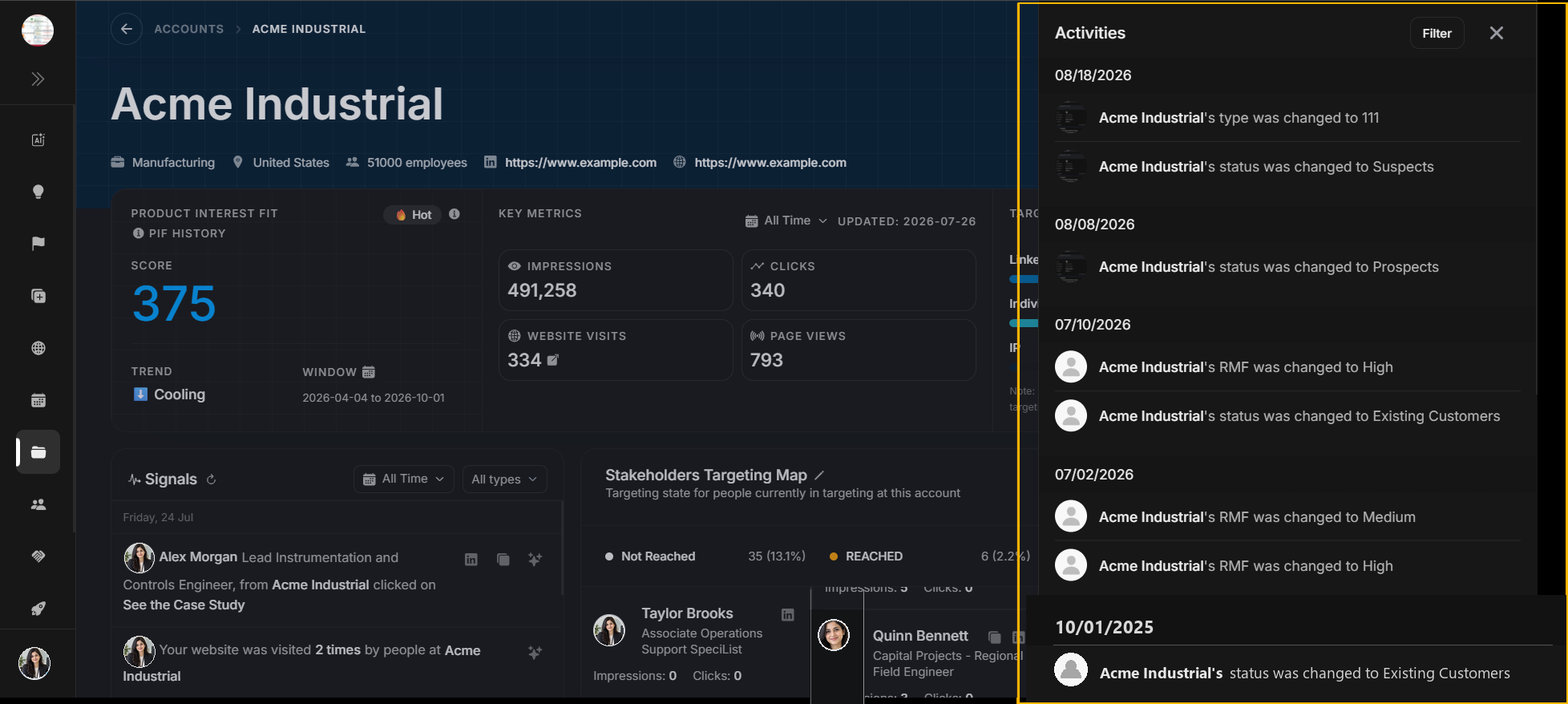
Image guide: After clicking Activities, the side drawer opens on the right. Read newest records first, then move backward by date.
Filter activity history
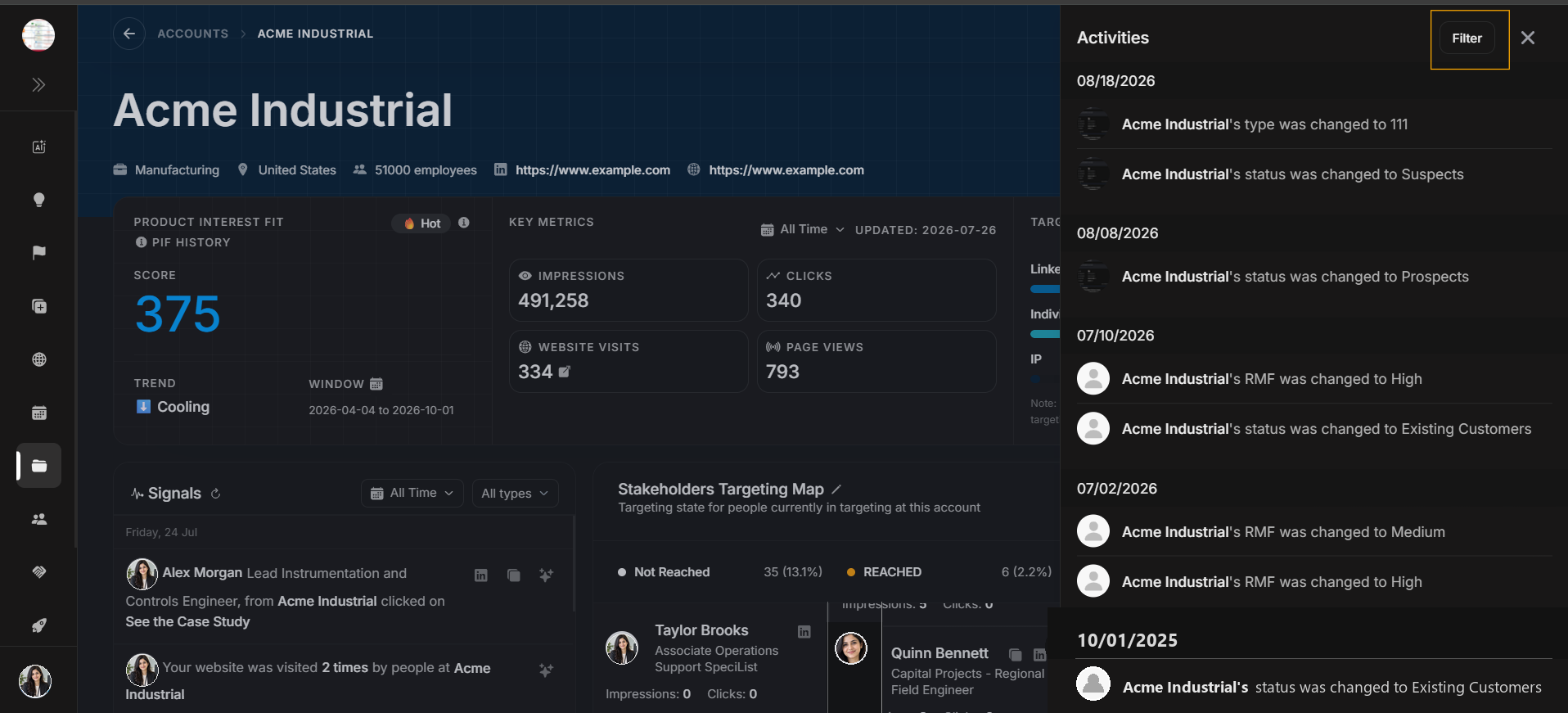
Image guide: The Filter button belongs to the Activities drawer. Use it only after opening the drawer and deciding the history is too broad.
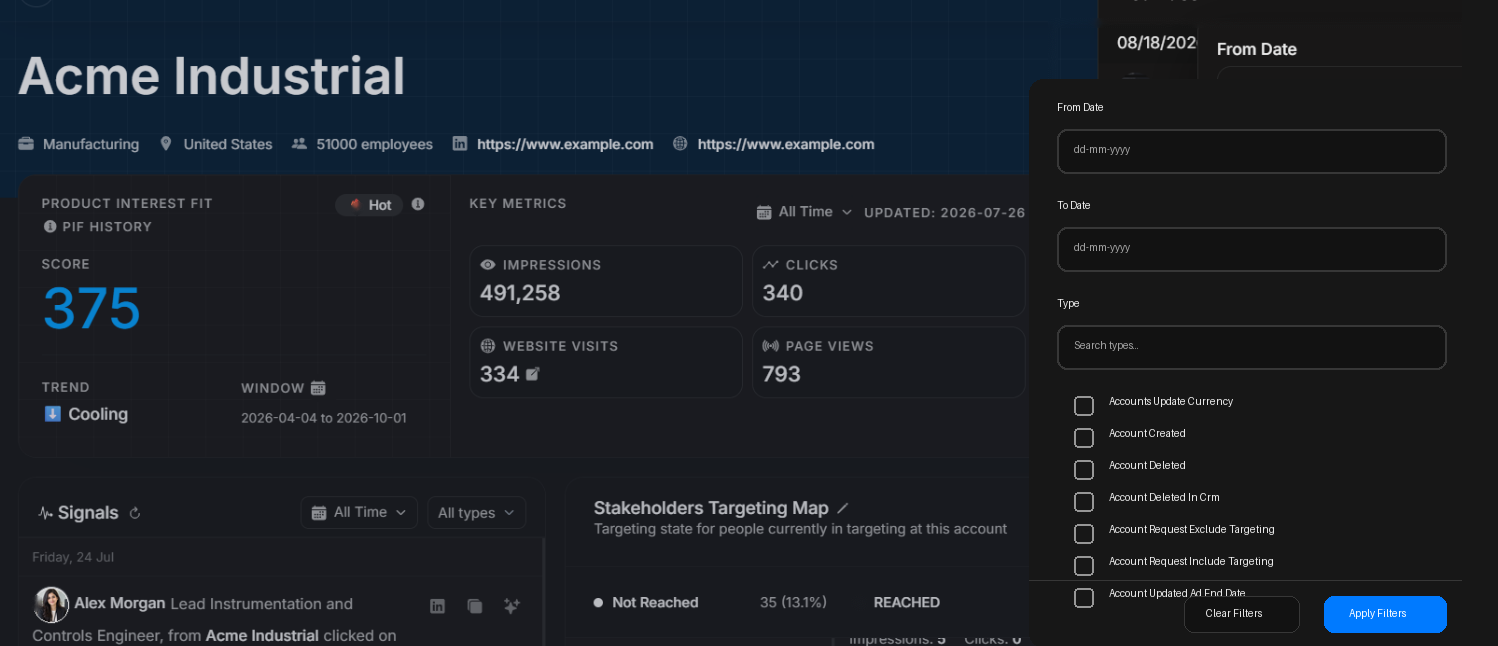
Image guide: The Activity filter modal narrows the drawer by date range and activity type. Clear filters before deciding older history is missing.
Correct journey
- Use Connect to CRM only for external CRM matching.
- Review the CRM modal before saving any connection.
- Use Activities only for account history and audit questions.
- Read the opened drawer before filtering.
- Filter the drawer when there are too many activity records.