Watch or download a meeting recording
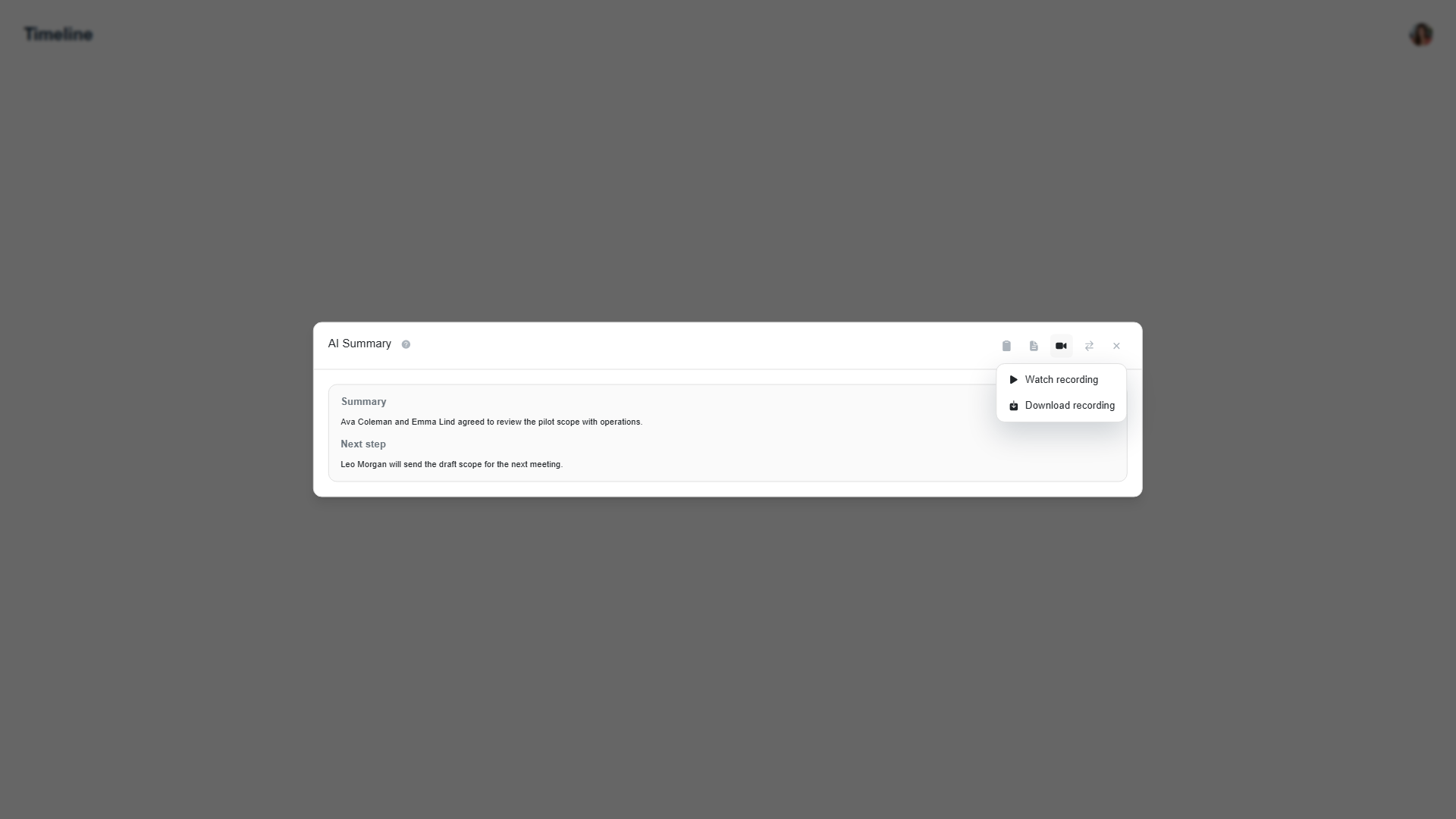
Watch or download a meeting recording
Use the recording options in completed meeting notes to replay a captured conversation or download its video when it is available.
Open the recording
- Open Timeline or the Events section of the related account, deal, or stakeholder.
- Find the completed meeting. Open its notes and check the meeting title and date.
- In the notes header, open Meeting recording options.
- Choose Watch recording to open the player, or Download recording to save the video through your browser.
The notes export saves the current text view. Use the recording menu when you need the video.
Image guide: Open the video menu and choose the playback or download action offered for this recording.
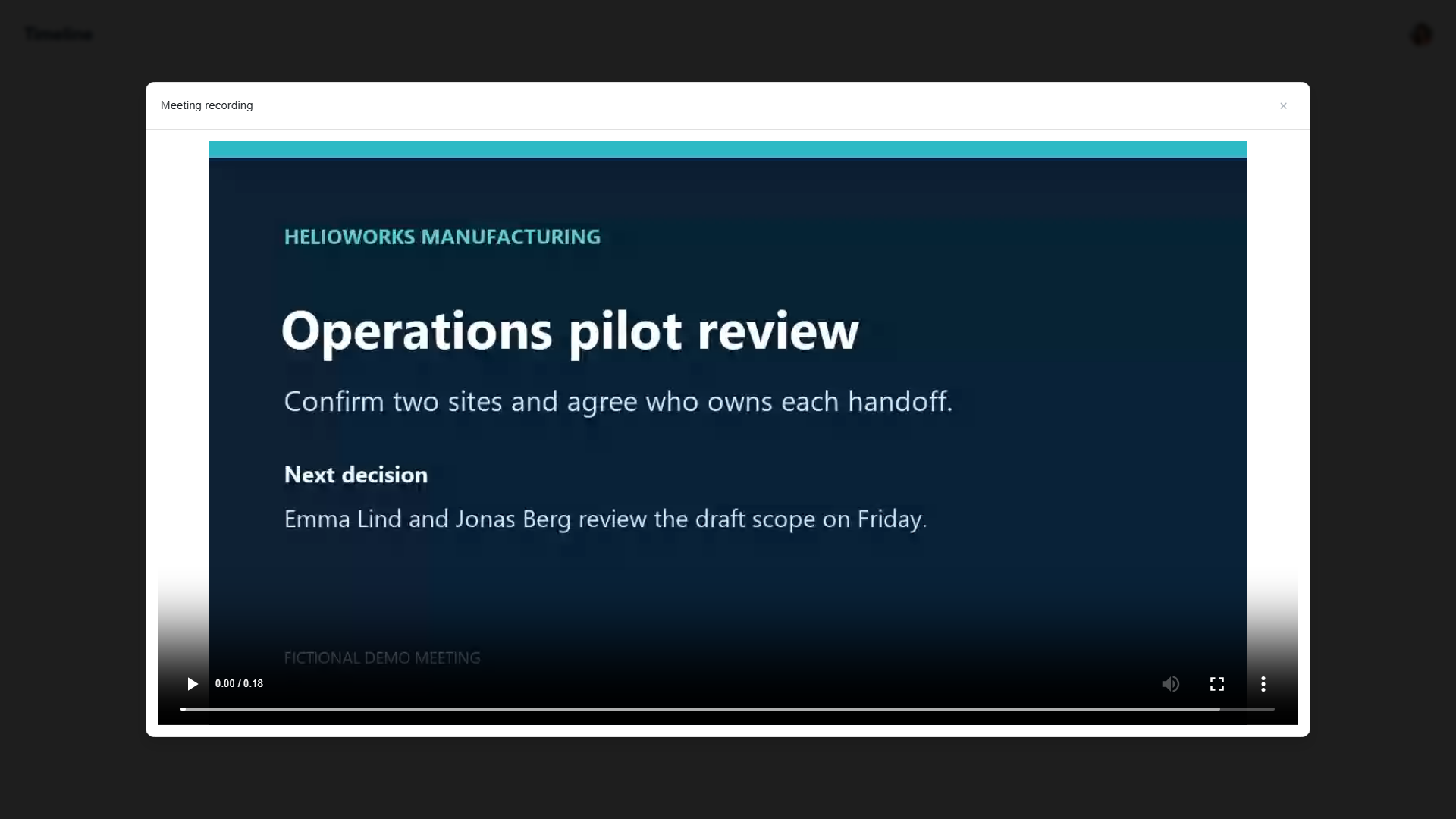
Image guide: Watch recording opens the video player. Use the controls to pause or move through the recording, and use the close button to return to the notes.
If the recording is unavailable
Check whether the meeting is still processing. Once it finishes, reopen the notes and try the recording menu again. If DOE shows an error, note the meeting title, date, and error for your workspace administrator. The notes or transcript may already be available while the video is unavailable.
Choose the video action
| Action | Result |
|---|---|
| Watch recording | Opens the recording player when the meeting has an available video. |
| Download recording | Requests the video for download. Check the browser’s download list if it does not appear immediately. |
| Copy or export in the notes header | Copies or exports the current notes view. Use the recording menu to obtain video. |