Use Google Calendar for manual note taking only
Use Google Calendar for manual note taking only
Use this setup if you want to select Google Calendar events yourself each time you schedule a note taker.
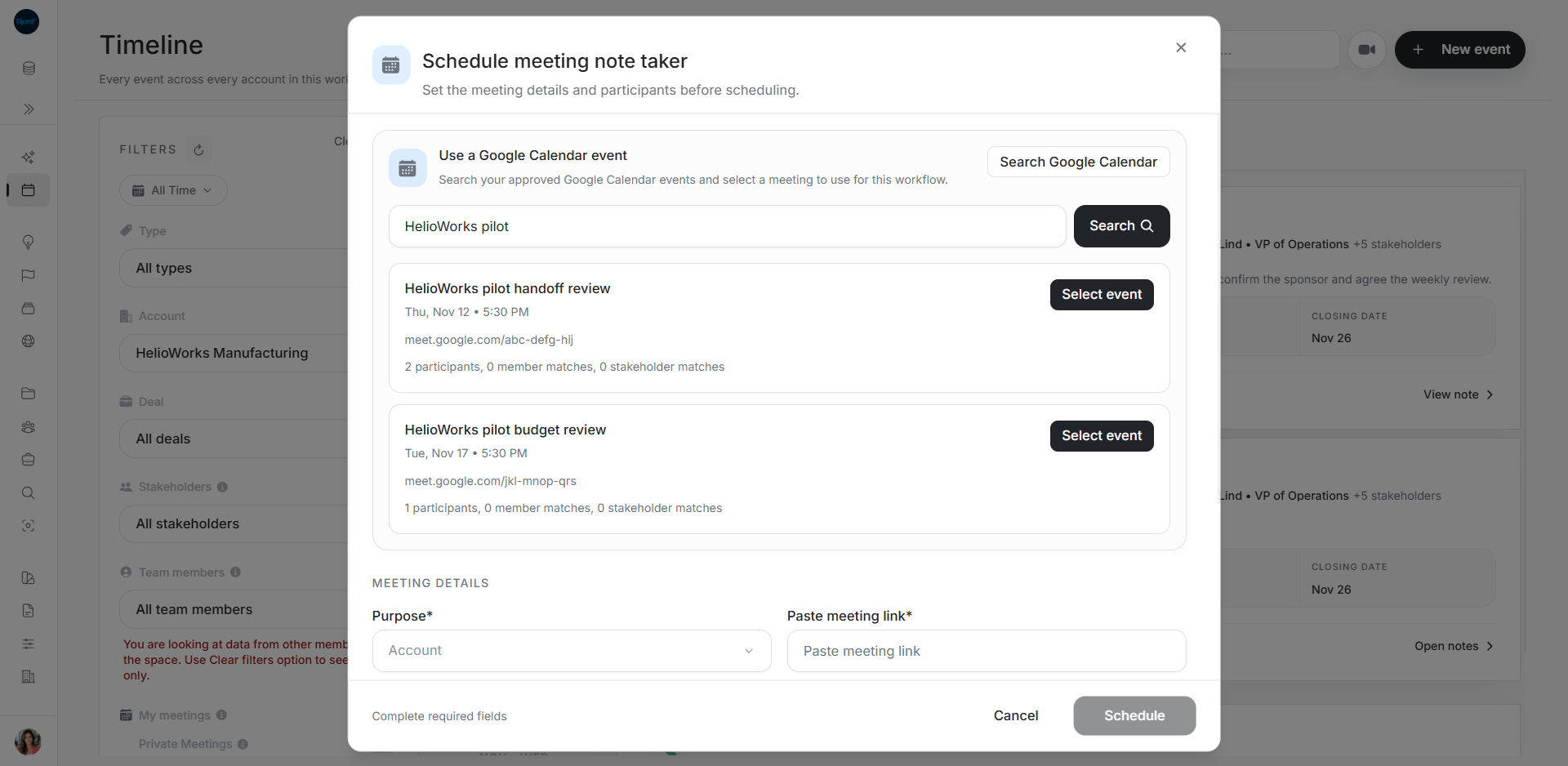
Image guide: Search connected calendars for a specific meeting and check its time and participants before selecting it.
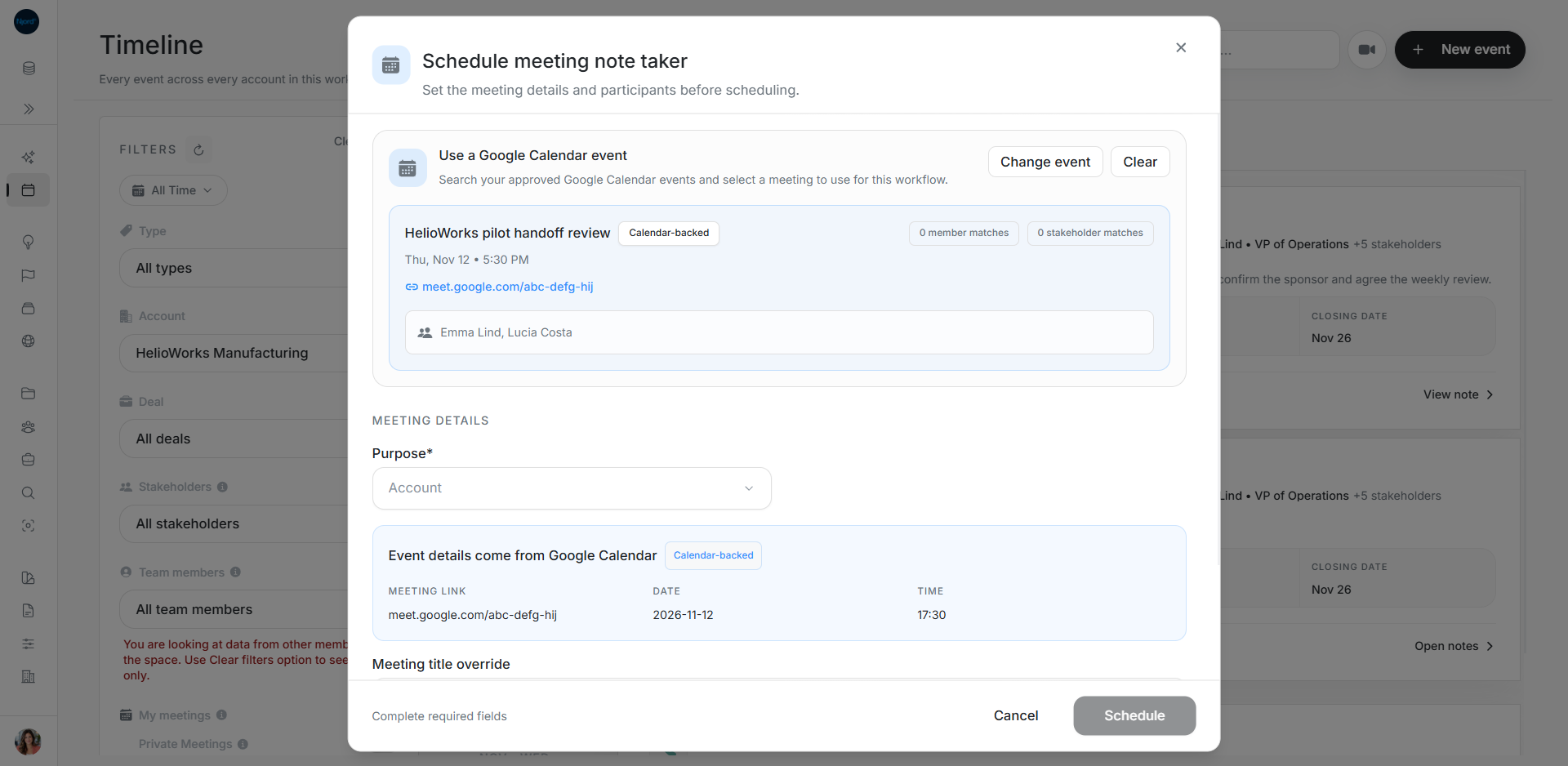
Image guide: Review the date, time and link that the selected Calendar event supplied.
Keep calendar search and turn off automatic scheduling
- Open Settings → Integrations and connect Google Calendar.
- Open Continue setup or edit the existing Calendar settings.
- In Scheduler Defaults, turn off Auto-schedule mapped meetings and Auto-schedule unmapped meetings.
- In the calendar selection, keep the calendars you want to search. Save the setup.
- Check the connection details to confirm which calendars are selected and whether the automatic rules are off.
Pick an event manually
- Open Timeline or the account's Events section and choose Schedule meeting note taker.
- Open Search Google Calendar and enter the title or another detail you know.
- Choose the matching event and review the filled-in date, time, and meeting link before confirming.
- Find the resulting event in Timeline or the record's Events section and check its status.
If a result cannot be selected, read the reason beside it. If search is unavailable, check that Calendar setup is complete and that the correct calendars are selected.