Share or save an AI-generated image or video
Share or save an AI-generated image or video
Use the actions on a ready image or video in Njord AI to choose what happens to the file.
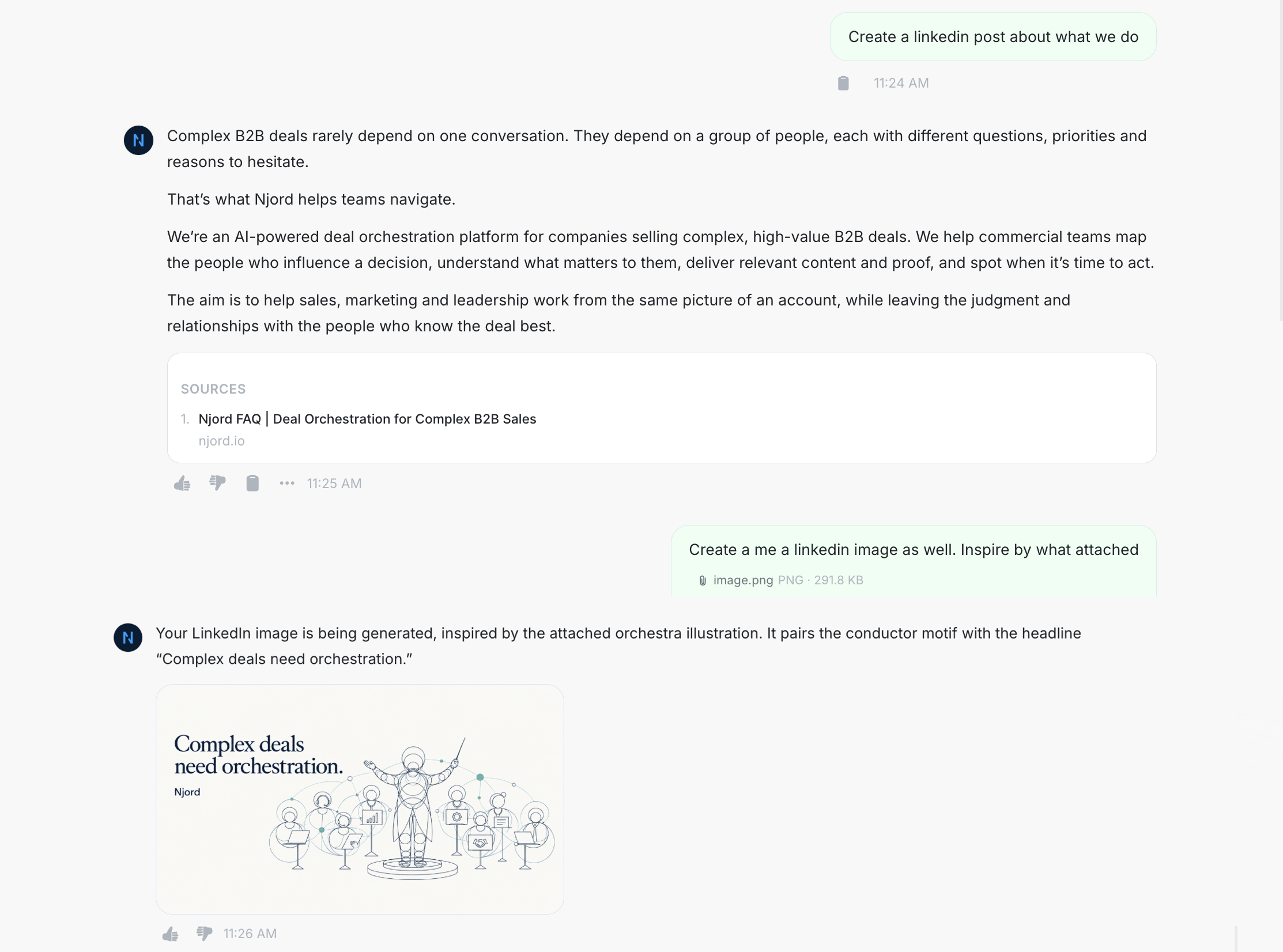
Image guide: The generated image preview offers download and save actions.
Review and download
- Wait until the media itself is ready. The text response may finish first.
- Open the image preview or play the video. Check the content and confirm it is the intended result.
- Use Download on the media to save the original file.
Share temporarily or keep a workspace copy
- Share copies a temporary link. Anyone with the link can open it until it expires, about one hour after copying. Share it only with the intended people.
- Save as company asset makes a copy in the workspace’s shared Assets. Admins and Client Admins can use this action when Assets is available. Choose a compatible type, review the title and tags, save, then confirm the new item in Context → Assets.
If the job still shows a waiting status, leave the existing card open for another check. If saving as an asset fails, read the error and check the Assets list before repeating the action. The generated media remains available in the originating chat when the result itself is ready.
Check whether the media is ready to share
The chat can acknowledge your request while the media is still queued or running. Wait for the card to show the ready image or video, then open it. Share copies a link usable for one hour by whoever holds it. To keep the media for the team, an eligible Admin or Client Admin can use Save as asset, then check the new entry in Context Assets.