Sort, inspect and export a table from Njord AI
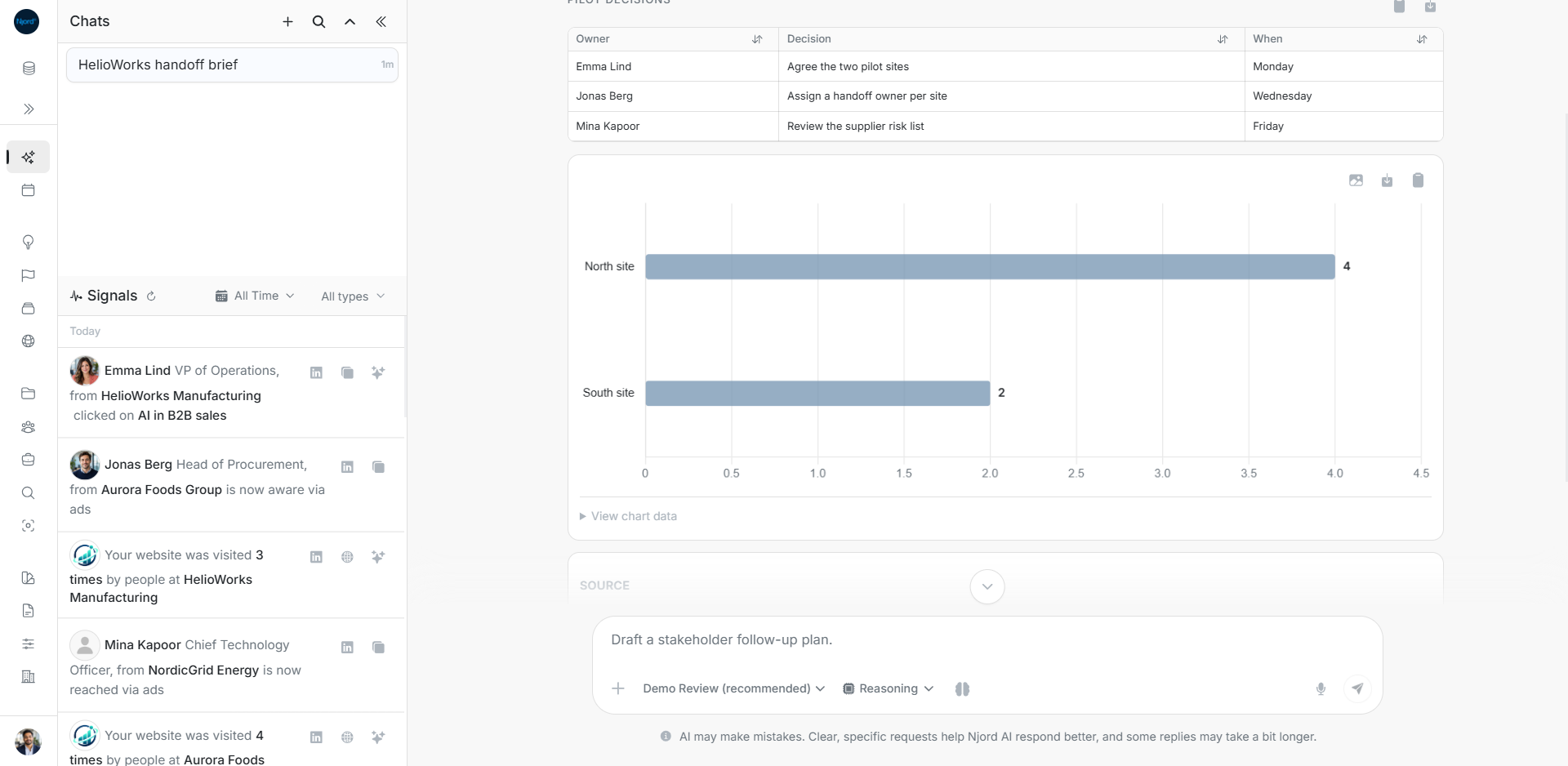
Sort, inspect and export a table from Njord AI
When Njord AI returns a table, check the title, time period and records it covers before comparing the rows.
Inspect the rows
- Select a sortable column header to sort it. Select it again to reverse the order, and a third time to return to the original order.
- In a structured table, use a column divider to resize the column. On a small screen, scroll across to see the other fields. A wide browser table may keep the first columns in place while you scroll.
- If the answer shows an inline preview with View all, open it to read the remaining rows. Use the account or stakeholder link on a row when you need to verify the underlying record.
For example, sort a 30-day engagement table by clicks, open the company with the strongest result, and compare its score with the report window shown in DOE.
Keep the data you reviewed
Use the table’s Copy or CSV export when available. Use the whole-answer export when you also need the explanation around it. A generated spreadsheet has its own file card. Open the ready file to inspect its sheets before downloading it.