Find a ready-made Njord AI shortcut
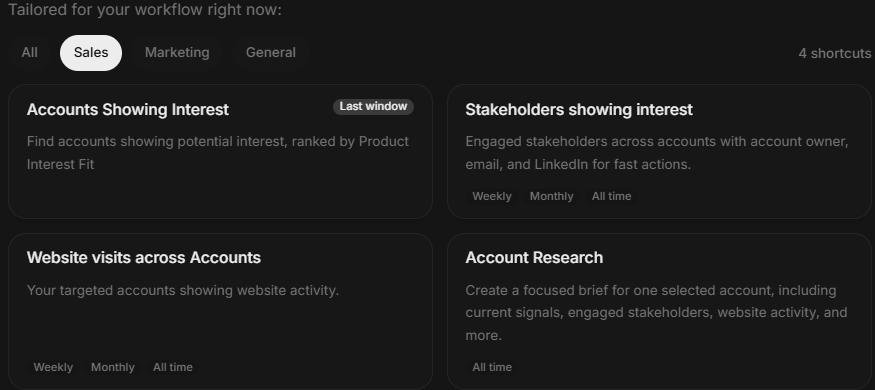
Find a ready-made Njord AI shortcut
Open Njord AI and start a new conversation to see the shortcut suggestions. The suggestions show a preview of the shortcuts available for your workspace.
Image guide: Start with the visible Sales shortcuts, then open the broader library when the first cards do not contain the one you need.
Find a shortcut
- Choose All or an available category such as Sales or Marketing.
- Read the category and time-period labels on the cards. On a phone, swipe across the card row to see the other suggestions.
- If there are more shortcuts in the category, choose View more. The full all-category view is called Library. A filtered view keeps the category name.
- Read the count for the selected category. Use Load more if the full view still has more results.
Run the shortcut with the right scope
Choose the prompt that fits your task. When asked, select the account, deal, or other record and confirm the time period. Some shortcuts start immediately. Check the current workspace and data view first if you’re looking for a specific team or owner.
If a category has no shortcuts, it may be absent from the tabs. If you cannot find a prompt after checking All and the full Library, ask the question in the composer.