Choose an AI shortcut
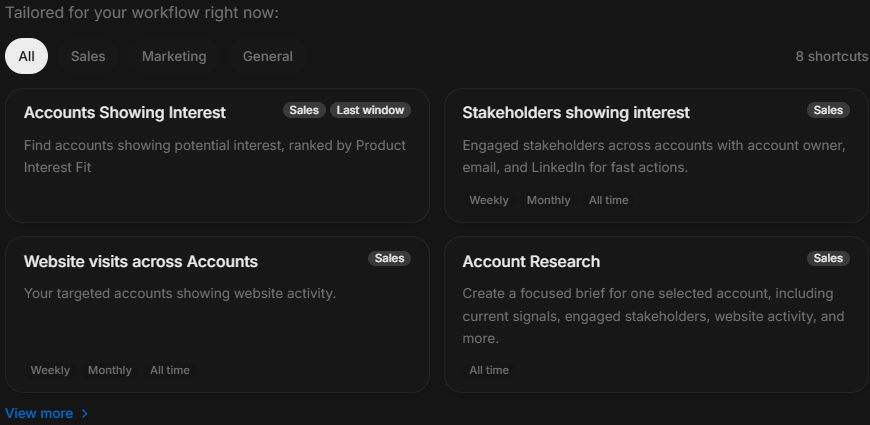
Choose an AI shortcut
AI shortcuts are guided prompts for common DOE jobs. They help users ask consistent questions without building the prompt from scratch.
Use a shortcut when you know the outcome you want but do not want to decide the exact wording. Type your own prompt when the task is unusual, highly specific, or not covered by a shortcut.
Image guide: this screenshot shows the shortcut browser with category tabs. Start with All if you are exploring. Use Sales, Marketing, Management, or General when you already know the type of work.
When A Shortcut Is The Best Start
Shortcuts are best for repeatable work:
- Preparing for a meeting.
- Reviewing an account.
- Explaining recent engagement.
- Comparing several accounts.
- Summarizing website activity.
- Turning signals into next actions.
- Creating a leadership-ready summary.
If you have a one-off question, start with the message box instead.
Shortcut Categories
| Category | Use it for | Example result |
|---|---|---|
| Sales | Account planning, meeting prep, deal risk and follow-up. | A clear brief or next-action plan. |
| Marketing | Campaign engagement, channel response and audience movement. | A summary of what the market is responding to. |
| Management | Team review, prioritization and status summaries. | A concise decision brief. |
| General | Writing, summarizing and open-ended help. | A rewritten update, checklist, or simple comparison. |
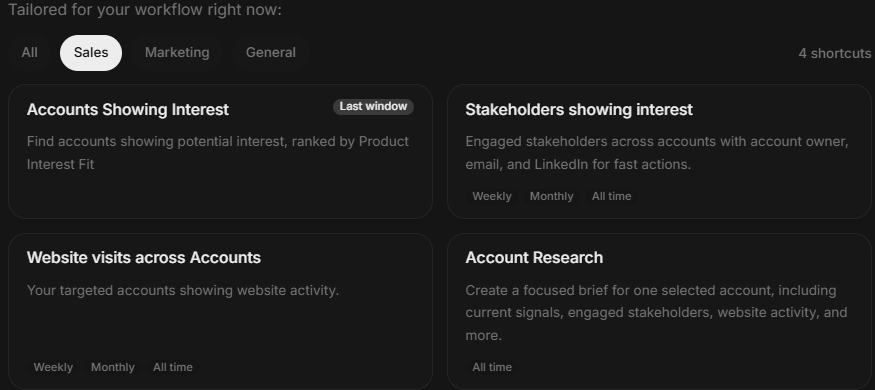
Image guide: the Sales shortcut tab shows prompts aimed at account owners and sellers. Use these when the output should help a person decide what to do with an account, deal, or stakeholder.
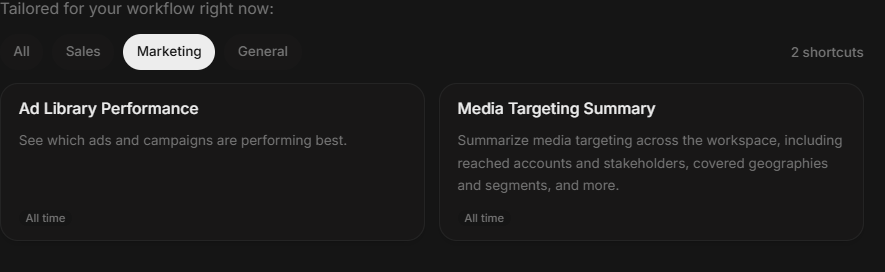
Image guide: the Marketing shortcut tab is for channel activity, engagement patterns and campaign interpretation. Use it when the question is about what is working across a market or audience.
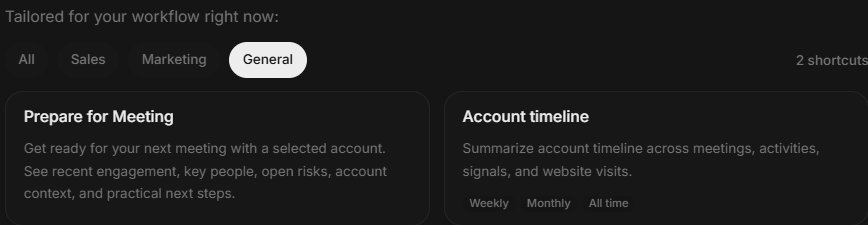
Image guide: General shortcuts are useful for summaries, rewrites and broad analysis. Use them when the task is not tied to one sales or marketing workflow.
How To Pick The Right Shortcut
Choose by the decision you need to make, not only by the data source.
| Your goal | Better shortcut choice |
|---|---|
| Decide who to contact next | A next-action or prioritization shortcut. |
| Understand why an account is active | An account or signal analysis shortcut. |
| Prepare for a meeting | A meeting prep shortcut. |
| Explain campaign activity | A marketing or engagement summary shortcut. |
| Create a short update | A brief, rewrite, or summary shortcut. |
What Happens After You Click A Shortcut
Some shortcuts send immediately. Others ask for extra details first.
You may be asked to:
- Select one or more accounts.
- Select one or more stakeholders.
- Select a deal or opportunity.
- Choose a time range.
- Select the records the shortcut should use.
- Confirm the question before sending.
Read the prompt before you send it. You can often adjust the wording to make the answer more useful.
Time Range Choices
Pick a time range that matches the decision.
| Time range | Best for |
|---|---|
| Today or Last 7 Days | Urgent follow-up and recent signal review. |
| Last 30 Days | Current account momentum and near-term activity. |
| Last 3 Months | Campaign review and trend understanding. |
| All Time | Background context and long-term account history. |
If the shortcut asks for a time range and you are unsure, start with Last 30 Days. It is usually current enough for action and broad enough to show useful context.
Example Shortcut Workflow
- Open Njord AI.
- Click Shortcuts.
- Choose Sales if the output is for an account owner.
- Pick a meeting prep or account summary shortcut.
- Select the account or stakeholder when asked.
- Choose a recent time range.
- Send the prompt.
- Ask a follow-up such as "make this customer-ready" or "show the evidence."
If A Shortcut Is Missing
Shortcuts can depend on workspace configuration, connected data and user access. If you do not see a shortcut, type the question manually or start from a similar shortcut and edit the prompt.
Do not wait for the perfect shortcut. A clear manual question often works just as well.