Change your DOE password while signed in
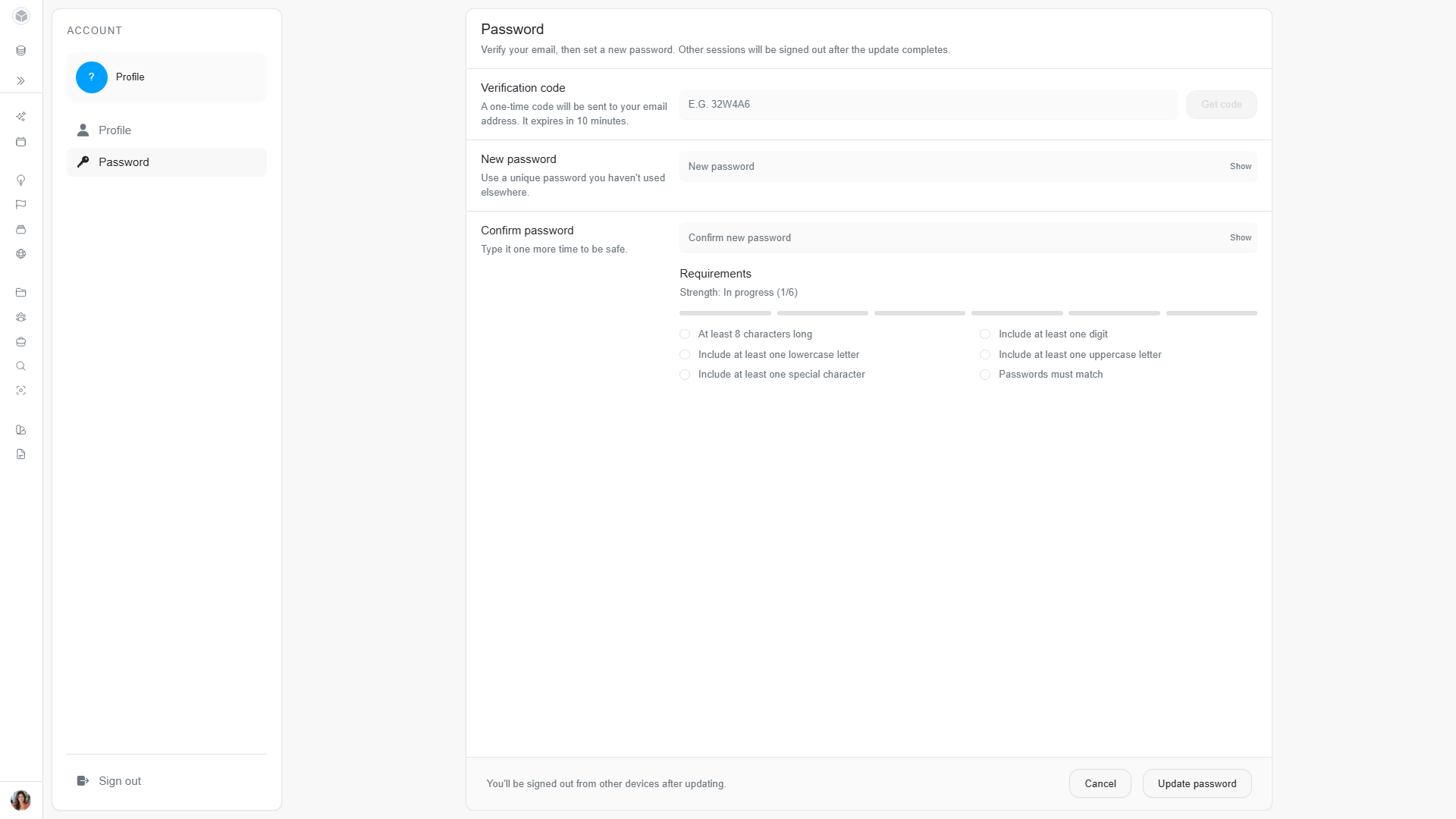
Change your DOE password while signed in
Use this guide when you are signed in with a DOE password account and want to update that password. Open the personal menu, choose Profile, then open Password.
- Choose Get code to send a verification code to the displayed email address.
- Open the newest message and enter its code. Check spam or junk if the message is missing.
- Enter and confirm the new password using the requirements on the form.
- Choose Update password and check the result. If the code expires, request a fresh code and use the newest one.
Use Google or your company’s account settings to update a provider password. If you are signed out and cannot remember your DOE password, open the reset guide.
Image guide: Open Change Password from your DOE profile and follow the form for your sign-in method.