Find upcoming meetings and recent activity
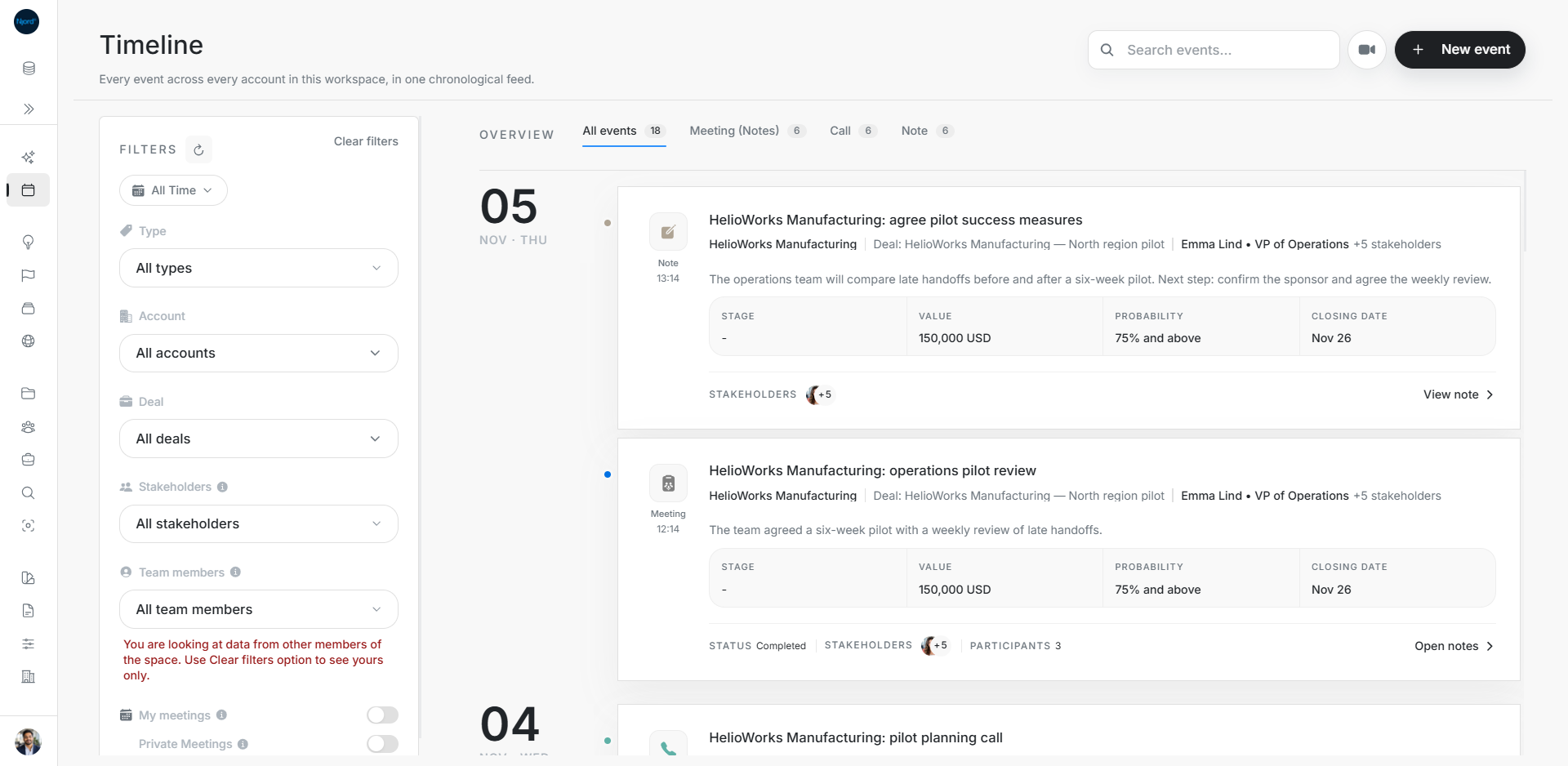
Find upcoming meetings and recent activity
Open Timeline to find upcoming events and review recent activity for the selected workspace.
Image guide: Use the date and people filters above the Timeline feed, then read the matching event cards.
Find the next meeting
- Open the date selector and choose Future to show events after the current time.
- Narrow the results by account, deal, stakeholder, or team member. Add an event type if you only want meetings.
- Check Upcoming. The nearest matching event appears first. Open its card to confirm the time and participants.
- If you already scheduled a note taker, open the meeting card to check its status. Use the scheduled note taker guide if the meeting time or plans changed.
Find an activity that already happened
- Choose a past date range, or choose All Time to see both future and historical activity.
- Scroll to Past events, where newer activity appears first. Continue scrolling to load earlier results.
- Use search and filters to narrow the list. Open the matching card to read the details.
A range wholly in the future can hide history. A past range can hide the next meeting. If a particular event is missing, check the workspace, date range, account, and meeting-visibility filters.