Understand each Product Interest Fit setting
Understand each Product Interest Fit setting
Open Scoring → Product Interest Fit. Start with the saved Summary and Scope + Qualification Boundary. These describe which activity the score covers and which decisions still need your judgment. Use the information icons where available. The workspace can supply its own field labels.
Choose which activity earns points
| Setting | Unit | What it changes |
|---|---|---|
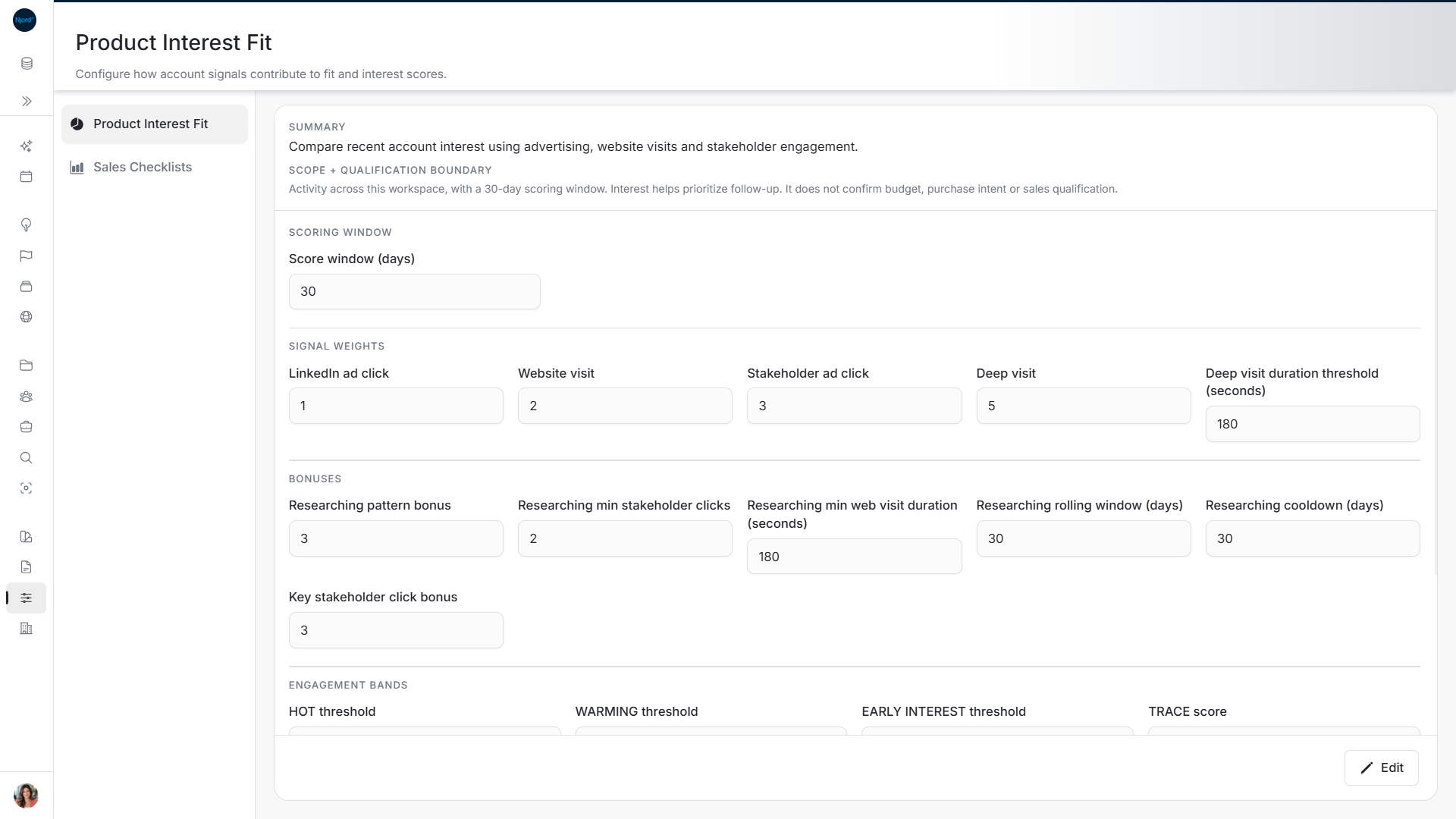
| Score window | Days | How far back activity is considered for the score. |
| LinkedIn ad click | Points | The weight for a qualifying LinkedIn ad click. |
| Website visit | Points | The weight for a qualifying website visit. |
| Stakeholder ad click | Points | The weight for a qualifying stakeholder ad click. |
| Deep visit | Points | The weight for a visit that qualifies as deep. |
| Deep visit duration threshold | Seconds | The duration used to decide whether a visit qualifies as deep. |
Image guide: Check the number of days in the scoring window and the points beside each signal.
Give extra points for specific activity
| Setting | Unit | What it changes |
|---|---|---|
| Researching pattern bonus | Points | Extra points when the activity meets the researching criteria. |
| Key stakeholder click bonus | Points | Extra points for a qualifying click by a key stakeholder. |
| Researching min stakeholder clicks | Count | The minimum number of qualifying stakeholder clicks for the pattern. |
| Researching min web visit duration | Seconds | The visit-duration requirement for the researching pattern. |
| Researching rolling window | Days | The period in which the activity must be observed for the pattern. |
| Researching cooldown | Days | The waiting period used before awarding the researching bonus again. |
For example, the sample plan awards 5 points for a deep visit of at least 180 seconds. The researching bonus has its own minimum duration, minimum number of stakeholder clicks, window and cooldown. Review both duration fields when you change which visits qualify.
Set the score needed for each band
| Setting | Unit | What it changes |
|---|---|---|
| HOT threshold | Score points | The lower boundary for HOT. |
| WARMING threshold | Score points | The lower boundary for WARMING. |
| EARLY INTEREST threshold | Score points | The lower boundary for EARLY INTEREST. |
| TRACE score | Score points | The configured score value for TRACE. |
The editor requires HOT > WARMING > EARLY INTEREST > TRACE. In the sample plan those values are 66, 40, 10 and 1. These are example settings for one workspace.
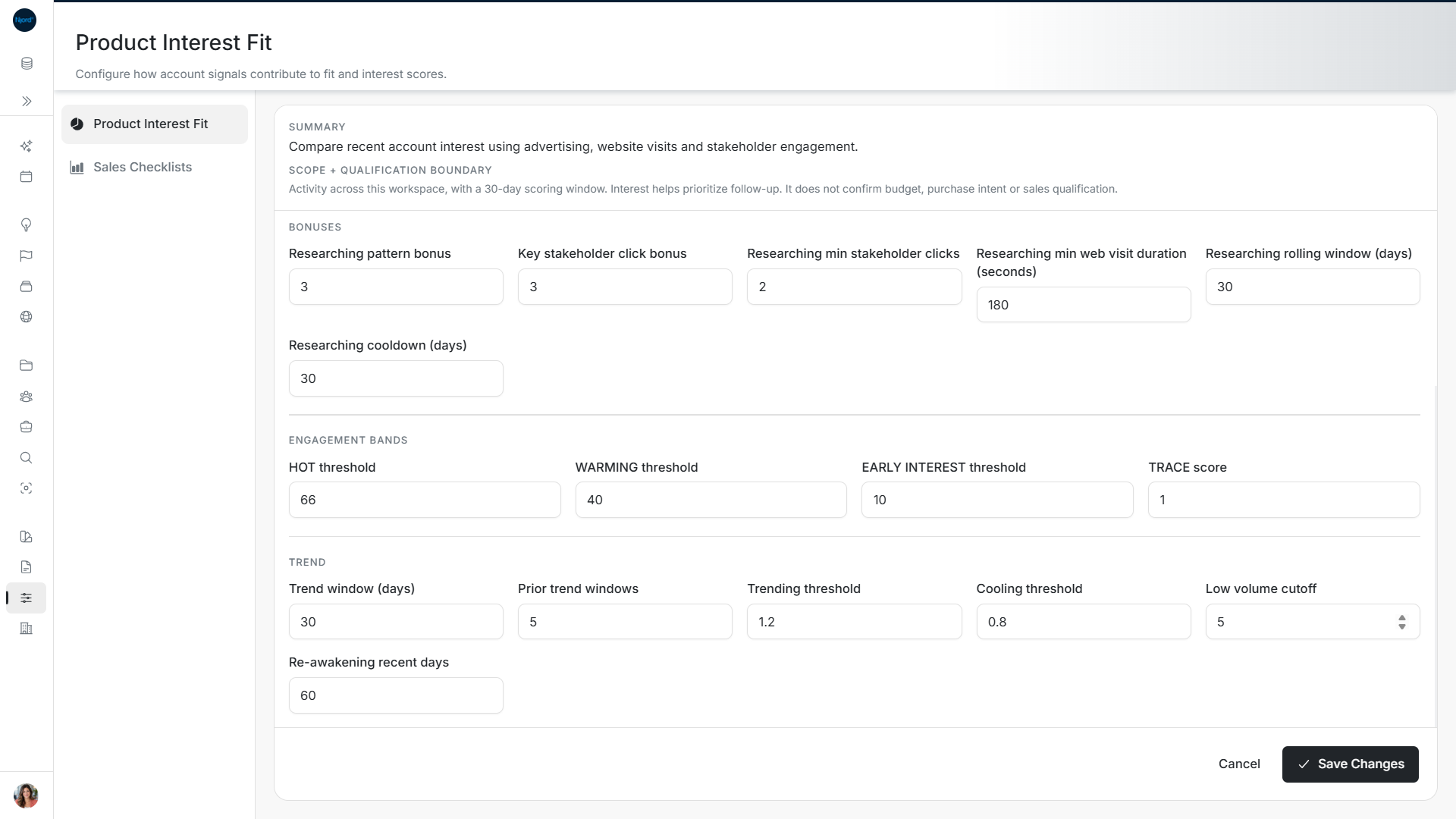
Image guide: Scroll below Bonuses to see the four bands and six trend settings.
Set how rising and cooling interest are measured
| Setting | Unit | What it changes |
|---|---|---|
| Trend window | Days | How long each window used for trend comparison is. |
| Prior trend windows | Count | How many earlier windows are used for the comparison. |
| Trending threshold | Ratio | The boundary above 1 used for rising activity. |
| Cooling threshold | Ratio | The boundary below 1 used for cooling activity. |
| Low volume cutoff | Score points | The threshold the trend uses to treat activity as low volume. It cannot exceed the WARMING threshold. |
| Re-awakening recent days | Days | The recent period considered by the re-awakening rule. |
The sample plan uses 30-day trend windows and looks back across five prior windows. The rising and cooling thresholds are 1.2 and 0.8. A value of 1 represents no change in a comparison ratio.
First decide whether you need to change which activity counts, the points it receives, or the label assigned to the resulting score. Then edit the relevant field, read Validation issues and review the recalculation confirmation before saving. Compare the new results in the same workspace and check their calculation dates.