Export To Salesforce
Export To Salesforce
Use export when the record starts in DOE and needs to exist in Salesforce. DOE can export accounts as Salesforce Accounts and stakeholders as Salesforce Contacts, then store the Salesforce object ID back on the DOE record.
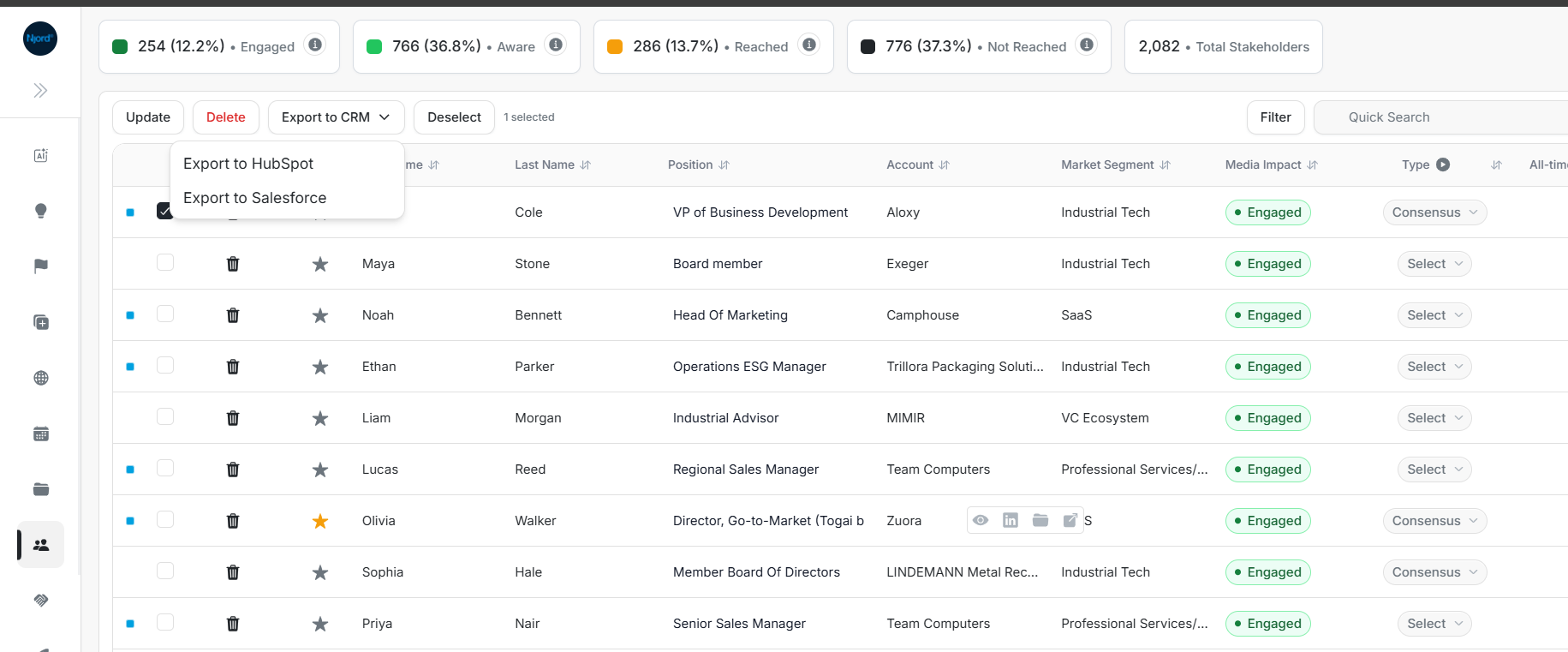
Image guide: Select DOE records, open Export to CRM, and choose Export to Salesforce. Do not choose HubSpot when Salesforce is the intended destination.
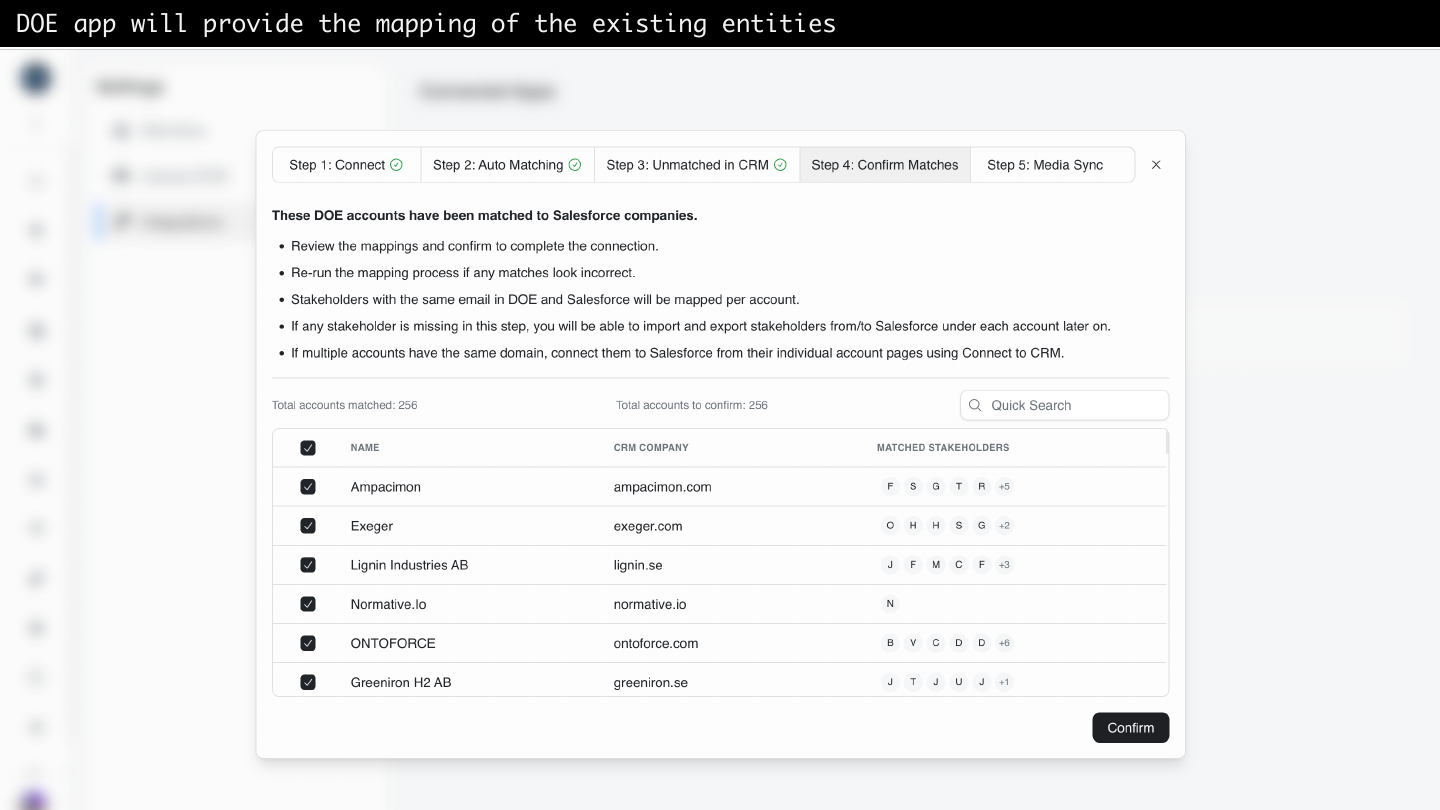
Image guide: Export and mapping work together. When DOE finds or creates a Salesforce record, it stores the Salesforce object ID so the record stays connected.
What You Are Exporting
| From DOE | Becomes In Salesforce | How DOE Keeps The Link |
|---|---|---|
| Account | Account | DOE stores the Salesforce Account ID on the account. |
| Account domain and supported profile fields | Account fields | Domain helps Salesforce and DOE recognize the account. |
| Stakeholder | Contact | DOE stores the Salesforce Contact ID on the stakeholder. |
| Stakeholder email and supported profile fields | Contact fields | Email helps match or create the right Contact. |
| Account-stakeholder relationship | Account-Contact relationship | Salesforce can show the Contact under the exported Account. |
Export Accounts
- Open Accounts in DOE.
- Select one or more accounts.
- Select Export to CRM.
- Choose Salesforce if more than one CRM provider is connected.
- Confirm the export.
- Review created, linked, already mapped, warning, or skipped rows.
- Open the DOE account and confirm View in Salesforce is available.
- Open Salesforce if needed and confirm the Account exists there.
Use account export when DOE has the correct account profile and Salesforce does not have that Account yet, or when the Account exists in Salesforce but is not connected to DOE. If DOE finds a safe Account match by domain, it can link instead of creating a duplicate.
Export Stakeholders
- Open Stakeholders or open the stakeholder list inside an account.
- Select one or more stakeholders.
- Select Export to CRM.
- Choose Salesforce if needed.
- Confirm the export.
- Review created, linked, already mapped, warning, or skipped rows.
- Open the DOE stakeholder and confirm the Salesforce action is available.
- In Salesforce, confirm the Contact is associated with the right Account when the parent account is mapped.
Use stakeholder export when DOE has a person who should exist as a Salesforce Contact. Export works best when the stakeholder has an email and the parent DOE account is already connected to the correct Salesforce Account.
Selecting Rows
In Salesforce export tables, the blue dot at the far left identifies Salesforce context for the row. It is not a selection control. Use the checkbox beside the DOE account or stakeholder name to select the record for export.
If the blue dot is visible but the checkbox is empty, the row is not selected.
How To Read The Export Result Table
| Result | Meaning | What The User Should Do |
|---|---|---|
| Created | DOE created a new Salesforce Account or Contact. | Open the DOE record and use View in Salesforce to verify it. |
| Linked | DOE found a safe existing Salesforce record and connected it. | Check the Salesforce record if the match looks unexpected. |
| Already mapped | The DOE record was already connected to a Salesforce object. | No action is needed unless the mapping is wrong. |
| Warning | The record exported, but one field or association needs review. | Read the row message and check the record in DOE or Salesforce. |
| Skipped | DOE could not safely create or link the row. | Fix the reason shown in the row message, then retry. |
Common skipped reasons include missing required fields, duplicate matches, Salesforce permission limits, Salesforce validation rules, duplicate rules, or an unsafe domain or email match.
If Domain Or Email Does Not Match
For accounts, DOE uses domain to find a safe Salesforce Account match. For stakeholders, DOE uses email to find a safe Salesforce Contact match. If the domain or email is missing, different, or duplicated, DOE should avoid guessing. It may create a new Salesforce record, skip the row, or ask for manual review depending on the situation.
After DOE creates or links the record, the Salesforce object ID becomes the trusted connection. Future sync does not depend only on domain or email.
How To Verify In Salesforce
After export, open the DOE record and choose View in Salesforce. For accounts, Salesforce should open the Account record. For stakeholders, Salesforce should open the Contact record. If the exported stakeholder belongs to a mapped account, check that Salesforce shows the Contact under the right Account relationship.
For Salesforce field and widget placement after export, use DOE widgets and fields.