DOE Widgets And Fields
DOE Widgets And Fields
Salesforce uses DOE fields and widgets in the same way HubSpot uses DOE Properties and the DOE Card. Fields store DOE values on Salesforce records. Widgets show DOE context on Salesforce Account and Contact pages.
DOE Fields
DOE fields are Salesforce custom fields added by the package. They can be used in page layouts, field visibility rules, list views, reporting, filtering, and automation.
Account Fields
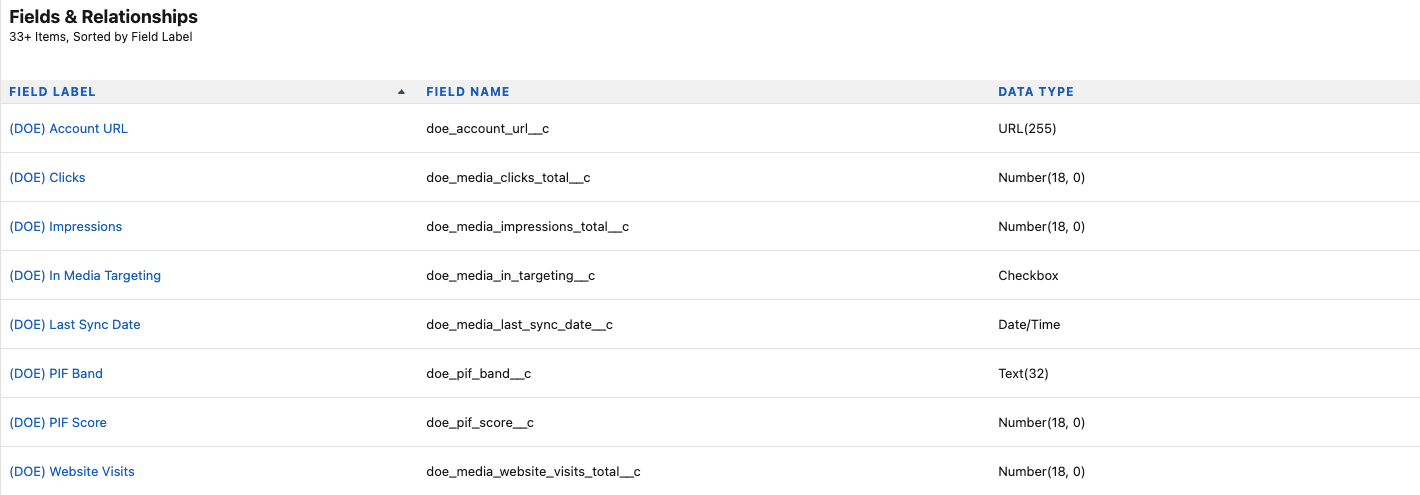
Salesforce Account fields can include DOE media totals, PIF score, PIF band, DOE account URL, website visits, targeting state, and last sync date.
Image guide: Add DOE Account fields to Salesforce Account layouts when users need account-level media, PIF, targeting, and DOE link values.
Contact Fields
Salesforce Contact fields can include click totals, impressions, click history, last clicked content, DOE stakeholder URL, targeting state, and last sync date.
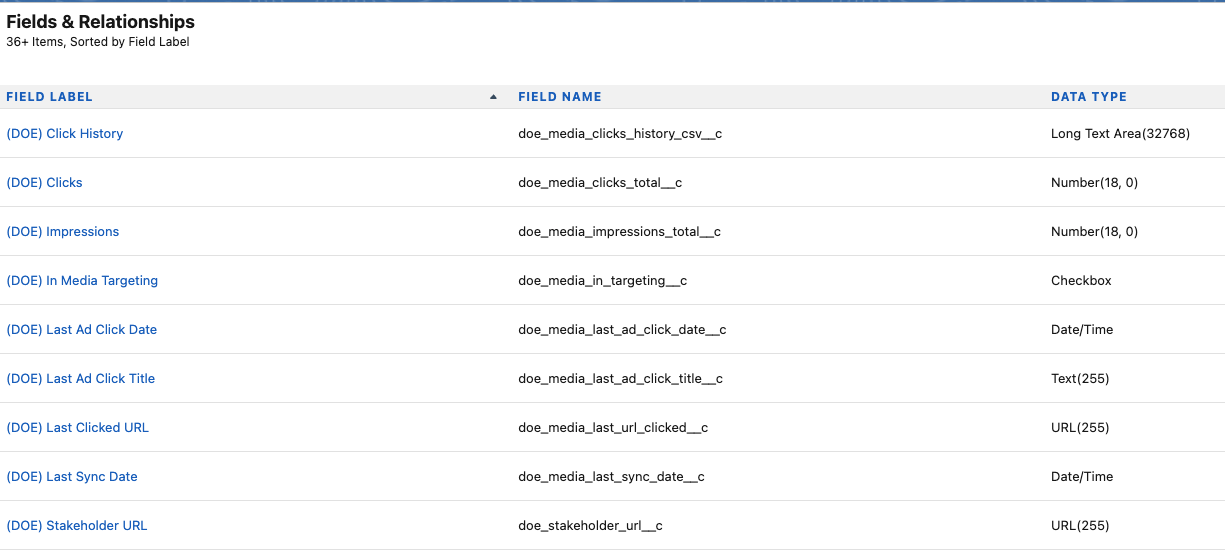
Image guide: Add DOE Contact fields to Salesforce Contact layouts when users need stakeholder-level media, targeting, click history, and DOE link values.
DOE Widgets
DOE widgets are display-focused panels. They show CRM users the DOE context directly on Salesforce records and include links back to DOE. They do not replace the Salesforce fields used for reporting, filtering, layouts, or automation.
Account Widget
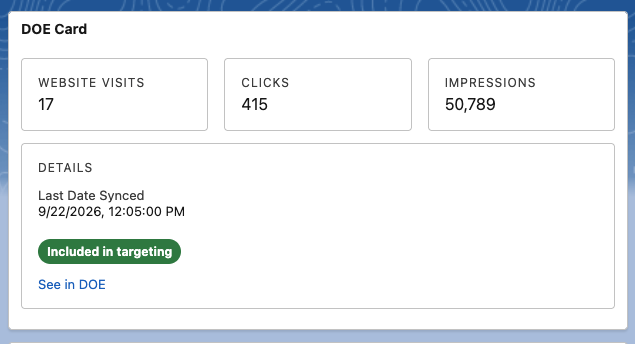
Image guide: The Account widget shows account-level DOE context such as website visits, clicks, impressions, last sync date, targeting status, and See in DOE.
Contact Widget
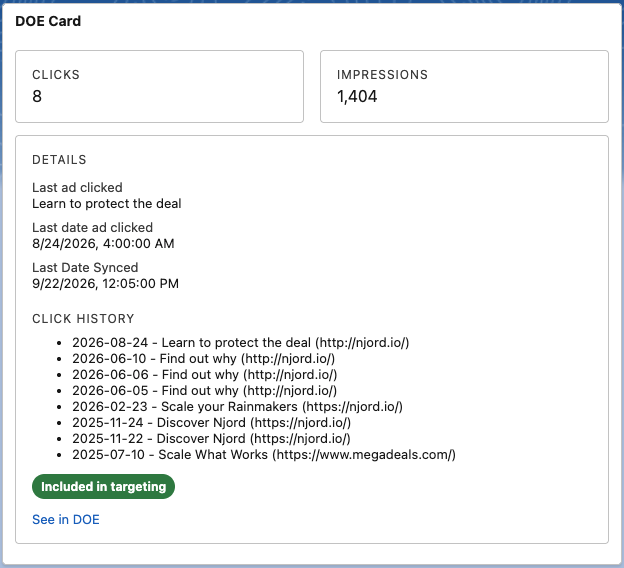
Image guide: The Contact widget shows stakeholder-level DOE context such as clicks, impressions, last clicked content, click history, targeting status, and See in DOE.
Field Visibility
If the details panel shows setup warnings, check field-level security, page layout placement, and package permissions in Salesforce. DOE may skip unavailable fields instead of failing the whole sync run.
After adjusting Salesforce visibility, return to Settings > Integrations > Salesforce > View Details and re-check the setup warnings.