Connect HubSpot
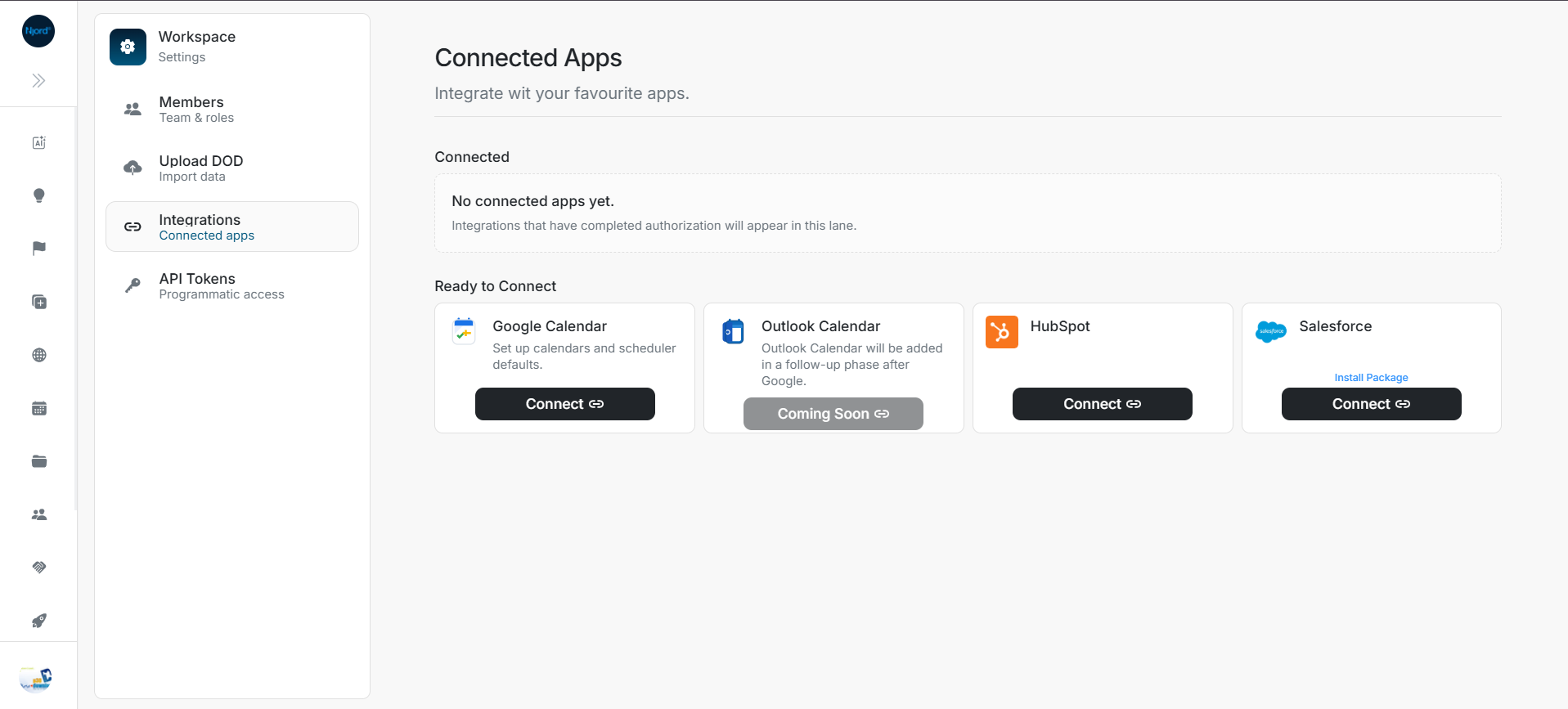
Connect HubSpot
Connect HubSpot from Settings > Integrations. This creates the workspace connection and starts the first-time setup flow.
Steps
- Open Settings > Integrations.
- Find the HubSpot card.
- Select Connect.
- Choose the HubSpot account you want DOE to use.
- Review the requested HubSpot access.
- Select Connect app in HubSpot.
- Return to DOE and continue setup.
Image guide: Select Connect on the HubSpot card from the DOE integrations page.
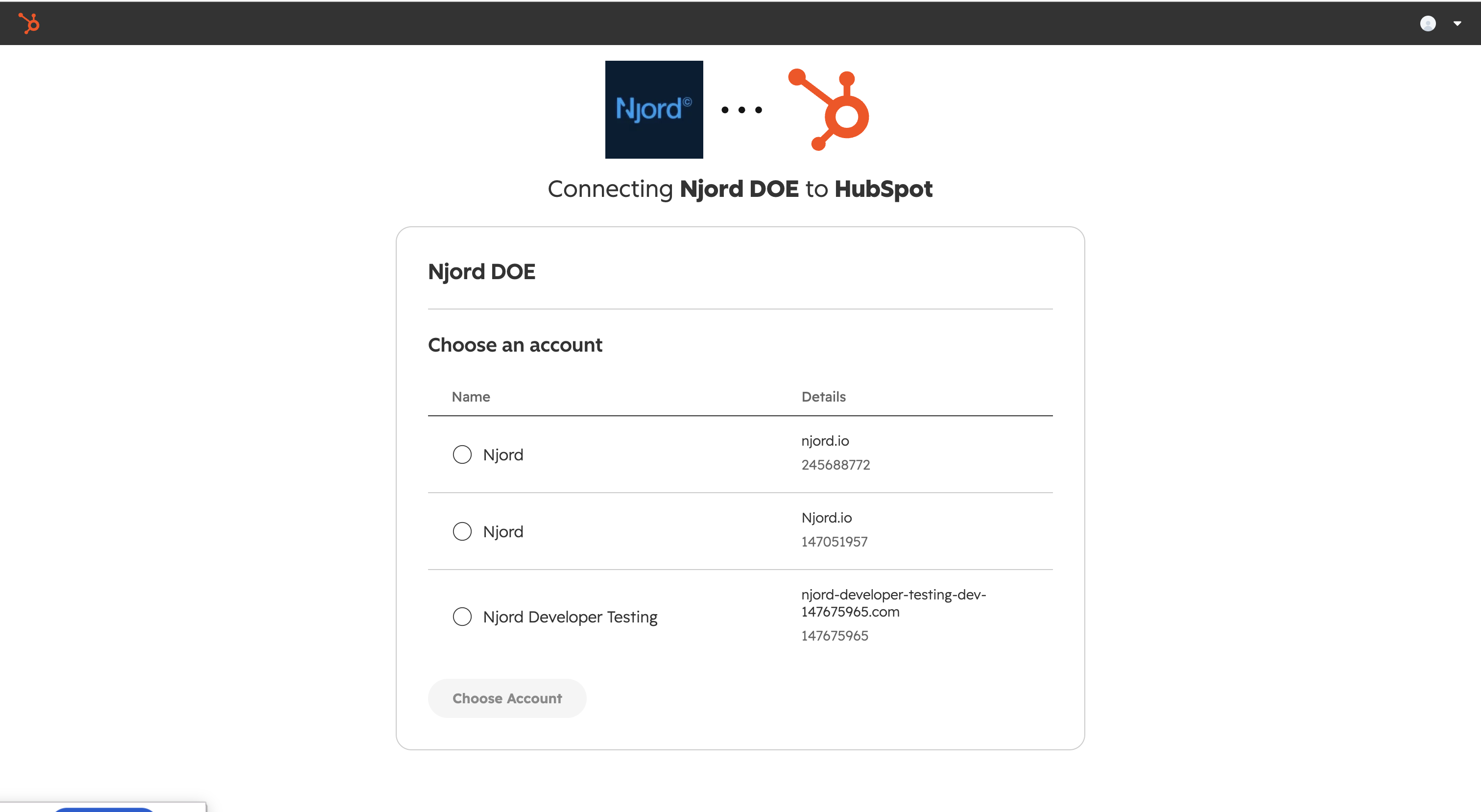
Image guide: HubSpot asks which HubSpot account should authorize the DOE app.
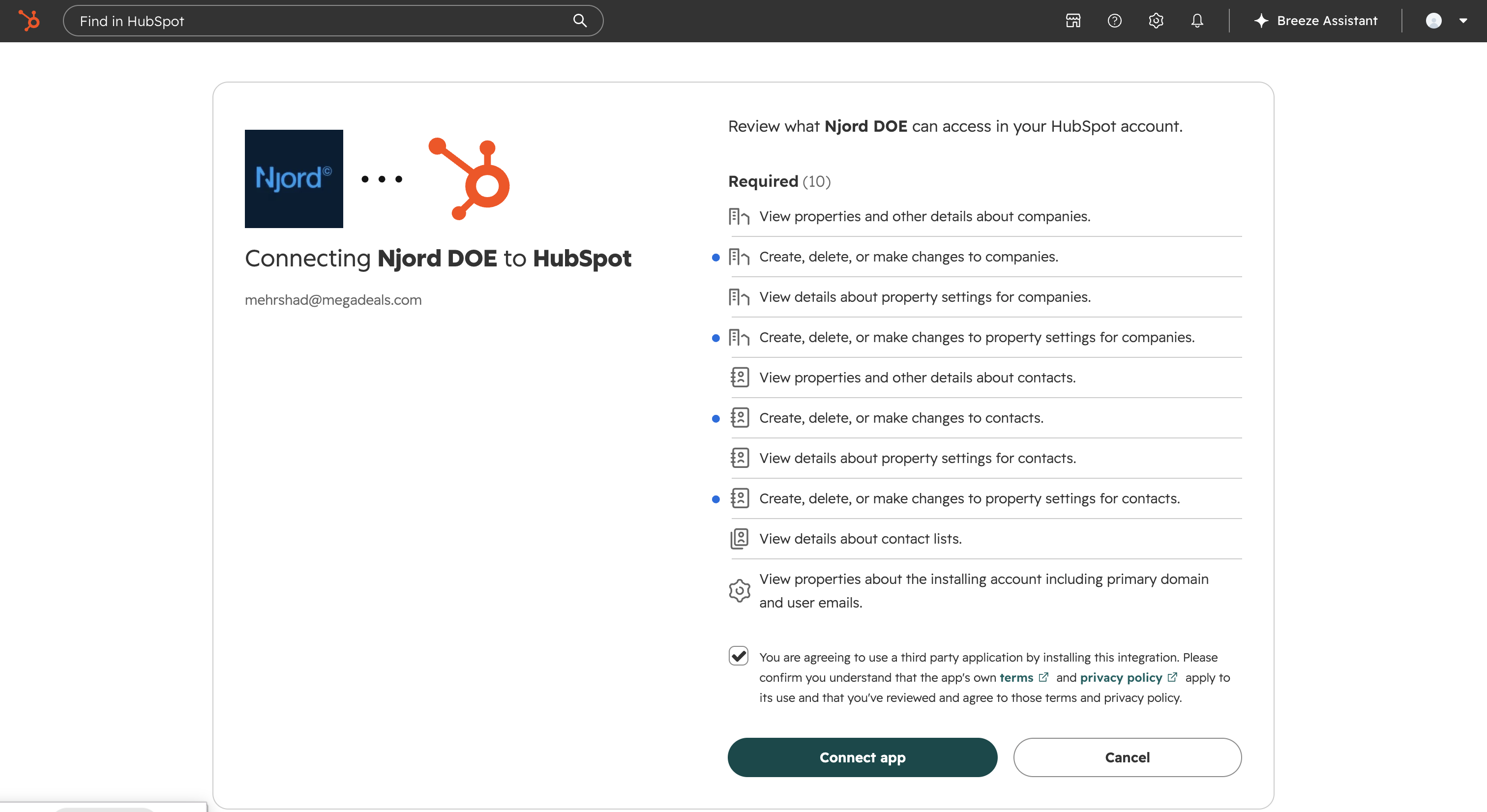
Image guide: Review the HubSpot objects and settings DOE needs for companies, contacts, deals, lists, and account details.
If HubSpot Shows The Wrong Account
Cancel the OAuth flow, switch to the correct HubSpot account in HubSpot, and start again from DOE. Do not approve access for the wrong account just to test the connection.
If The Connection Fails
Return to Settings > Integrations, refresh the page, and read the HubSpot card. If the card still shows Not connected, start the connection again. If it shows a warning or partial connection, open View Details and follow the suggested action.