First-Time Setup
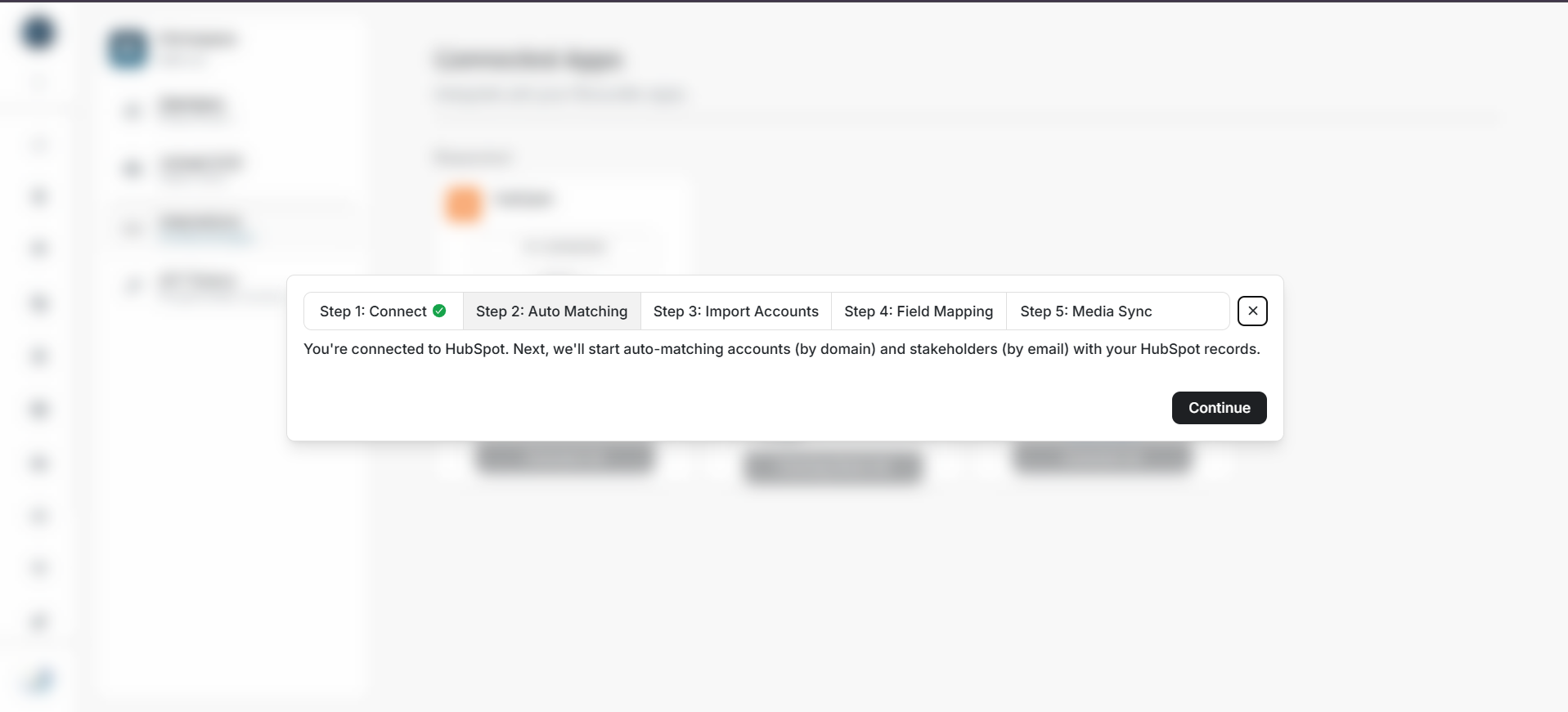
First-time HubSpot setup
DOE opens guided setup after the first successful HubSpot connection. The flow checks safe matches first, then helps you decide which remaining records should be imported, exported, or left for later.
Before you continue
- Stay in the DOE workspace that started the connection.
- Allow a few minutes for matching; it runs in the background.
- Review each proposed match before confirming it.
- Do not start a second mapping or import while one is already running.
Complete setup step by step
- Confirm that DOE shows HubSpot as connected.
- Start account matching. DOE checks progress about every 10 seconds.
- Review unmatched DOE accounts. Export only the accounts that should be created in HubSpot, or skip them for later.
- Review the proposed account and stakeholder links.
- Confirm only the links that clearly represent the same company or person.
- If HubSpot contains companies that DOE does not, select the companies that should be imported.
- Review which profile fields move between DOE and HubSpot.
- Review the DOE custom properties and card instructions.
- Finish setup and open View Details to confirm the final state.
Image guide: The first setup screen confirms the connection before matching starts.
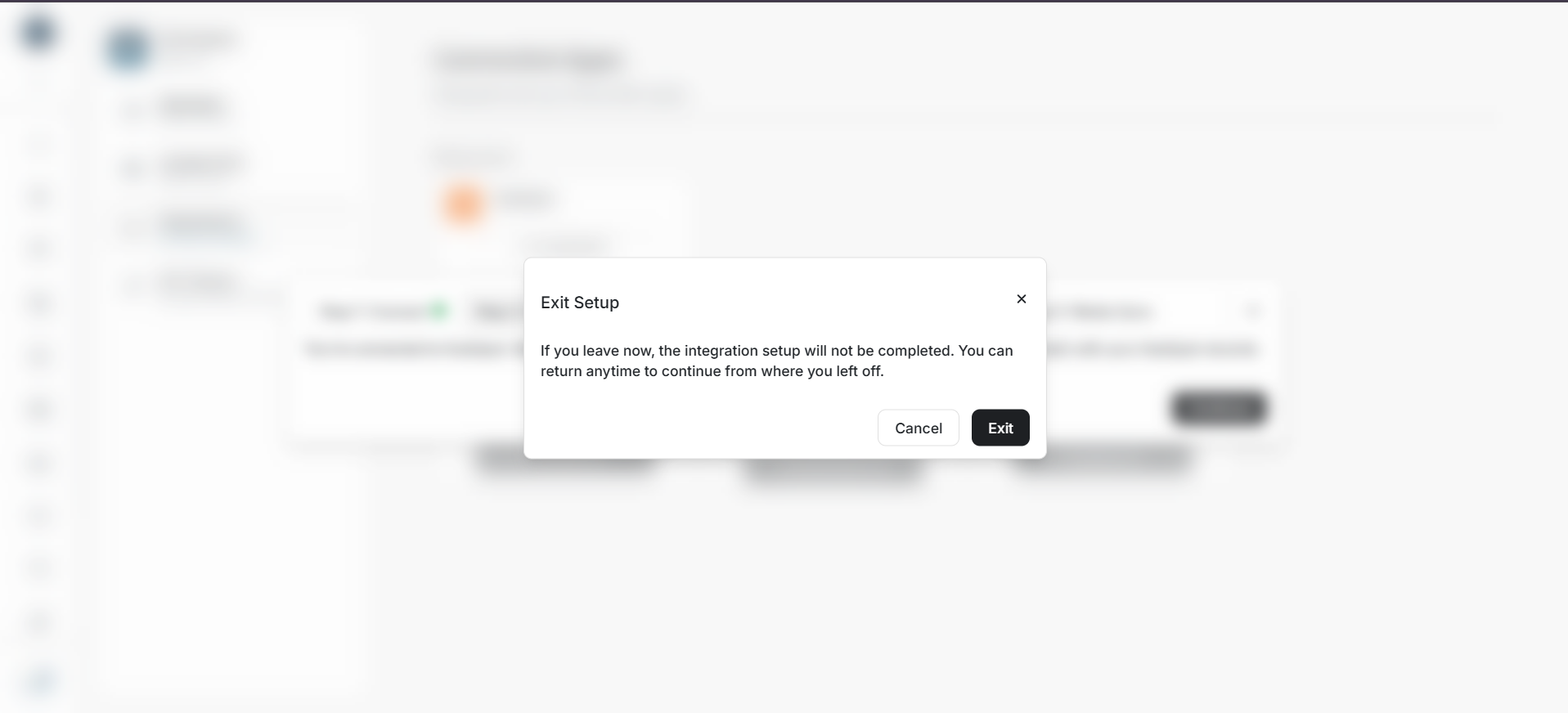
Image guide: If you leave setup early, DOE explains that setup is incomplete and can be resumed later.
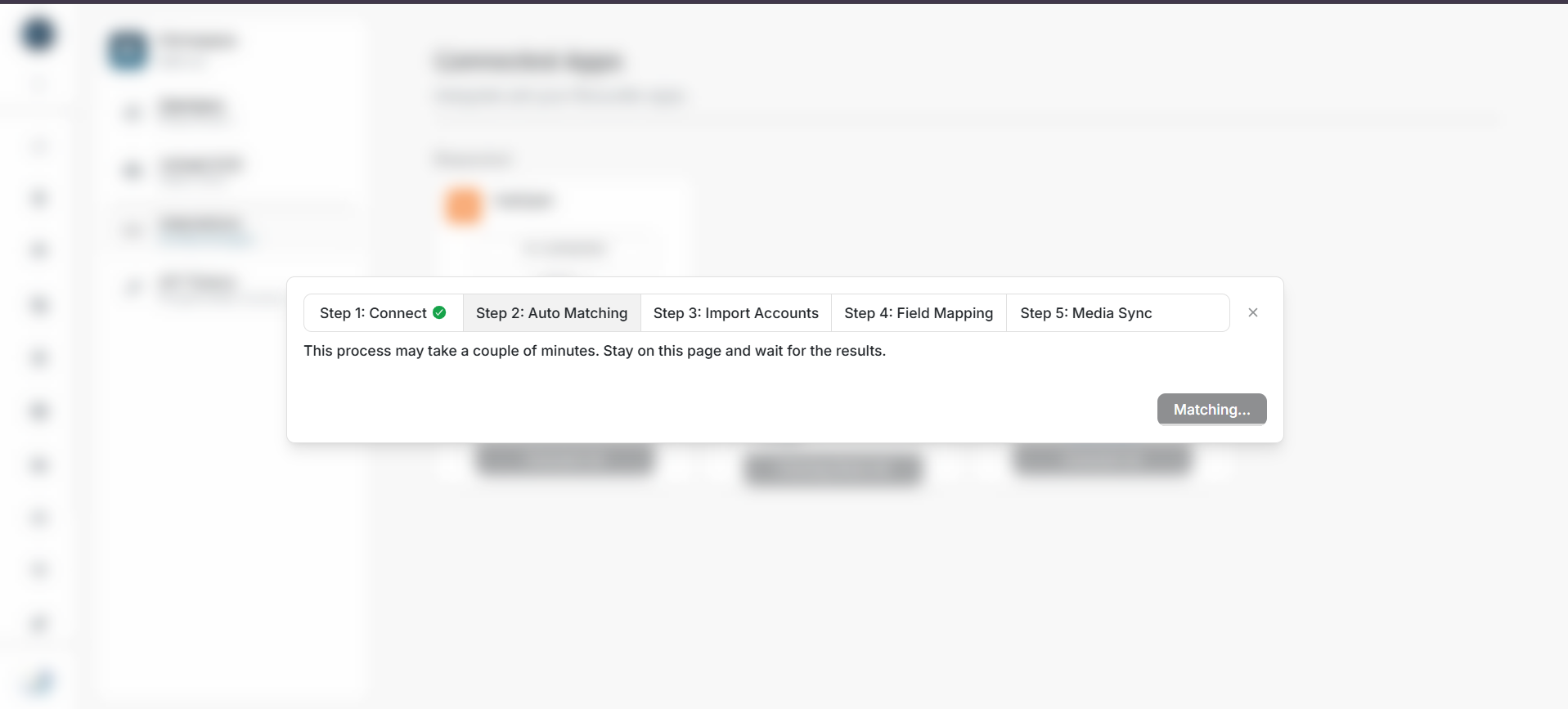
Image guide: Matching normally takes a few minutes. Keep the setup open while DOE checks progress.
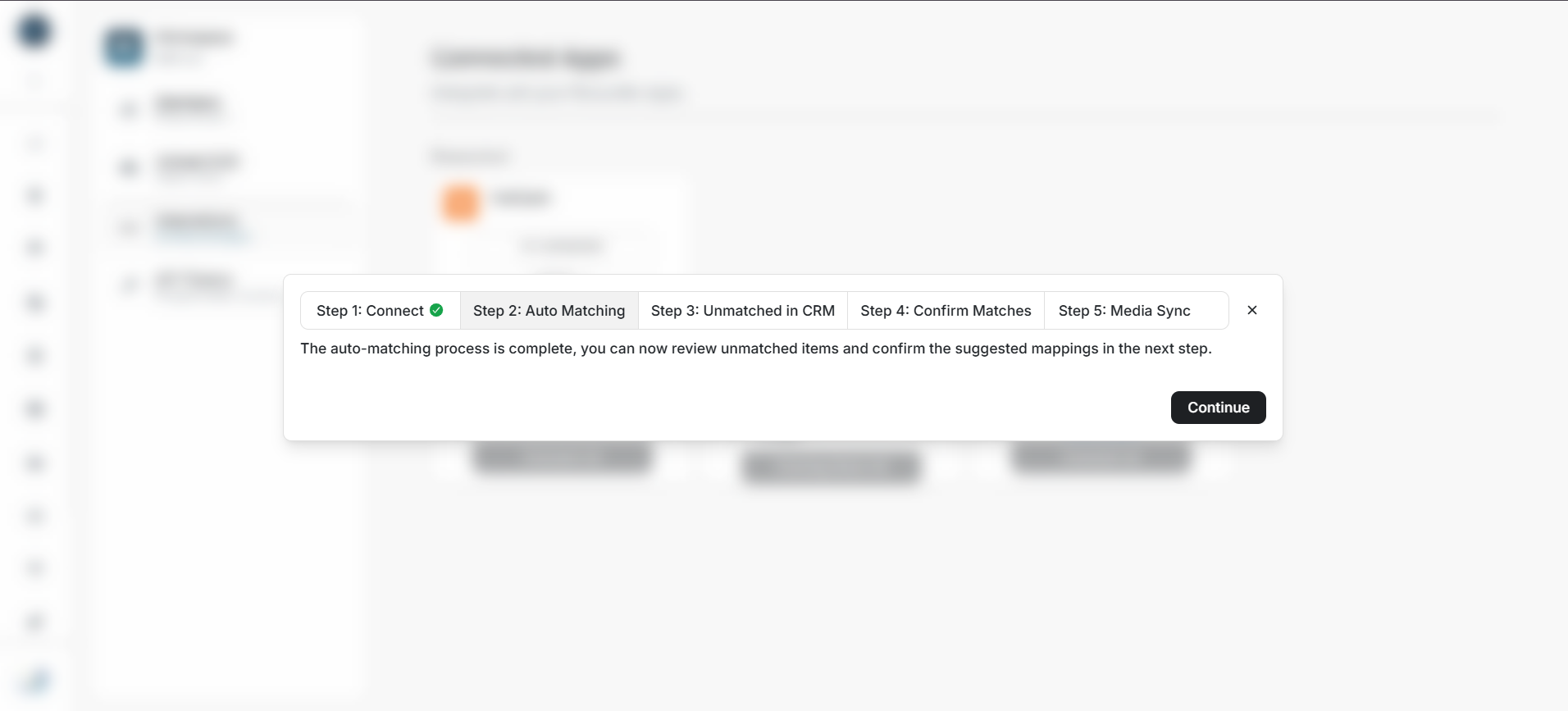
Image guide: When automatic matching finishes, DOE moves to unmatched-account review or match confirmation.
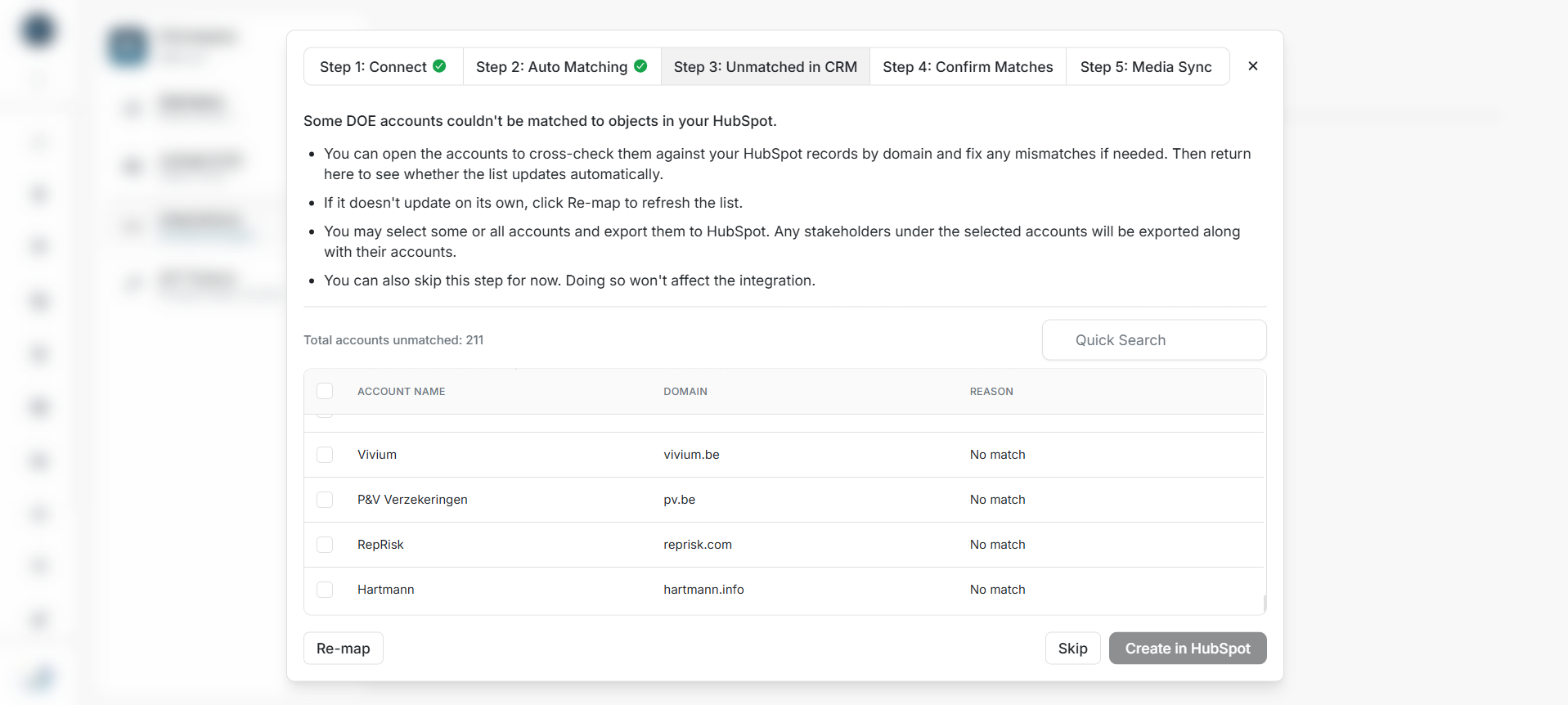
Image guide: Unmatched DOE accounts were not safely matched to a HubSpot company.
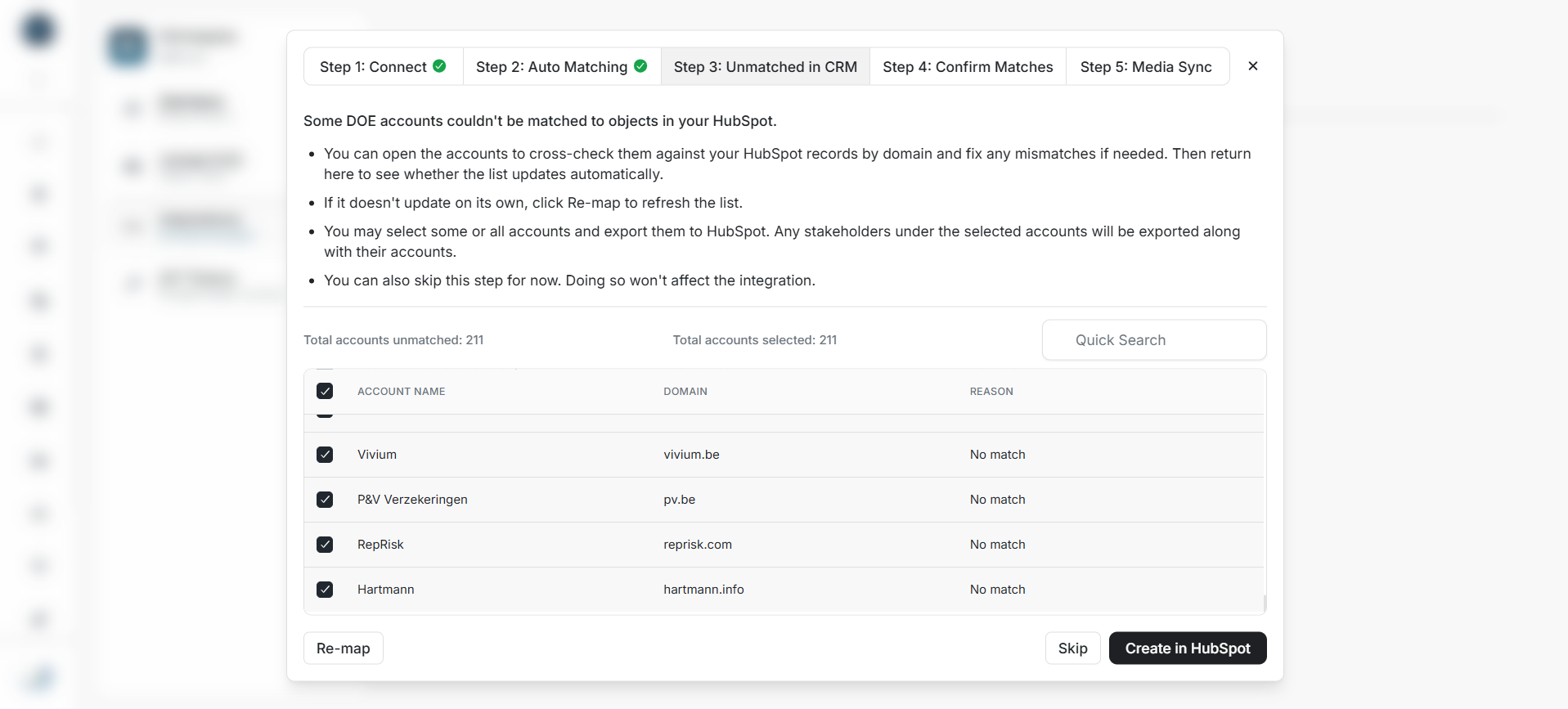
Image guide: Select all only when every listed DOE account should be created in HubSpot.
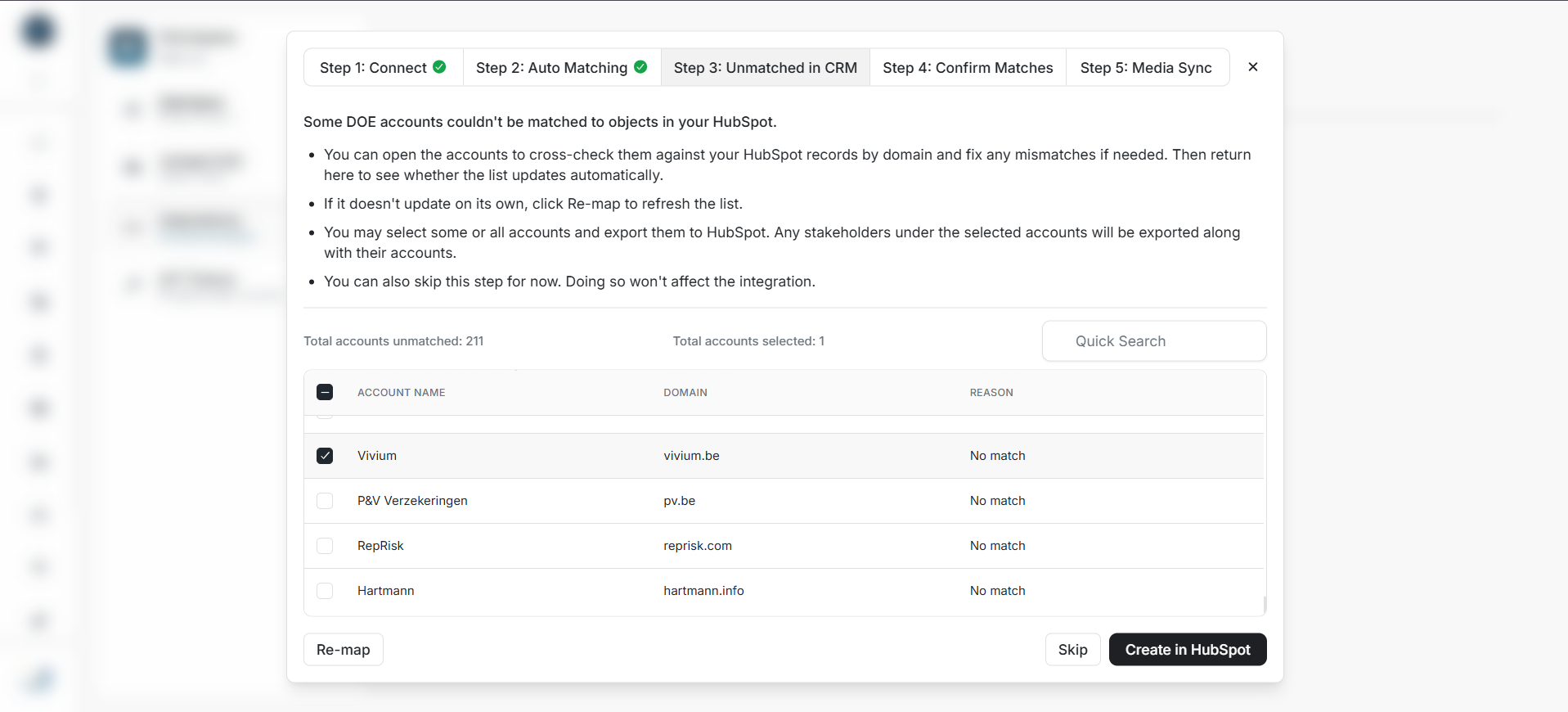
Image guide: Select individual accounts when only part of the unmatched list should be created in HubSpot.
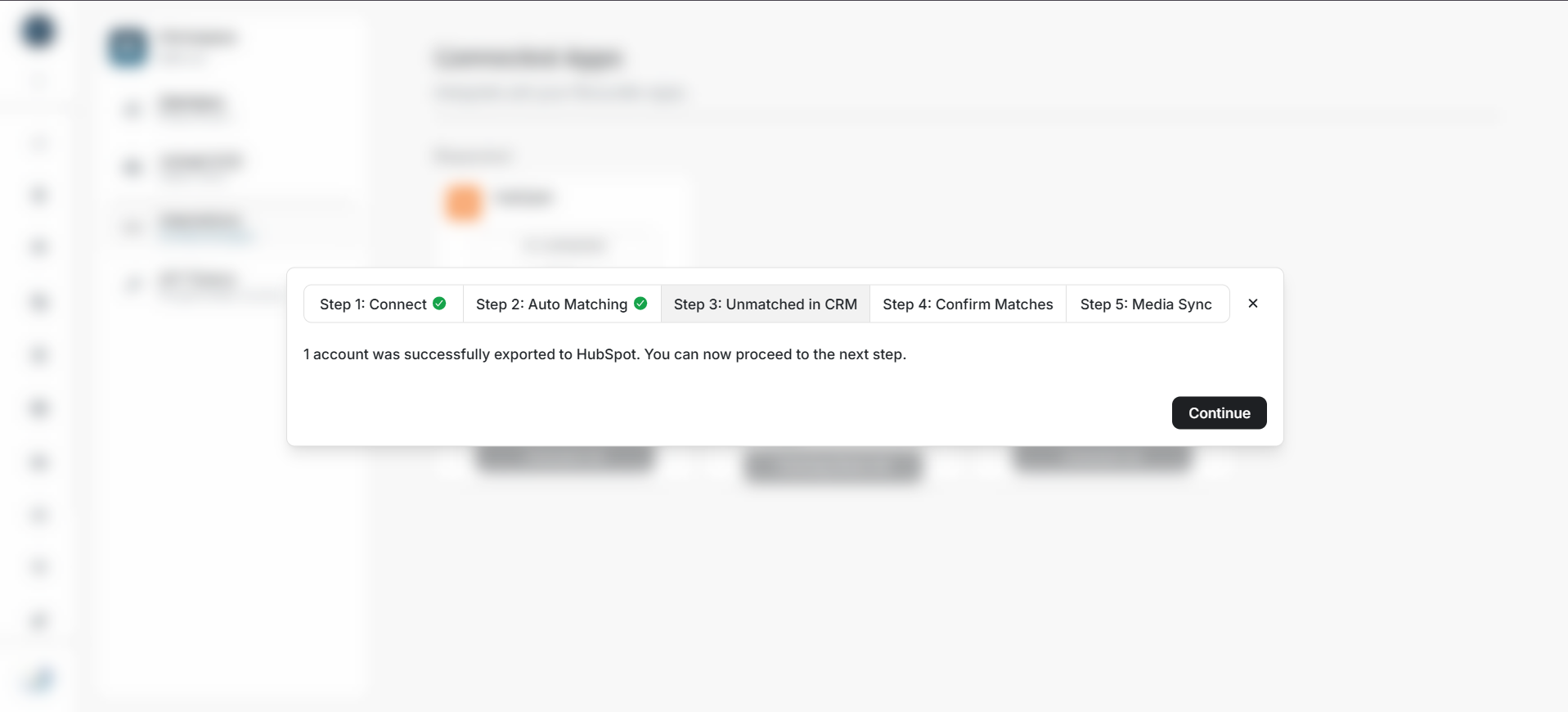
Image guide: DOE confirms when the selected accounts have been created and linked in HubSpot.
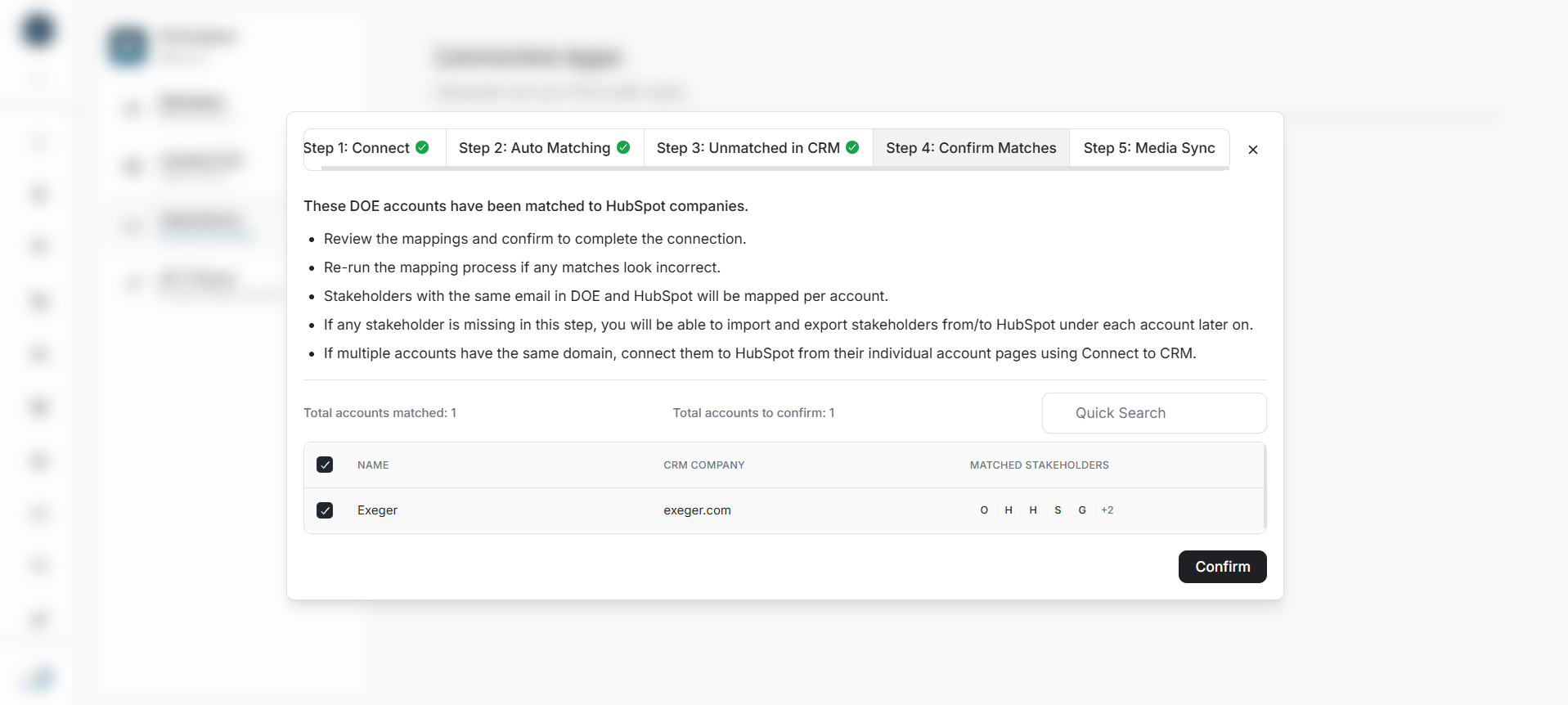
Image guide: Confirm a proposed link only after checking the company and stakeholder context.
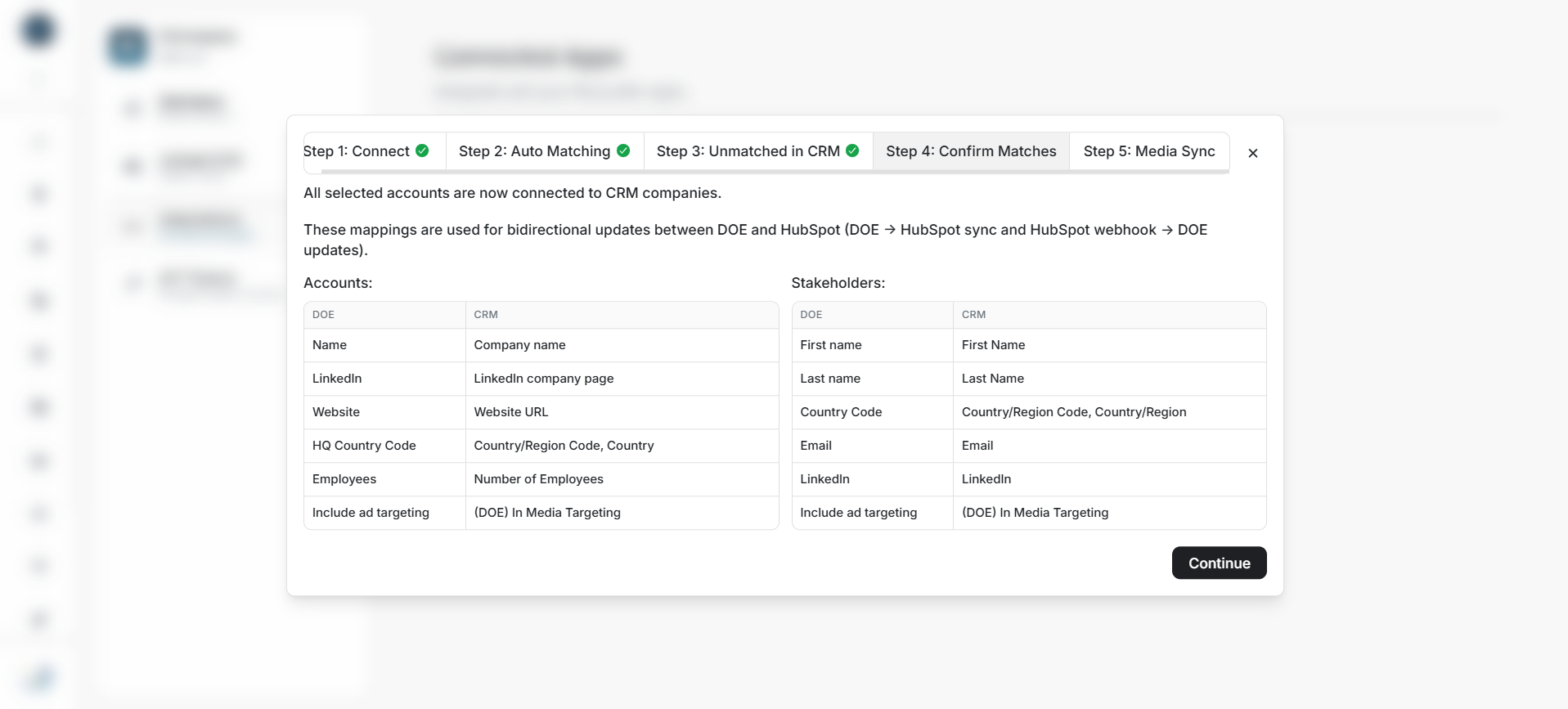
Image guide: The field screen shows what can update between DOE and HubSpot.
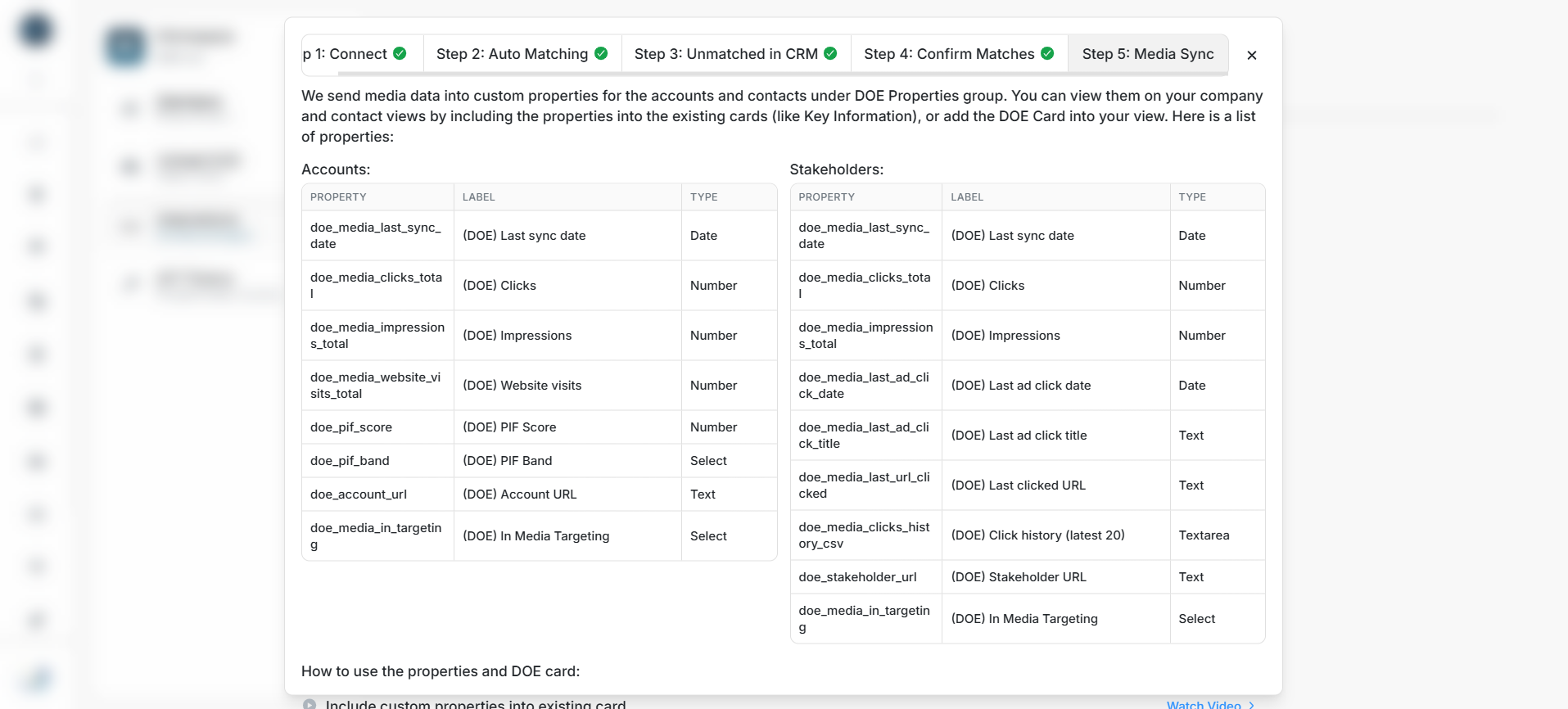
Image guide: DOE lists the HubSpot properties used for media and targeting insight.
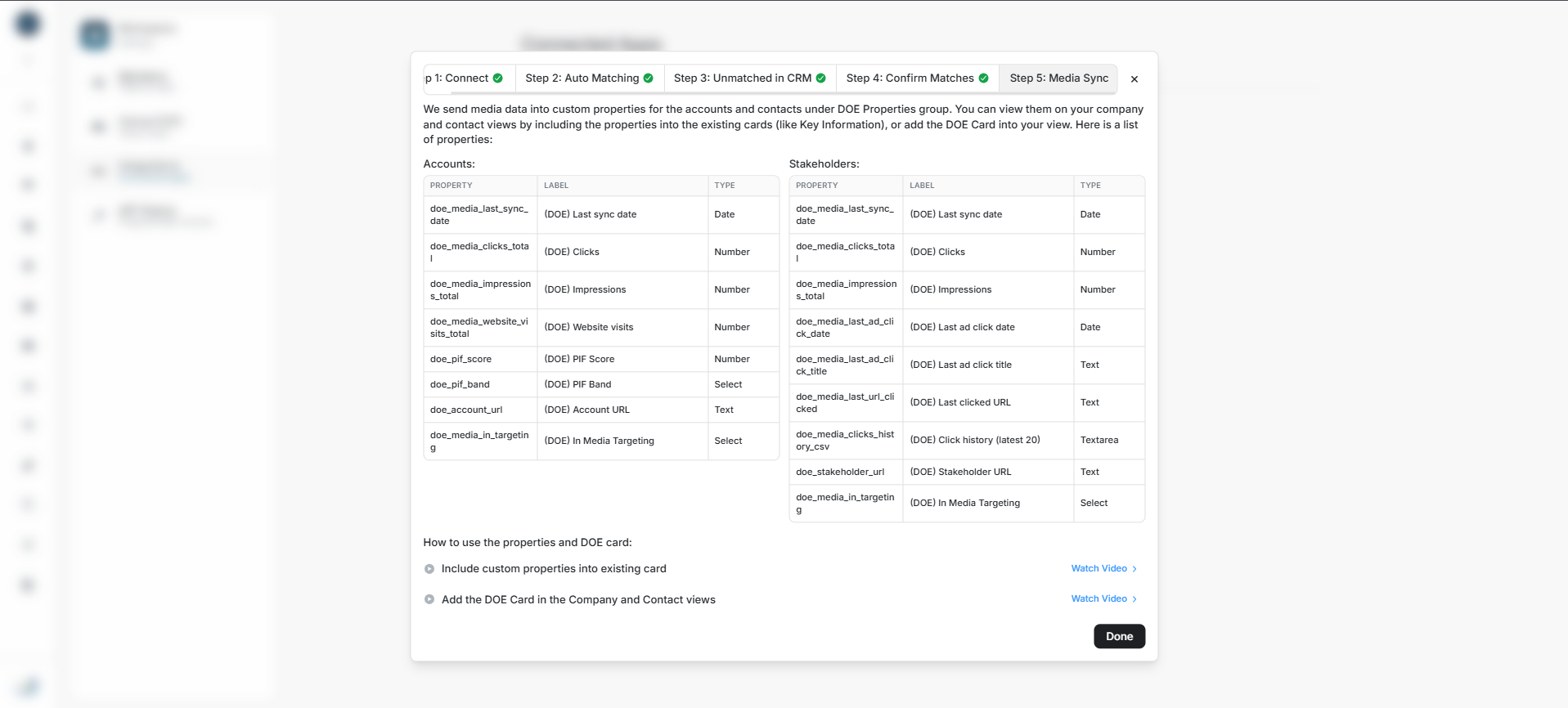
Image guide: The final setup step links to guidance for adding DOE properties and cards in HubSpot.
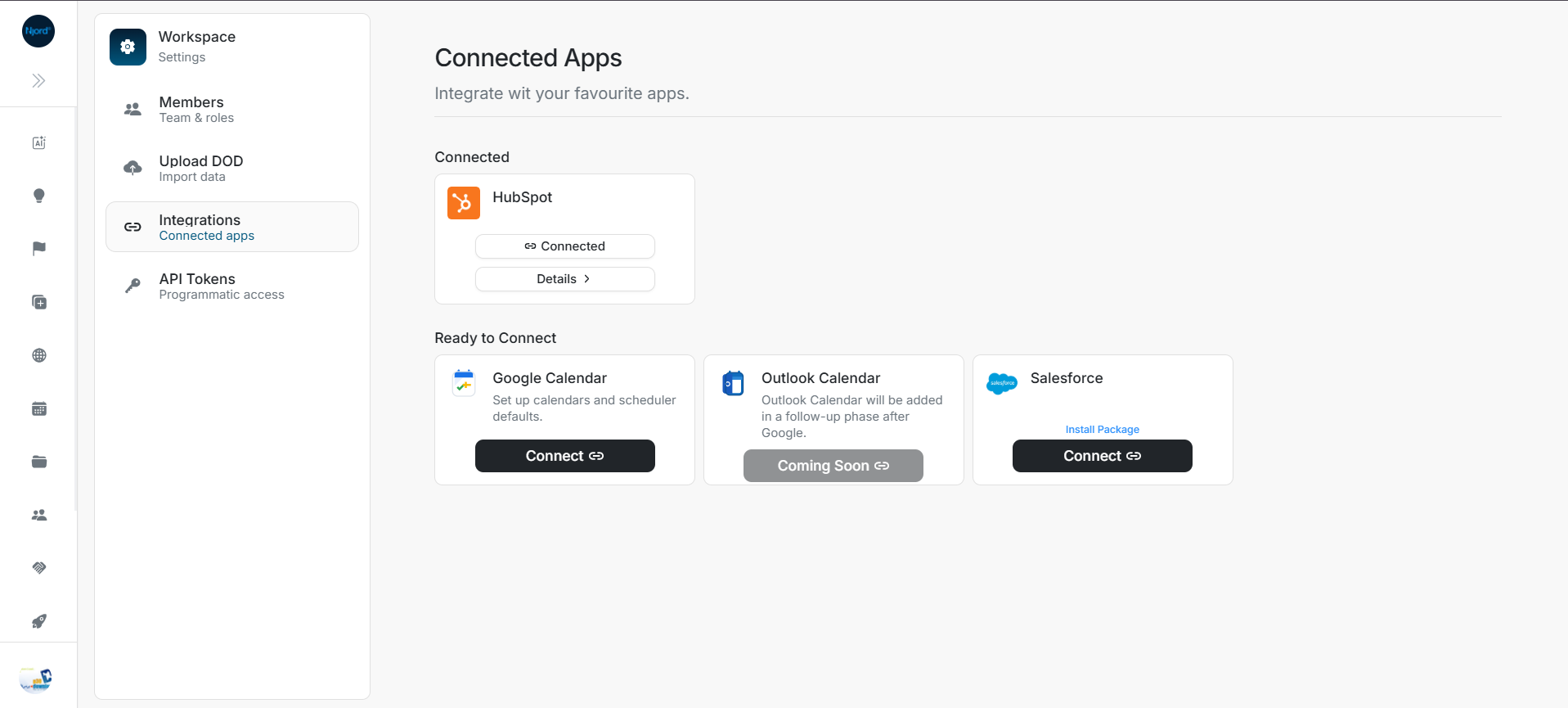
Image guide: After setup, HubSpot returns to the connected state with View Details available.
Why a record may be unmatched
| Reason | Next step |
|---|---|
| Domain is missing or invalid | Correct it and re-run mapping, or import, export, or connect manually |
| More than one company uses the domain | Open the records and connect the correct company manually |
| Stakeholder email is missing or duplicated | Review the person and use import, export, or manual connect |
| The HubSpot record is already linked elsewhere | Check the existing link before disconnecting or changing it |
| The DOE account is archived or not active | Restore and verify the account before mapping it |
DOE does not guess when more than one result is possible.
If setup does not progress
| What happens | What to do |
|---|---|
| Another mapping is already running | Keep the existing progress open and wait; do not start another run |
| Matching is still running after several minutes | Keep the page open until DOE offers its taking-longer or retry action |
| The mapping result is no longer available | Select Re-run Mapping to create a fresh result |
| DOE says the connection changed | Re-run mapping; old proposals cannot be confirmed after reconnecting |
| Some confirmations show conflicts | Keep the successful links, review the affected rows, and resolve those rows separately |
| Confirm is unavailable because setup cannot identify the mapping run | Use Re-map rather than closing into a dead end |
| You switched DOE workspaces | Return to the workspace that started setup before continuing |
If you leave setup
Closing setup does not disconnect HubSpot and does not cancel work that has already finished. Return to Settings > Integrations > HubSpot > View Details to resume. If a running task was cancelled, start one fresh mapping run after the screen confirms the previous run has stopped.