Performance by channel
Performance by channel
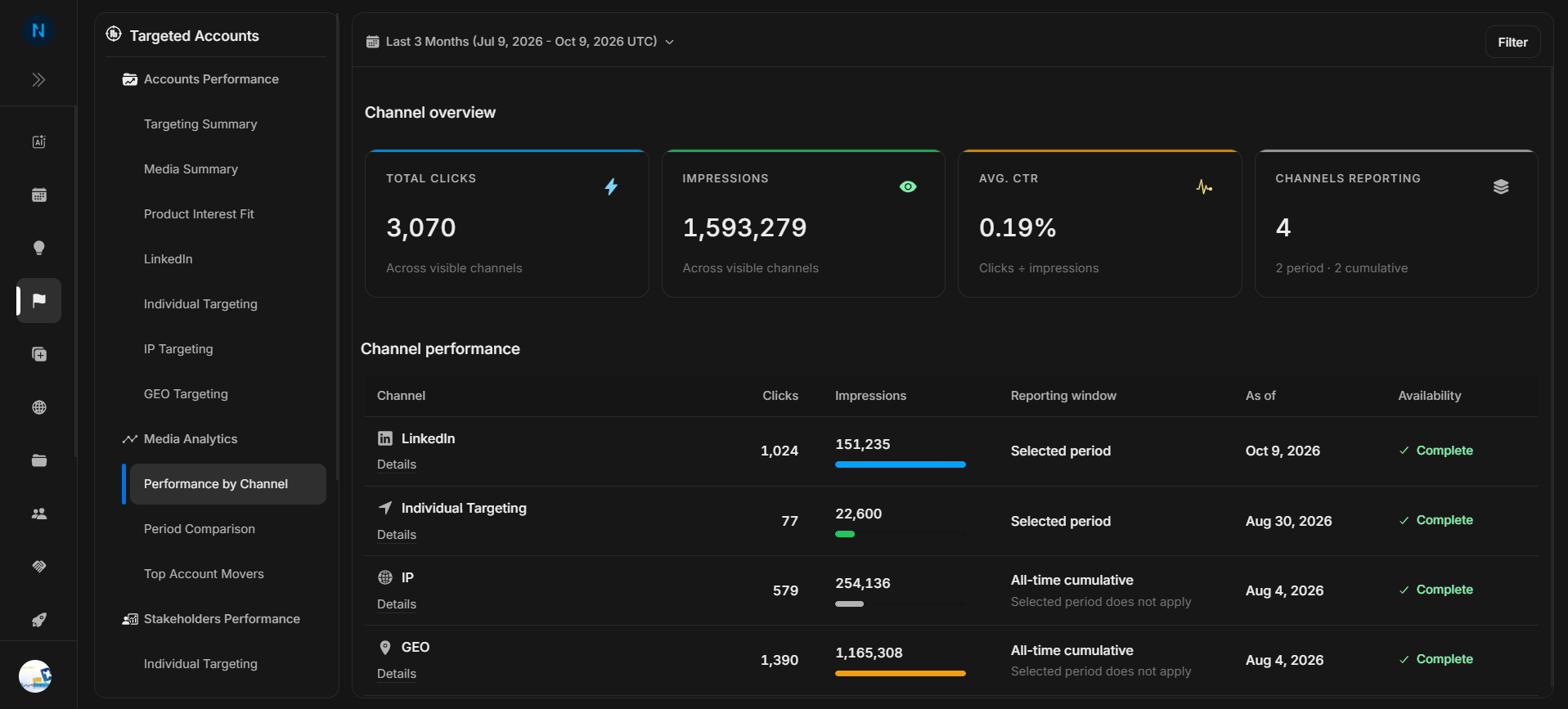
Performance by Channel summarizes visible media channels for the selected account scope and time period. Use it to understand which channels are reporting, how much activity each channel produced, and whether the data uses the selected period or all-time cumulative values.
Where it sits in DOE: Reports > Targeted Accounts > Media Analytics > Performance by Channel.
Image guide: the overview cards show total clicks, impressions, average CTR, and channels reporting. The table below separates selected-period channels from all-time cumulative channels.
Choose Clicks Or Impressions
Use the Clicks and Impressions toggle to change which metric is emphasized first in the overview cards.
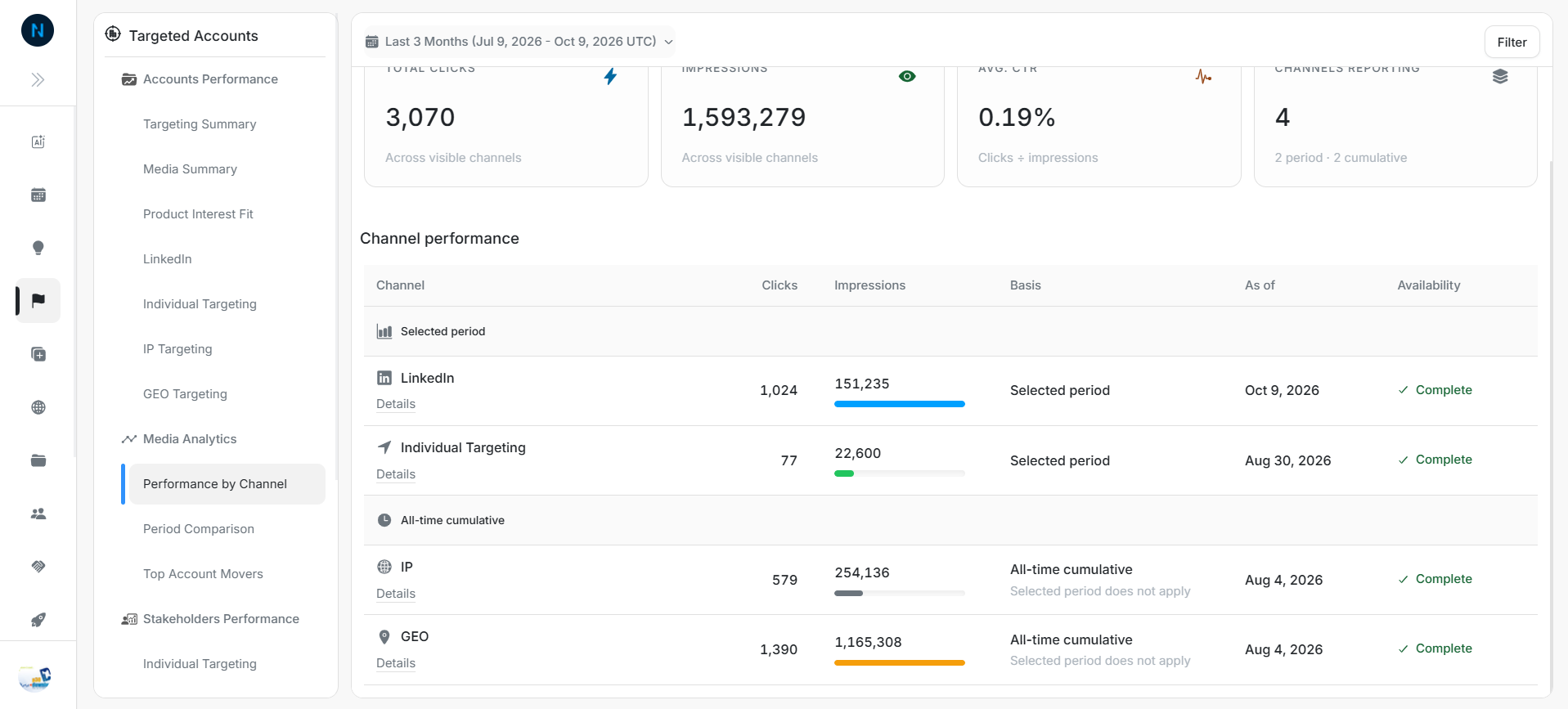
Image guide: selecting Impressions brings the impressions card to the first position while keeping the same channel table available underneath.
Filter The View
Use Filter when the report should focus on a narrower account set or a specific group of channels.
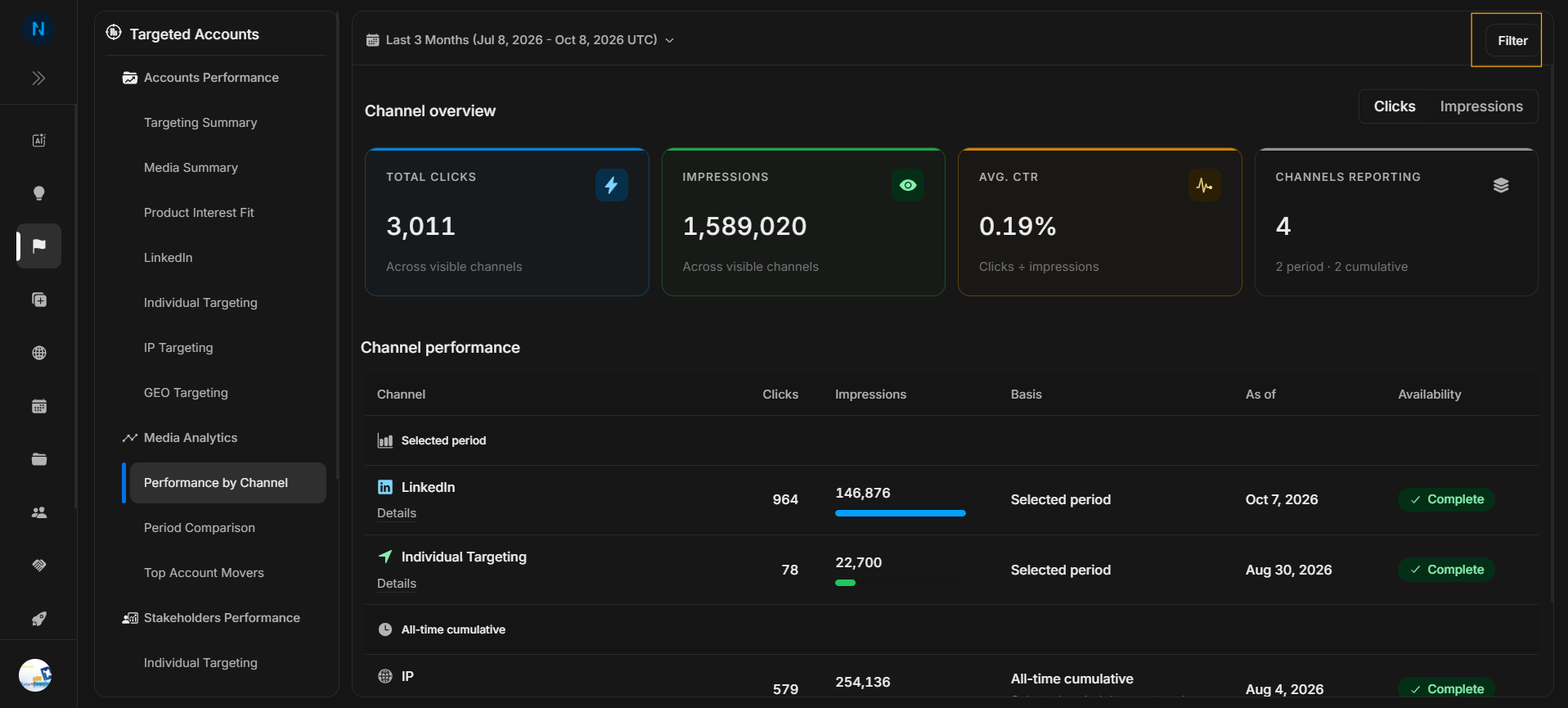
Image guide: the Filter button opens the Media Analytics filter panel for the current page.
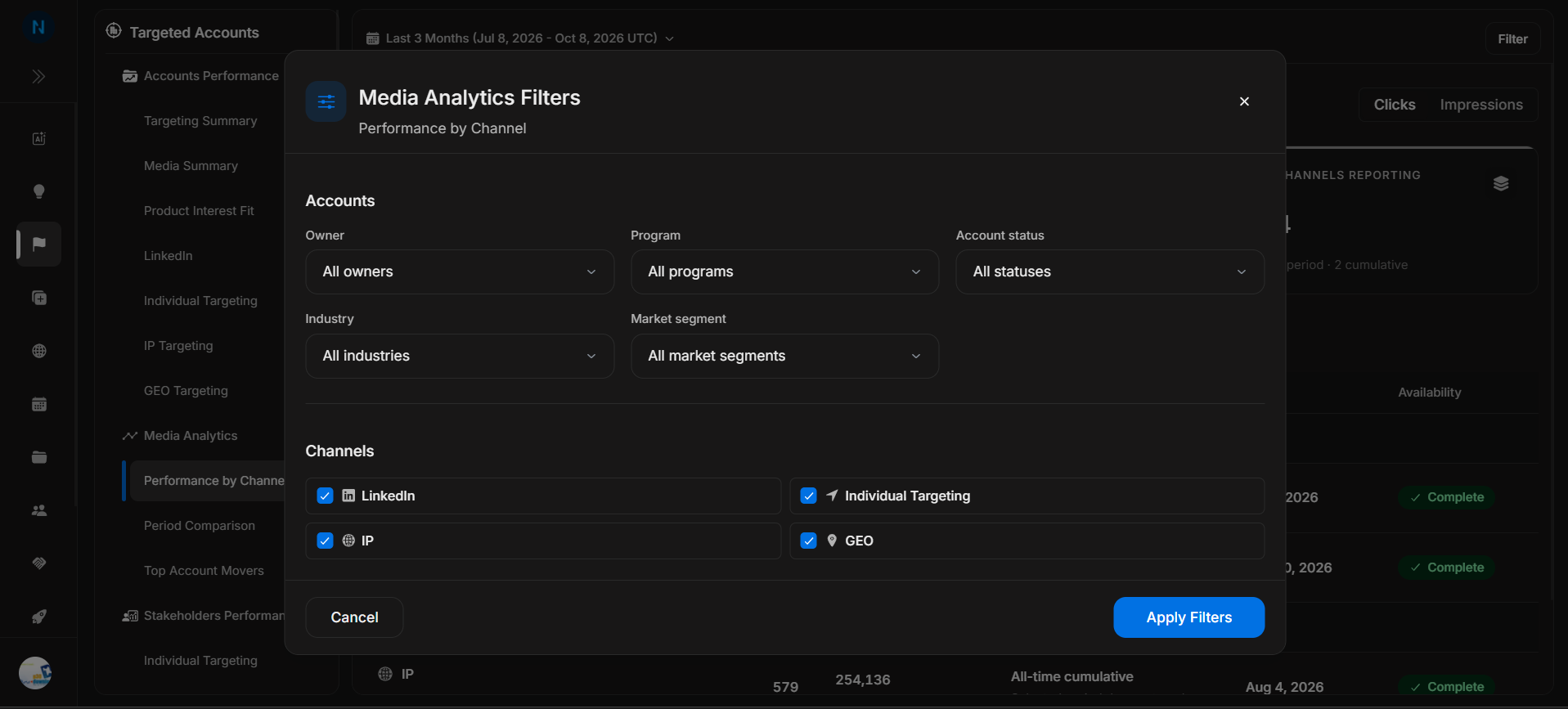
Image guide: account filters include owner, program, account status, industry, and market segment. Channel checkboxes let you include or exclude LinkedIn, Individual Targeting, IP, and GEO.
Read The Channel Table
The table groups rows by the basis used for the numbers.
Image guide: LinkedIn and Individual Targeting are shown under Selected period. IP and GEO can appear under All-time cumulative, with a note that the selected period does not apply.
| Column | Meaning |
|---|---|
| Channel | The reporting channel, such as LinkedIn, Individual Targeting, IP, or GEO. |
| Clicks | Click activity for the row basis. |
| Impressions | Impression activity for the row basis. |
| Basis | Whether the row uses the selected period or all-time cumulative data. |
| As of | The latest reporting date DOE has for that channel. |
| Availability | Whether the channel is complete or unavailable in the current view. |
Change The Date Range
The date control changes selected-period channels and leaves cumulative-only channels marked clearly.
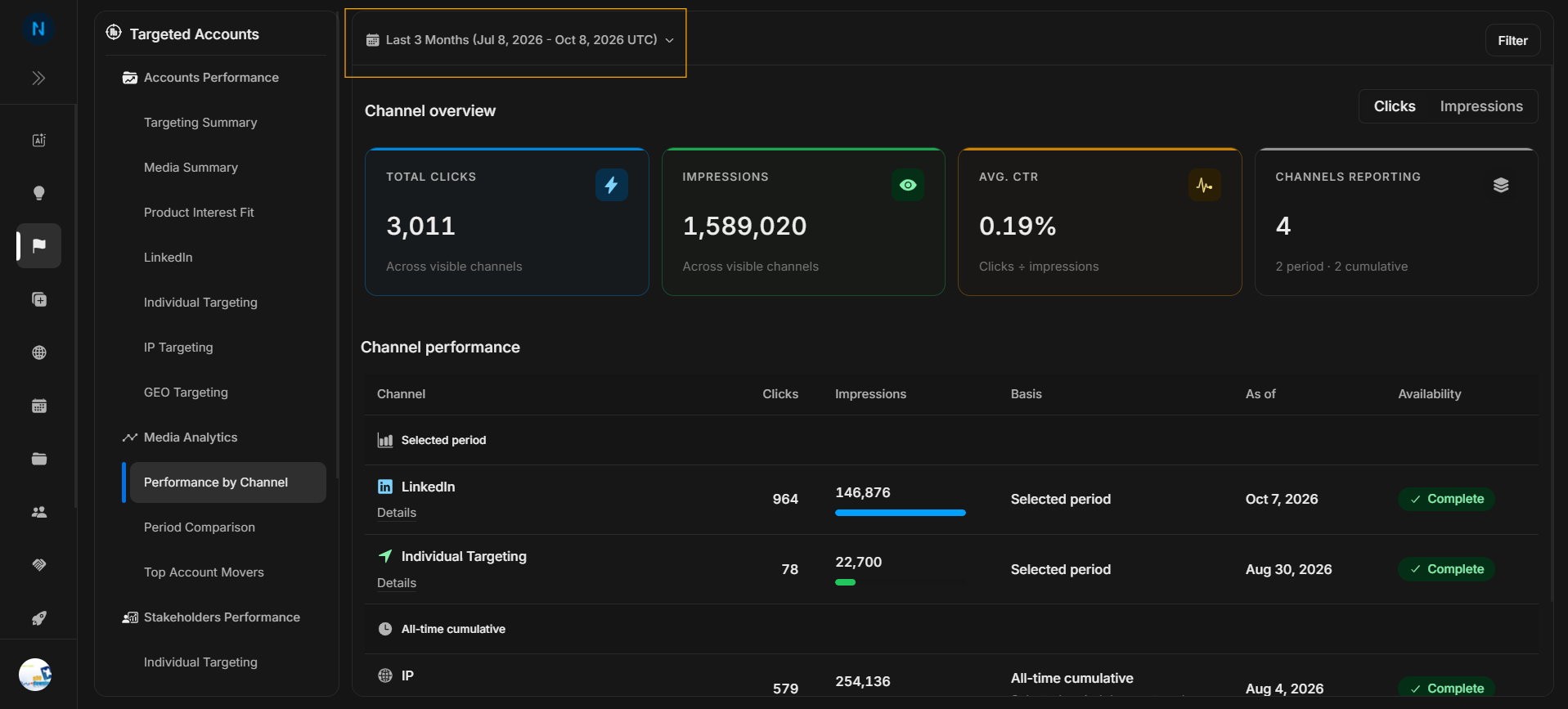
Image guide: the report header shows the current date range and timezone.
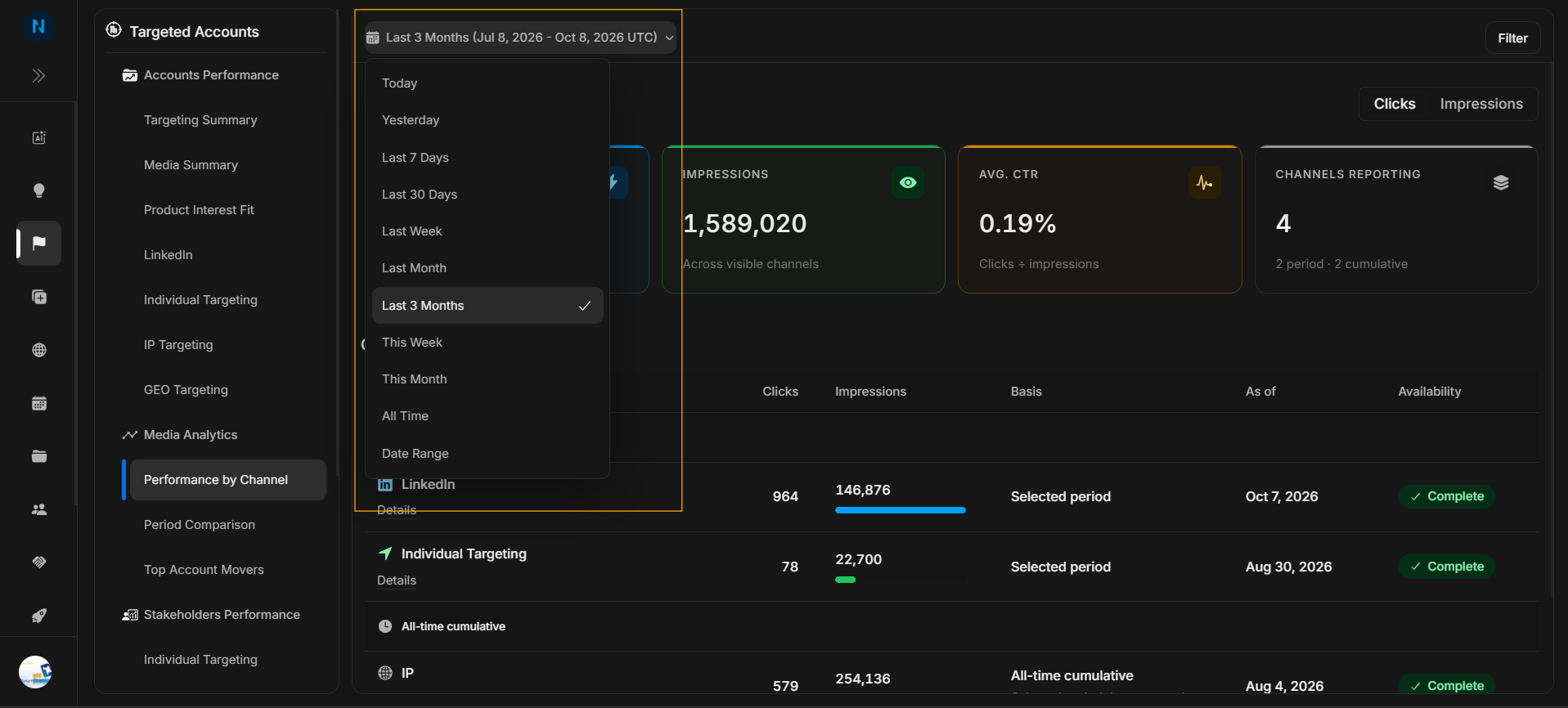
Image guide: preset options include Today, Yesterday, Last 7 Days, Last 30 Days, Last Week, Last Month, Last 3 Months, This Week, This Month, All Time, and Date Range.
Choose Date Range when the preset periods do not match the review window.
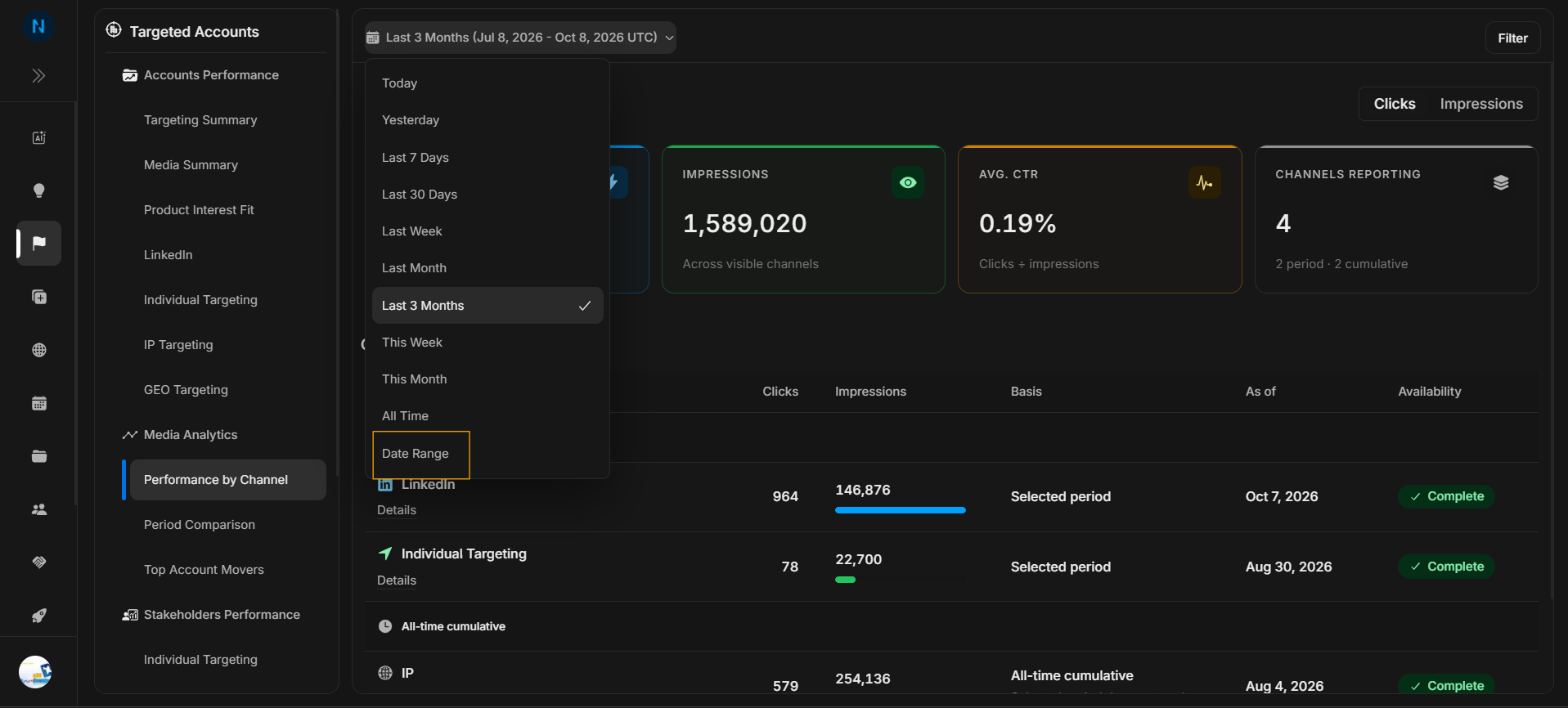
Image guide: Date Range is the custom period option at the bottom of the date menu.
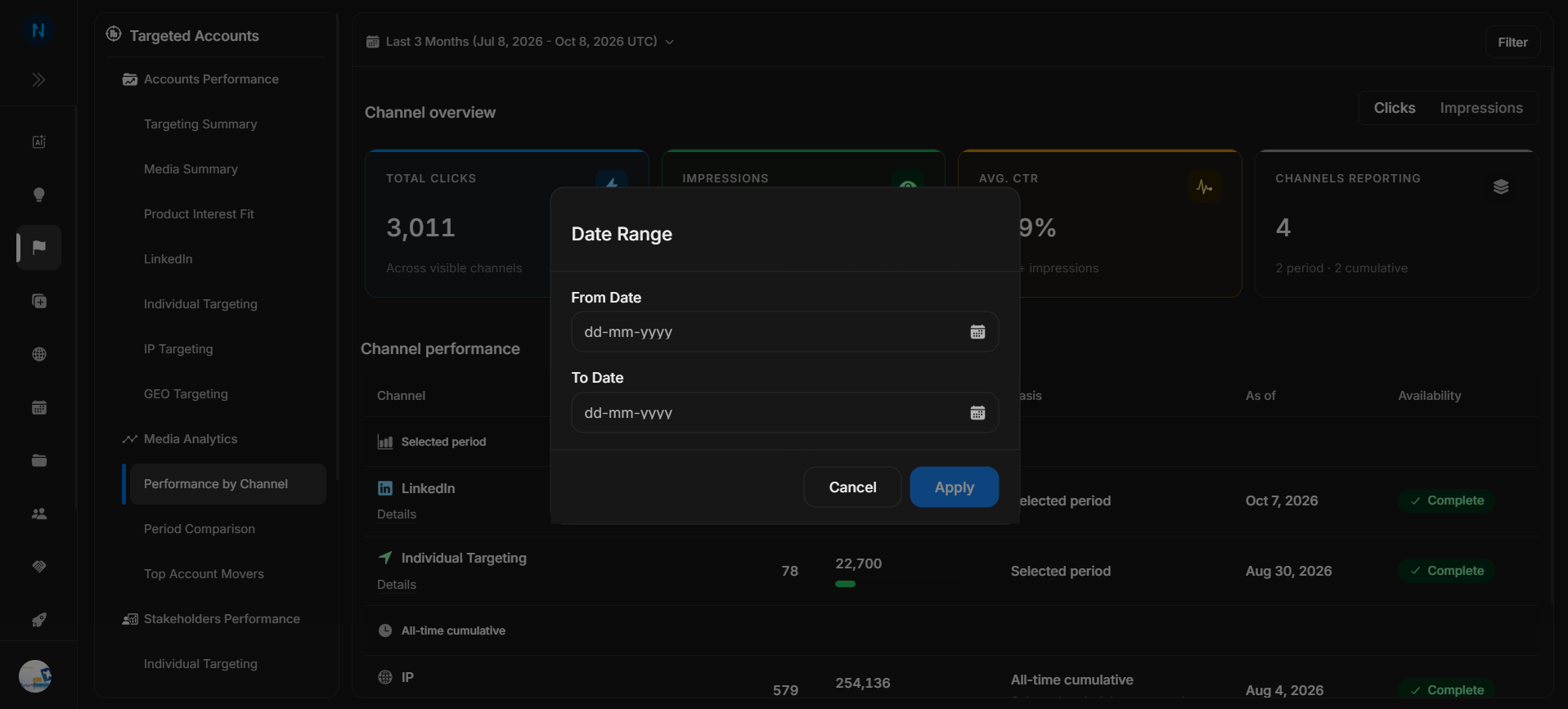
Image guide: enter From Date and To Date, then apply the range. Apply stays disabled until the required dates are valid.
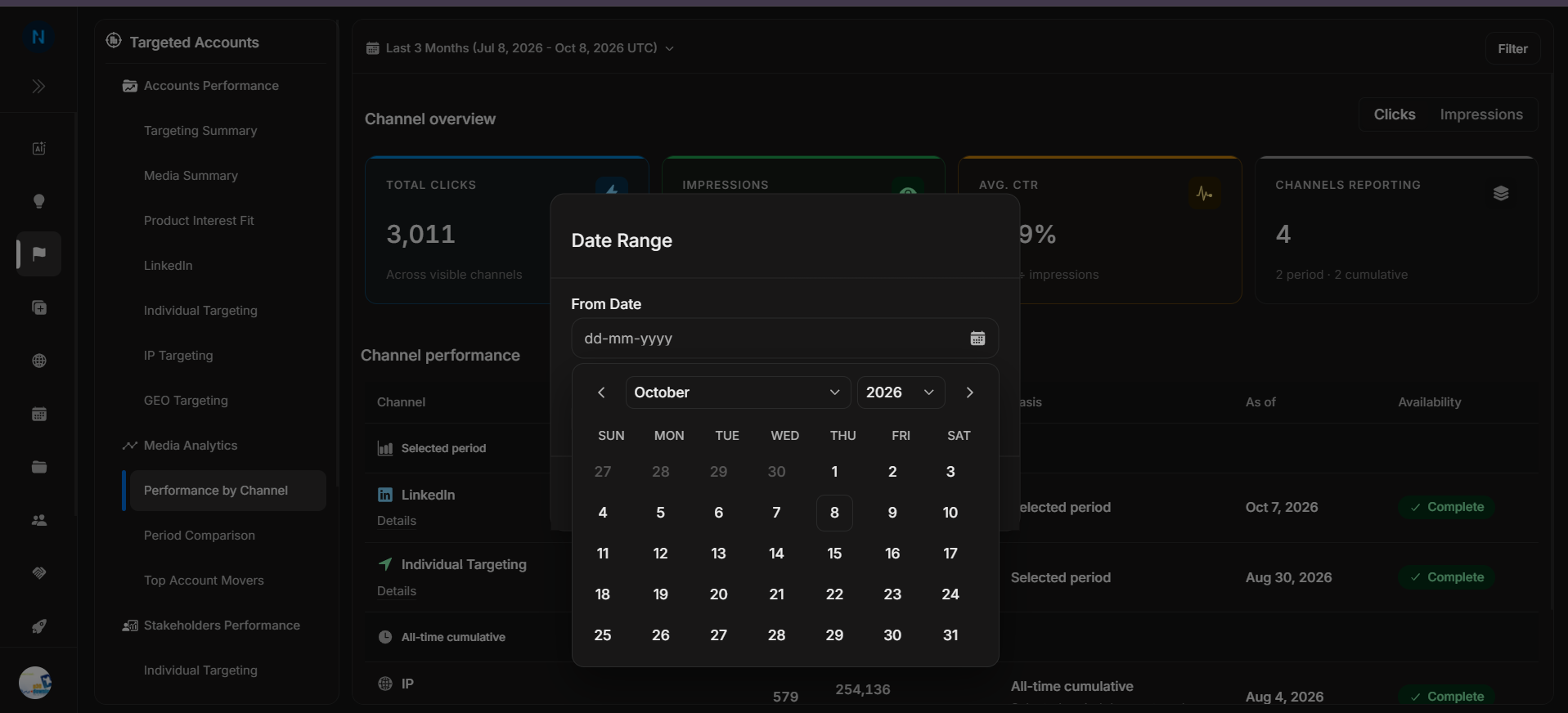
Image guide: the date picker lets users select a calendar date from the current month and year selector.
Review Order
- Check the selected date range and timezone.
- Decide whether Clicks or Impressions should be the primary metric.
- Review the four overview cards.
- Confirm which channels are selected-period and which are cumulative.
- Apply account or channel filters if the default view is too broad.
- Open row details when the scope, cohort basis, or availability needs explanation.
If Numbers Look Wrong
Match the same date range before comparing this page with Insights, Period Comparison, Top Account Movers, or an export. If a cumulative channel appears unchanged after changing the date range, check the Basis column before treating it as a data issue.