Profile and create space
Profile and create space
This article explains the profile and workspace setup flow: completing a user profile, managing My Profile, changing local passwords, and creating a DOE workspace.
When Users See This
| Area | Who Sees It | Why It Appears |
|---|---|---|
| Complete Profile | Any signed-in user missing required profile data. | DOE needs a usable name, username, timezone, and profile identity before routing into the workspace. |
| My Profile | Any signed-in user. | Users can review identity, avatar, display name, email, username, and password options. |
| Create Space | Admin users in the admin workspace context. | Admins can create a new workspace and seed its first strategic setup data. |
Complete Profile
Complete Profile appears after authentication when DOE can identify the signed in user, but still needs required app profile fields before normal workspace use.
What Users Enter
| Field | Meaning | Notes |
|---|---|---|
| Name | Display name used across DOE, members, events, and profile surfaces. | Must be at least four characters. |
| Username | User handle used by the app profile. | Collected only when the authenticated profile does not already have one. Reserved terms are blocked. |
| Timezone | Date/time context for meetings, events, and calendar behavior. | Set automatically from the user's browser timezone during profile save. |
| Login and contact identity. | Usually inherited from the authenticated OIDC profile and not edited here. |
Username Rules
Usernames can contain:
- Letters.
- Numbers.
- Dot.
- Dash.
- Underscore.
The username must be 4-20 characters. DOE checks availability before saving. If the username is already taken or not valid, the user stays on the profile form and sees the validation message.
What Happens After Save
When the profile saves successfully:
- DOE updates the app profile.
- DOE stores the browser timezone.
- The app marks profile setup as complete.
- The Matrix/Synapse display name is synced silently to the app profile name.
- The user is routed back into the normal workspace entry flow.
If Matrix display-name sync fails, it should not block profile completion or normal app startup.
My Profile
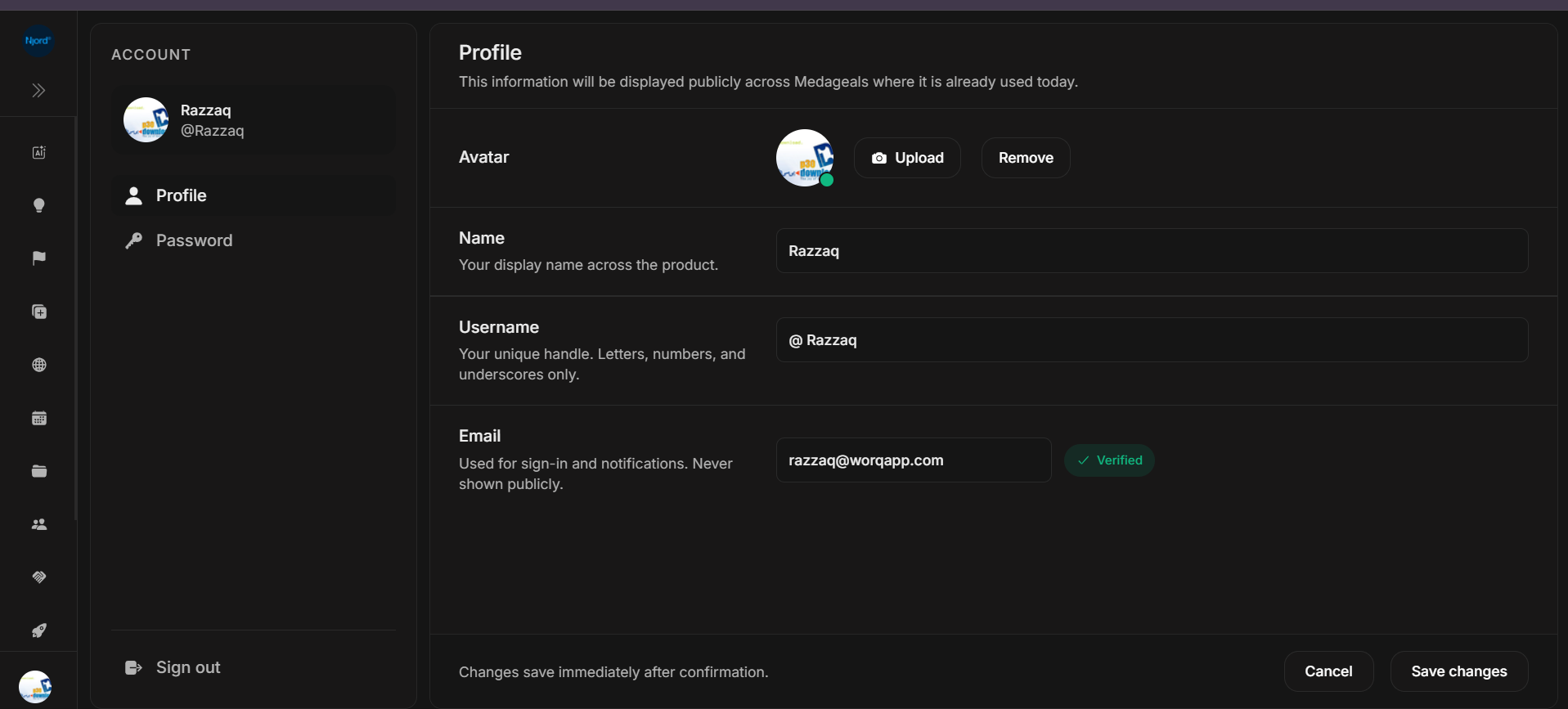
My Profile is the self-service profile page. Users open it from the profile menu to review or update their own profile details.
Profile Details
The Profile tab shows:
| Item | User Meaning |
|---|---|
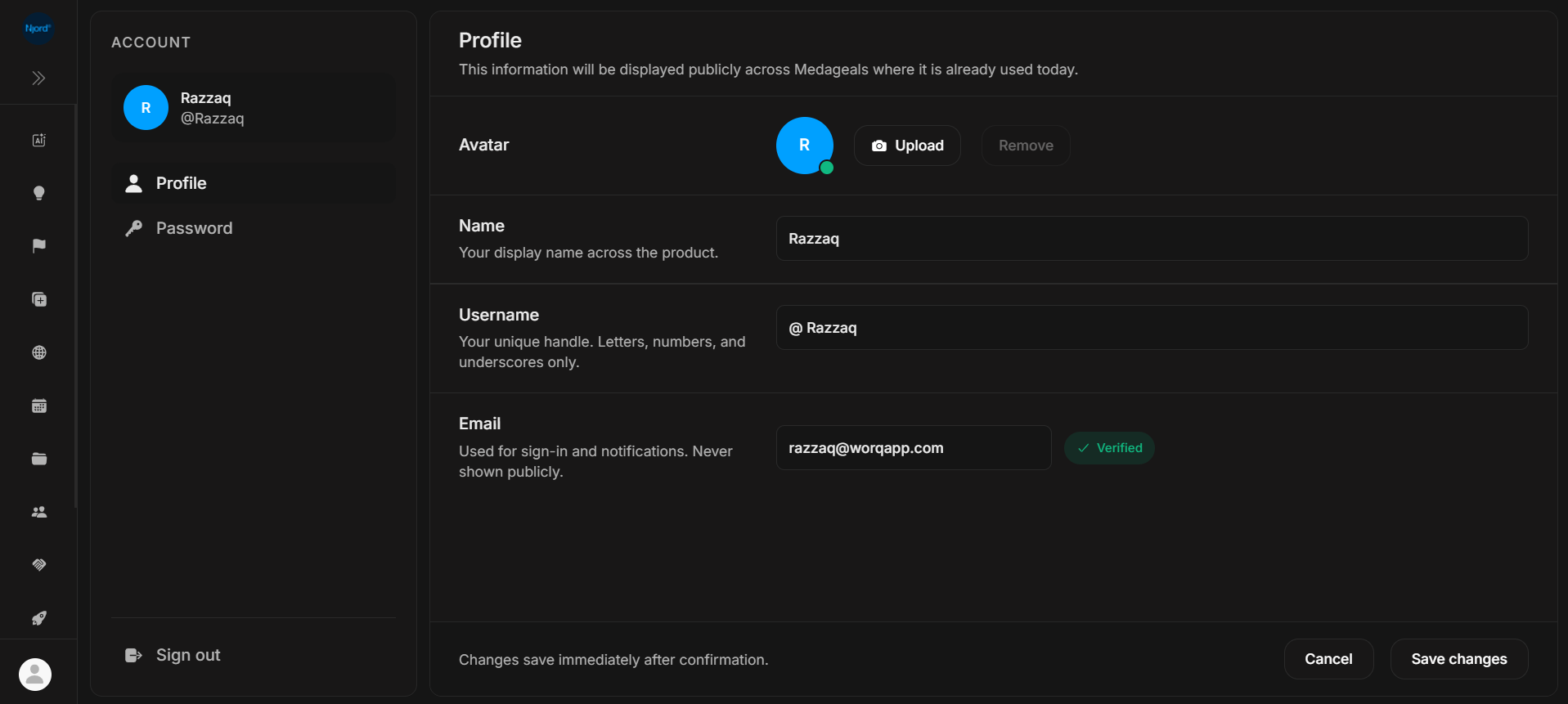
| Avatar | The user's visible profile picture where avatar display is supported. |
| Display name | The name shown in profile surfaces, members, events, ownership, and activity context. |
| Username | The user's profile handle. |
| The user's login/contact email. |
Users can upload a new avatar, remove an uploaded avatar, change display name, cancel unsaved edits, and save profile changes.
Profile Menu Entry
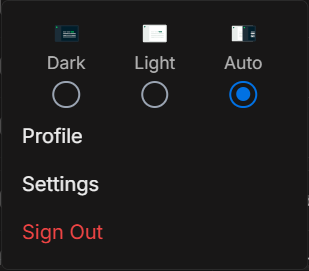
The profile/avatar menu is available from the header or compact sidebar. It can include profile navigation, theme controls, settings, and sign out.
Use this route when users ask:
- "Where do I change my name?"
- "Where do I update my avatar?"
- "Where do I change my password?"
- "Why does my name look wrong in another part of the app?"
Change Password
The Password tab is separate from profile details. This keeps identity edits and password changes from being mixed into one form.
Password change is for the local account password managed by the auth service. It does not reset a customer's Enterprise SSO password inside Okta, Entra, Google Workspace, Auth0, or another upstream identity provider.
Users may see password fields with show/hide controls. Toggling visibility only changes presentation; it does not change typed values or validation state.
Create A Space
Create Space is the admin workspace creation flow. It creates a new DOE workspace and can seed the first strategic setup data.
Access Rules
Create Space is not a general user page. The source route checks admin access and the admin workspace context before showing the onboarding flow. If the user is not allowed to create a space, the app routes them back to the normal root entry path.
What Admins Add
| Step | What Admins Provide | Why It Matters |
|---|---|---|
| Workspace basics | Workspace/client name, description, avatar, and banner where configured. | Creates the new workspace identity. |
| Strategic setup | Mission, vision, strategic objectives, target segment, ideal customer profile, and ideal stakeholder map. | Seeds Plan and workspace context so users do not start from a blank workspace. |
| Media | Images or videos attached to setup sections. | Adds supporting context to workspace strategy areas. |
| Invite members | One or more email addresses, or an uploaded CSV/XLS/XLSX file. | Sends initial team invitations after the workspace is created. |
| Preview | Admin reviews the setup before completion. | Reduces mistakes before workspace creation. |
Setup Sections
The strategic setup areas can include plain text, structured value points, and supporting media where the form allows it.
| Section | Purpose |
|---|---|
| Mission | Captures why the workspace or client exists. |
| Vision | Captures the intended future state. |
| Strategic objectives | Lists the outcomes the team should work toward. |
| Target segment | Defines the market or customer segment to focus on. |
| Ideal customer profile | Describes the best-fit customer pattern. |
| Ideal stakeholder map | Describes the important stakeholder groups and relationships. |
Media fields accept images and videos for setup context. Keep uploads focused on material that helps the team understand the workspace strategy.
Invite Members
Admins can type invite emails manually or upload a CSV/spreadsheet file. The flow extracts email addresses and flags entries with unusual formatting.
- Multiple invite emails can be entered in one field.
- CSV and spreadsheet uploads are accepted for bulk invite input.
- Invalid email formatting is shown before the final invite action.
- Failed invite sends are collected and shown after the backend response.
Creation Progress
After the admin finishes the form, DOE runs the workspace creation steps:
- Create the workspace.
- Upload workspace and strategy media.
- Save mission, vision, objectives, target segment, ideal customer profile, and ideal stakeholder map.
- Send invitations when invite emails were provided.
- Show the completion state.
If something fails during creation, DOE closes the creation modal and shows a message that something went wrong while creating the client.
Common Questions
| Question | Answer |
|---|---|
| Why am I stuck on Complete Profile? | A required field is missing, invalid, unavailable, or the save request failed. Check name length, username format, and username availability. |
| Why did my profile name update but another app surface still looks old? | Some profile surfaces depend on Matrix/Synapse display-name sync or cached profile data. Refresh after saving. |
| Why can't I change my password here? | If the account uses Enterprise SSO or another external identity provider, password management may happen in that provider. |
| Who can create a space? | Admin users in the correct admin workspace context. Other users are routed away from Create Space. |
| Can media be added during space setup? | Yes. Setup sections accept image and video files, with a limit of six files per media group. |
| Can invites be uploaded in bulk? | Yes. The invite step accepts CSV and spreadsheet uploads and extracts email addresses from the file. |
Common Issues
| Symptom | Likely Cause | What To Do |
|---|---|---|
| Profile completion repeats | Save failed, required field missing, username invalid, or username unavailable. | Re-enter the required fields, use a valid username, and save again. |
| Username validation error | Username is outside the 4-20 character rule or contains unsupported characters. | Use letters, numbers, dot, dash, or underscore only. |
| Name does not update everywhere | Profile cache or Matrix/Synapse display-name sync delay. | Refresh the app and check My Profile again. |
| Password change is unavailable | User signs in through SSO or external identity. | Use the identity provider's password flow. |
| Create Space redirects away | User is not an admin or is not in the admin workspace context. | Ask an admin to create the workspace or switch to the correct admin context. |
| Invite upload has rejected rows | File contains values that do not look like valid email addresses. | Correct the file or manually paste the email addresses. |
| Workspace creation fails | Workspace creation, media upload, strategy save, or invitation send failed. | Retry with required fields complete and fewer/cleaner media files if needed. |