Use Njord AI on mobile
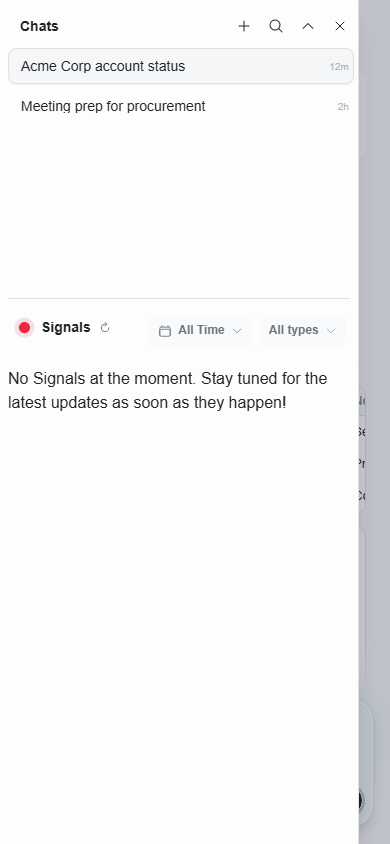
Use Njord AI on mobile
Njord AI works on mobile for quick checks, signal review and short summaries. The same core workflow applies, but the screen shows fewer controls at once.
Image guide: this screenshot shows the mobile sidebar layout. Chat history and supporting panels may open as separate layers, so expect to tap into a panel and then return to the conversation.
Best Mobile Use Cases
Use mobile for:
- Checking why a new signal matters.
- Preparing a quick meeting summary.
- Asking for three next actions.
- Reading a short account brief.
- Copying a concise internal update.
Use desktop for long tables, exports, broad account comparisons and careful review of full analysis.
Mobile Workflow
- Open Njord AI.
- Start a new chat if the task is new.
- Attach only the most important context.
- Ask for a short answer.
- Close the keyboard before reviewing chips, tables, or actions.
- Open desktop later if you need exports or deeper analysis.
Keep Mobile Prompts Short
Good mobile prompt:
"Summarize this account's Last 30 Days activity and give three next actions."
Avoid:
"Analyze the entire account, all stakeholders, website traffic, campaign history and write multiple versions of an email."
Long prompts are harder to check on a phone. Break them into follow-ups.
Review Tables On A Small Screen
If Njord AI returns a table, check:
- Column headers.
- Sort order.
- Whether you need to scroll sideways.
- Whether the row belongs to the right account or stakeholder.
If the table drives a decision, open desktop before acting.
Attachments On Mobile
Attach only the records you need. Broad comparisons are easier to review on desktop.
Before sending, check the visible context chips. If the wrong chip is attached, remove it or start a new chat.
If You Leave The App During An Answer
An answer may continue while the app is in the background or the phone is locked. When you return, make sure you are online and wait briefly while the conversation refreshes. Do not send the same question again if the original answer appears.
If the question never reached the chat, Njord AI keeps it available so you can resend it.
If The Keyboard Covers Controls
Close the keyboard after typing. Then check the send area, context chips and any bottom controls. If the screen still feels crowded, save the task for desktop.