Top engagements
Top engagements
Top Engagements turns activity into ranked lists. Use it when you do not want to scan every signal and need to know which accounts or stakeholders deserve priority.
The section is useful for sales review, marketing review, campaign performance checks and quick preparation before a team meeting.
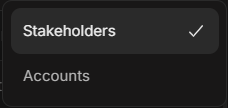
Image guide: the switch view menu lets Individual Targeting show either stakeholders or accounts. Use the stakeholder view when you care about people. Use the account view when you care about company prioritization.
Choose The Right Tab
Top Engagements can show several tabs, depending on the data available in the workspace.

Image guide: the tabs let you change the engagement source without leaving the dashboard. Each tab ranks a different type of activity, so compare rows only after confirming which tab is selected.
| Tab | What it ranks | Best for |
|---|---|---|
| Individual Targeting | Targeted stakeholders or accounts with strong activity. | Sales prioritization and stakeholder review. |
| Accounts with LinkedIn engagement when available. | Understanding social engagement and campaign interaction. | |
| Website | Targeted accounts with website visits. | Seeing which target accounts are researching or returning. |
| IP | Accounts with IP targeting engagement when available. | Reviewing IP-based targeting activity. |
| Geo | Accounts with geo targeting engagement when available. | Reviewing activity by geography-based targeting. |
| Website Leads | Non-targeted companies identified from website activity. | Finding potential new accounts to review before targeting. |
Pick A Date Range
The same account can look different depending on the date range.
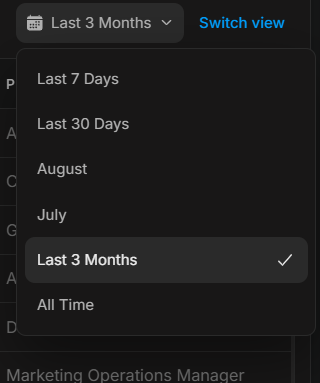
Image guide: the date menu changes the ranking period. Short ranges show current movement. Longer ranges show accumulated engagement and are better for strategic review.
| Date range style | Use it for |
|---|---|
| Today or Yesterday | Immediate action and daily follow-up. |
| This Week or Last 7 Days | Weekly review and near-term prioritization. |
| Last 30 Days | Campaign review and account planning. |
| Last 3 Months or All Time | Long-running patterns and historical context. |
Read The Rows
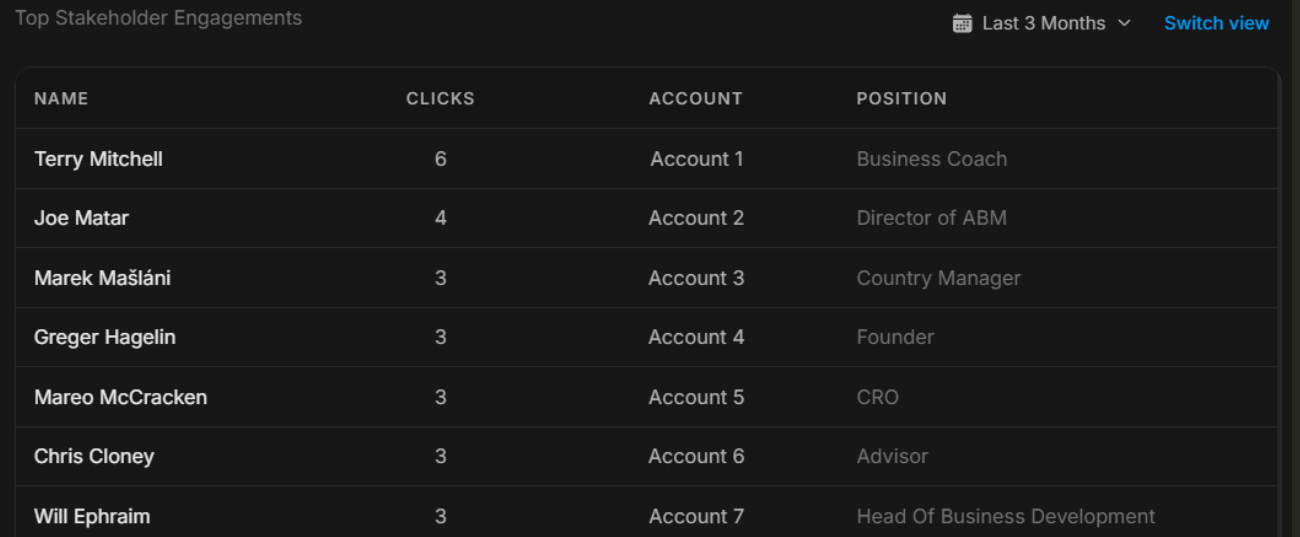
Image guide: rows usually show the name, activity count and supporting context such as account, clicks, visits, or channel-specific engagement. The columns change by tab, so read the column labels before comparing rows.
When reading a row, check:
- The account or stakeholder name.
- The activity count.
- The selected tab.
- The selected date range.
- The account name, role, source, or visit context.
- Whether the row has a See more, open, or detail action.
Stakeholder View Vs Account View
Use stakeholder view when your next step depends on a person. This is helpful for identifying active roles, executives, champions, buyers, or committee members.
Use account view when your next step is account prioritization. This is helpful for routing, territory review, account planning and pipeline discussion.
If a stakeholder ranks highly but the account does not, inspect whether the person is an outlier. If an account ranks highly but no stakeholder stands out, check website activity and broader account signals.
Tab Examples
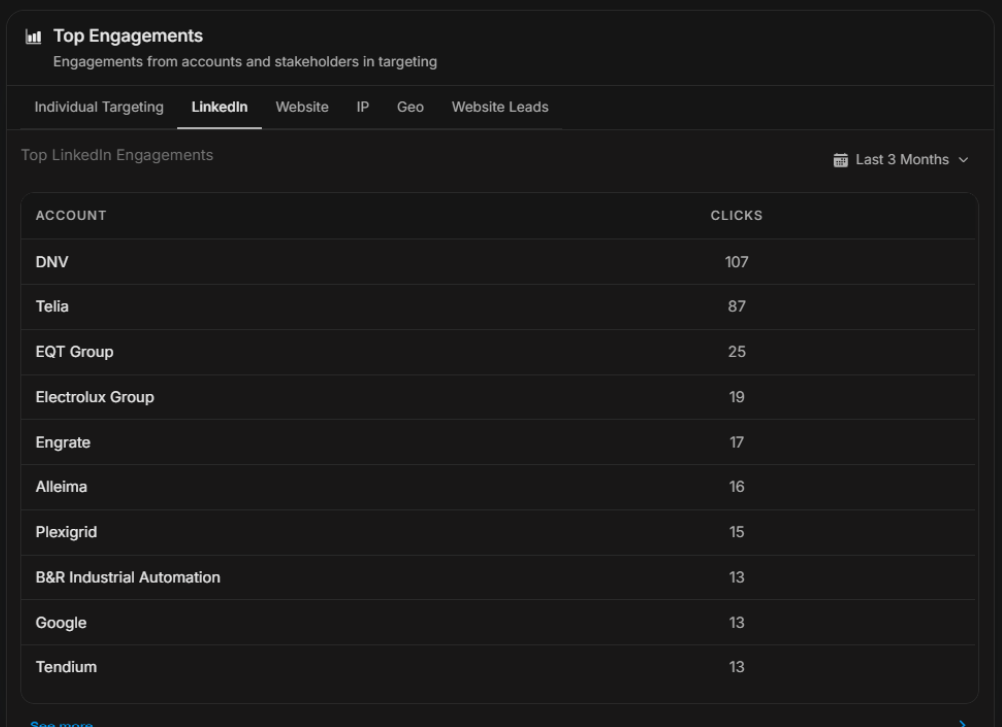
Image guide: the LinkedIn tab focuses on engagement from the LinkedIn source when available. Use it to see which accounts are responding to social or ad activity.
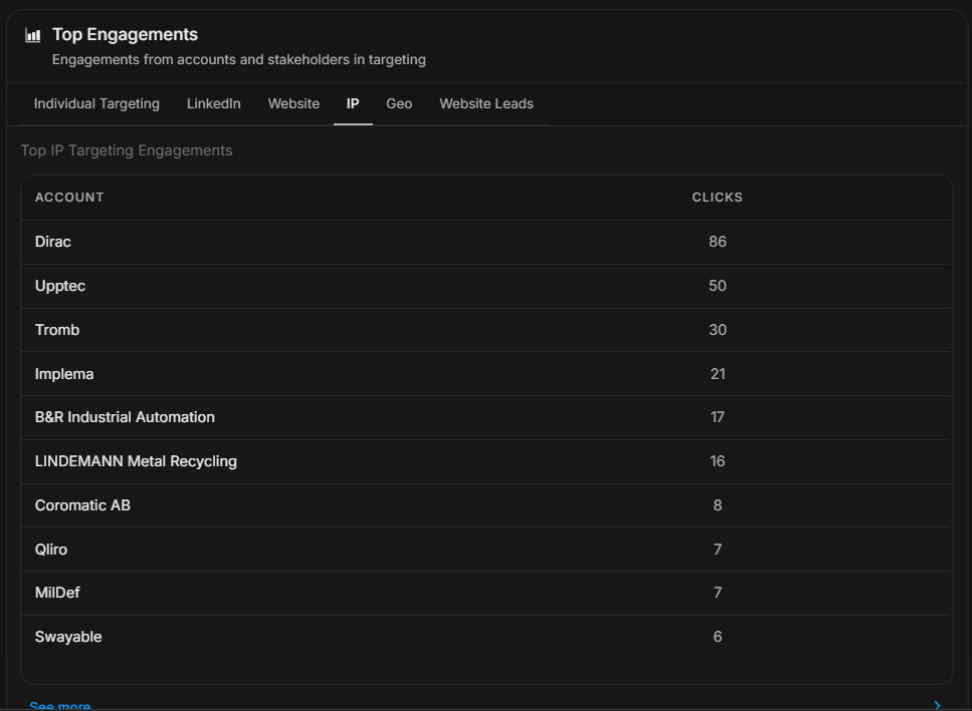
Image guide: the IP tab focuses on IP targeting engagement when available. Use it as one source of account activity, then compare it with stakeholder and website signals.
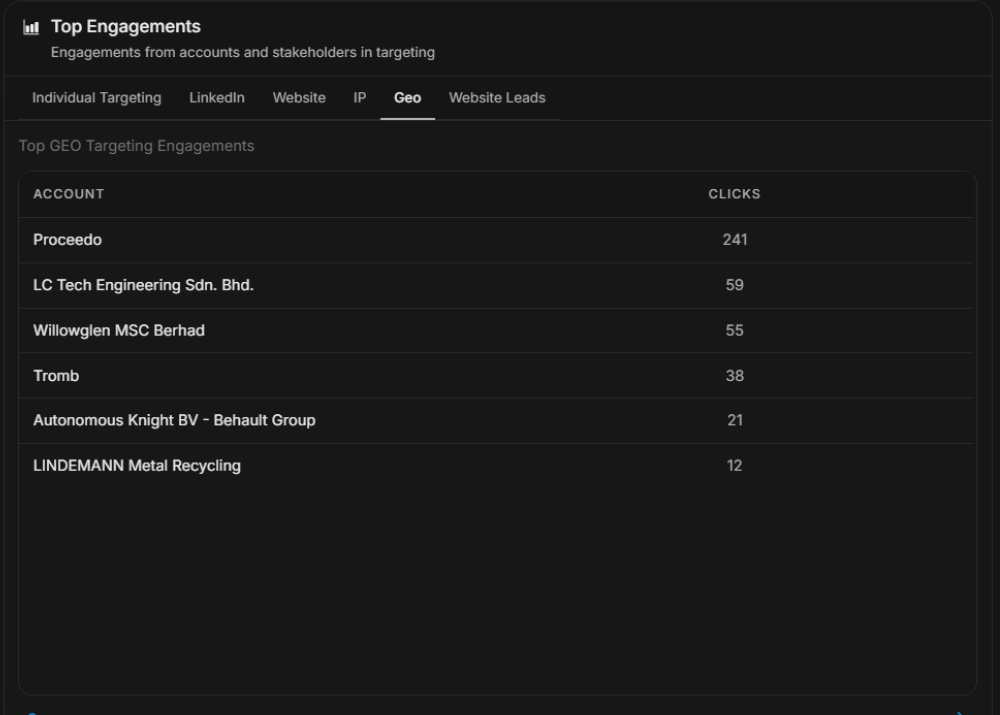
Image guide: the Geo tab focuses on geography-based targeting engagement when available. Use it to understand activity from location-based campaigns or regions.
What To Do With The Ranking
The top row is not automatically the best account. A ranking is a starting point.
Use this decision path:
- Confirm the tab and date range.
- Open the row or full report for supporting detail.
- Check account fit, ownership, region and active opportunities.
- Compare the row with recent signals.
- Decide whether the account needs sales follow-up, marketing review, targeting cleanup, or no action.
When To Use See More
Use See more when you need:
- More than the dashboard rows.
- Filters, sorting, or exports.
- The full list behind a tab.
- A deeper report for a team or leadership review.
- Evidence before changing account priority.
Useful Njord AI Prompts
- "Summarize the top engaged accounts from the Website tab and explain why they matter."
- "Compare Individual Targeting and Website activity for the last 30 days."
- "Which Website Leads look like real target accounts?"
- "Prepare a short sales-priority list from these top engagement rows."
If It Does Not Look Right
Check the tab first. A LinkedIn ranking, Website ranking and Website Leads ranking are different lists. Then confirm the date range and whether you are viewing stakeholders or accounts. If a row is missing, it may be outside the selected source, outside targeting, outside the time range, or not visible in your current scope.