Signals feed
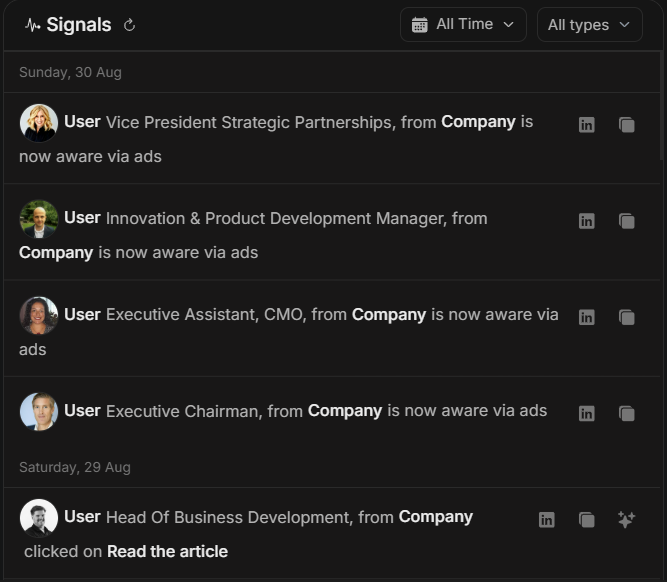
Signals feed
The Signals feed is the live activity stream inside Signals & Insights. It is the best place to see what changed recently and decide which record to open next.
Use the feed for day-to-day review. Use Top Engagements when you want ranked lists. Use impact cards when you want a summary.
Image guide: each signal row shows a recent activity event. The feed is grouped by date, then each row names the stakeholder or company, the account, the activity and the available row actions. The filters at the top control the time window and activity type.
What The Feed Contains
The feed can include several activity types.
| Signal type | What it tells you | Typical next step |
|---|---|---|
| Stakeholder Click | A named stakeholder clicked tracked content or an ad-related item. | Open the stakeholder and check role, account and recency. |
| Stakeholder Aware | A stakeholder has activity that indicates awareness. | Review whether awareness is growing in the right account. |
| Stakeholder Reached | A stakeholder was reached through media activity. | Use it for coverage review, not as proof of intent. |
| Website Visit | DOE identified company-level website activity. | Open website detail and review pages visited. |
| Website Lead | A company outside targeting visited your website and was identified. | Review fit before adding it to targeting. |
Choose The Right Date Range
The date range changes the story. A short range is useful for today's follow-up. A longer range is better for campaign review.
| Date range style | Best for |
|---|---|
| Today or Yesterday | Urgent follow-up and recent changes. |
| This Week or Last 7 Days | Weekly review and short-term activity patterns. |
| Last 30 Days | Pipeline review, campaign review and account prioritization. |
| Last 3 Months or All Time | Broader trend review and historical context. |
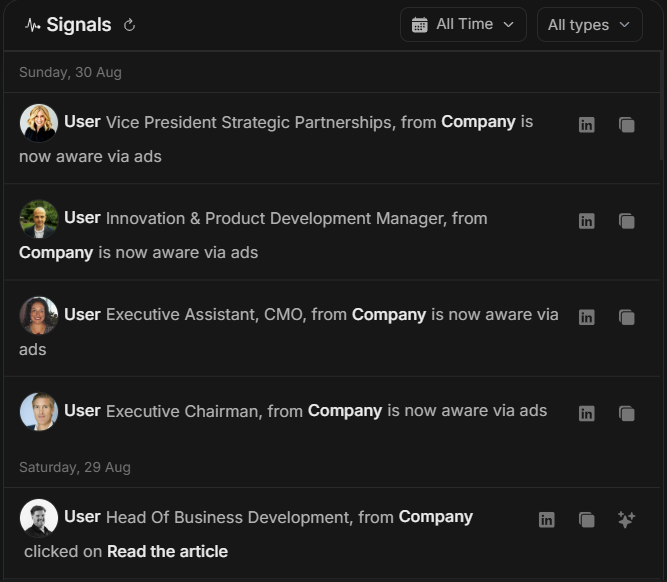
Image guide: the controls above the feed let you change the date window and signal type. If the feed feels noisy, narrow one control at a time so you can see which filter changed the list.
Use The Type Filter
Start with All types when you are learning the activity. Then narrow the list based on the job.
| Filter | Use it when... |
|---|---|
| All types | You want the complete recent story. |
| Stakeholder Click | You want stronger engagement from named people. |
| Stakeholder Aware | You want to see early awareness building. |
| Stakeholder Reached | You want to verify audience delivery. |
| Website Visit | You want to inspect company-level website intent. |
Review Signals In A Useful Order
- Scan the newest date group first.
- Look for known strategic accounts.
- Notice repeated signals from the same account.
- Prioritize clicks and website visits over simple reach when you need action.
- Open the row action if the signal is relevant.
- Use Top Engagements to confirm whether the same account ranks highly.
- Ask Njord AI to summarize the account if there are multiple signals.
What Makes A Signal Stronger
A signal becomes more useful when it has context.
Strong examples:
- A senior stakeholder at a target account clicked content this week.
- A target account visited high-intent pages several times.
- Multiple stakeholders from the same account show activity.
- A Website Lead matches your target profile and visited relevant pages.
Weak examples:
- One old reach signal with no recent engagement.
- A visitor from a poor-fit company.
- Activity from a role that is not relevant to your sales motion.
- A broad page visit with no supporting account activity.
Remembered Filters And Counts
DOE remembers your Signals duration and type choices across Signals views and after a reload. No selected types and all four selected types both mean All types.
When All Time is selected, the compact insight summary is hidden because it is meant for a bounded period. The Signals feed itself remains available.
Website totals and feed rows answer different questions. One website Signal row can summarize several visits from the same company and day, so a Website visits total can be higher than the number of visible Signal cards.
When The Feed Is Too Busy
Reduce the date range first. If the feed is still too broad, filter by signal type. For a sales review, start with Stakeholder Click and Website Visit. For a marketing review, include Reached and Aware to understand coverage and progression.
For a team meeting, keep a wider view and ask Njord AI:
"Summarize the most important signals from this week. Group them by account and explain the recommended next action."
When The Feed Is Blank
Blank does not always mean nothing is working. It can mean the selected time range has no matching activity, the type filter is too narrow, or the workspace does not have data for that activity source.
Try this order:
- Change the type filter back to All types.
- Widen the date range.
- Check whether you are in the right workspace or personal scope.
- Open Top Engagements or the related report to confirm whether activity exists elsewhere.