Signal rows and actions
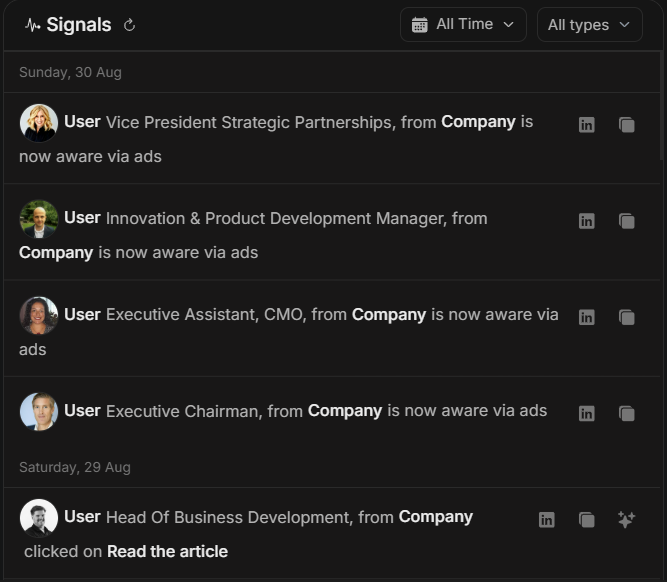
Signal rows and actions
Signal rows are the actionable lines inside the Signals feed. A row tells you what happened, who or which company it relates to and which actions are available.
Image guide: each row combines the person or company name, role or account context, the activity text and small action icons. The LinkedIn-style icon opens social context when available. The record icon opens related account or stakeholder detail. The sparkle action can start an AI-assisted explanation when available.
Read A Signal Row
Read the row from left to right.
| Row part | What to check | Why it matters |
|---|---|---|
| Date group | Whether the activity happened today, this week, or earlier. | Recency affects urgency. |
| Person or company | The stakeholder name or identified company. | Helps decide whether the row belongs to your priority list. |
| Role or context | Job title, account, or activity source when shown. | Tells you whether the activity is relevant. |
| Activity text | Clicked, reached, aware, or visited. | Shows the type of movement. |
| Row actions | Icons for opening context or asking Njord AI. | Lets you move from event to investigation. |
Decide The Next Action
| If the signal shows... | Do this first | Then decide... |
|---|---|---|
| A key stakeholder clicked | Open the stakeholder or account. | Whether the account owner should follow up. |
| A target account visited the website | Open website detail. | Whether pages visited show real intent. |
| A non-targeted company visited | Review Website Leads. | Whether it fits your market before adding to targeting. |
| Several signals around one account | Ask Njord AI for a short account brief. | Whether the pattern changes priority. |
| A reached or aware signal without engagement | Check whether this is part of a broader campaign pattern. | Whether it is coverage context or follow-up material. |
| A weak or irrelevant signal | Leave it and keep scanning. | Whether it should be ignored, excluded, or reviewed later. |
What The Action Icons Do
Available icons can vary by row and workspace setup. Common actions include:
- Open the stakeholder or social profile when available.
- Open the related account or record detail.
- Open website activity for a company.
- Start Njord AI with the signal as context.
- Copy or use the signal in a follow-up workflow when available.
If an action is not visible, hover the row on desktop. On mobile, tap the row or expand the group first.
Ask Njord AI From A Signal
Use Njord AI when the row needs interpretation, comparison, or a summary for another person.
Good prompts:
- "Explain why this signal matters."
- "What should the account owner do next?"
- "Show the supporting activity for this account."
- "Summarize this signal in one sentence for an internal update."
- "Compare this signal with other recent activity from the same account."
Build A Short Follow-Up From A Signal
For sales follow-up, do not treat the signal as a script. Use it as context.
Good internal update:
"Norsk Hy has recent stakeholder clicks and appears in this week's activity. Please review the account before outreach."
Avoid:
"We saw you clicked our ad."
Signals are most useful when they help your team prioritize and prepare. They should not expose tracking details unnecessarily to prospects.
When A Signal Needs No Action
Not every signal is important. It is reasonable to skip a row when:
- The company is outside your market.
- The stakeholder role is not relevant.
- The activity is old.
- The row only shows reach with no supporting intent.
- The account is already being handled by another owner.
If It Does Not Look Right
If a row seems wrong, check whether a filter is active, whether the company has a similar name, and whether the row is targeted traffic or Website Lead traffic. When the row still seems unclear, open the related detail page before making a decision.