Signals on mobile
Signals on mobile
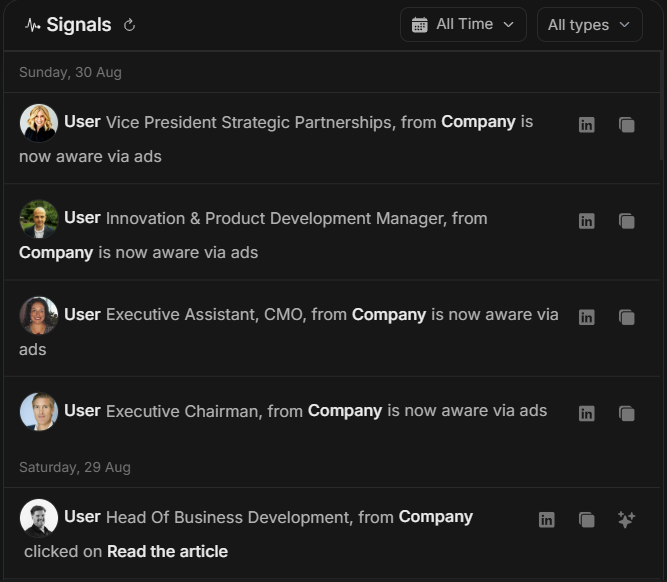
On mobile, Signals & Insights is designed for quick review. The same business meaning applies, but the layout is tighter and the workflow should be simpler.
Use mobile when you need to check recent activity, open a record before a call, or ask Njord AI for a quick summary. Use desktop when you need large tables, exports, deeper comparison, or cleanup work.
Image guide: the mobile view uses the same signal concepts as desktop: date grouping, activity type, account or stakeholder context and filters. The content may stack or appear in collapsible sections so it fits a smaller screen.
Best Uses On Mobile
Mobile is best for:
- Checking whether there are important new signals.
- Opening a stakeholder or account before a call.
- Reviewing one Website Lead quickly.
- Asking Njord AI for a short explanation.
- Sending a concise internal update.
Desktop is better for:
- Comparing many rows.
- Using full reports.
- Exporting data.
- Cleaning account fields.
- Reviewing breakdowns across many categories.
Mobile Review Order
On a small screen, review each signal in this order:
- Signal type.
- Date or recency.
- Account or stakeholder name.
- Role, company, or activity text.
- Available action.
- Related detail page if the row matters.
Use Filters To Keep The List Short
Start with a short date range. If the list is still long, filter by signal type.
Useful mobile filters:
- Stakeholder Click when you need people showing direct engagement.
- Website Visit when you want company-level website intent.
- Today, Yesterday, or This Week when you are preparing for near-term follow-up.
- All types only when you want a quick complete scan.
Use The Category Sections
Mobile groups Signals into activity categories. Tap a category heading to open it; opening another category closes the current one.
The number on a category is the complete filtered count, not only the rows already loaded on screen. Scroll inside an open category to load more. If you open an account or stakeholder and then return, DOE tries to restore the Signal you selected even if newer activity changed the list order.
Ask Njord AI From Mobile
Mobile works well for short, focused questions.
Good prompts:
- "Summarize the most important signals from today."
- "What should I check before calling this account?"
- "Explain this Website Lead in one paragraph."
- "Turn these signals into a short internal update."
Avoid broad requests on mobile when the answer would need a large table. Save detailed comparisons for desktop.
When To Switch To Desktop
Switch to desktop when:
- You need to compare multiple tabs in Top Engagements.
- You need a full report or export.
- You need to inspect account breakdowns across many categories.
- You need to clean duplicates, ownership, or missing account fields.
- The answer is too wide to read comfortably on a phone.
If The Mobile List Is Blank
Check the date range and signal type filter first. Then confirm the workspace and scope. If mobile still looks empty, open desktop and compare with Top Engagements or the full report to confirm whether matching activity exists.