Account breakdowns
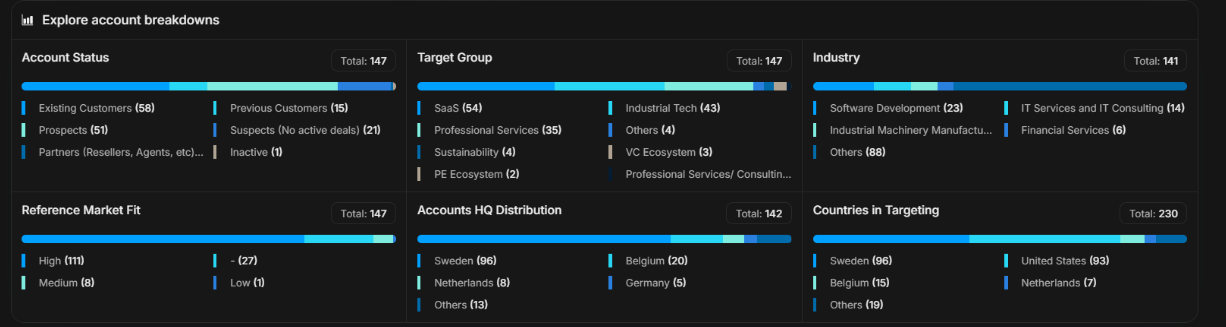
Account breakdowns
Account breakdowns show the shape of your target list. They group targeted accounts by business attributes such as account status, target group, industry, fit and country.
Use breakdowns when you want to understand coverage, gaps, concentration, or whether activity is happening in the right part of the market.
Image guide: the grid contains multiple compact cards. Each card has a title, a total count, a stacked bar and category rows. The longest color segment shows the largest category in that breakdown.
What The Breakdown Area Answers
| Question | Card to open first |
|---|---|
| Are we working the right account lifecycle mix? | Account Status |
| Which strategic segments dominate targeting? | Target Group |
| Which industries are overrepresented or missing? | Industry |
| How strong is the fit of our targeted accounts? | Reference Market Fit |
| Where are account headquarters concentrated? | Accounts HQ Distribution |
| Which countries are included in targeting? | Countries in Targeting |
How To Read A Card
Read each card in this order:
- Start with the title.
- Check the total count.
- Look at the largest segment in the bar.
- Read the category names and counts.
- Compare the result with the campaign or market plan.
- Open the related report when you need the records behind the count.
The card does not tell you whether the distribution is good by itself. It tells you what the distribution is. You decide whether it matches the strategy.
Card Examples
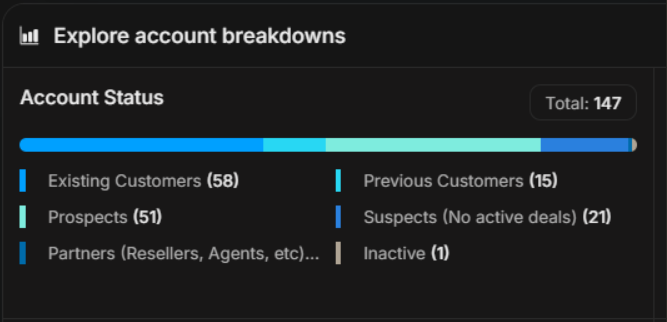
Image guide: Account Status groups the target list by lifecycle status such as customers, prospects, suspects, partners, previous customers and inactive accounts. Use it to understand what kind of accounts make up the audience.
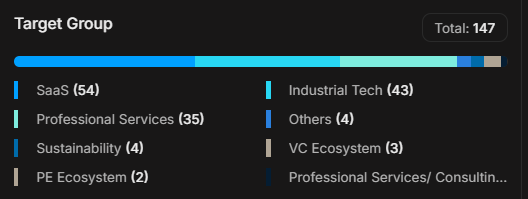
Image guide: Target Group shows strategic segments such as SaaS, industrial tech, professional services and other workspace-defined groups. Use it to see whether the planned segments are represented.
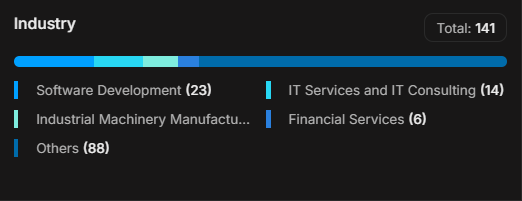
Image guide: Industry groups accounts by industry category. If "Others" is very large, open the report to check whether industry classification needs cleanup or whether the campaign is intentionally broad.
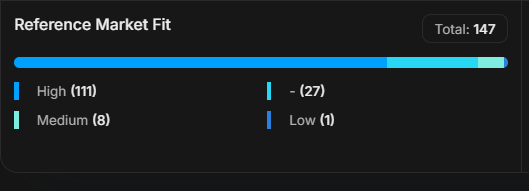
Image guide: Reference Market Fit shows fit quality for targeted accounts, such as high, medium, low, or unclassified. Use it to check whether the campaign is focused on the accounts most likely to matter.
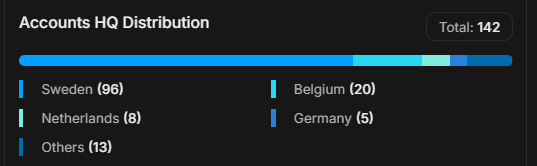
Image guide: Accounts HQ Distribution groups accounts by headquarters location. Use it for territory review and market concentration.
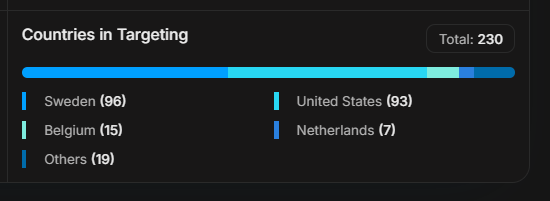
Image guide: Countries in Targeting shows countries included in active targeting. This can differ from headquarters distribution because targeting can involve markets, regions, or campaign scope.
How To Use Breakdowns In Practice
Use breakdowns to guide where to investigate:
- If one target group dominates, confirm that it matches the campaign plan.
- If a high-fit segment has low activity, review targeting and creative coverage.
- If a priority country has many accounts but few signals, check campaign delivery.
- If a low-fit category has strong engagement, decide whether it is worth sales attention.
- If an industry is missing, confirm whether it is intentionally out of scope.
Compare Breakdowns With Signals
Breakdowns show where accounts sit. Signals show what those accounts are doing.
Example:
If Sweden has the largest country count but most website visits come from the United States, compare the targeting setup, active campaigns and account ownership before drawing a conclusion.
Another example:
If high-fit accounts dominate the target list but clicks are coming from low-fit accounts, review the source of the clicks before escalating the low-fit accounts.
When To Open A Full Report
Open the related report when you need:
- The actual account list.
- Filters and sorting.
- Export-ready rows.
- A cleanup list for missing fields.
- Evidence for a meeting or leadership summary.
If It Does Not Look Right
Check whether the card total is based on accounts, countries, or targeting records. Also check whether records are missing field values. A large "Others" or blank-like category usually means the data needs review, not that the card is broken.