Create and verify your DOE account
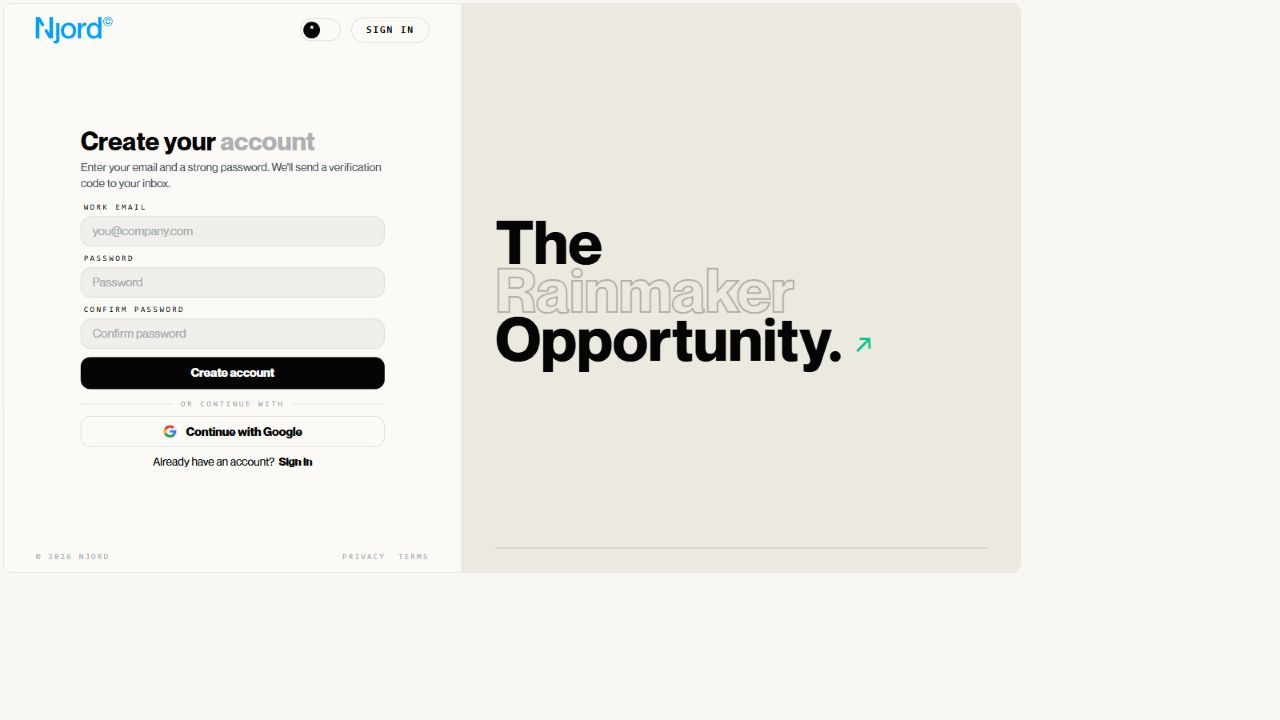
Create and verify your DOE account
Use this page when you have been invited to DOE and need to create your account for the first time.
Before You Start
You need a workspace invitation before DOE can create your account. Use the exact work email address that received the invitation.
If your organization told you to use Google or company SSO, use that button instead of creating a separate DOE password.
Create An Account With Email
- Open the DOE sign-in page.
- Choose
Create an account. - Enter your work email.
- Create a password.
- Confirm the same password.
- Submit the form.
Your password must be at least 8 characters and include an uppercase letter, a lowercase letter, a number and a symbol.
Verify Your Email
After the account is created, DOE sends a secure code to your work email.

- Open the newest email from DOE.
- Copy the secure code.
- Return to the verification screen.
- Enter the code.
- Continue to DOE.
Use the newest code only. If you request another code, older codes may no longer work.
If DOE Says Invitation Required
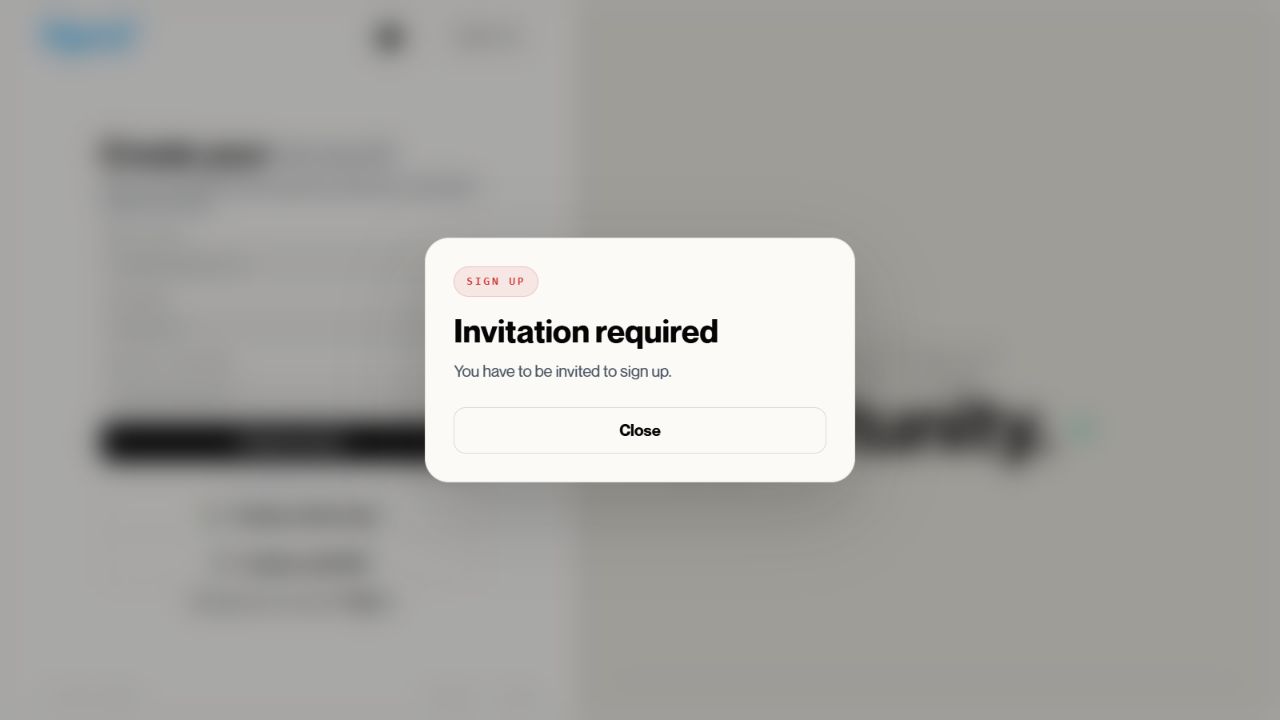
DOE could not find an active invitation for that email address. Ask your DOE workspace admin to invite the exact email you are entering. Do not create an account with a personal email unless your admin specifically asks you to.
If DOE Says The Account Already Exists
Use Sign in instead. If the account was created but not verified, follow the
verification prompt or request a new code.
What Happens Next
After email verification, DOE may ask you to complete your profile before opening the workspace.

If no workspace opens after verification, ask your workspace admin to check your membership and role.