Import Stakeholders From Salesforce
Import Stakeholders From Salesforce
Use stakeholder import when the DOE account already exists and Salesforce has Contacts that should become stakeholders under that account. DOE reads the Salesforce Contacts for the mapped Account, lets you select the people to import, then stores the Salesforce Contact ID on each stakeholder.
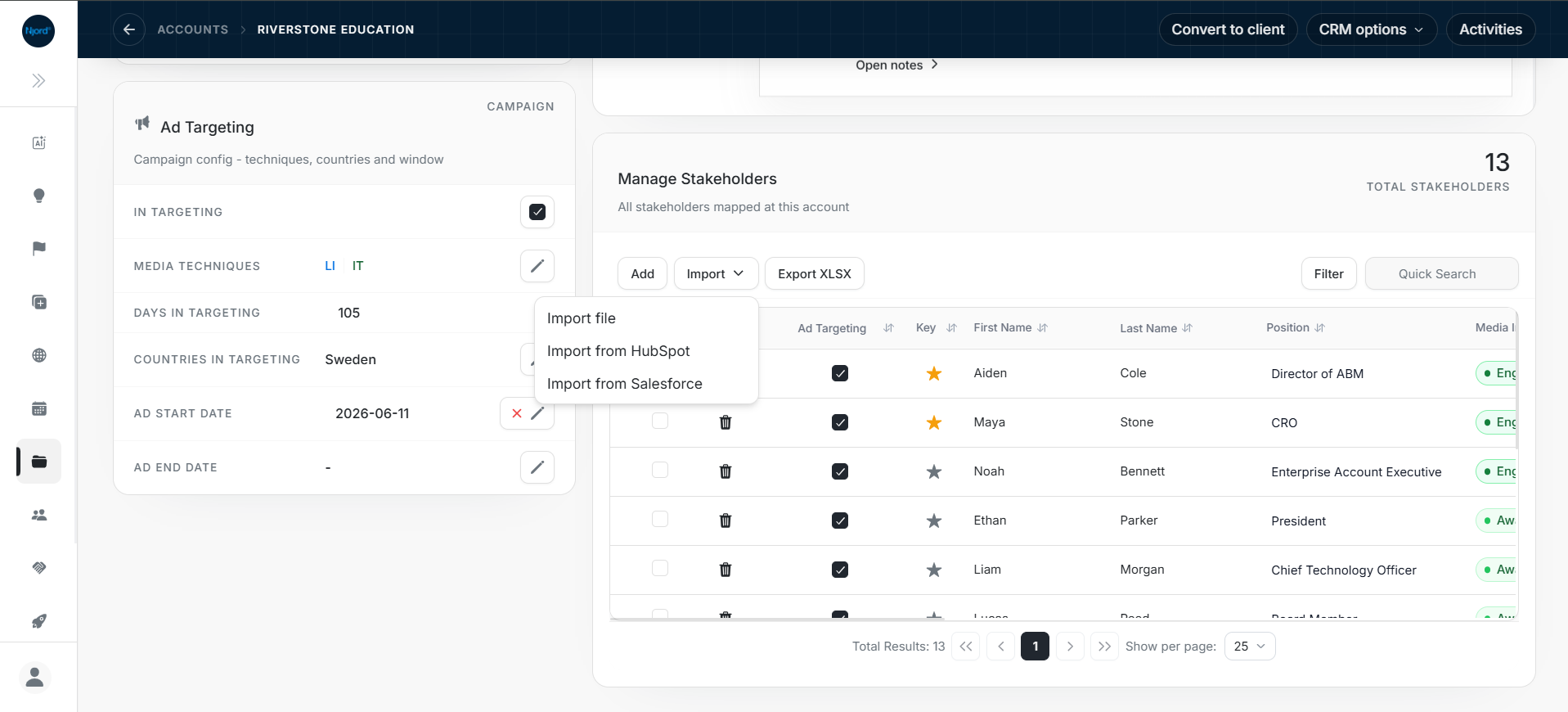
Image guide: From a mapped DOE account, open Manage Stakeholders, select Import, and choose Import from Salesforce.
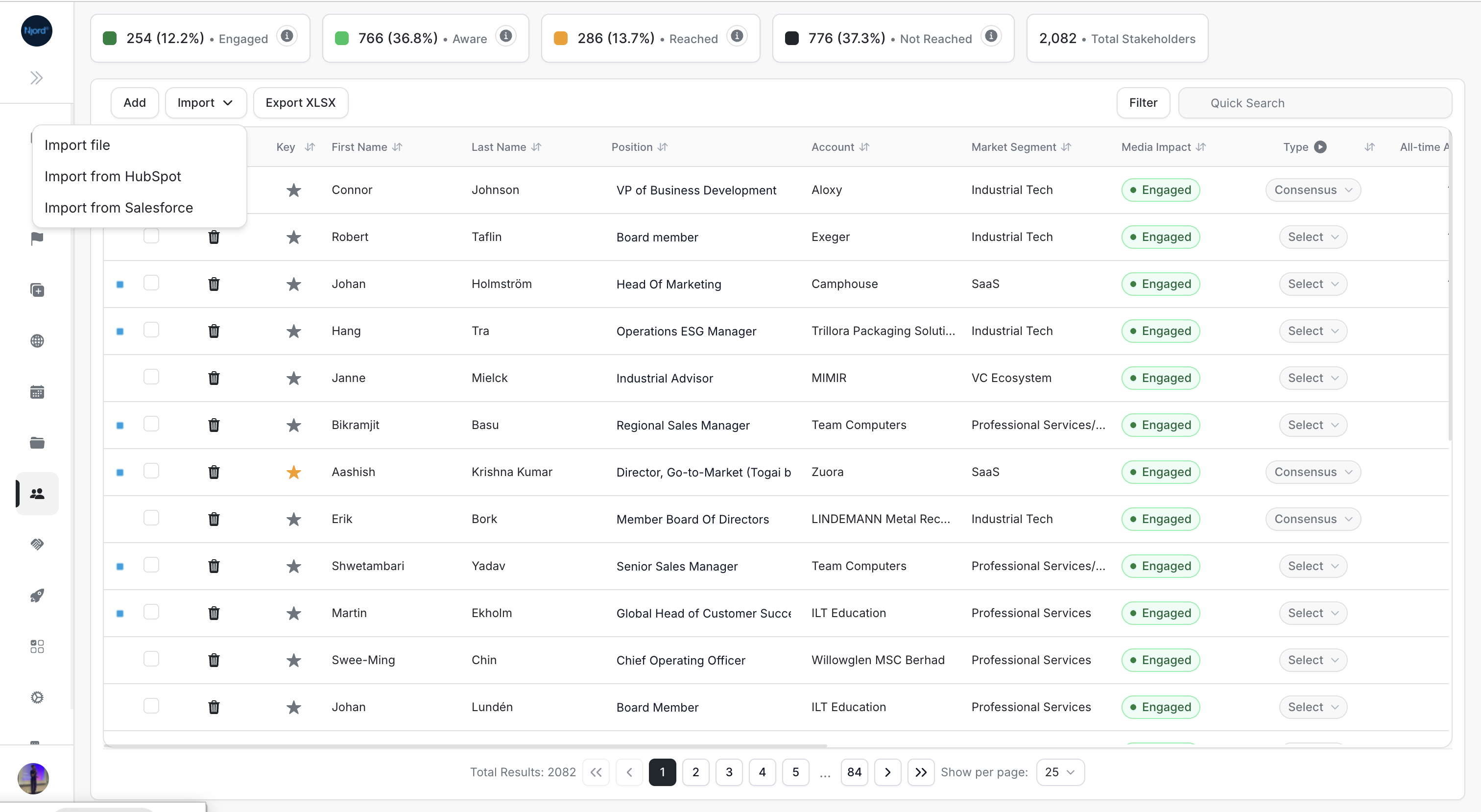
Image guide: You can also open Import from Salesforce from the main Stakeholders table, then choose the correct mapped account and Contacts.
What You Are Importing
You are importing Salesforce Contacts into DOE Stakeholders for one DOE account.
| From Salesforce | Becomes In DOE | How DOE Keeps The Link |
|---|---|---|
| Contact | Stakeholder | DOE stores the Salesforce Contact ID on the stakeholder. |
| Contact email | Stakeholder email / matching signal | Used to connect to an existing stakeholder when safe. |
| Contact name, title, phone, and supported fields | Stakeholder profile fields | Imported when the integration supports that field. |
| Parent Account | Parent DOE account context | DOE uses the mapped account to keep Contacts under the right account. |
The parent DOE account should already be mapped to a Salesforce Account. That mapped Account tells DOE which Salesforce Contacts belong in the selection list.
Steps
- Open the DOE account.
- Go to the stakeholder area.
- Select Import.
- Choose Import from Salesforce.
- Search or page through Salesforce Contacts associated with that Account.
- Select the Contacts you want to bring into DOE.
- Start the import.
- Review the result rows for created, updated, already mapped, warning, or skipped statuses.
- Open the imported stakeholder and confirm the Salesforce action is available.
Selecting Rows
In Salesforce import tables, the blue dot at the far left identifies Salesforce context for the row. It is not a selection control. Use the checkbox beside the Contact name to select the Salesforce Contact for import.
If the blue dot is visible but the checkbox is empty, the row is not selected.
How Matching Works During Import
If a stakeholder already exists in DOE under the same account and the email matches a Salesforce Contact, DOE can connect the stakeholder to that Salesforce Contact. If duplicate Contacts, duplicate stakeholder emails, or multiple parent Accounts make the match unsafe, DOE skips the row and shows the reason.
If The Email Does Not Match
A missing or different email means DOE cannot safely auto-match that Salesforce Contact to an existing DOE stakeholder. The Contact can still be imported as a new stakeholder when the product allows it, but users should review the person manually and add or correct the email later.
If The Account Is Not Connected Yet
Import or connect the account first. Stakeholder import is account-aware, so DOE needs the parent DOE account to be linked to a Salesforce Account before it can confidently import the right Contacts.