Import Accounts From Salesforce
Import Accounts From Salesforce
Use account import when the Account already exists in Salesforce and you want it to become a DOE account. DOE reads Salesforce Accounts, lets you choose the rows to bring in, then stores the Salesforce Account ID on each imported account so the record stays connected.
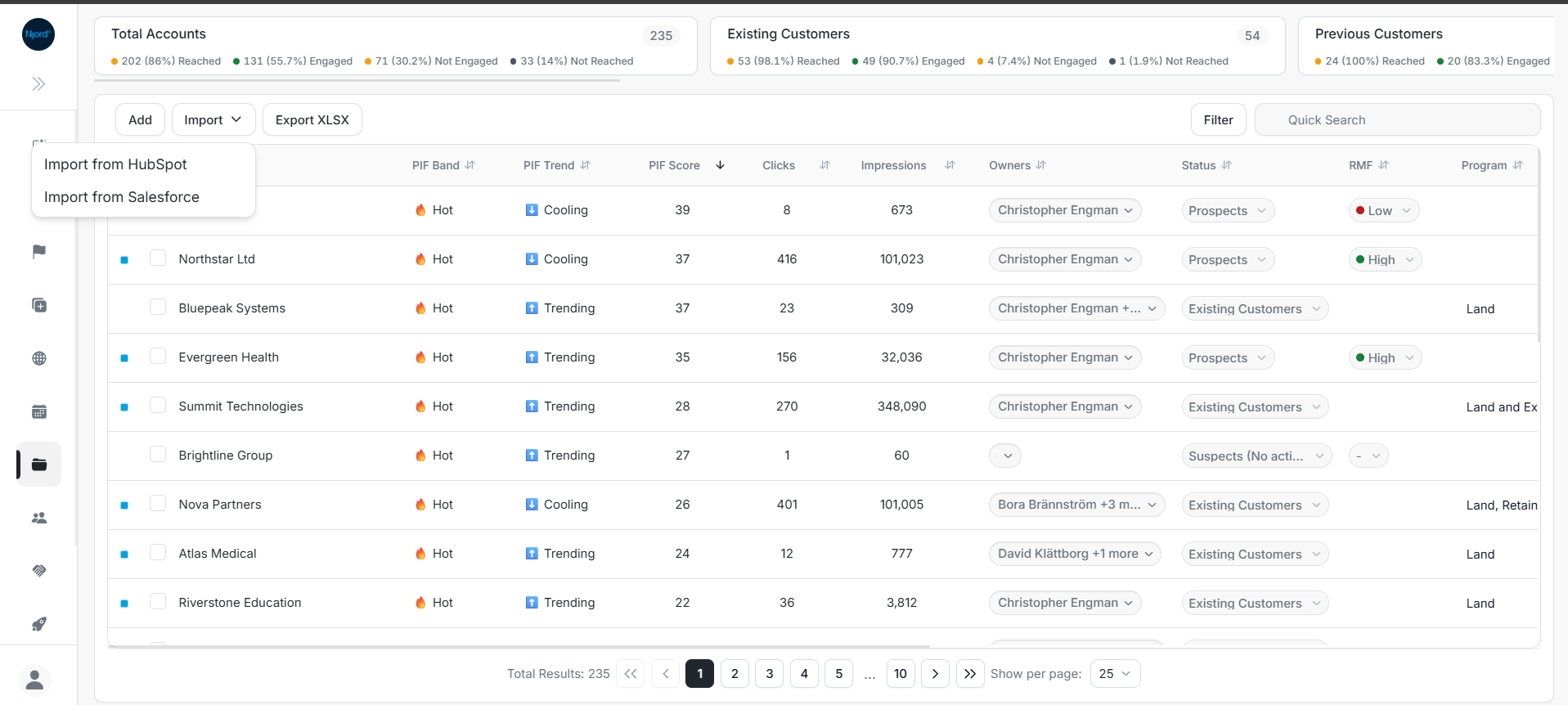
Image guide: From Accounts, open Import and choose Import from Salesforce. Choose HubSpot only when importing HubSpot companies.
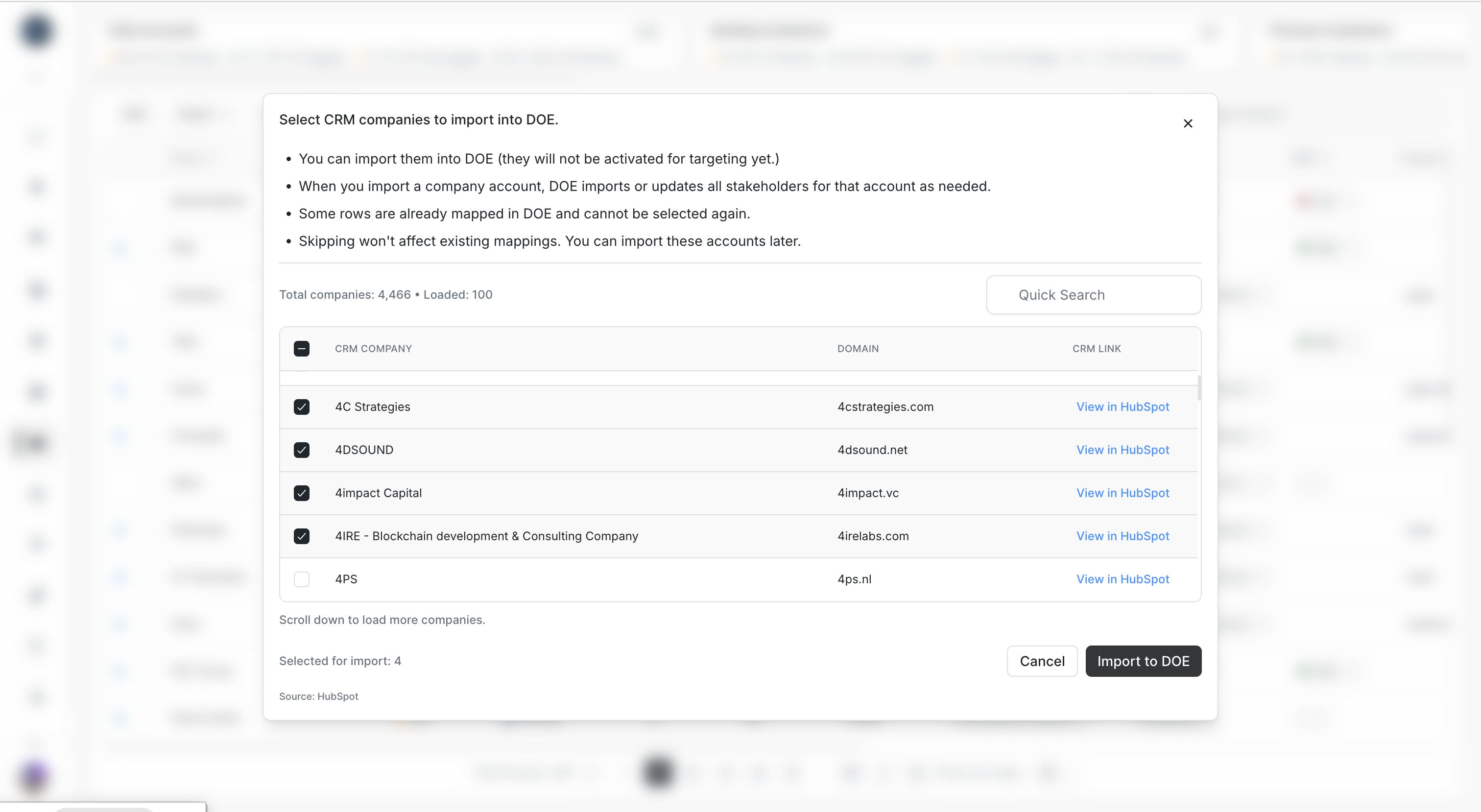
Image guide: Select the Salesforce Accounts to import. Already-mapped rows remain visible so you can see why they cannot be imported again.
What You Are Importing
You are importing Salesforce Accounts into DOE Accounts.
| From Salesforce | Becomes In DOE | How DOE Keeps The Link |
|---|---|---|
| Account | Account | DOE stores the Salesforce Account ID on the account. |
| Account website or domain | Account domain / matching signal | Used for safe matching when the domain is available. |
| Account name and supported profile fields | Account profile fields | Imported when the integration supports that field. |
| Related Contacts, when included in the flow | Stakeholders under the account | Contacts can be created or connected after the account is mapped. |
The Salesforce Account ID is the permanent connection. Domain helps DOE find a match, but the record remains connected by ID after import.
Steps
- Open Accounts in DOE.
- Select Import.
- Choose Import from Salesforce.
- Search or page through the Salesforce Account list.
- Select the Accounts you want to bring into DOE.
- Start the import.
- Review the result rows for created, updated, already mapped, warning, or skipped statuses.
- Open an imported account and confirm the Salesforce action is available.
Selecting Rows
In Salesforce import tables, the blue dot at the far left identifies Salesforce context for the row. It is not a selection control. Use the checkbox beside the Account name to select the Salesforce Account for import.
If the blue dot is visible but the checkbox is empty, the row is not selected.
How To Read The Result
Created means DOE created a new account from the selected Salesforce Account. Updated means DOE refreshed an existing safe match. Already mapped means the Salesforce Account is already connected to a DOE account. Skipped means DOE could not safely import that row.
A Salesforce Account can be skipped when it is already mapped, the user does not have access, the Account data cannot be read, or required DOE validation fails. Read the row message, fix the issue in Salesforce or DOE, then run import again.
If The Domain Does Not Match
A missing or different domain does not always block import. If the user selects the Account and DOE can create the account, DOE stores the Salesforce Account ID after import. If DOE finds a possible duplicate or unsafe match, it skips the row or asks the user to review instead of silently connecting the wrong Account.