First-Time Setup
First-Time Setup
After the first successful connection, DOE opens a guided setup flow. This flow runs mapping, helps you decide what should be created in Salesforce, asks you to confirm proposed matches, and shows the field mapping and DOE media fields.
What Happens
- DOE confirms that Salesforce is connected.
- DOE starts account mapping and polls progress about every 10 seconds.
- DOE compares DOE account domains with Salesforce Account domains.
- DOE compares stakeholder email addresses with Salesforce Contacts under the mapped Account.
- You review unmatched DOE accounts and can create selected Accounts in Salesforce.
- You confirm proposed account and stakeholder matches.
- You review bidirectional field mapping.
- You review DOE custom fields and widget setup guidance.
- DOE returns the Salesforce card to the connected state with View Details available.
If you exit setup before finishing, Salesforce stays connected. DOE can resume the remaining setup steps later from the Salesforce integration details.
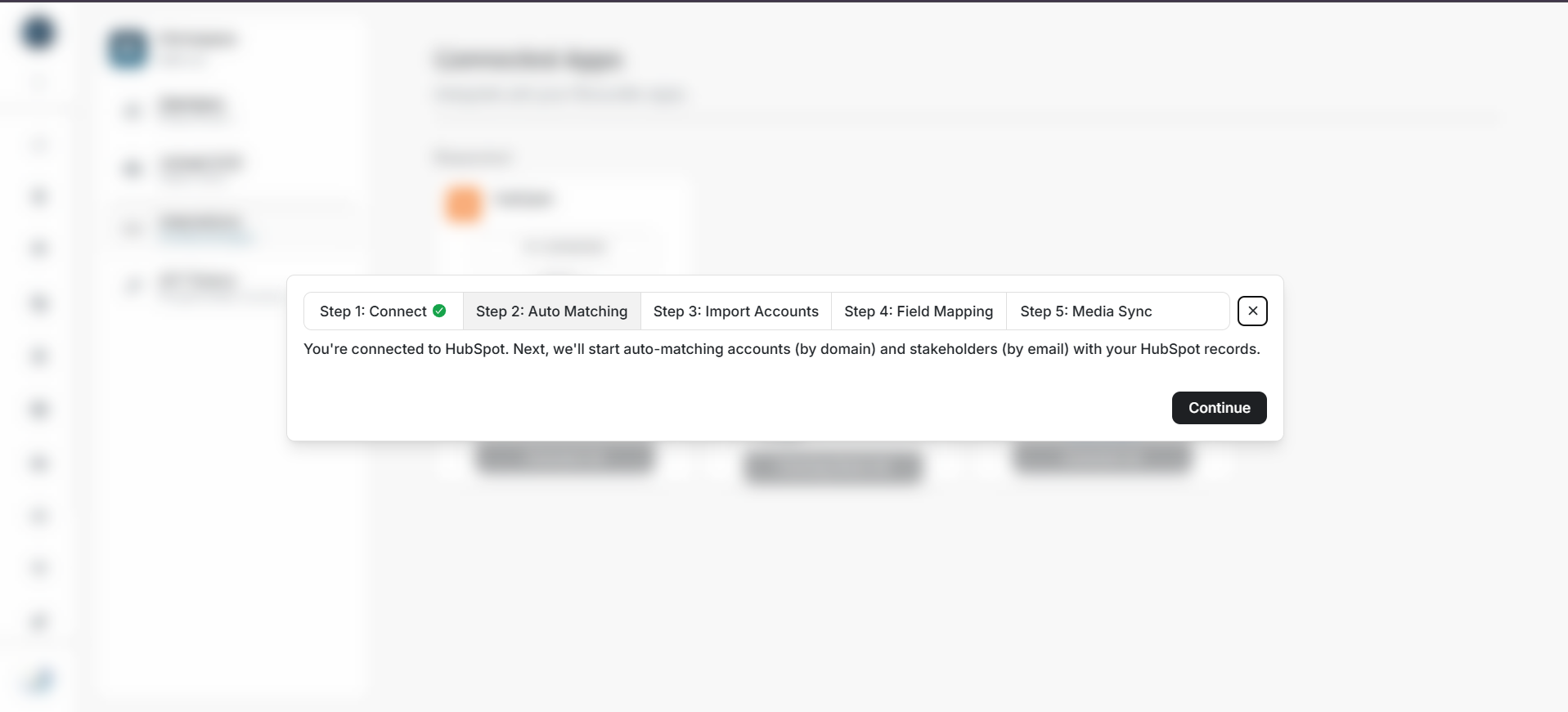
Image guide: The first setup screen confirms the connection and explains that mapping starts next.
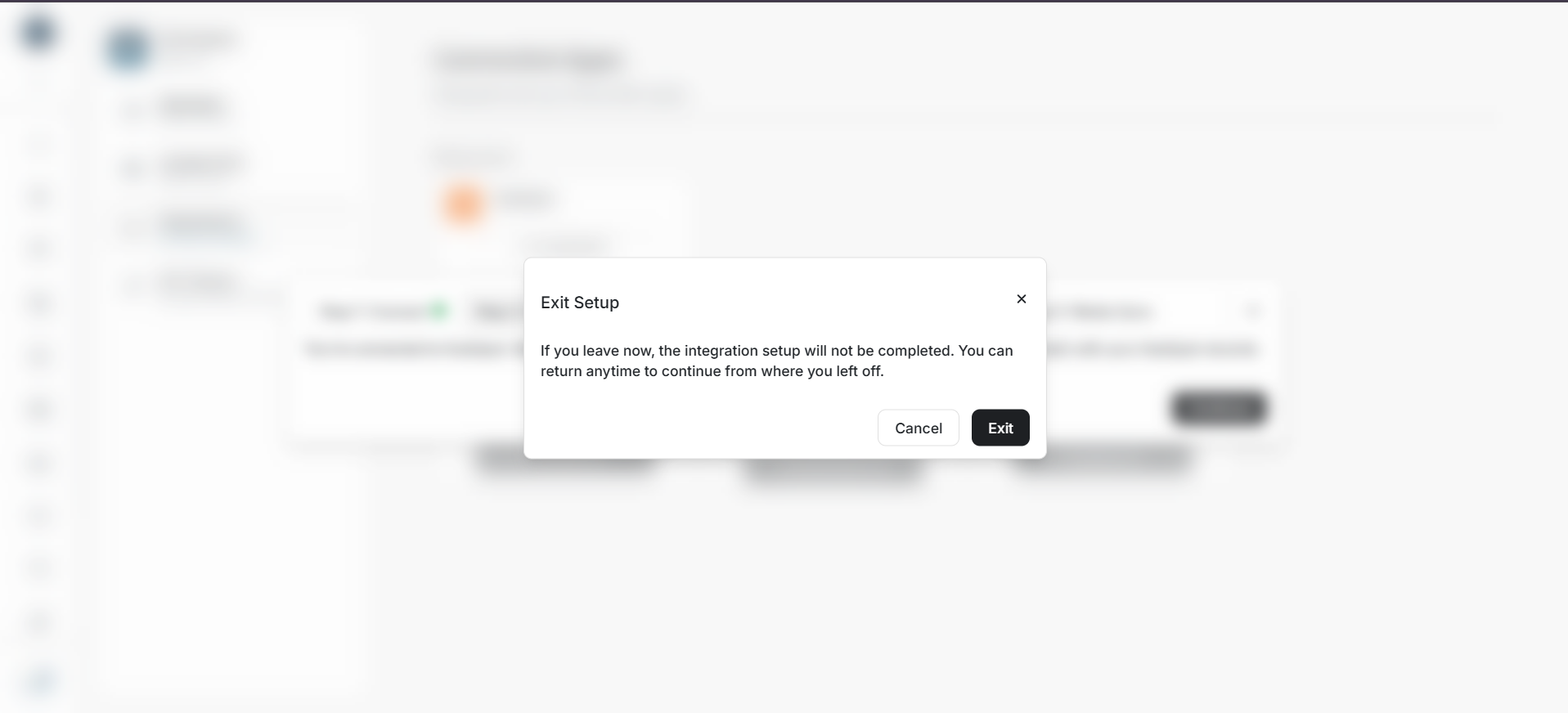
Image guide: If you leave setup early, DOE explains that setup is incomplete and can be resumed later.
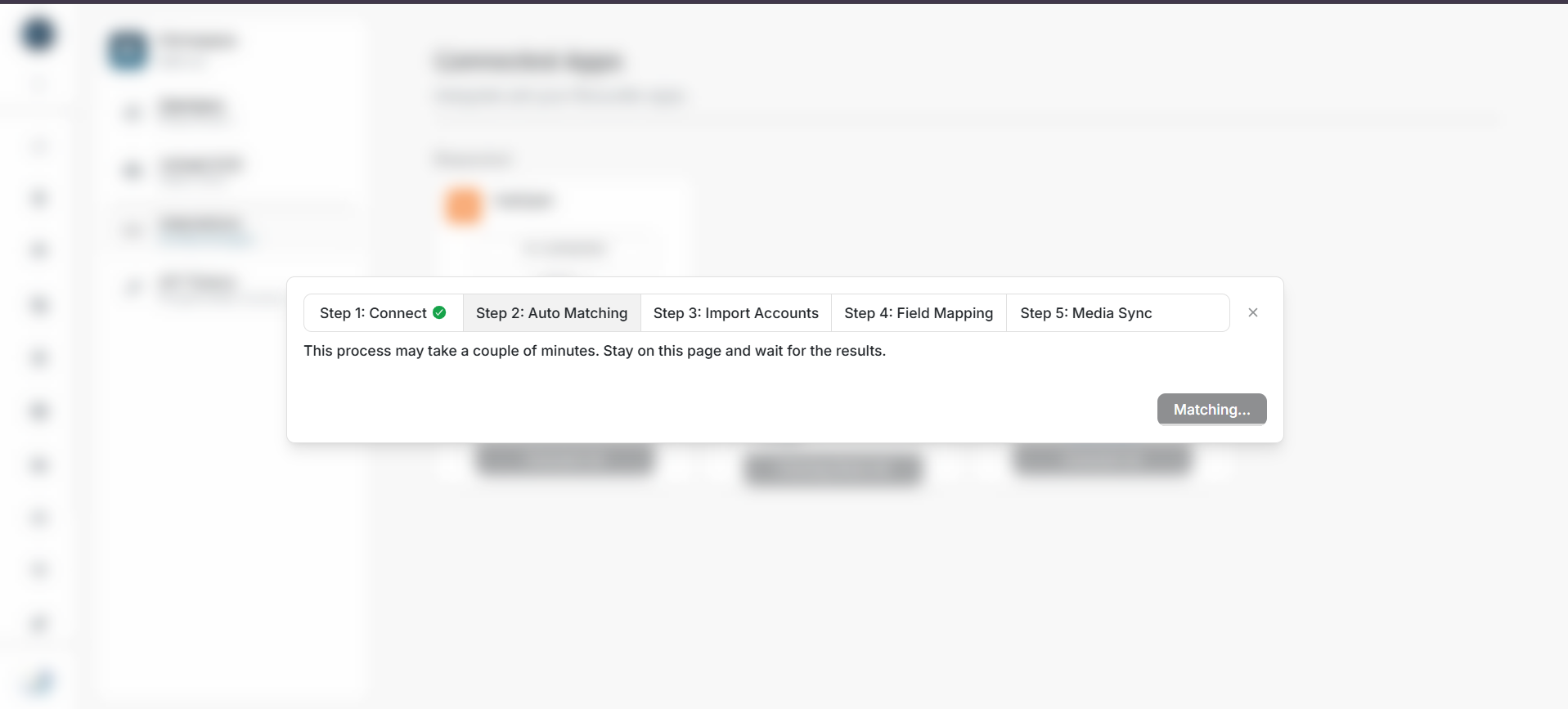
Image guide: DOE auto-matching can take a few minutes. The setup flow keeps polling in the background.
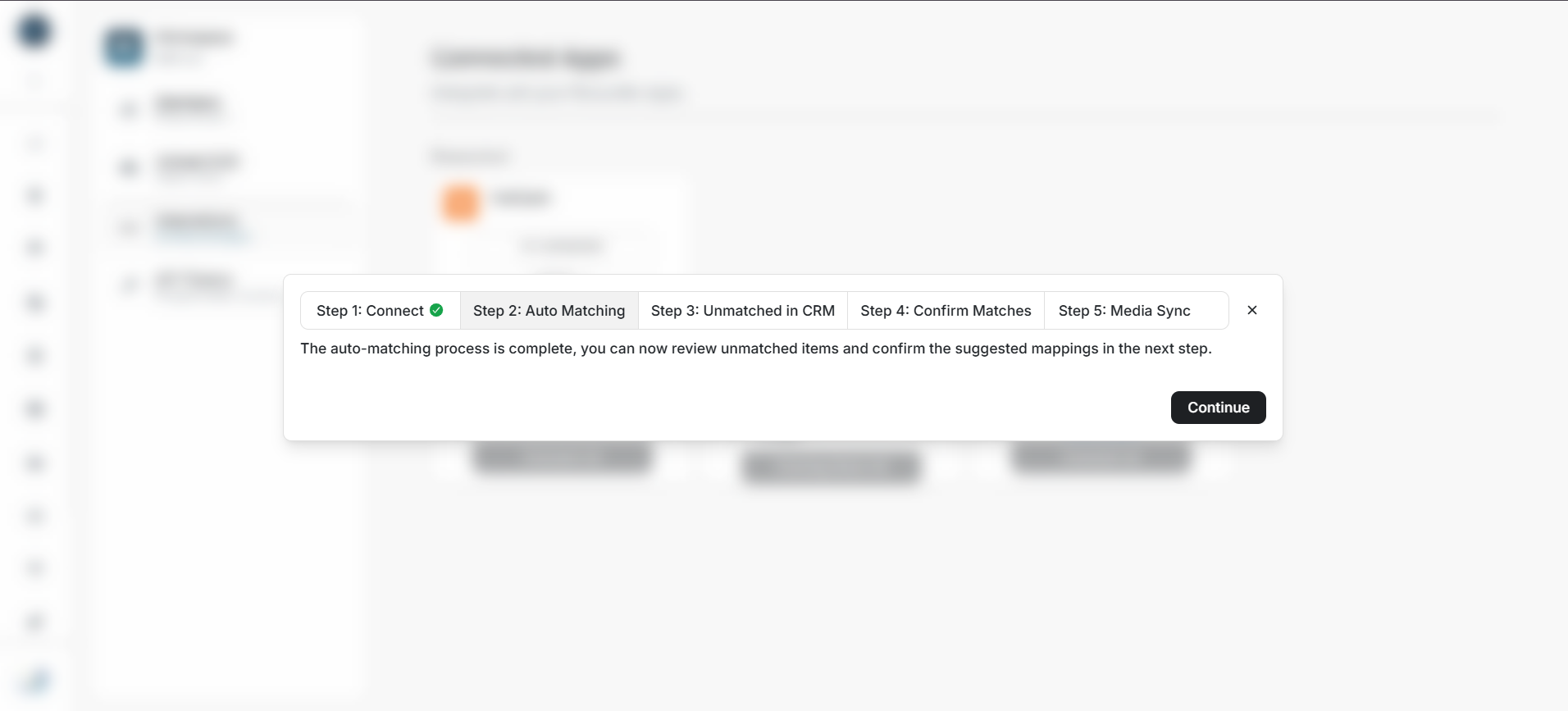
Image guide: When auto-matching finishes, DOE moves to unmatched-account review or match confirmation.
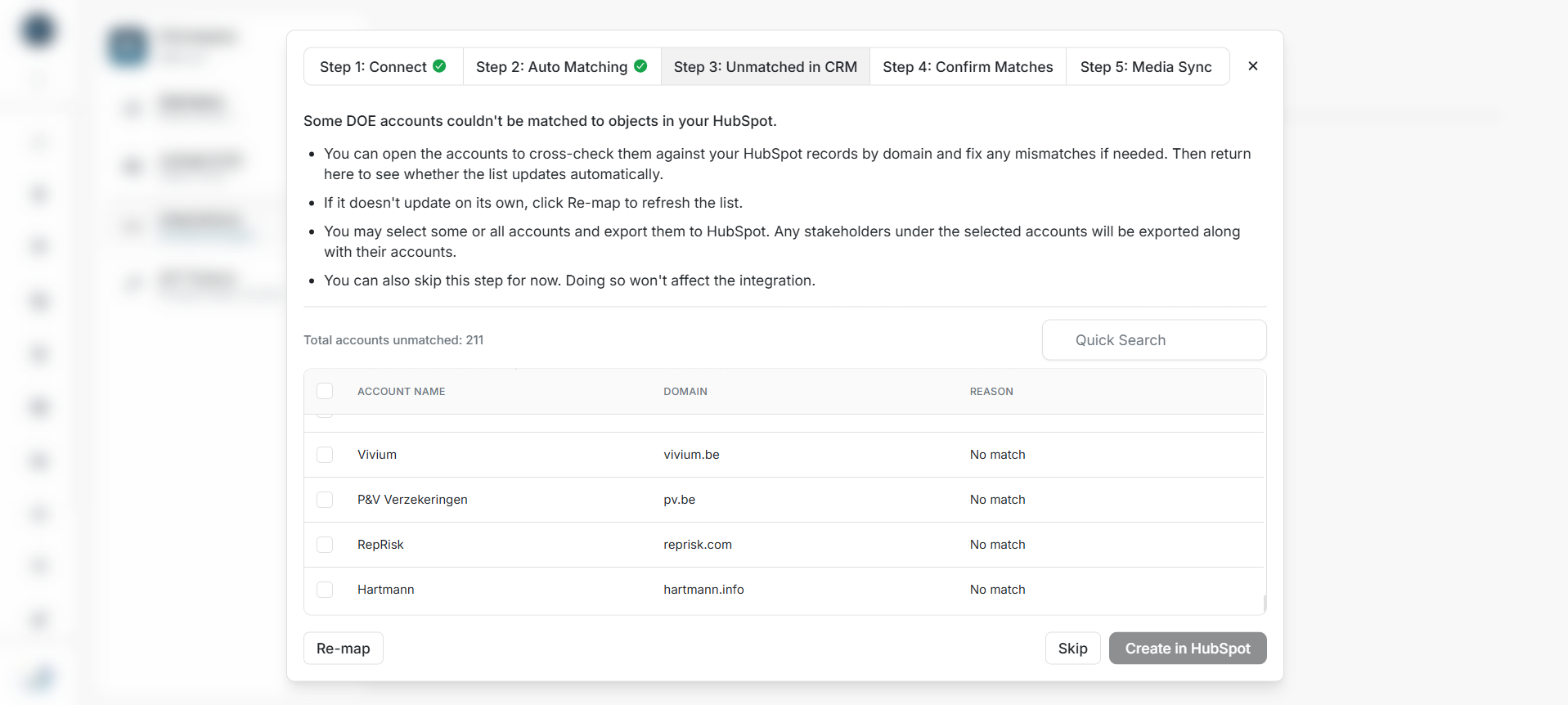
Image guide: Unmatched DOE accounts are accounts DOE did not find as matching Salesforce Accounts.
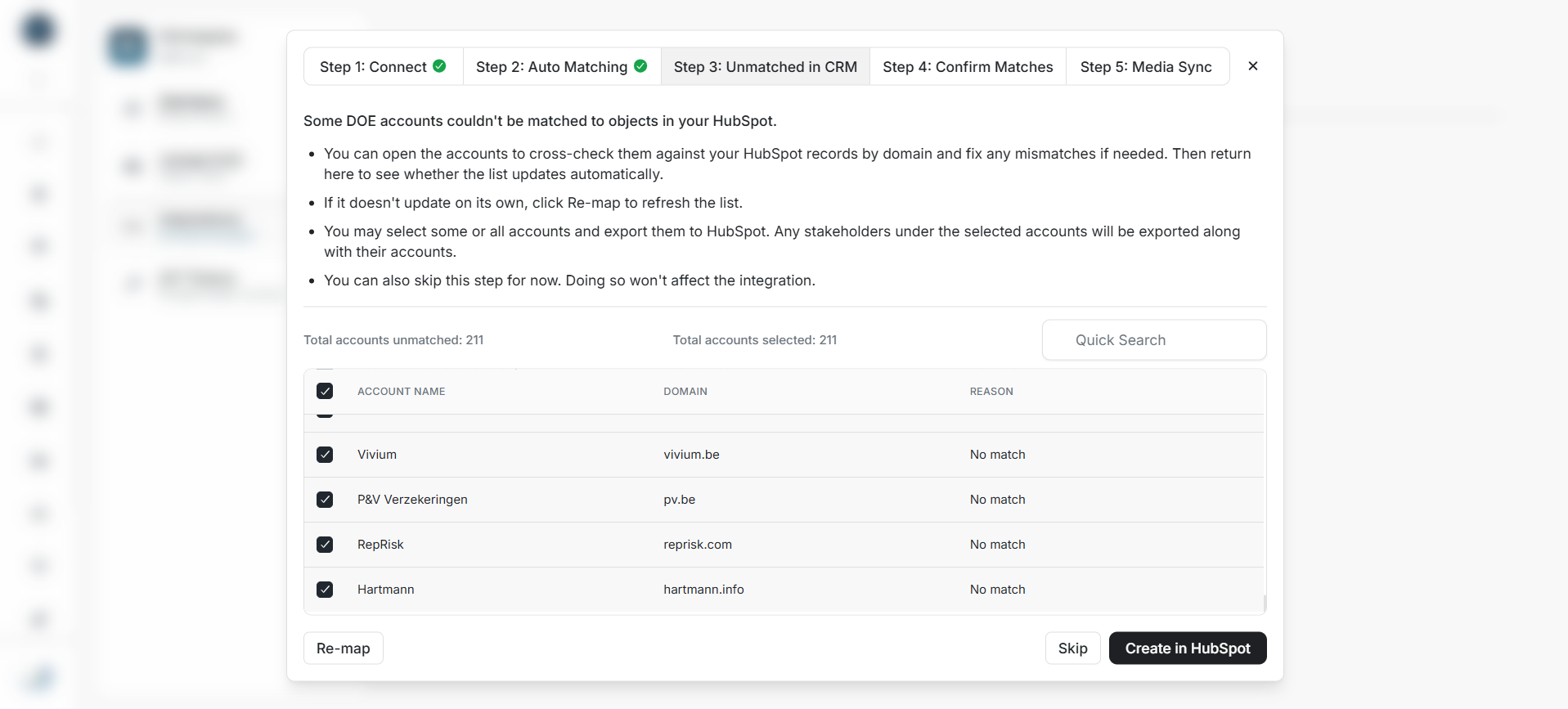
Image guide: You can create all listed unmatched DOE accounts in Salesforce when that is the right migration direction.
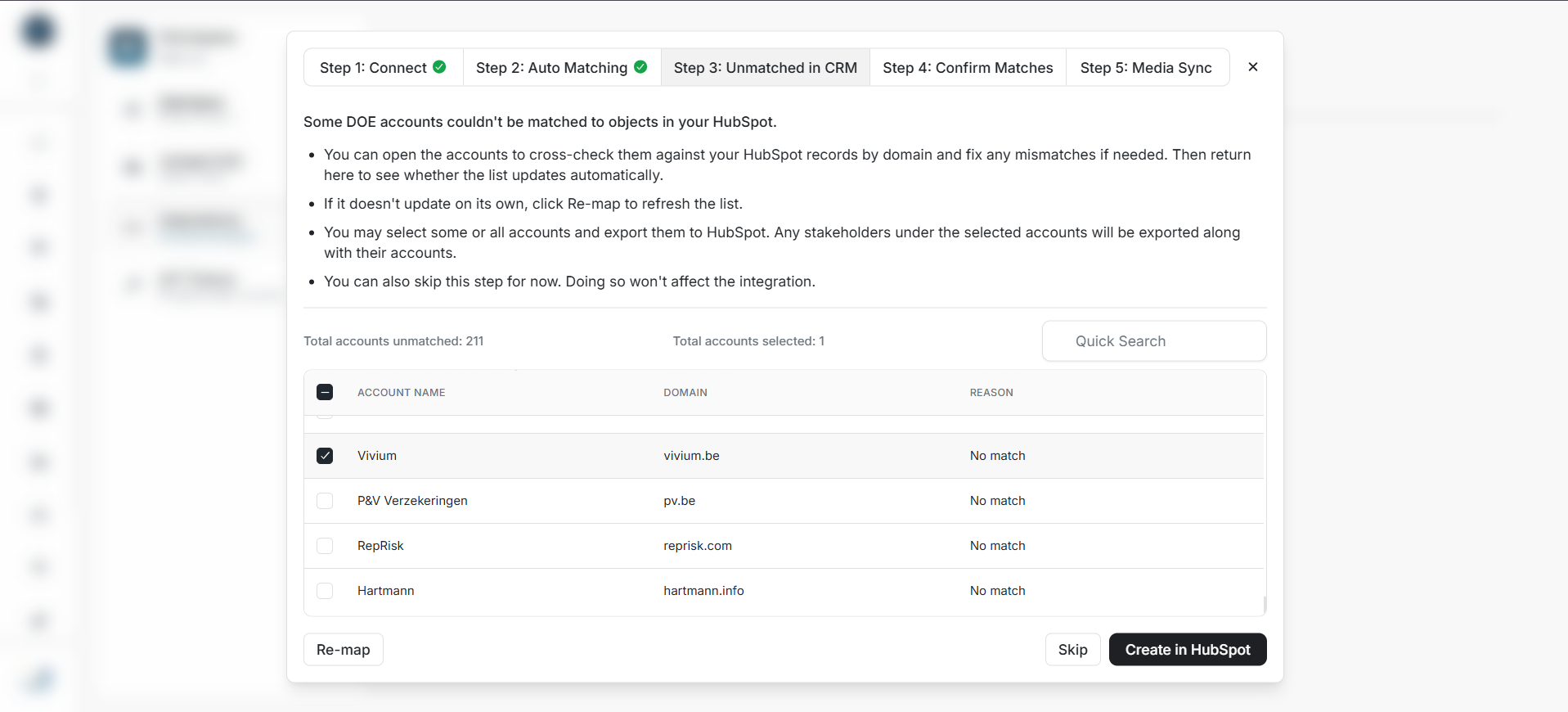
Image guide: You can also export only selected accounts and leave the rest for later.
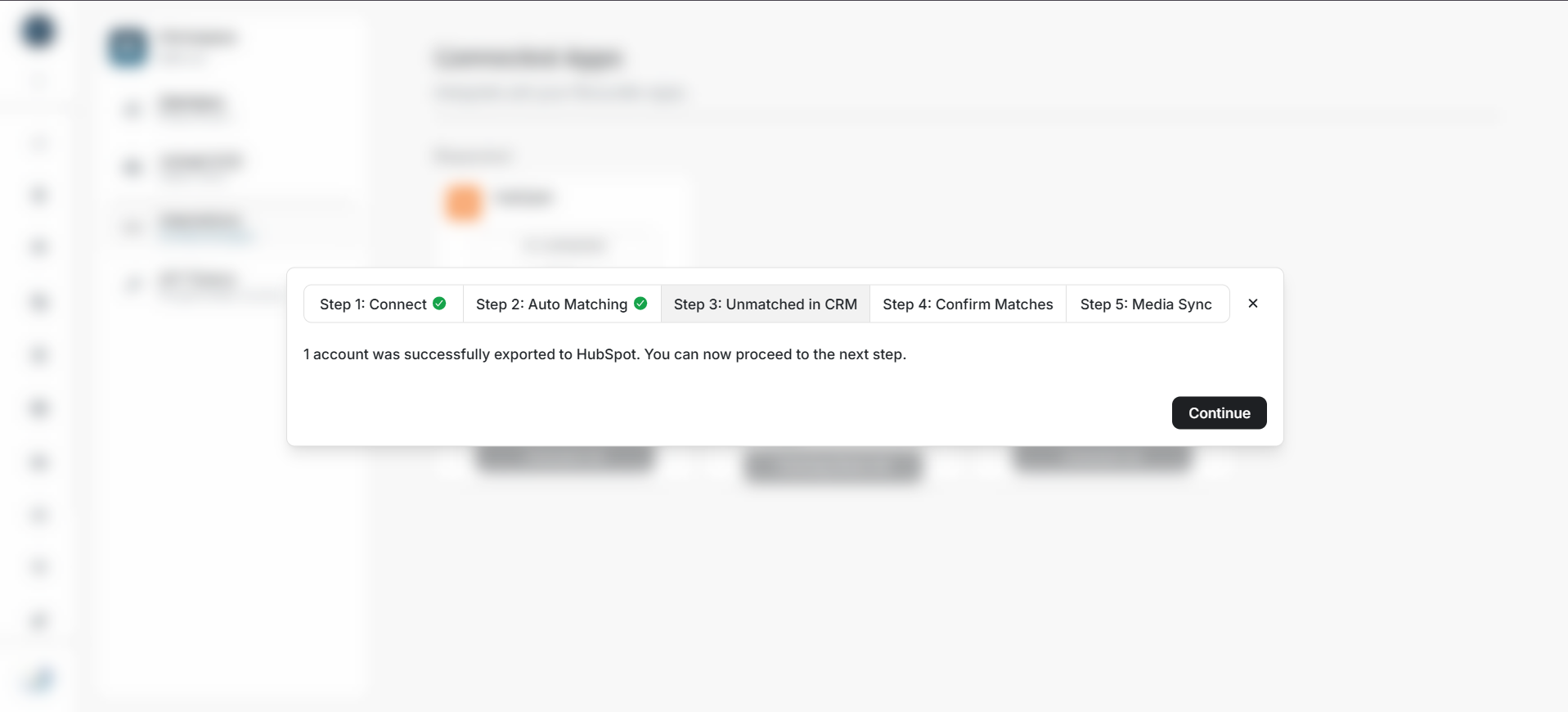
Image guide: DOE confirms when selected accounts have been created in Salesforce.
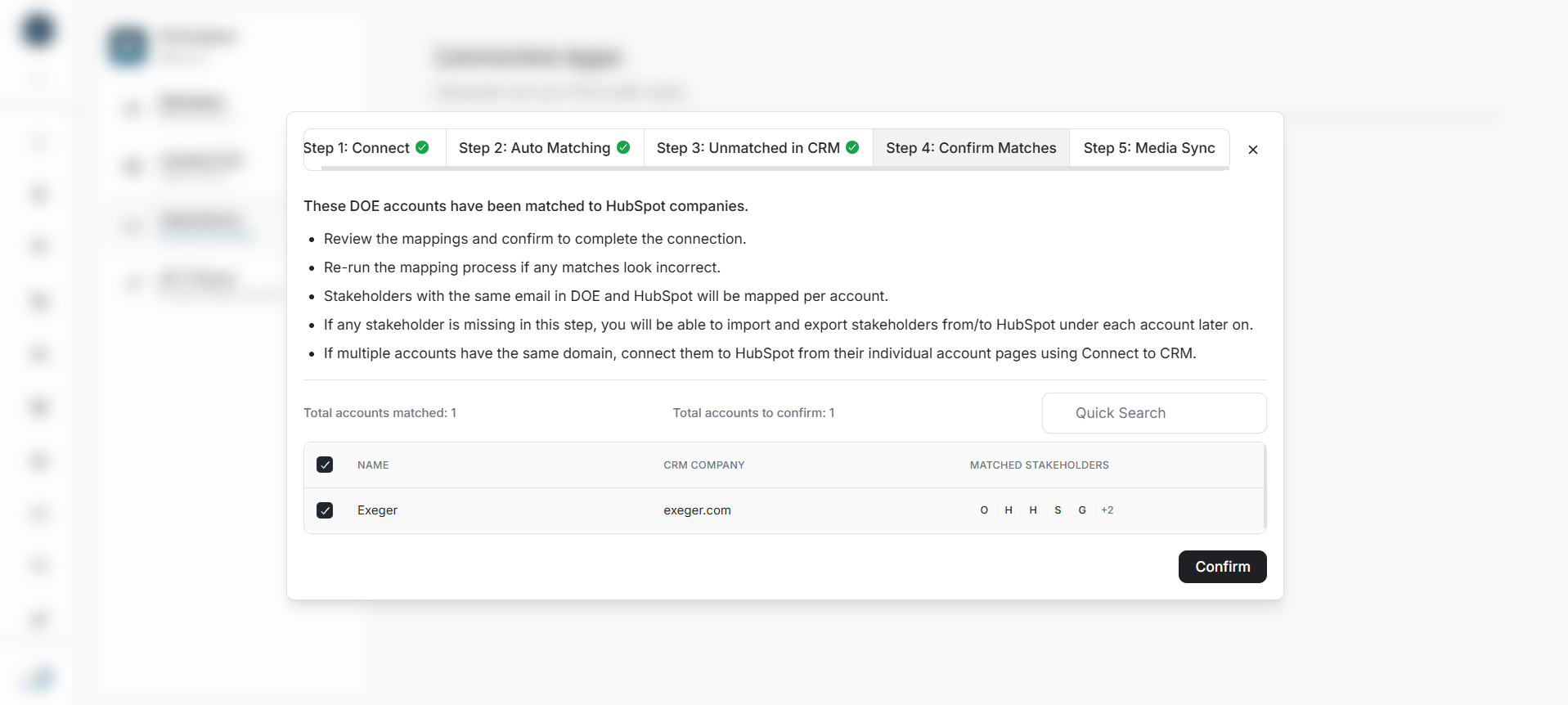
Image guide: Confirm proposed Account and stakeholder matches after reviewing them.
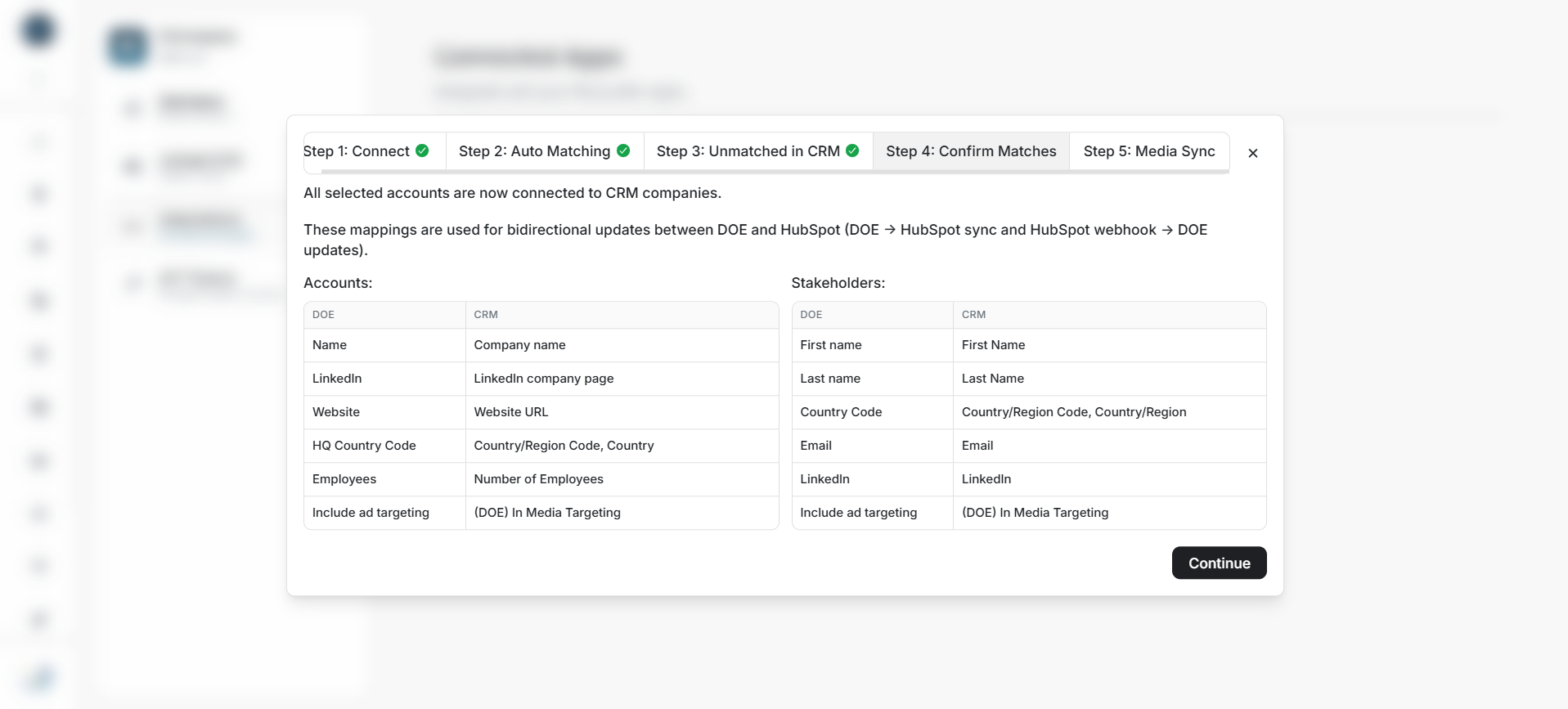
Image guide: The field mapping screen shows which account and stakeholder fields can update between DOE and Salesforce.
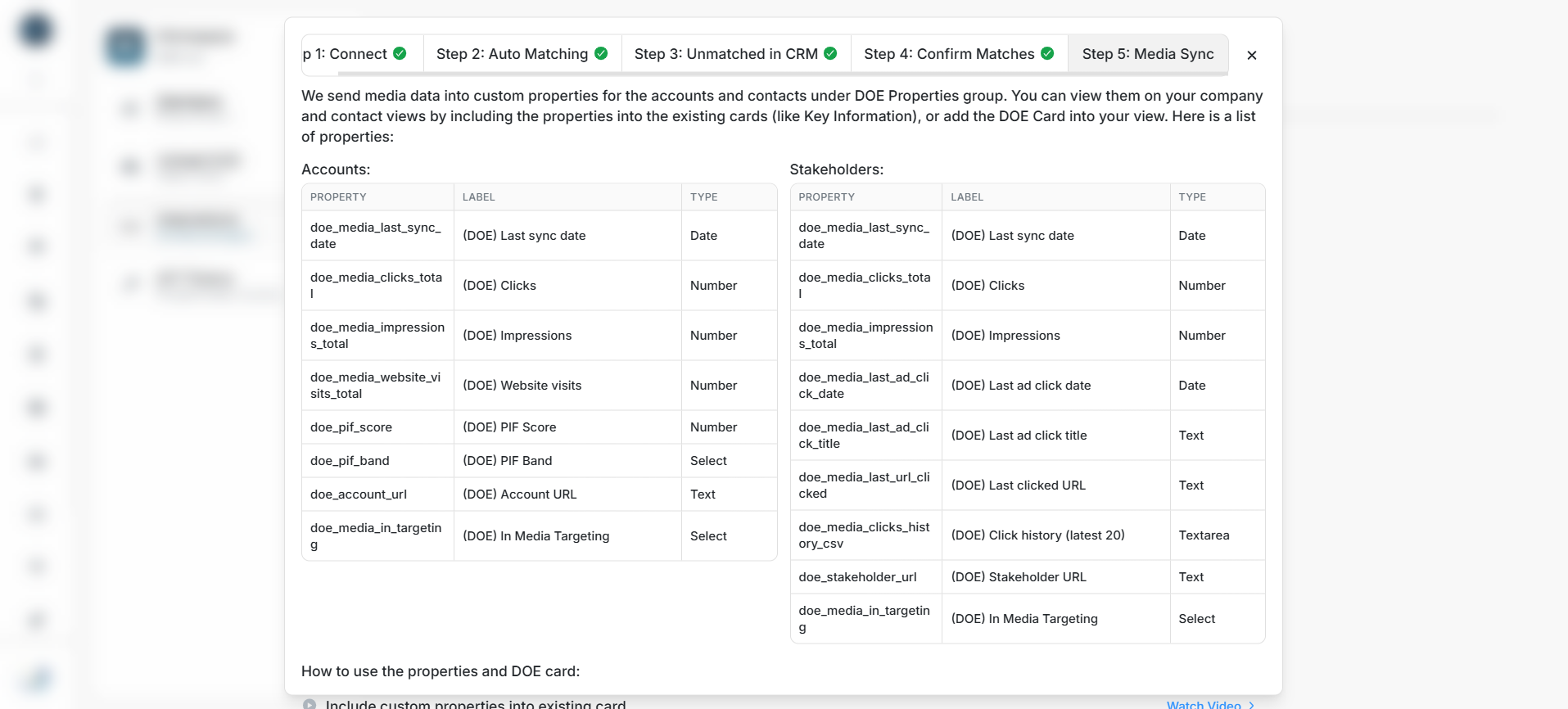
Image guide: DOE lists the custom Salesforce fields it creates for media and targeting insight.
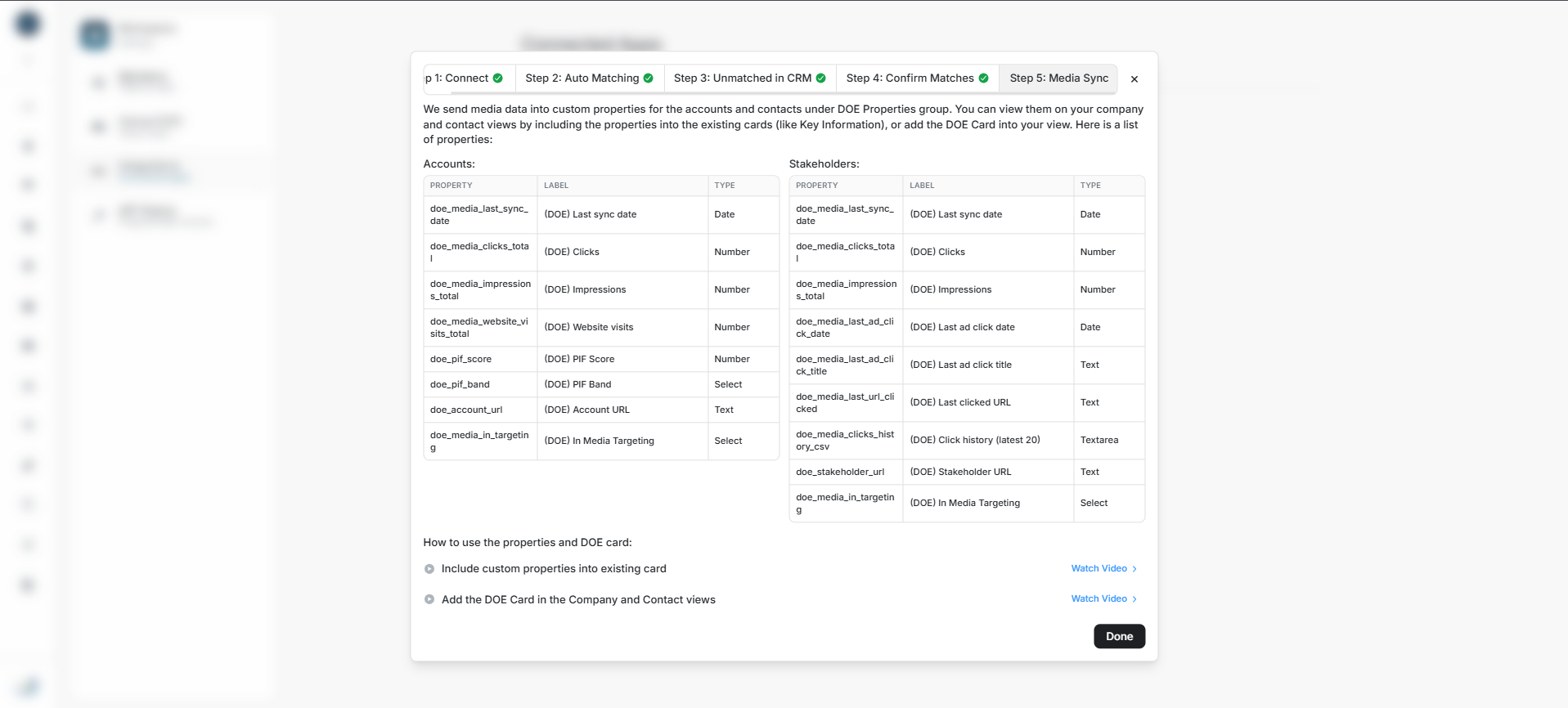
Image guide: The final setup step points teams to Salesforce DOE fields and widgets guidance.
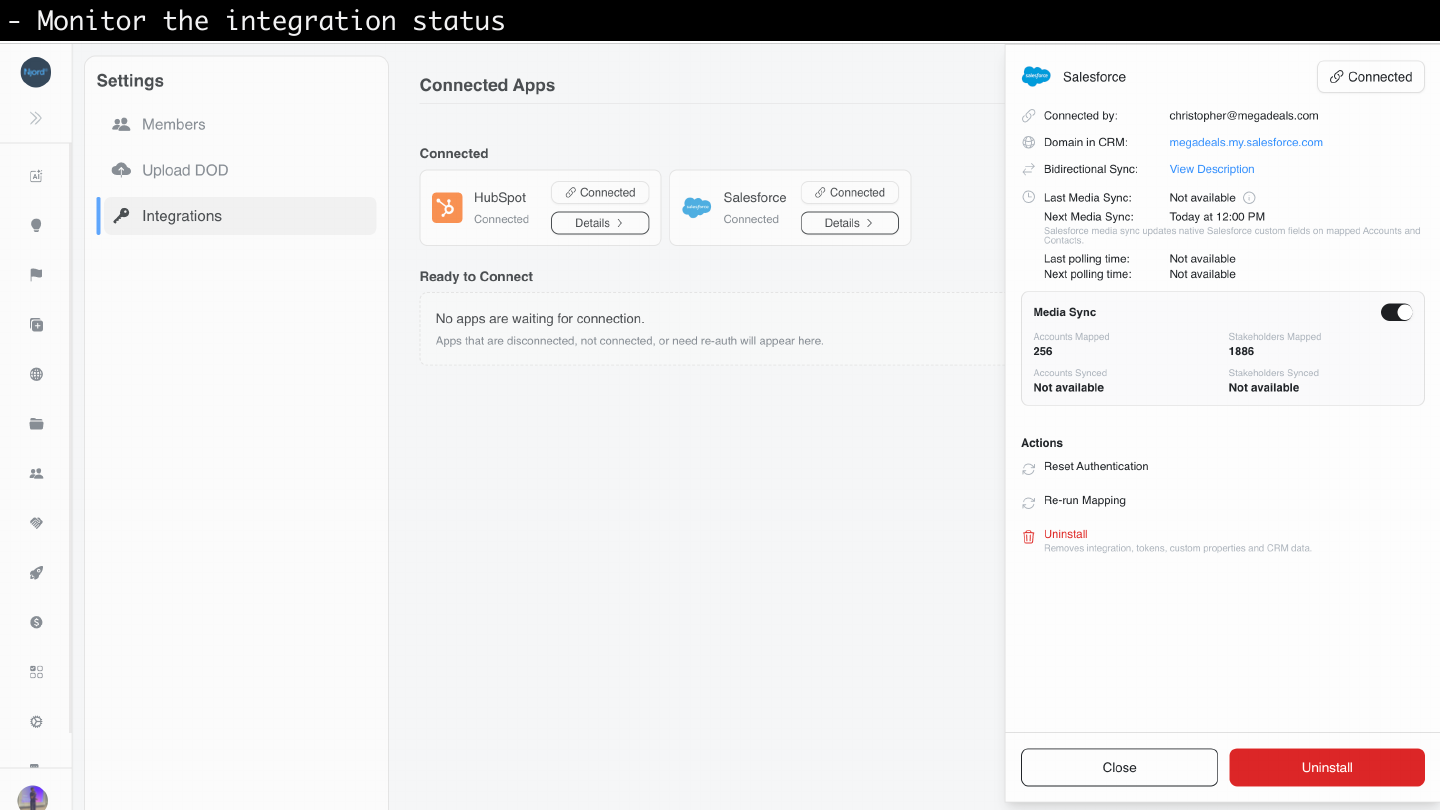
Image guide: After setup, Salesforce appears in the connected state with View Details available and the details panel shows owner, sync, polling, media sync, and mapped record counts.
How To Decide What To Create
Use the unmatched account review to decide whether DOE should create missing Accounts in Salesforce. Select all when Salesforce should become complete from DOE. Select individual rows when only some DOE accounts should be pushed to Salesforce.
If the team is not ready to create Accounts yet, leave the unmatched rows and finish the rest of setup. You can import, export, or connect records later from the relevant account and stakeholder pages.
What To Review Before Finishing
Review the proposed matches, field mapping, and DOE media fields before you finish setup. Proposed matches should connect the correct DOE account to the correct Salesforce Account and the correct DOE stakeholder to the correct Salesforce Contact.
If a match looks wrong, do not confirm it. Leave it unmatched and connect it manually later from the record page.