Connect Salesforce
Connect Salesforce
Connect Salesforce from DOE after the package is installed in the correct Salesforce org.
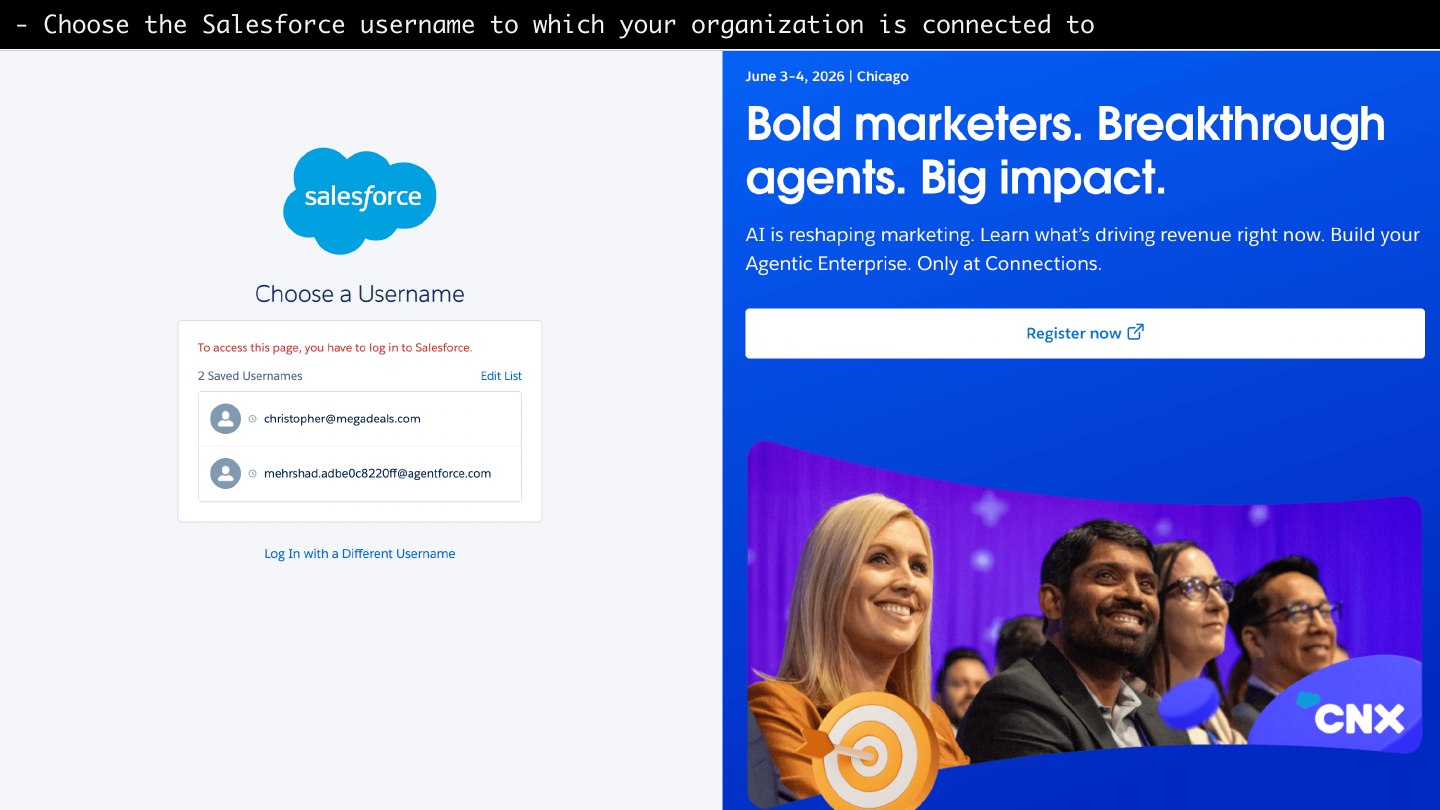
Image guide: Salesforce asks the admin to choose the username and org that will authorize the DOE integration.
Connection flow
- Open Settings -> Integrations in DOE.
- Select the Salesforce card.
- If a package install link is still shown, install or upgrade the package first.
- Click Connect or Re-authenticate.
- DOE sends you to Salesforce's secure authorization screen.
- Choose the Salesforce username for the org you want to connect.
- Approve the requested access.
- Return to DOE and open the Salesforce details panel.
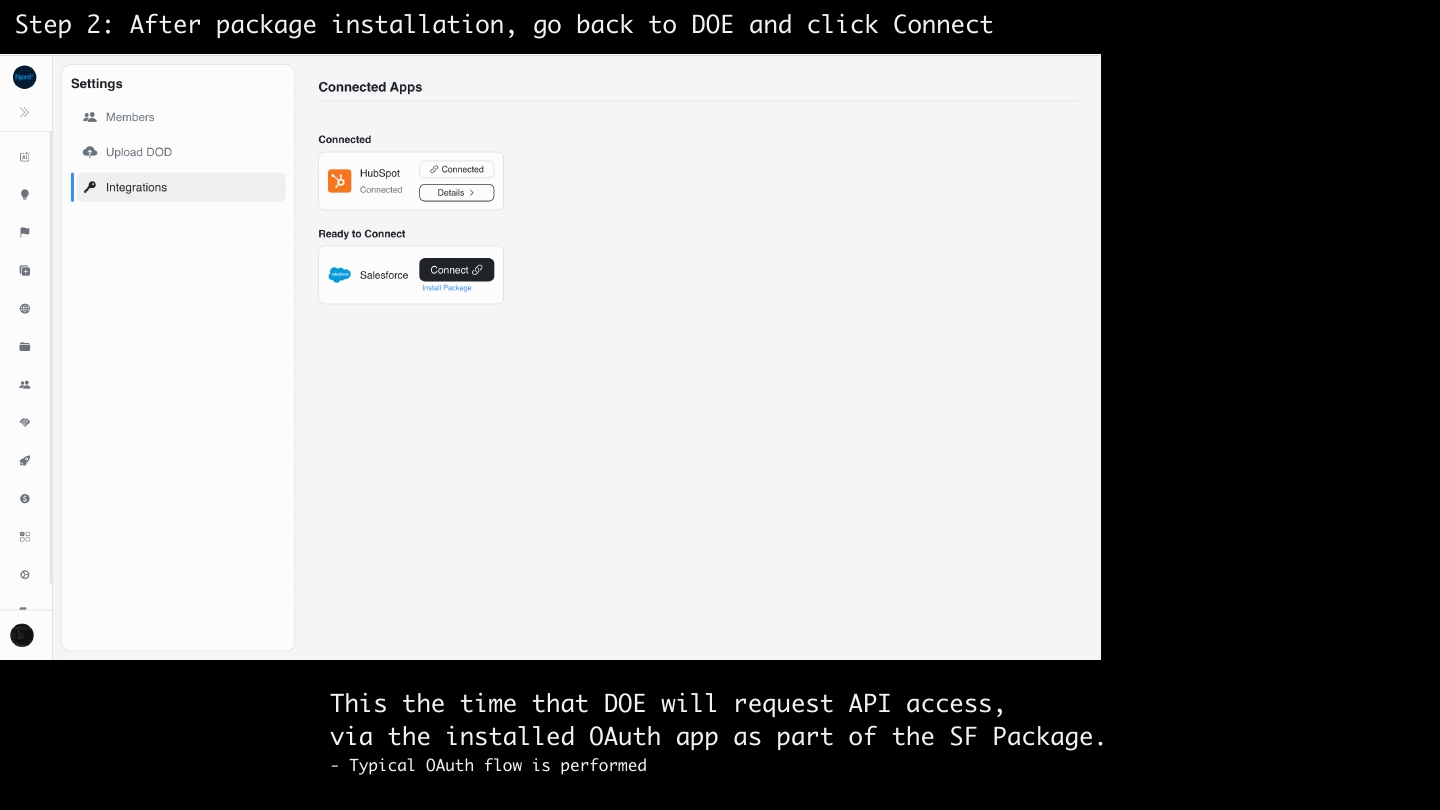
Image guide: After package installation, return to DOE and use the Salesforce card's Connect action. This starts OAuth against the org where the package was installed.
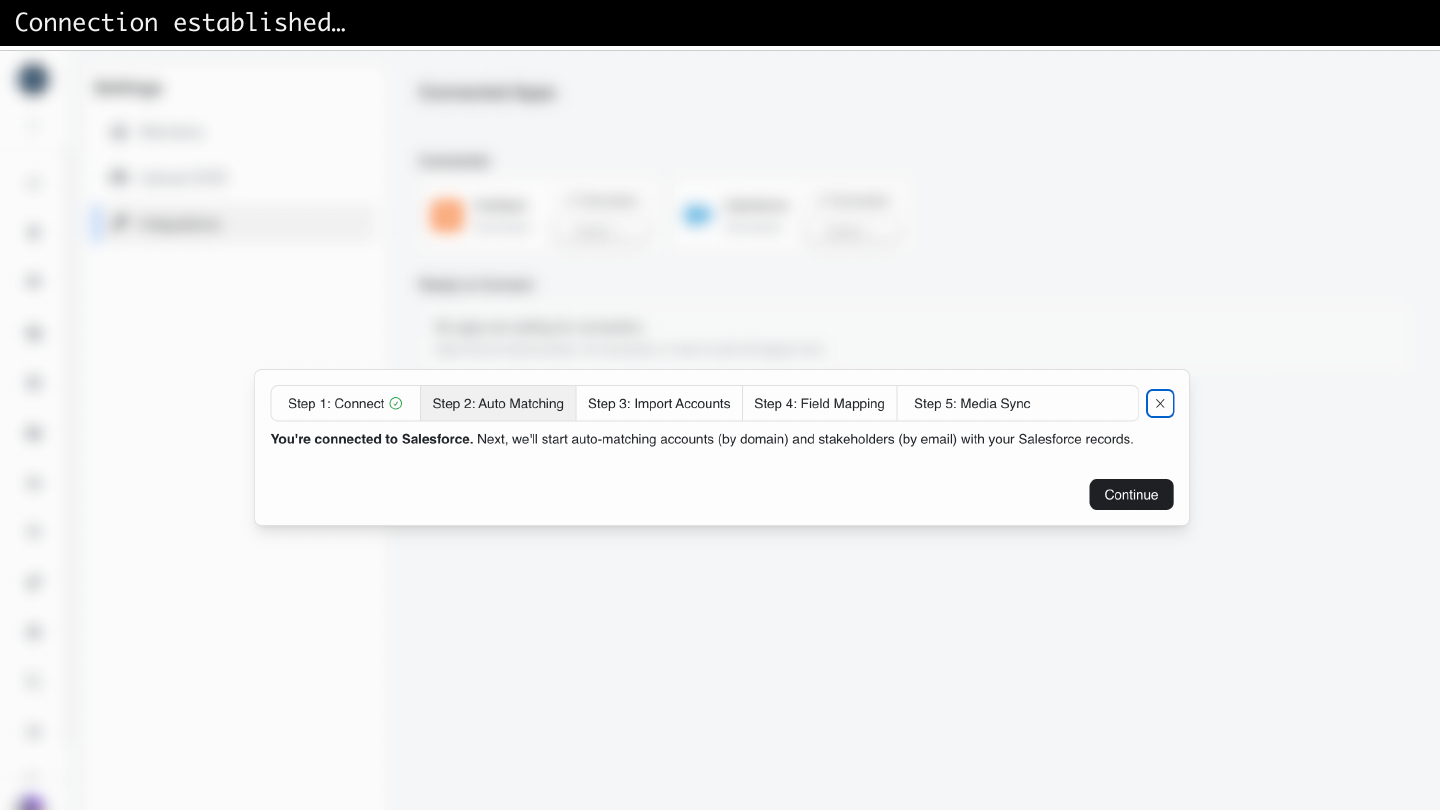
Image guide: When authorization succeeds, DOE returns to the integration flow and shows that the Salesforce connection has been established.
What DOE does during authorization
DOE uses Salesforce OAuth with PKCE. The authorization screen is served by Salesforce, and DOE does not handle the user's Salesforce password.
After Salesforce returns an authorization code, the backend exchanges it server-side, stores connection secrets server-side, and records the connected org and owner identity. The details panel then shows whether connection, setup, media sync, and polling are healthy.
Good connection checks
After connecting, confirm:
- The Salesforce card shows Connected.
- The domain in CRM matches the expected Salesforce org.
- The connected-by email is the intended integration owner.
- Media sync is enabled if the workspace should sync DOE fields.
- Polling times appear for Salesforce inbound updates.
- Setup warnings are empty or understood.
Re-authentication
If Salesforce access is revoked or the refresh token becomes invalid, DOE marks the integration as needing attention. The verified integration owner should use Re-authenticate from the details panel.