Import Accounts From HubSpot
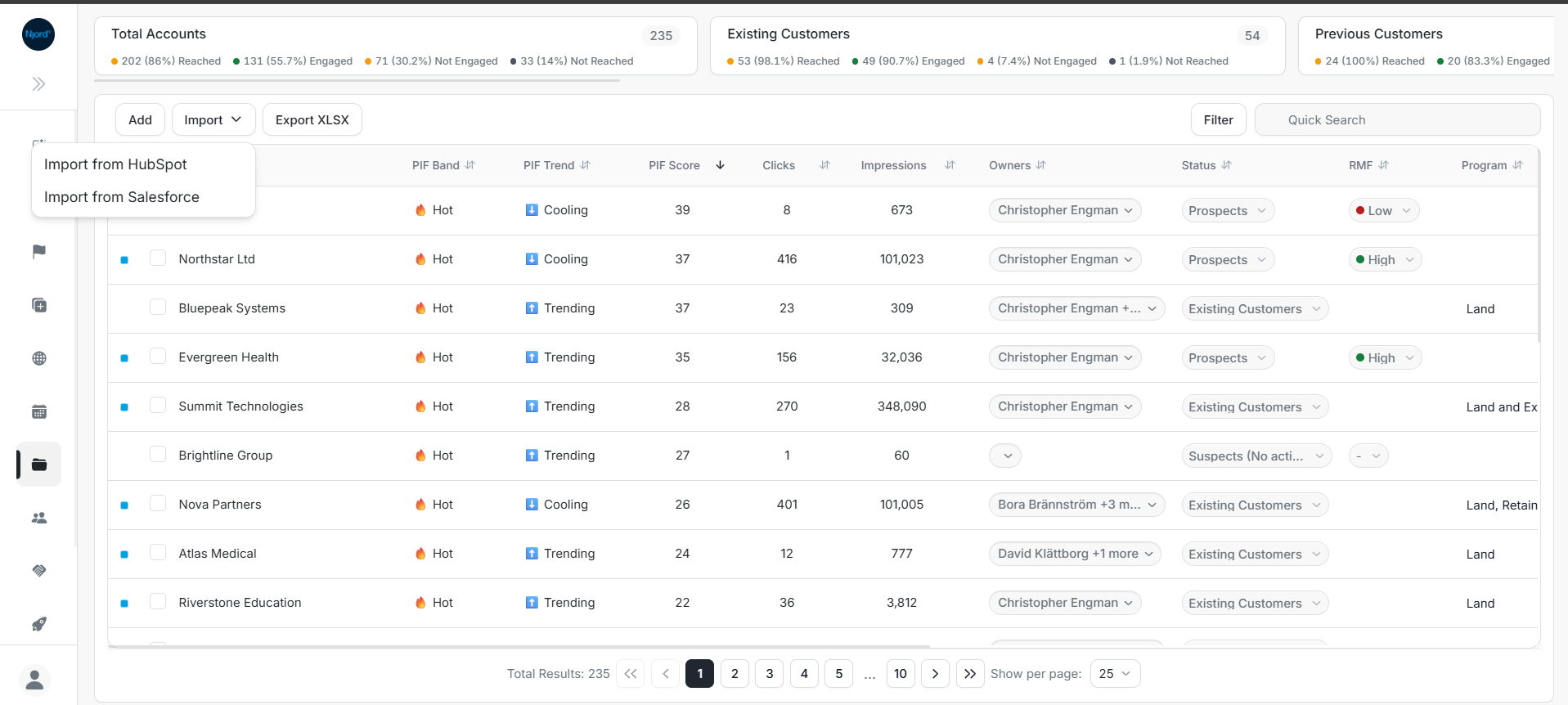
Import accounts from HubSpot
Use account import when a company already exists in HubSpot and should become a DOE account. DOE saves the HubSpot company ID on the imported account so the two records remain connected.
Image guide: From Accounts, open Import and choose Import from HubSpot.
Before you start
- Confirm you are in the correct DOE workspace.
- Confirm HubSpot shows Connected or Active.
- Finish any import already running in the workspace.
- Use file import only for spreadsheets; it does not create HubSpot mappings.
Import step by step
- Open Accounts in DOE.
- Select Import.
- Choose Import from HubSpot.
- Search the HubSpot company list.
- Scroll to load more companies when needed.
- Select the companies you want to bring into DOE.
- Start the import and keep the progress view open.
- Wait while DOE processes the request in the background.
- Review the imported total and every warning or skipped contact row.
- Open an imported account and confirm View in HubSpot is available.
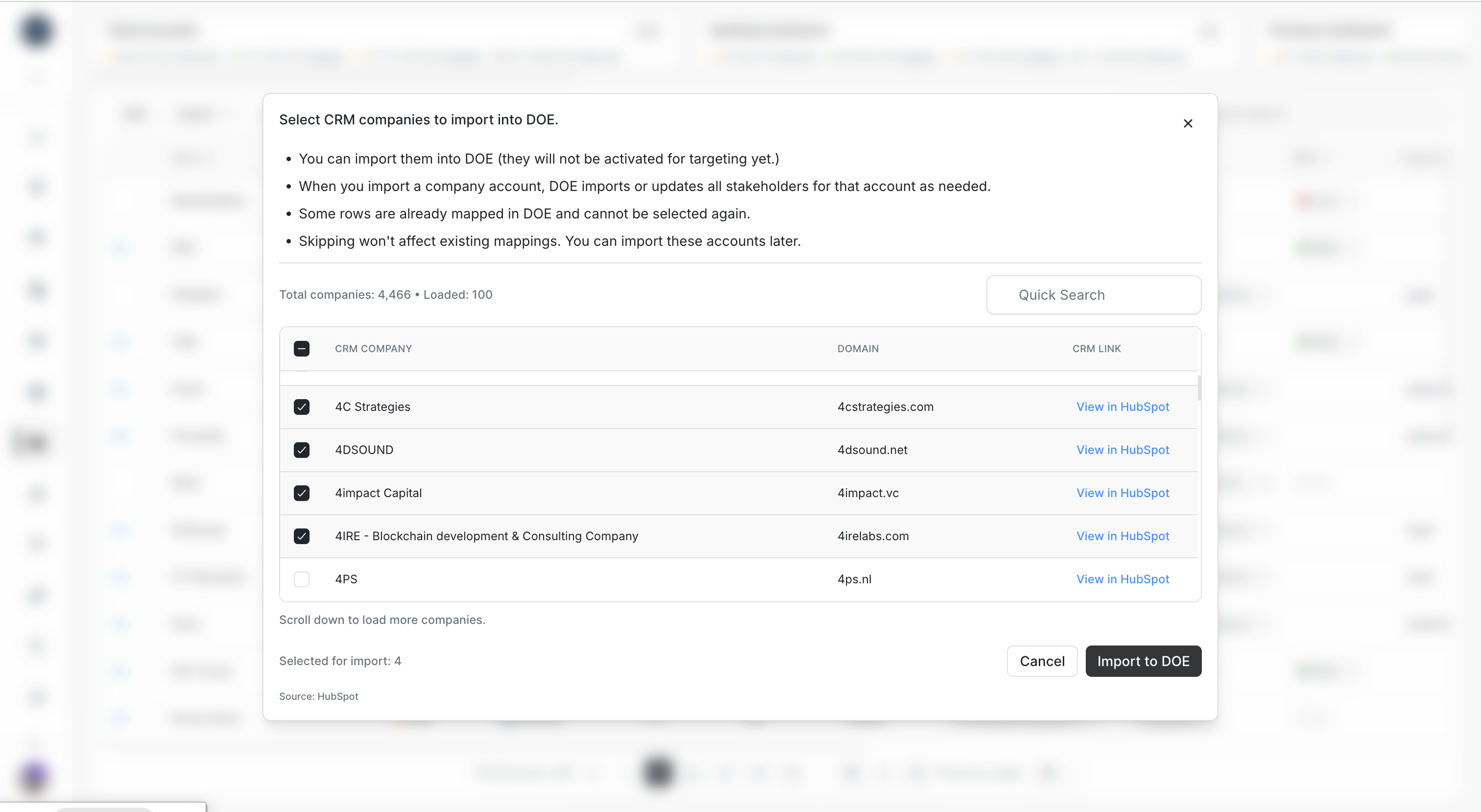
Image guide: Already-mapped companies stay visible but cannot be selected again. Their HubSpot links can still be opened.
Video guide: Follow the account import from company selection through the final DOE result.
How to read the result
| Result | Meaning | Next step |
|---|---|---|
| Imported | DOE created the account and saved the HubSpot link | Open the account and verify it |
| Already mapped row | The HubSpot company already belongs to a DOE account and cannot be selected again | Open the existing mapping instead of importing it |
| Warning or skipped stakeholder | The company imported, but one associated contact could not be added safely | Review the named contact; do not repeat the whole import |
| Failed | The company import did not complete | Read the reason, correct it, and retry after the active job ends |
A completed import can still contain skipped contact rows. Treat that as partial success: keep the imported accounts and fix only the rows listed in the result.
Common edge cases
| Problem | What to do |
|---|---|
| Another import is running | Wait for that request to finish; only one CRM import runs per workspace at a time |
| Company has no valid domain | You can still import it; DOE keeps the mapping by HubSpot company ID |
| Company row is disabled | It is already mapped; open its HubSpot link or DOE account instead |
| Company cannot be found after selection | Refresh the list; it may have been removed or access may have changed in HubSpot |
| Two contacts under imported companies would map to the same stakeholder | DOE imports what is safe and lists the conflicting contact as skipped |
| The result is no longer available | Start a fresh import rather than reusing the old progress page |
| HubSpot requires re-authentication | Ask the connection owner to reconnect, then retry |
Do not create a second DOE account just to avoid a warning. Check the existing account and mapping first.