HubSpot App Dashboard
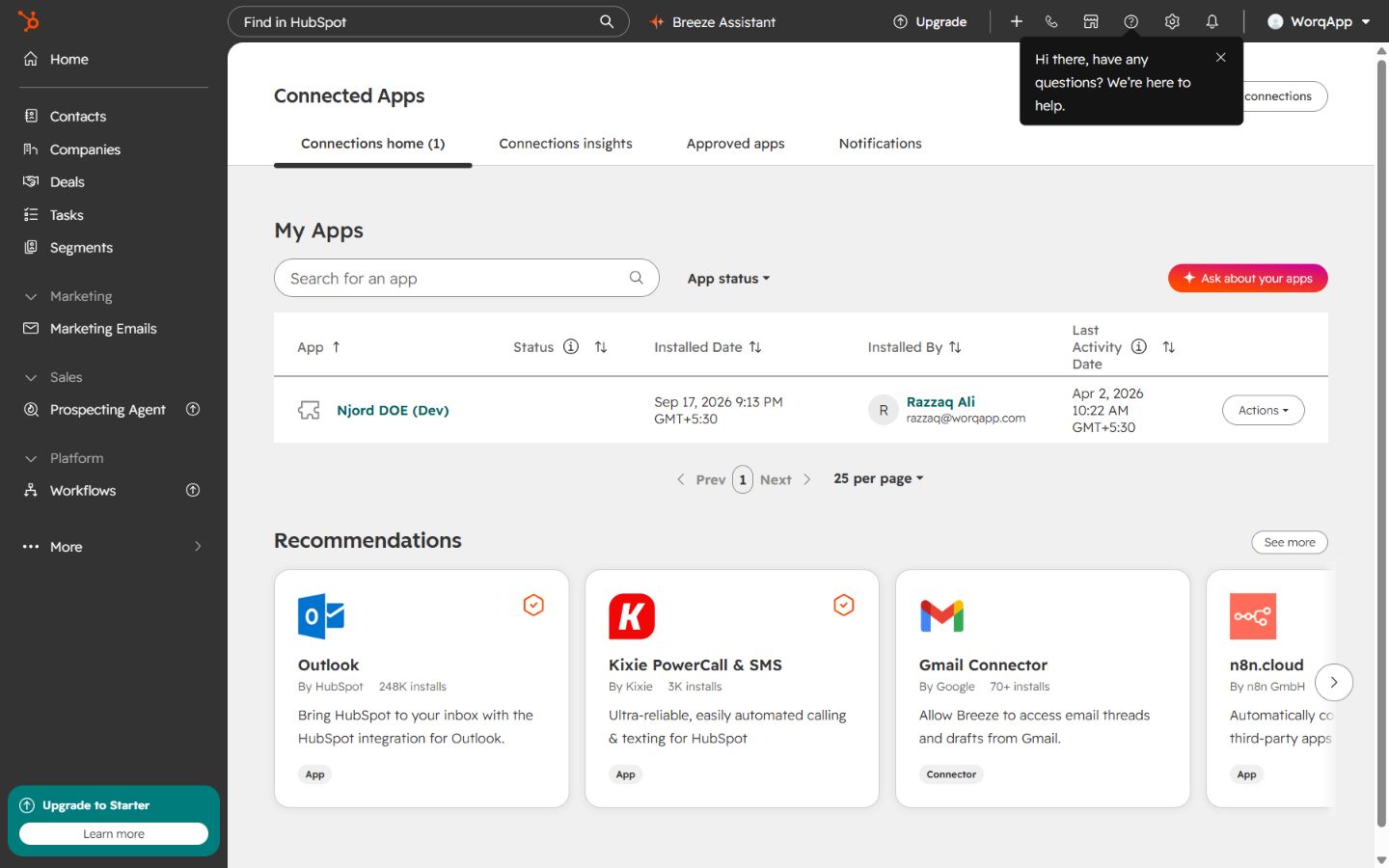
HubSpot App Dashboard
Use the HubSpot app dashboard when you want to confirm that the Njord DOE app is installed in HubSpot and review the access HubSpot granted to the app. This is the HubSpot-side dashboard. For DOE-side sync health, mapped counts, re-run mapping, reset authentication, and uninstall, use Settings > Integrations > HubSpot > View Details inside DOE.
Open Connected Apps
- Open HubSpot.
- Select the settings icon in the top navigation.
- In the settings sidebar, expand Integrations.
- Open Connected Apps.
- Find Njord DOE in My Apps.
- Open the app row to view its details.
Image guide: Connected Apps is where HubSpot lists installed apps. The My Apps table shows Njord DOE, its installed date, who installed it, and the last activity date. Use this screen first when a user asks whether the app is installed in HubSpot.
Read The App Overview
Open the Njord DOE row from Connected Apps. The overview page confirms the app name, HubSpot account, app owner, who installed it, installed date, app type, and available app actions.
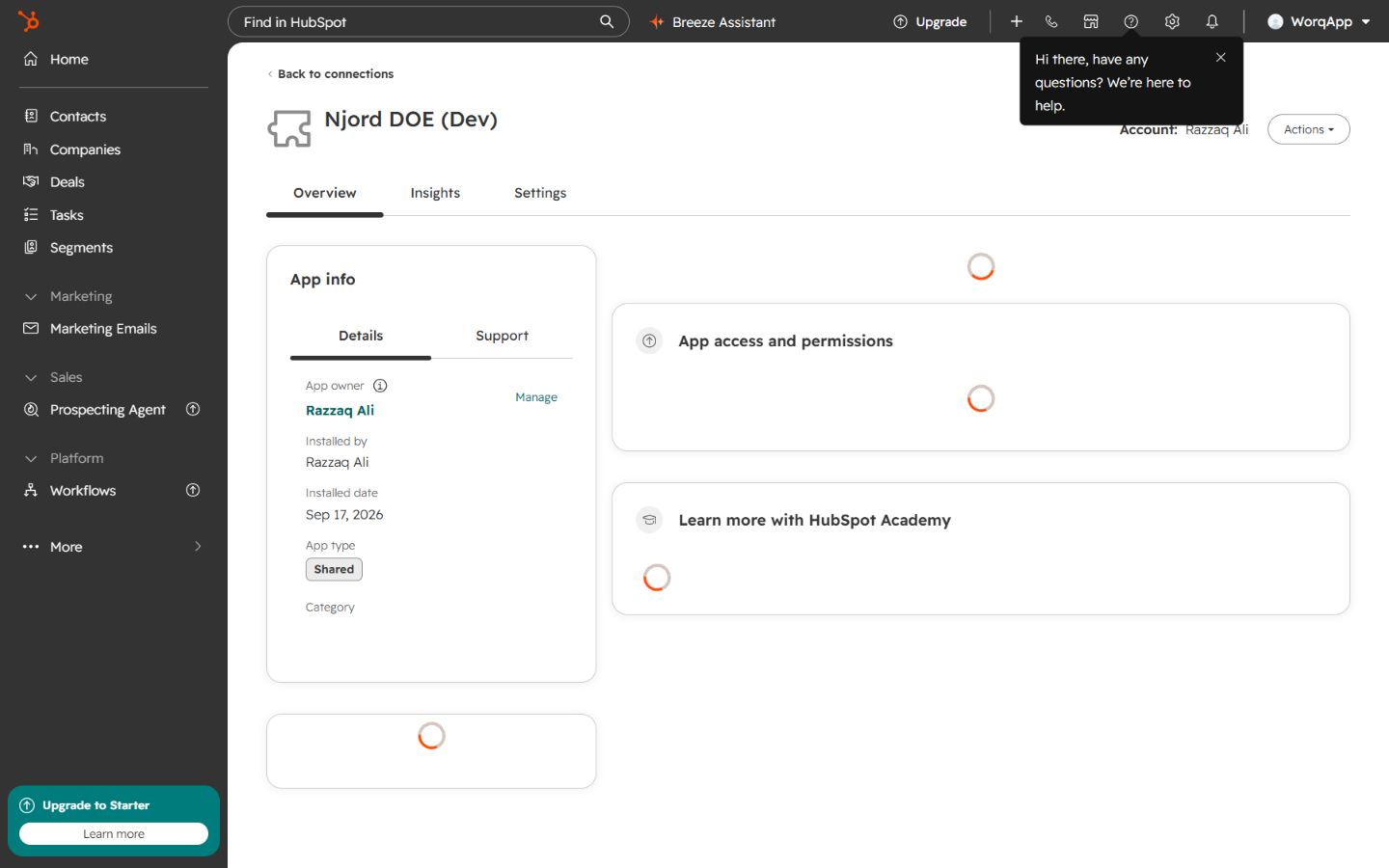
Image guide: The app overview is the best place to confirm that the user is looking at the correct installed app and the correct HubSpot account. Use the Actions menu only when you intentionally need to manage the app.
Review Granted Permissions
Open Granted HubSpot permissions on the app overview page. This section explains what HubSpot allowed the Njord DOE app to read or update.
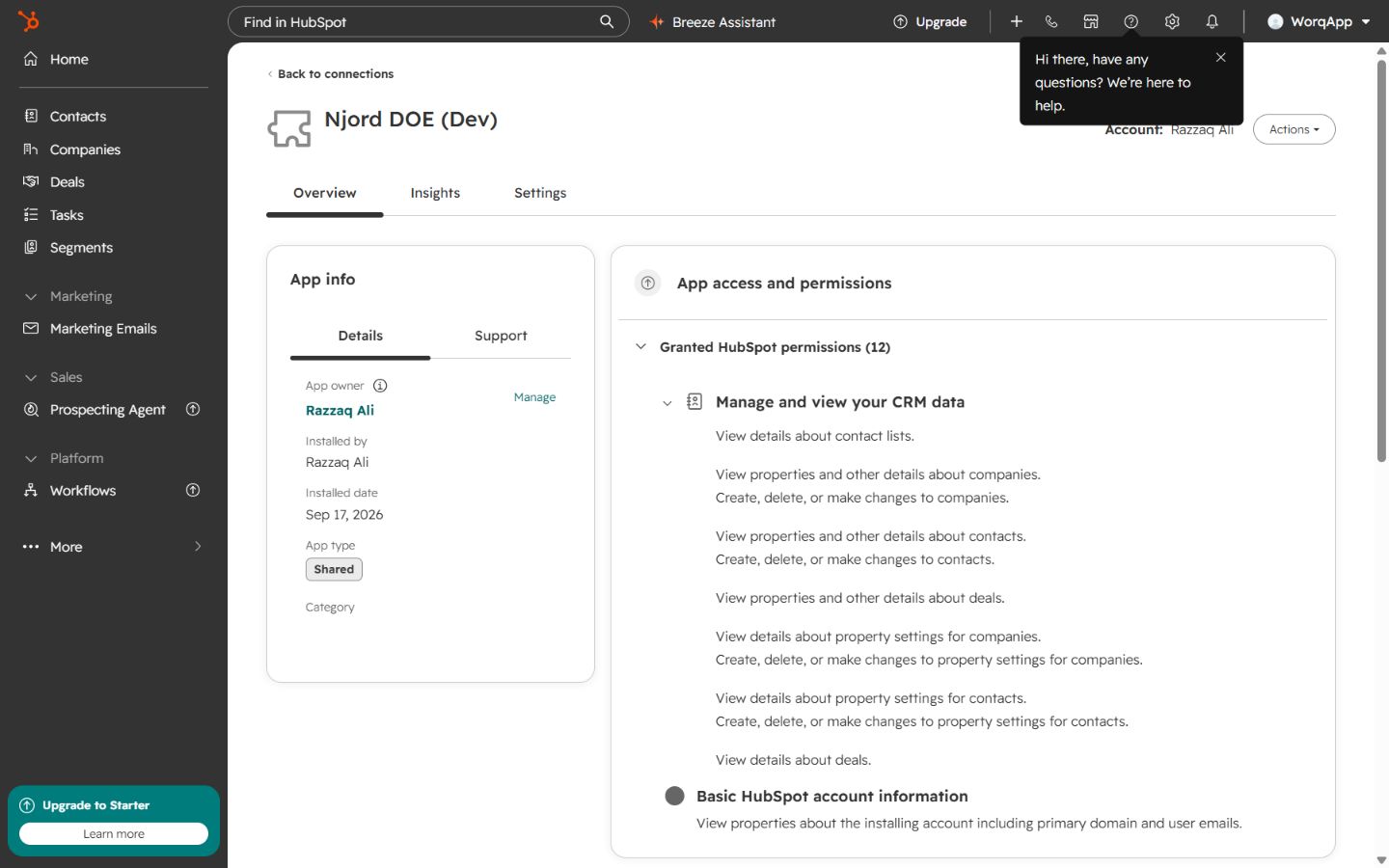
Image guide: The permissions section shows access for CRM objects and account information. Use this screen when a user asks why DOE can read or update supported companies, contacts, property settings, and basic HubSpot account information.
How To Read This Page
Use these checks when reviewing the app dashboard:
- App name: confirm the app is Njord DOE or the expected DOE app name for the environment.
- Account: confirm the installed account is the HubSpot account the team uses.
- Installed by: confirm who approved the app connection.
- Installed date: use this to understand when the HubSpot-side install happened.
- Permissions: expand the permissions section to confirm HubSpot granted access to the objects DOE needs.
If the app is missing from Connected Apps, return to DOE and reconnect HubSpot from Settings > Integrations > HubSpot.