DOE Custom Properties
DOE Custom Properties
DOE creates a HubSpot property group called DOE Properties. These are normal HubSpot custom properties, so your team can add them to record views, saved views, list filters, reports, dashboards, and workflows.
Company Properties
| Company property | Meaning |
|---|---|
| DOE media last sync date | When DOE last synced media data. |
| DOE media clicks total | Total DOE-tracked clicks for the company. |
| DOE media impressions total | Total DOE-tracked impressions. |
| DOE media website visits total | Total matched website visits. |
| DOE PIF score | Product Interest Fit score, when available. |
| DOE PIF band | Product Interest Fit band, when available. |
| DOE account URL | Direct link back to the DOE account. |
| DOE media in targeting | Whether DOE sees the company in targeting. |
Contact Properties
| Contact property | Meaning |
|---|---|
| DOE media last sync date | When DOE last synced contact media data. |
| DOE media clicks total | Total DOE-tracked clicks for the contact. |
| DOE media impressions total | Total DOE-tracked impressions. |
| DOE media last ad click date | Most recent tracked ad click date. |
| DOE media last ad click title | Most recent tracked ad title. |
| DOE media last URL clicked | Most recent clicked URL, when available. |
| DOE media clicks history CSV | Recent click history, when available. |
| DOE stakeholder URL | Direct link back to the DOE stakeholder. |
| DOE media in targeting | Whether DOE sees the person in targeting. |
Open Record Customization
Use record customization when DOE properties exist but users do not see them on the HubSpot record page.
For Contacts:
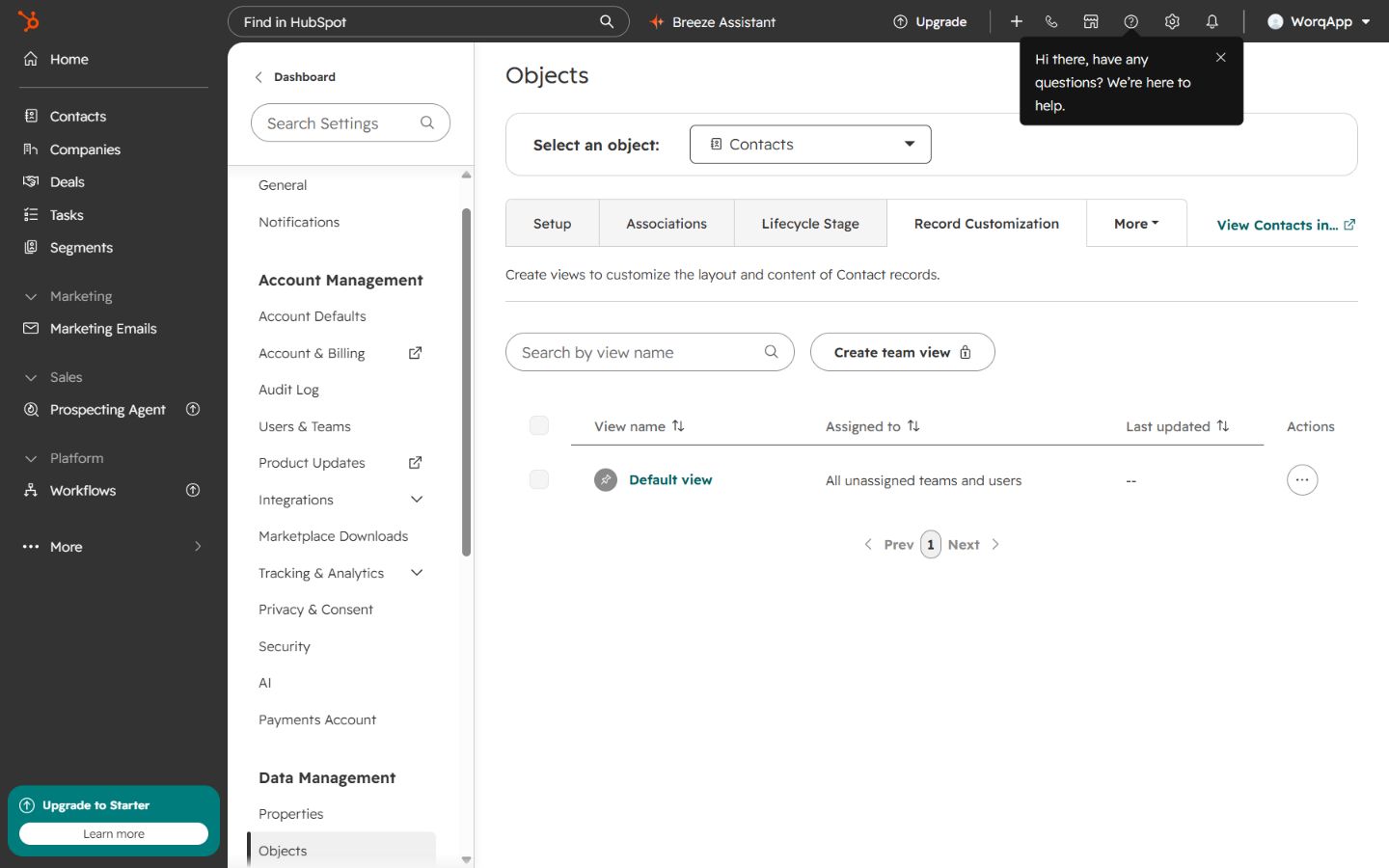
- Open HubSpot settings.
- Go to Data Management > Objects.
- Choose Contacts in Select an object.
- Open Record Customization.
- Open the record view your team uses, such as Default view.
Image guide: Contact record customization lists the available Contact record views. Open Default view or the team view that your users see in HubSpot.
For Companies:
- Stay in Data Management > Objects.
- Change Select an object to Companies.
- Open Record Customization.
- Open the record view your team uses.
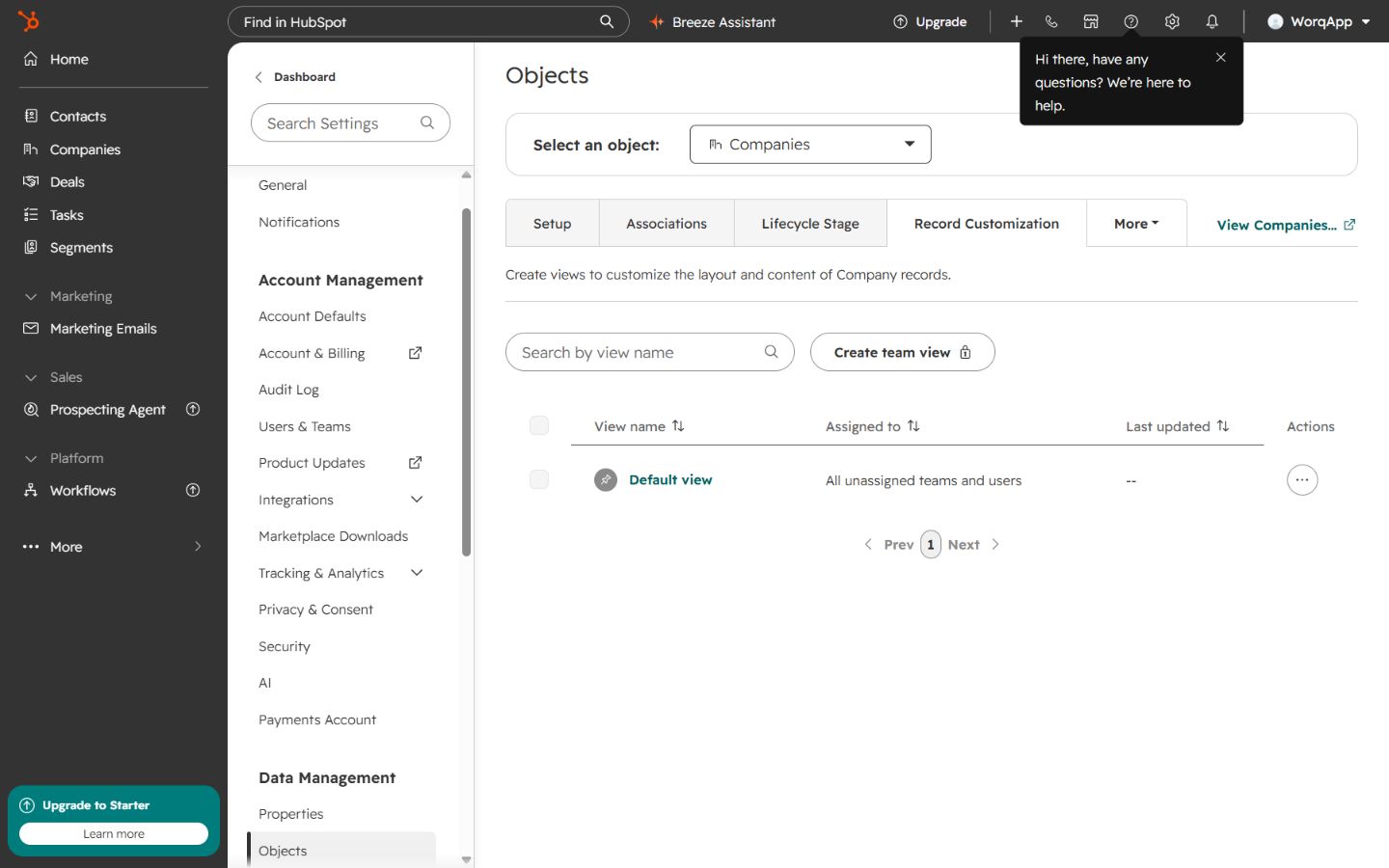
Image guide: Company record customization works the same way as Contacts. The object selector controls whether you are editing Company or Contact record pages.
Add DOE Properties To A Record View
After opening the record view editor, choose where DOE fields should appear. Most teams add DOE fields to an existing profile card or a dedicated property-list card.
- Open the view editor.
- Find the card that should contain DOE fields, such as Key information, Contact profile, or Company profile.
- Select Edit card when you want to add properties to an existing card.
- Add the DOE properties your team needs.
- Save the view for the correct team or all users.
- Open a mapped record and confirm the values appear.
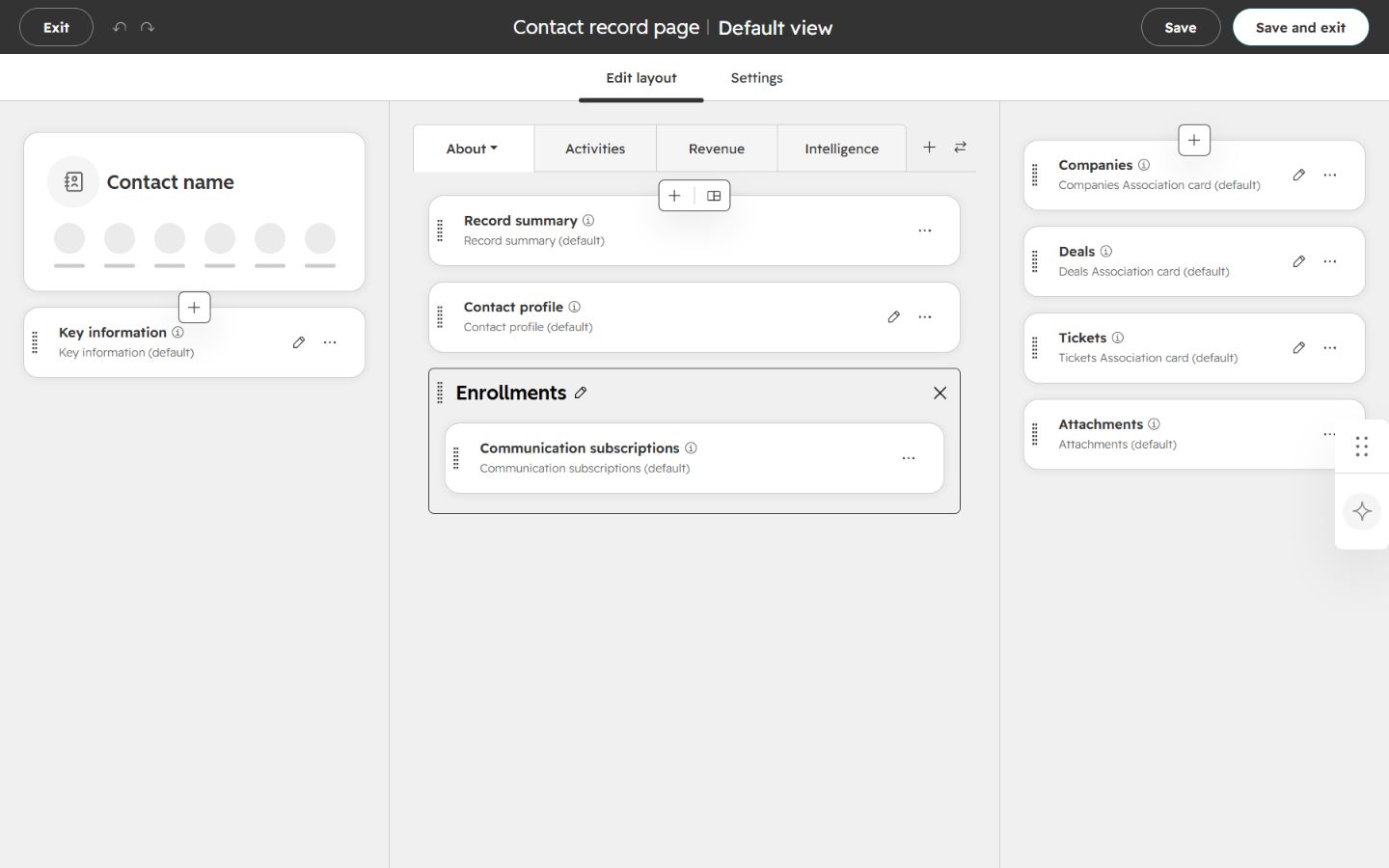
Image guide: The Contact record page editor shows the left sidebar, main tabs, and right association cards. Add contact-level DOE properties to the card where sellers expect to read contact context.
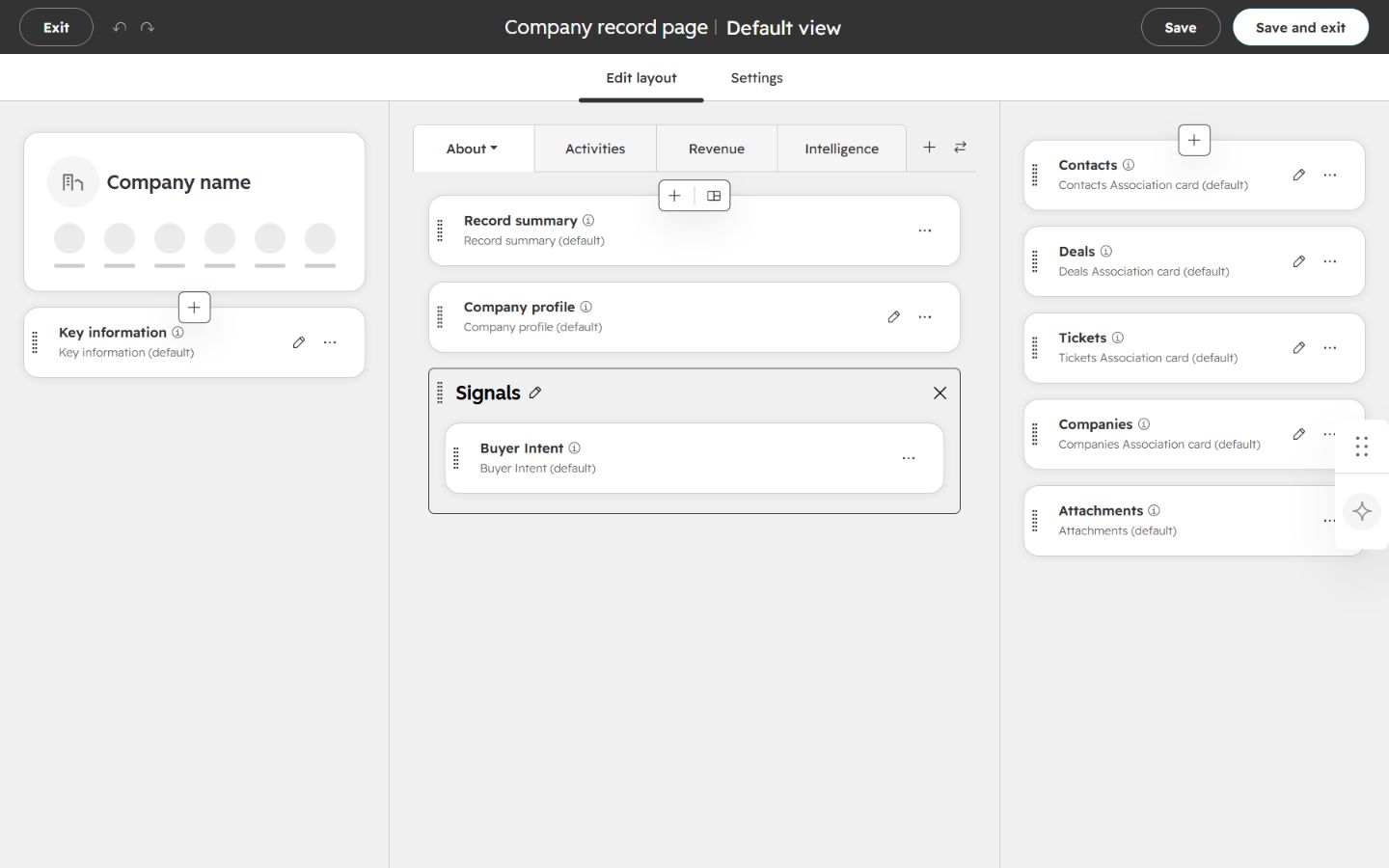
Image guide: The Company record page editor shows the same layout pattern for companies. Add account-level DOE properties to a company card such as Key information or Company profile.
Training video: Include custom DOE properties in an existing HubSpot card.
Confirm On A Record
Open a mapped Company or Contact record after saving the view. The record page is where users confirm that the DOE properties are visible in the expected card.
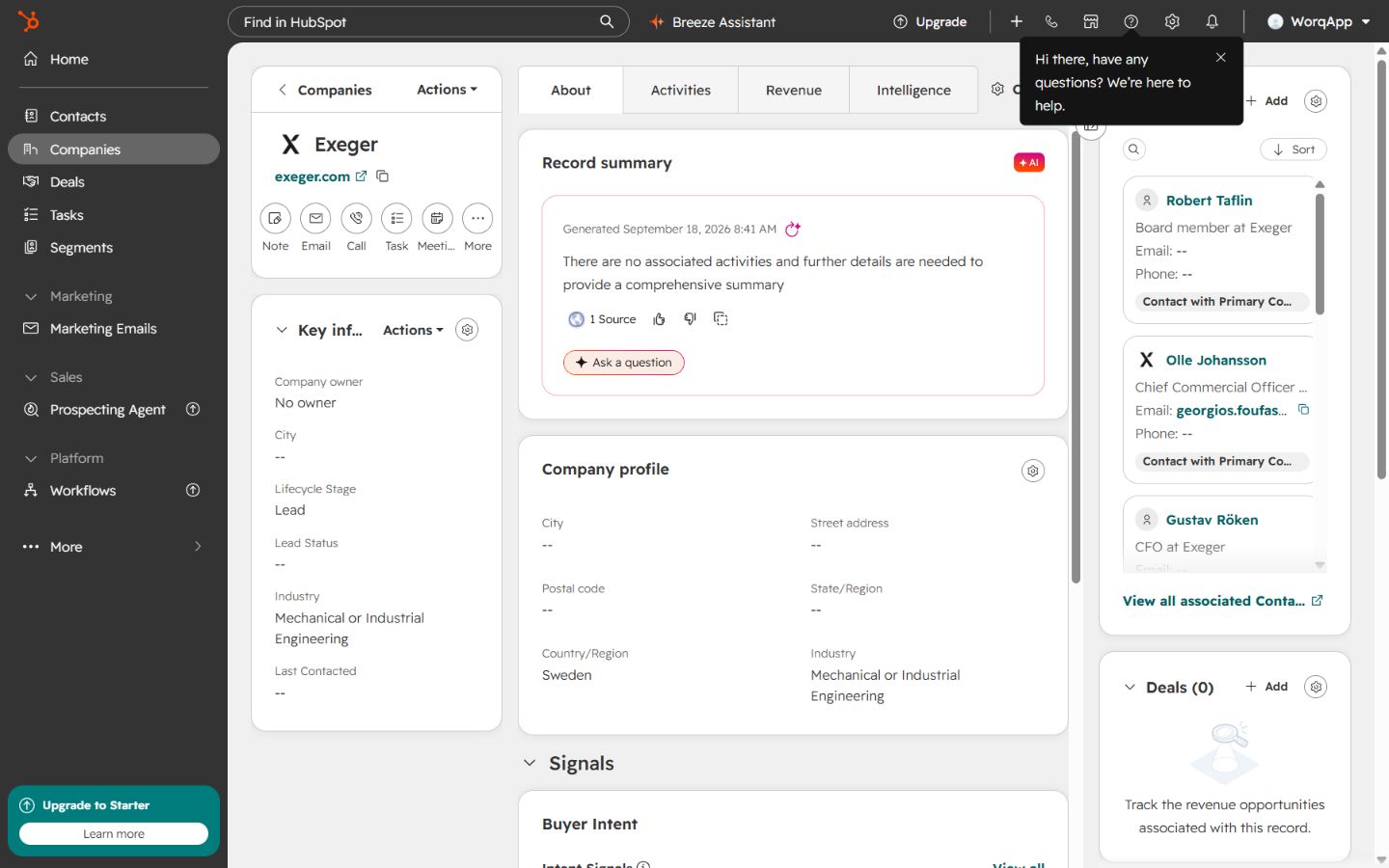
Image guide: A Company record shows the left summary area, main record tabs, and right association cards. This is where company-level DOE properties become visible after the layout is saved.
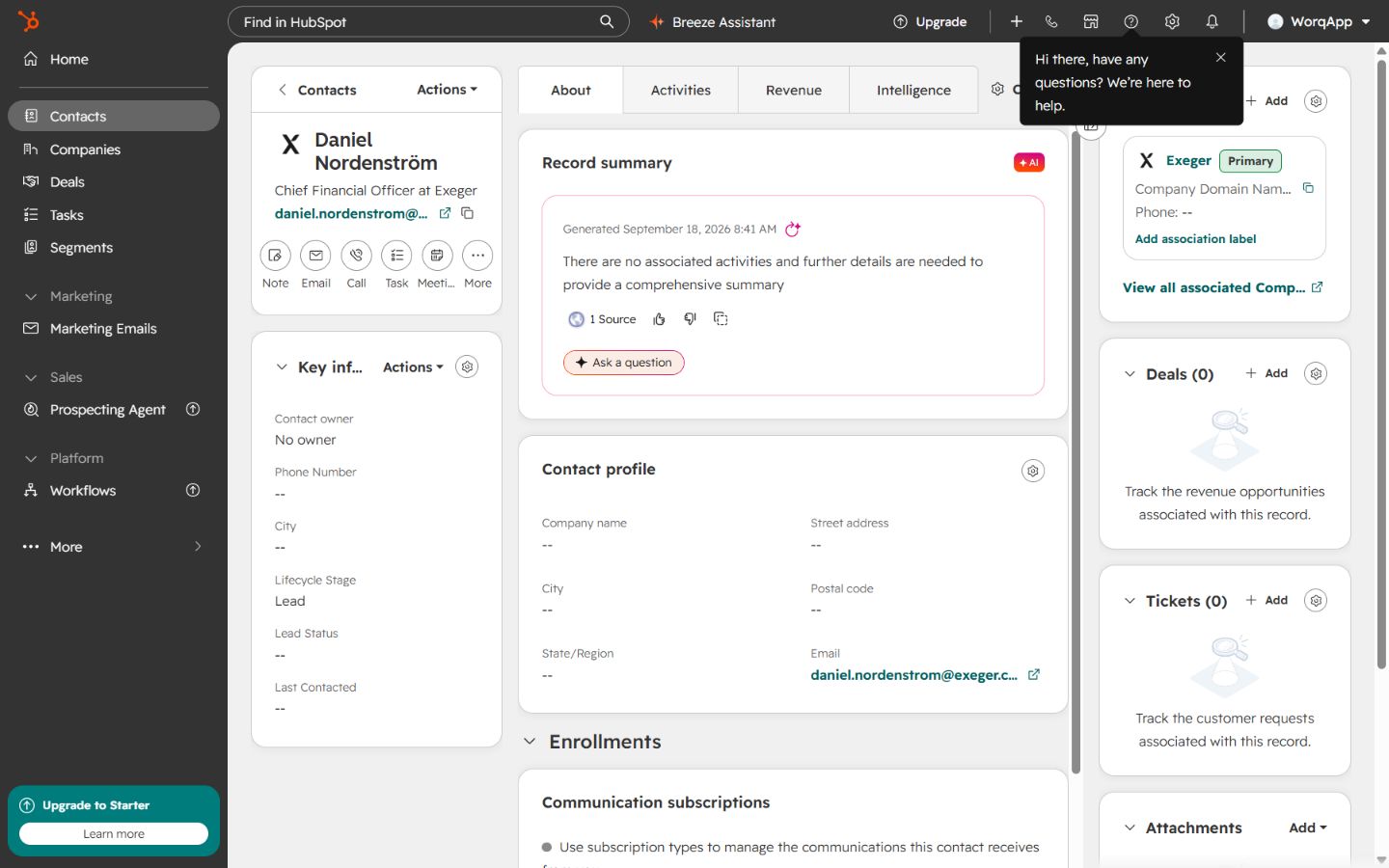
Image guide: A Contact record uses the same pattern for contact-level DOE properties. Users should check this screen after adding fields to confirm the view looks right.
When Values Are Empty
A DOE property can be empty when the record is not mapped, media sync has not run yet, the value is not available for that record, or the field was not included in the visible HubSpot layout.
Open Settings > Integrations > HubSpot > View Details in DOE to check mapped counts and media sync status before assuming the property is broken.