DOE Cards In HubSpot
DOE Cards In HubSpot
HubSpot can show a DOE Card on Company and Contact record sidebars. The card is display-focused: it shows DOE media insight and links back to DOE. The same data also remains available as HubSpot properties for reporting and workflows.
Add The Card
- Open HubSpot settings.
- Go to Data Management > Objects.
- Choose Contacts or Companies.
- Open Record Customization.
- Open the record view your team uses, such as Default view.
- Select Add card in the sidebar area where the DOE Card should appear.
- Open Card library.
- Search or filter for DOE Card.
- Add the DOE Card and save the view for the right team or all users.
- Open a mapped Company or Contact and confirm the card appears.
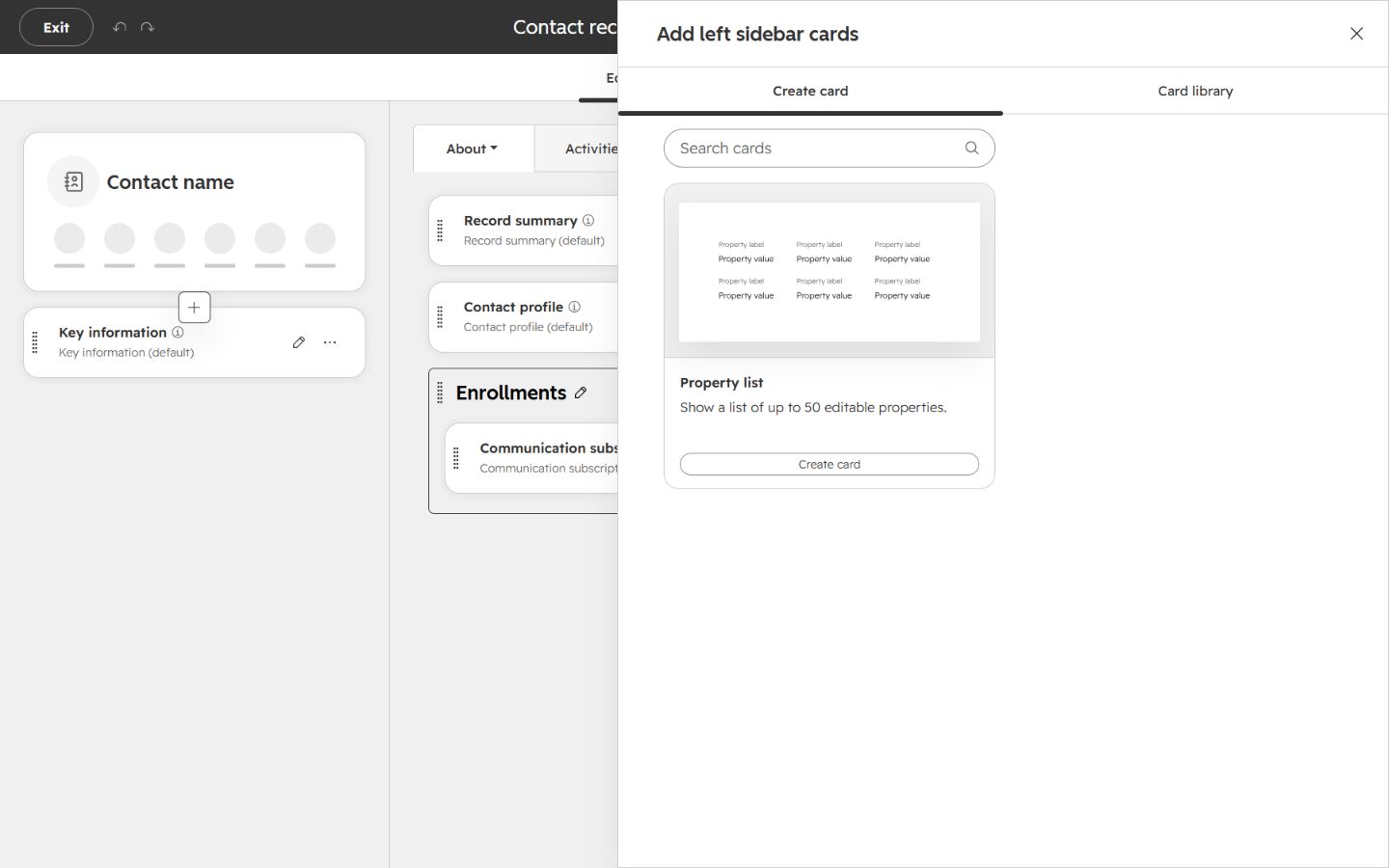
Image guide: Add card opens the panel for creating property-list cards or selecting cards from the library. Use this panel when you need to add a new area to the record page.
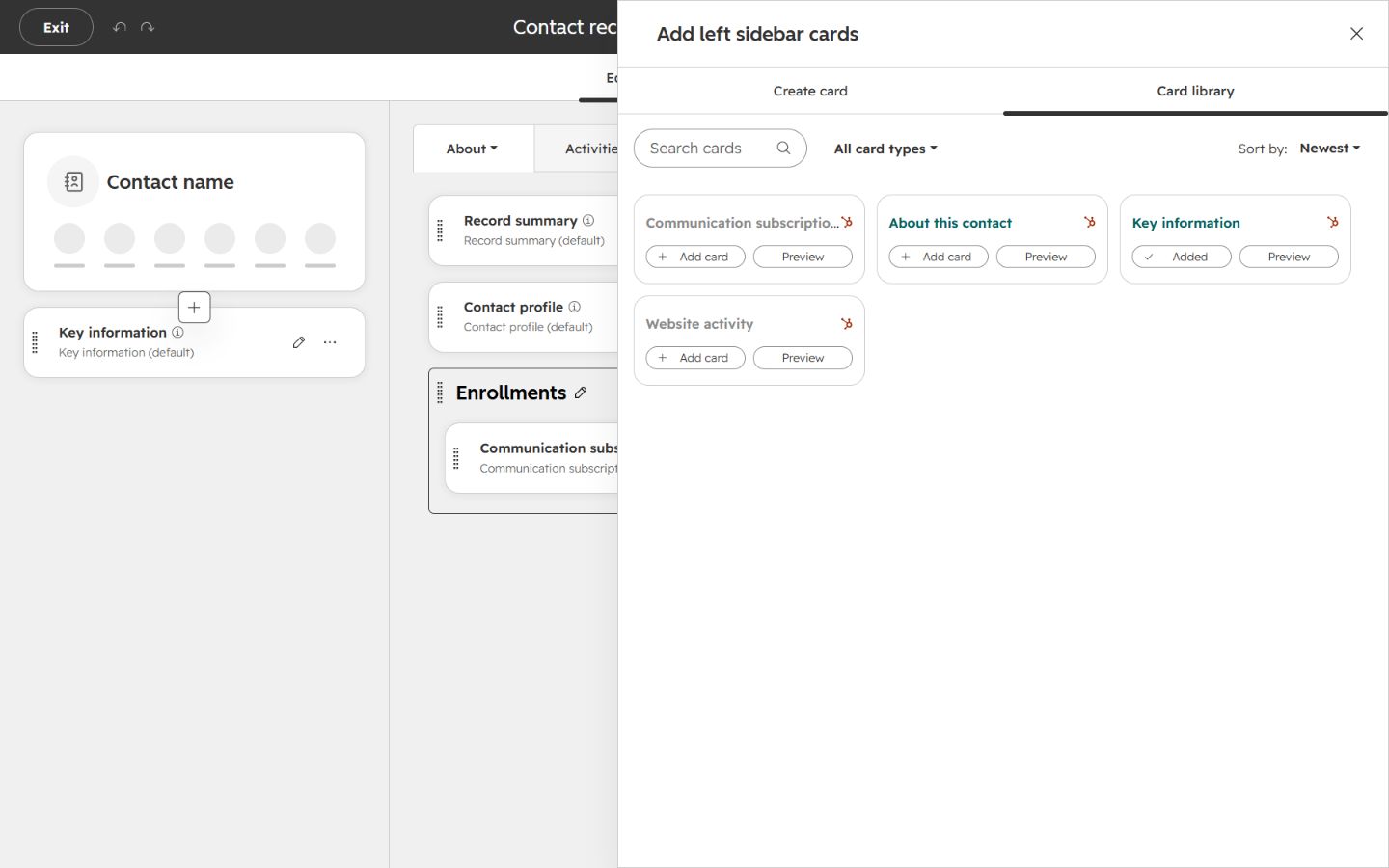
Image guide: The Card library is where app cards are selected before saving the record view. Search for DOE Card. If the DOE Card is not listed, confirm that the Njord DOE app is installed and that the app package includes the card for that object.
Training video: Add the DOE Card in HubSpot Company and Contact views.
Company Card
Company cards can show PIF, clicks, impressions, website visits, targeting status, last sync, and a See in DOE link.
Use the Company card when account teams want quick account-level media context without leaving HubSpot.
Contact Card
Contact cards can show recent ad clicks, last clicked URL, targeting status, last sync, and a See in DOE link.
Use the Contact card when sellers or account teams want to understand what a stakeholder recently engaged with before outreach.
If The Card Does Not Show
Check these items in order:
- Connected Apps: confirm Njord DOE is installed in HubSpot.
- Object: confirm you are editing the correct object, either Contacts or Companies.
- View: confirm you are editing the view used by the affected team.
- Card library: search for DOE Card in the card library.
- Record mapping: confirm the Company or Contact is mapped to DOE.
- DOE sync: check media sync status from View Details in DOE.
If the card appears but values are empty, the layout is probably correct and the next thing to check is record mapping or media sync status.
Properties Versus Cards
Use custom properties for filtering, lists, reports, workflows, and saved views. Use DOE cards for readable record context and the direct See in DOE link.